
MacBook Hardware Explained: Air vs Pro Chips, RAM, Performance & Complete Buying Guide (2026)
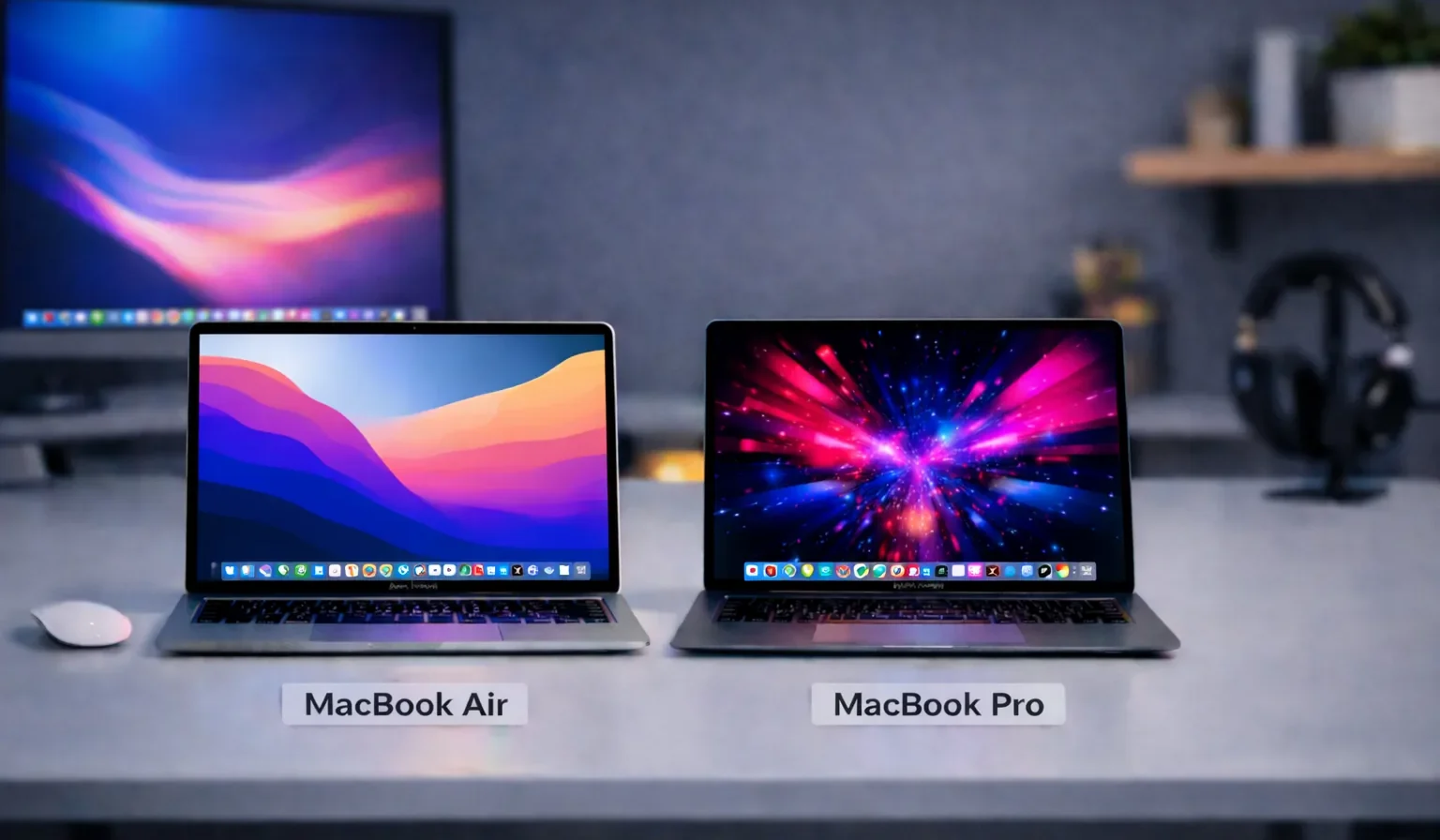
Understanding the differences between modern MacBook models in 2026 can feel confusing. With multiple chip generations, performance tiers, and configuration options, it’s not always obvious which model is the right fit.
This guide explains the MacBook lineup clearly and systematically — from Apple Silicon generations to real-world performance — so you can make an informed decision based on how you actually work.
If you’re specifically comparing MacBook Air and MacBook Pro, you can also explore the dedicated Air vs Pro comparison guide.

MacBook Models Compared (Quick Overview)
| Model | Screen | Chip Options | GPU Range | Maximum Unified Memory | Best For |
|---|---|---|---|---|---|
| MacBook Air 13″ | 13.6″ Liquid Retina | M5 | Up to 10-core GPU | Up to 32GB | Students, portability, everyday work |
| MacBook Air 15″ | 15.3″ Liquid Retina | M5 | Up to 10-core GPU | Up to 32GB | Large screen with Air portability |
| MacBook Pro 14″ | 14.2″ Liquid Retina XDR | M5 / M5 Pro / M5 Max | Up to 40-core GPU | Up to 128GB | Professional workloads, creators |
| MacBook Pro 16″ | 16.2″ Liquid Retina XDR | M5 Pro / M5 Max | Up to 40-core GPU | Up to 128GB | Heavy professional workflows |
MacBook Air 13″ is usually the best choice because it is lightweight, silent (fanless), and powerful enough for most productivity tasks.
MacBook Air 15″ offers the same portability and efficiency as the 13″ model but with more screen space.
MacBook Pro 14″ provides significantly higher performance options with M5 Pro and M5 Max chips, making it ideal for video editing, design, and development.
MacBook Pro 16″ is designed for the heaviest professional workloads and offers the largest battery and cooling system.
What You’ll Learn in This Guide
Modern MacBooks use several technologies that work together to deliver performance, efficiency, and long battery life. Understanding these components makes it much easier to choose the right MacBook configuration.
In this guide, we’ll break down the most important parts of a MacBook in simple terms:
🧠 CPU — the main processor that runs applications and system tasks
🎨 GPU — the graphics processor responsible for visual workloads
⚡ Apple Silicon — the architecture that combines these components into one highly efficient chip
🧩 Unified Memory — Apple’s shared memory system used by the entire chip
💾 Storage — where your files, apps, and projects are stored long-term
By the end of this guide, you’ll understand how these pieces work together — and how they affect real-world performance, battery life, and long-term usability.
MacBook Lineup Overview
How Many MacBook Models Are There?
| Model | Screen Size | Chip Options | Best For |
|---|---|---|---|
| MacBook Neo | 13″ | A18 Pro | Students • Basic productivity • Budget buyers |
| MacBook Air | 13″ / 15″ | M-series | Students • Everyday users • Travel |
| MacBook Pro | 14″ / 16″ | Pro / Max | Creators • Developers • Power users |
Apple currently offers three distinct MacBook options: the MacBook Neo, MacBook Air, and MacBook Pro.
The MacBook Neo serves as Apple’s newest entry-level model, while the MacBook Air remains the mainstream choice for most users and the MacBook Pro targets demanding professional workloads.
Rather than focusing on every possible configuration, it’s more helpful to understand where each model fits within Apple’s broader lineup and the type of user it was designed for.
Where Do MacBooks Fit Among Different Laptop Types?
It's also important to understand that laptops are typically divided into different categories based on the type of user they're designed for.
Across the wider laptop market, you'll find categories such as budget laptops, travel laptops, business laptops, ultrabooks, creator laptops, workstation laptops, gaming laptops, and desktop replacements. Each category prioritizes different features, whether that's affordability, portability, battery life, performance, upgradeability, or specialized workloads.
What makes Apple's lineup interesting is that it covers many of these categories with just three core products.
💻 MacBook Neo fills the budget and entry-level category, giving buyers an affordable way to enter the macOS ecosystem.
✈️ MacBook Air overlaps with the travel laptop, ultrabook, and business laptop categories thanks to its portability, battery life, and everyday performance.
🚀 MacBook Pro extends into the creator laptop, workstation, desktop replacement, and professional productivity categories while still remaining portable enough for travel and business use.
As a result, Apple's relatively small lineup can satisfy the needs of a large percentage of laptop buyers without requiring dozens of different product families.
If you'd like a deeper understanding of how these categories differ and who they're designed for, read our guide on the different types of laptops explained. It breaks down the major laptop categories, explains who they're designed for, and helps you understand why two laptops that look similar can deliver very different experiences.
Current MacBook Models Explained
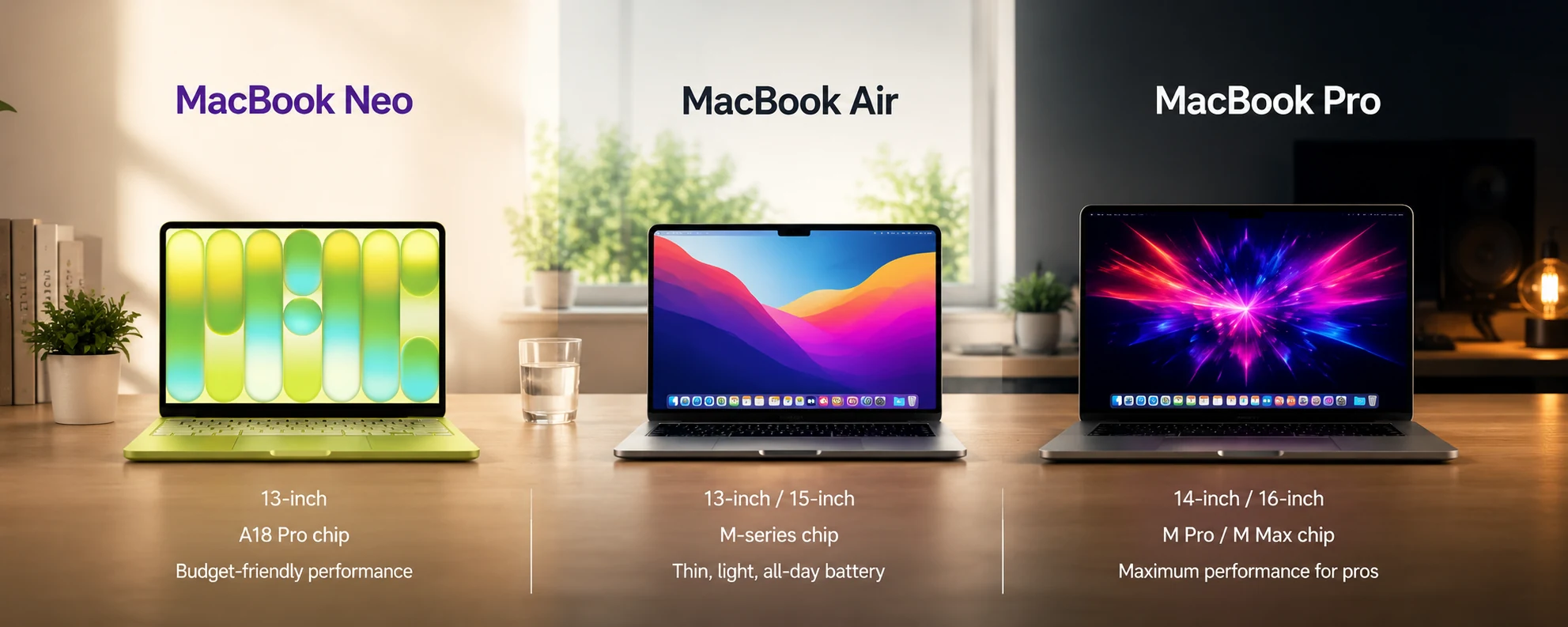
Although the lineup may appear straightforward, each MacBook serves a different position within Apple’s notebook range.
The MacBook Neo occupies the entry-level tier and is designed for users who want the lowest-cost path into the macOS ecosystem.
The MacBook Air sits in the middle of the lineup and remains the best choice for most users, balancing portability, battery life, and performance.
The MacBook Pro represents Apple’s high-performance notebook range and is designed for creators, developers, and demanding professional workloads.
Together, these three models create a tiered lineup that ranges from affordability to maximum performance.
The detailed differences in performance, cooling, display capability, and long-term ownership are explored in the sections that follow.
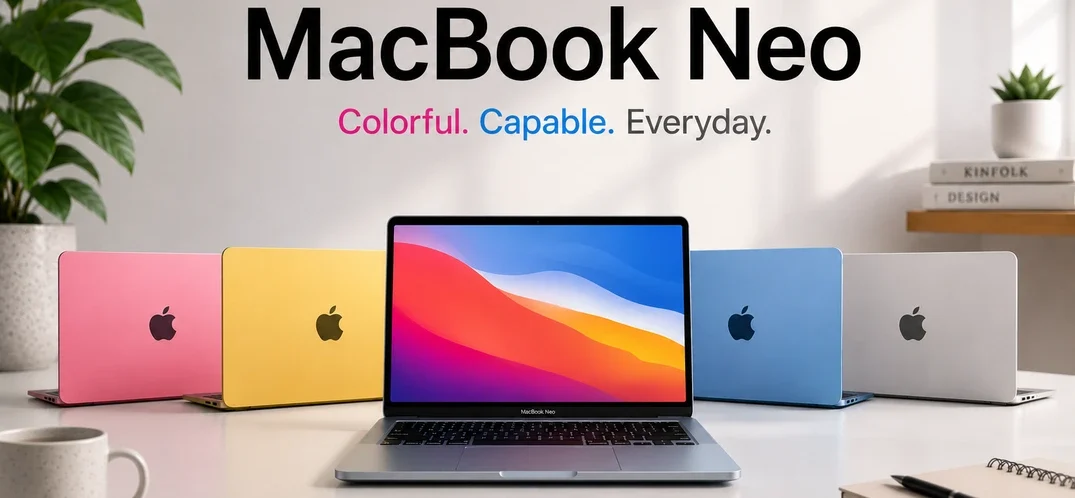
How Many MacBook Neo Models Are There?
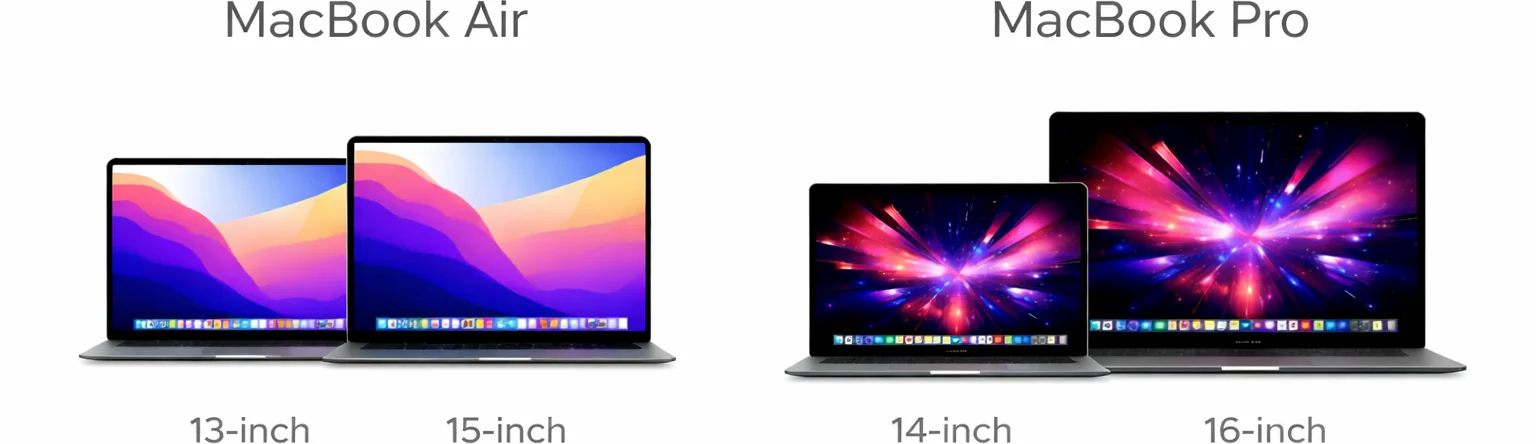
How Many MacBook Air Models Are There?
How Many MacBook Pro Models Are There?
Where Does the MacBook Neo Fit?
For many years, Apple’s laptop lineup was relatively simple. Buyers typically chose between the MacBook Air and the MacBook Pro, with the Air serving as the mainstream option and the Pro targeting users who needed additional performance and professional features.
That changed in March 2026 when Apple introduced the MacBook Neo, creating a new entry point into the MacBook ecosystem.
Rather than replacing the MacBook Air, the Neo sits below it in Apple’s lineup. It is designed for users who want access to macOS, excellent battery life, and the overall MacBook experience at the lowest possible price.
This makes the MacBook lineup easier to understand when viewed as three distinct tiers:
💻 MacBook Neo — Apple’s most affordable MacBook
✈️ MacBook Air — the best balance of portability, performance, and battery life for most users
🚀 MacBook Pro — Apple’s high-performance laptop range for creators, developers, and demanding professional workloads
The introduction of the Neo is significant because it represents the first major expansion of Apple’s notebook lineup in years. Instead of relying on an older-generation MacBook Air to serve budget-conscious buyers, Apple created a dedicated entry-level model designed specifically for students, casual users, first-time Mac buyers, and anyone looking for the lowest-cost path into the MacBook ecosystem.
One of the most interesting aspects of the MacBook Neo is the processor powering it. Unlike the MacBook Air and MacBook Pro, which use Apple’s M-series chips, the Neo is built around the Apple A18 Pro processor — the same chip architecture originally developed for the iPhone 16 Pro and iPhone 16 Pro Max.
This allows Apple to leverage a mature, highly efficient processor platform while delivering the battery life, responsiveness, and everyday performance that most entry-level laptop users actually need.
If you’d like a deeper look at the laptop itself, you can also read my MacBook Neo review, where I cover its performance, battery life, display quality, and long-term value in more detail.
MacBook Neo vs MacBook Air vs MacBook Pro
Although all three laptops run macOS and share Apple’s design philosophy, they target very different buyers.
The MacBook Neo focuses on affordability. It is designed for users who primarily browse the web, work with documents, attend online classes, stream media, and perform everyday productivity tasks. Its A18 Pro processor delivers excellent efficiency and responsiveness for these workloads while helping Apple offer a lower-priced MacBook than the Air.
The MacBook Air remains the mainstream recommendation for most buyers. It offers a more powerful M-series platform, larger configuration options, a more premium overall experience, and additional performance headroom for users who multitask heavily or plan to keep their laptop for many years.
The MacBook Pro targets an entirely different category of user. It adds active cooling, more powerful chip options, larger memory capacities, expanded connectivity, and significantly greater sustained performance for professional workloads such as video editing, software development, engineering applications, and content creation.
In practical terms, the choice often comes down to how demanding your workload is:
💻 MacBook Neo — best for budget-conscious buyers and everyday computing
✈️ MacBook Air — best for most students, remote workers, and general users
🚀 MacBook Pro — best for creators, developers, and professional workloads
As you move up the lineup, you gain additional performance, memory options, display capabilities, ports, and long-term flexibility—but you also move into higher price brackets.
Although all three laptops run macOS and share Apple’s design philosophy, they target very different buyers and occupy different positions within Apple’s lineup.
The MacBook Neo is Apple’s newest MacBook and was introduced in March 2026 as a dedicated entry-level model. Unlike the MacBook Air and MacBook Pro, which use Apple’s M-series processors, the Neo is powered by the Apple A18 Pro chip — a processor originally developed for the iPhone 16 Pro and iPhone 16 Pro Max.
By using the A18 Pro platform, Apple was able to create a lower-cost MacBook while still delivering the efficiency, battery life, and responsiveness that many everyday users expect from a modern laptop.
The Neo is designed primarily for:
🎓 Students with basic workloads
🌐 Web browsing and media consumption
📝 Document creation and office work
📧 Email and everyday productivity
It sits below the MacBook Air in both price and capability.
The MacBook Air remains Apple’s mainstream recommendation. It uses Apple’s M-series architecture, offers significantly more performance headroom, supports higher memory configurations, and is generally the better long-term investment for most users.
The MacBook Pro sits at the top of the lineup and is designed for users who regularly work with demanding professional applications. Active cooling, Pro and Max chip options, larger memory capacities, and expanded connectivity make it suitable for creators, developers, engineers, and advanced workflows.
In practical terms, the lineup now looks like this:
💻 MacBook Neo = lowest-cost entry point into macOS
✈️ MacBook Air = best balance of portability, performance, and long-term value
🚀 MacBook Pro = maximum performance and professional capability
As you move from Neo to Air to Pro, you gain additional performance, memory options, display technology, connectivity, and long-term flexibility — but you also move into higher price ranges.
If you’re considering Apple’s newest budget laptop, you can also read my MacBook Neo review for a deeper look at its performance, battery life, design, and long-term limitations.
| Model | Chip | Memory | Cooling | Best For |
|---|---|---|---|---|
| MacBook Neo | A18 Pro | 8GB | Fanless | Basic computing, students, budget buyers |
| MacBook Air | M5 | Up to 32GB | Fanless | Most users |
| MacBook Pro | M5 / M5 Pro / M5 Max | Up to 128GB | Active cooling | Professional workloads |
What Are the MacBook Neo Specifications?
Unlike the MacBook Air and MacBook Pro, which offer multiple screen sizes, chip configurations, and memory options, the MacBook Neo is designed around a much simpler philosophy.
Rather than providing extensive customization, Apple positions the Neo as a straightforward entry-level MacBook focused on affordability, simplicity, and everyday usability.
The current MacBook Neo configuration includes:
💻 13-inch display
📱 Apple A18 Pro processor
🧠 8GB unified memory
💾 SSD storage (configured at purchase)
🔇 Fanless cooling design
🍎 macOS operating system
🎨 Multiple color options
📌 MacBook Neo Specifications
| Feature | MacBook Neo |
|---|---|
| Display | 13-inch |
| Processor | Apple A18 Pro |
| Memory | 8GB Unified Memory |
| Storage | SSD Storage |
| Cooling | Fanless |
| Operating System | macOS |
| Target User | Students, basic productivity, everyday computing |
One of the most unusual aspects of the MacBook Neo is the processor. While the rest of Apple’s current MacBook lineup uses M-series chips, the Neo uses the A18 Pro processor.
This makes the Neo fundamentally different from both the MacBook Air and MacBook Pro, which are built around Apple’s laptop-focused silicon platform.
The simplified hardware approach allows Apple to reduce costs while still delivering the battery life, responsiveness, and user experience many buyers expect from a modern MacBook.
However, the simplified configuration also introduces limitations. Unlike the MacBook Air and MacBook Pro, the Neo does not offer higher memory options, and its fixed 8GB unified memory configuration becomes one of the most important factors buyers should consider before purchasing.
Why Does the MacBook Neo Use the A18 Pro Chip?
One of the most interesting aspects of the MacBook Neo is that it does not use an M-series processor.
Instead, Apple built the Neo around the A18 Pro chip — the same processor platform originally introduced in the iPhone 16 Pro and iPhone 16 Pro Max.
At first glance, this may seem unusual because modern MacBooks have become closely associated with Apple’s M-series chips. However, the A18 Pro and M-series processors share a common technological foundation and are both designed by Apple.
This allowed Apple to create a lower-cost MacBook without abandoning the efficiency advantages that have become a defining characteristic of Apple Silicon.
📱 The A18 Pro Originally Started in the iPhone
The A18 Pro was originally designed for Apple’s flagship smartphones.
It powers:
📱 iPhone 16 Pro
📱 iPhone 16 Pro Max
The chip was built to deliver strong performance while operating within the strict power and thermal limitations of a smartphone.
Because smartphones have far smaller batteries and cooling capacity than laptops, efficiency was a major priority during development.
As a result, the A18 Pro became one of Apple’s most power-efficient processors, making it a natural candidate for an entry-level laptop focused on battery life and everyday responsiveness.
⚡ Why Apple Could Use It in a Laptop
Although the A18 Pro was originally developed for mobile devices, modern Apple Silicon platforms share many underlying technologies and architectural principles.
The MacBook Neo gives Apple an opportunity to leverage a mature, high-volume processor platform while reducing manufacturing complexity and overall system cost.
For users, the practical result is simple:
🌐 Fast web browsing
📝 Responsive office work
📧 Smooth everyday productivity
🎬 Efficient media consumption
🔋 Excellent battery life
For these types of workloads, the Neo rarely feels slow because the A18 Pro is already far more powerful than most everyday computing tasks require.
🚀 Where It Differs From M-Series MacBooks
The difference appears when workloads become more demanding.
While the A18 Pro delivers excellent efficiency, it was not originally designed as a laptop-class performance platform.
Compared to modern M-series MacBooks, it provides:
⚠️ Less performance headroom
⚠️ Fewer options for memory expansion
⚠️ Reduced flexibility for demanding long-term workloads
⚠️ Lower sustained performance during heavier tasks
This is why the MacBook Neo is positioned below the MacBook Air rather than replacing it.
The Neo focuses on affordability and efficiency, while the Air and Pro remain the better choices for users who require additional performance, multitasking capability, or long-term flexibility.
In simple terms:
📱 A18 Pro = excellent for everyday computing
✈️ M-series Air = better for most users
🚀 M-series Pro = designed for demanding professional workloads
Who Should Buy the MacBook Neo?
The MacBook Neo is designed for a very specific type of buyer.
Rather than trying to compete with the MacBook Air or MacBook Pro on performance, Apple positioned the Neo as the most affordable way to enter the MacBook ecosystem.
The Neo makes the most sense for:
🎓 Students with light academic workloads
🌐 Users who primarily browse the web
📝 Document creation and office work
📧 Email and communication
🎬 Streaming and media consumption
🍎 Buyers who want macOS at the lowest possible price
For these workloads, the Neo feels responsive and capable. The A18 Pro processor provides more than enough performance for everyday computing, while the fanless design keeps the laptop completely silent during operation.
The Neo is particularly appealing to users who value:
🔋 Long battery life
🧳 Portability
🎨 Premium Apple design
💰 Lower upfront cost
If your computing needs are relatively simple and you mainly want access to the Apple ecosystem, the Neo can be a practical and affordable choice.
For a deeper look at everyday performance and long-term usability, you can also read my detailed MacBook Neo review.
Who Should Avoid the MacBook Neo?
While the MacBook Neo works well for basic computing, it is not the right choice for everyone.
In particular, buyers should think carefully about long-term needs before choosing the Neo over a MacBook Air.
You may be better served by a MacBook Air if you:
🔄 Frequently multitask with many applications open
💻 Write code or run development tools
🎨 Work with photo editing software
🎬 Edit video regularly
📈 Expect your workload to grow over the next several years
🧠 Want more than 8GB of unified memory
The fixed 8GB memory configuration is the biggest limitation of the Neo.
Unlike storage, which can be expanded externally later, memory cannot be upgraded after purchase. This means buyers are permanently limited to the configuration they choose on day one.
For many users, spending more on a MacBook Air provides:
🚀 Greater performance headroom
🧠 More memory options
⏳ Better long-term flexibility
🔄 Improved multitasking capability
Similarly, users with professional workloads should look toward the MacBook Pro lineup, which offers active cooling, higher-performance chip options, larger memory capacities, and substantially greater sustained performance.
In simple terms:
💻 Choose Neo if your needs are basic.
✈️ Choose Air if you want the best overall balance.
🚀 Choose Pro if your work demands maximum performance.
For most buyers planning to keep a laptop for several years, the MacBook Air remains the strongest overall recommendation in Apple’s lineup.
The MacBook Neo is an important addition to Apple’s laptop lineup because it introduces a dedicated budget-focused MacBook for the first time in many years.
However, the Neo occupies a unique position within Apple’s notebook range. Unlike the MacBook Air and MacBook Pro, which have evolved through multiple generations and years of development, the MacBook Neo was only introduced in March 2026 and currently exists as a single entry-level model.
As a result, the Neo does not have an extensive historical lineup, previous generations, or older Neo models to compare against. Its role within the MacBook family is straightforward: provide the most affordable entry point into the macOS ecosystem.
Because of this, the remainder of this guide will focus primarily on the MacBook Air and MacBook Pro families. These are the product lines with the longest history, the widest range of configurations, and the most meaningful differences in chips, memory, displays, cooling systems, storage options, and long-term ownership considerations.
When discussing older MacBook models in the next section, we’re therefore referring to previous generations of MacBook Air and MacBook Pro devices rather than the MacBook Neo, which is still in its first generation.
Older MacBook Models (Brief Historical Context)
Although Apple no longer sells them directly, older MacBook models are still available through third-party retailers and refurbished marketplaces.
These typically include:
🖥️ Intel-based MacBooks
🧠 Early Apple Silicon models (M1 / M2)
They are often more affordable, but may have:
⏳ Shorter remaining software support timelines
📉 Lower overall performance compared to current models
🔄 Older architecture standards
For basic tasks, older models can still function well. However, this guide focuses on the current MacBook lineup to ensure long-term relevance and compatibility.
What This Means for You
Understanding the structure of the current lineup helps clarify what you are actually choosing between.
📏 Two MacBook families: Air and Pro
🖥️ Two primary screen sizes within each family
⚙️ Multiple configuration options within the same platform
Rather than viewing each configuration as a completely different model, it’s more accurate to see them as variations within a structured product range.
This foundation makes it easier to understand the deeper performance, cooling, display, and ownership differences explained in the sections that follow.

Before we look at each component individually, it helps to understand that modern MacBooks are built differently from many traditional laptops.
🍎 Apple designs its own chips — known as Apple Silicon — which combine the 🧠 CPU, 🎨 GPU, 🧩 memory, and other components into a single highly integrated system.
The sections below explain how each of these parts works and how they interact to shape real-world MacBook performance.
🔍 To understand what really separates these models, it helps to look at the core technologies inside every MacBook — starting with the processor that runs the system.
CPU Differences (Cores, Performance & Real-World Impact)
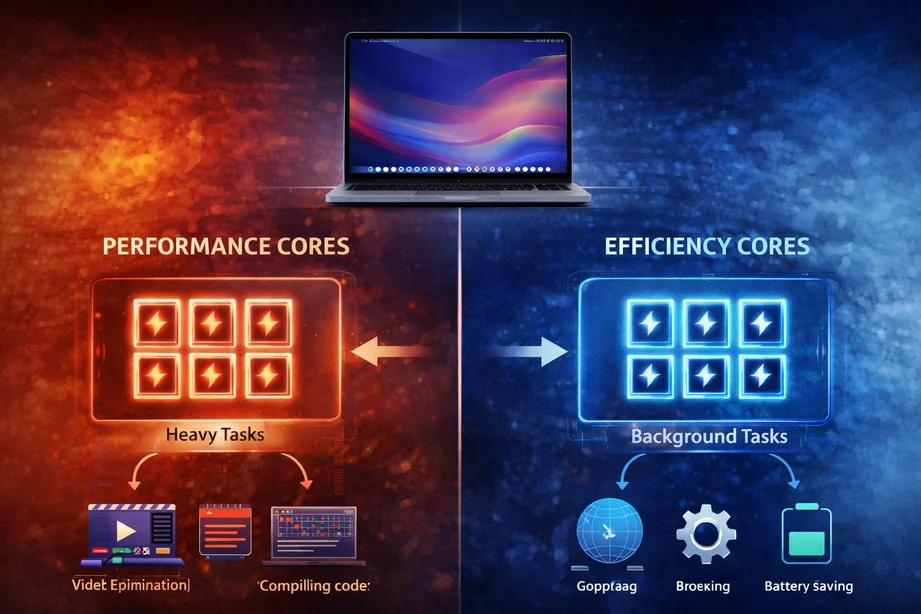
The CPU (Central Processing Unit) 🧠 is the core processing engine of your MacBook. It handles tasks such as launching applications, running macOS, compiling code, and executing complex calculations.
While generation and tier define the broader platform, the CPU configuration determines how quickly your system responds ⚡ and how efficiently it performs under heavier workloads.
If your MacBook were a school, the CPU would act like the principal who keeps everything running smoothly.
The principal decides what tasks need to be done and directs work to the right people so the entire school stays organized and productive.
Inside the school there are also many teachers running different classes at the same time. These represent the CPU cores.
Some teachers focus on demanding lessons that require a lot of attention, while others handle simpler tasks more efficiently. In the same way, modern CPUs use different types of cores so your MacBook can stay fast and responsive without wasting energy.
🧩 Cores vs Efficiency Cores
Apple’s M-series CPUs use a hybrid architecture. Instead of identical cores, they combine two different types:
This hybrid approach allows a MacBook to deliver high performance when needed while remaining highly efficient during everyday use.
🔢 How Core Counts Differ Between Base, Pro and Max
While all M-series chips use a mix of performance and efficiency cores, the number of each type increases as you move up the tiers.
⏱ Why Clock Speed Isn’t Everything
In the past, CPUs were often compared mainly by clock speed (GHz). With Apple Silicon, however, overall architecture and core design play an equally important role.
A newer-generation chip with lower GHz can outperform an older chip with higher clock speeds due to:
This is why comparing GHz numbers alone does not accurately reflect real-world MacBook performance.
Apple Silicon Explained: M-Series Chips and What They Mean for You
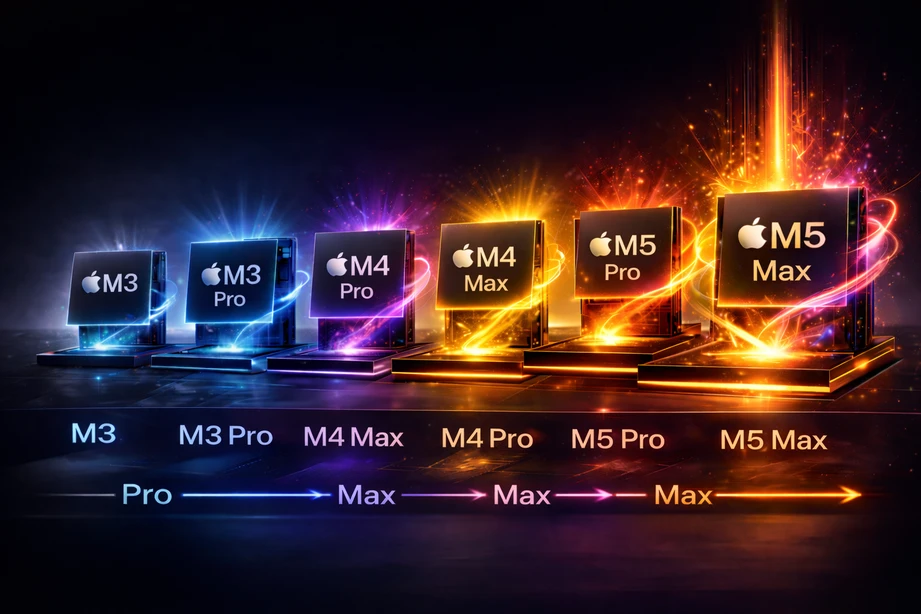
Apple’s M-series chips power every modern MacBook. These processors are part of Apple Silicon — Apple’s own custom-designed chip architecture that replaced the Intel processors used in older Macs.
Names like M1, M2, M3, M4, and M5 tell you two key things at a glance:
🧠 It’s Apple-designed silicon for Mac 🔢 It indicates the chip generation.
Each new generation typically improves core platform capabilities such as:
⚡ Performance per watt 🔋 Power efficiency 🚀 Processing capability 🔄 Platform refinements.
In simple terms:
🔢 A higher number (like M5) means a newer generation ⏳ A lower number (like M1) represents an earlier one.
Newer generations generally introduce architectural refinements and broader long-term platform support.
The M-Series Has Two Layers: Generation + Tier
Apple’s M-series naming system has two parts. The number (M1, M2, M3, M4, M5) represents the generation — how new the chip’s underlying architecture is. The label that follows (Base, Pro, or Max) represents the tier — how much performance you’re getting within that generation. In simple terms, the generation tells you how new the foundation is, while the tier tells you how powerful that specific version is.
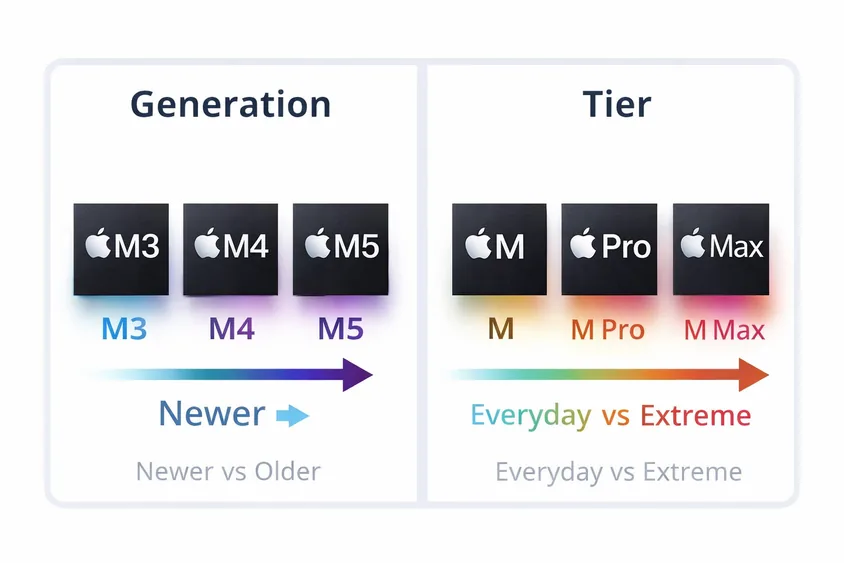
For example, a Pro or Max chip is not automatically newer than a base chip — it is a higher-performance tier within a given generation 🔢.
Likewise, a base chip from a newer generation may exist, but it is not automatically more powerful than an older Pro or Max tier 🚀. This distinction is important when comparing MacBooks across different years and configurations.
When evaluating a MacBook, you should always consider both layers together. The generation reflects how modern the platform is 🧱, while the tier determines how much sustained performance it can deliver under heavier workloads ⚡.
M4 vs M5:
What Actually Changes in Real-World Use
For everyday tasks — browsing, email, streaming, school, or office work — the difference between M4 and M5 is rarely noticeable 🔄. In most cases, choosing the right tier and sufficient memory has a greater impact than the generation alone.
Newer generations often look significantly faster on paper 📊, but in real-world use the differences usually appear during sustained workloads rather than short bursts of activity.
For typical productivity and light creative tasks, both M4 and M5 feel responsive and efficient.
Where M5 begins to show measurable advantages ⚡ is during longer, heavier workloads such as video rendering, large code compilation, advanced photo editing, or AI-assisted processing.
Improvements in efficiency and sustained performance help maintain higher speeds during extended sessions, though improvements between generations are typically incremental rather than dramatic.
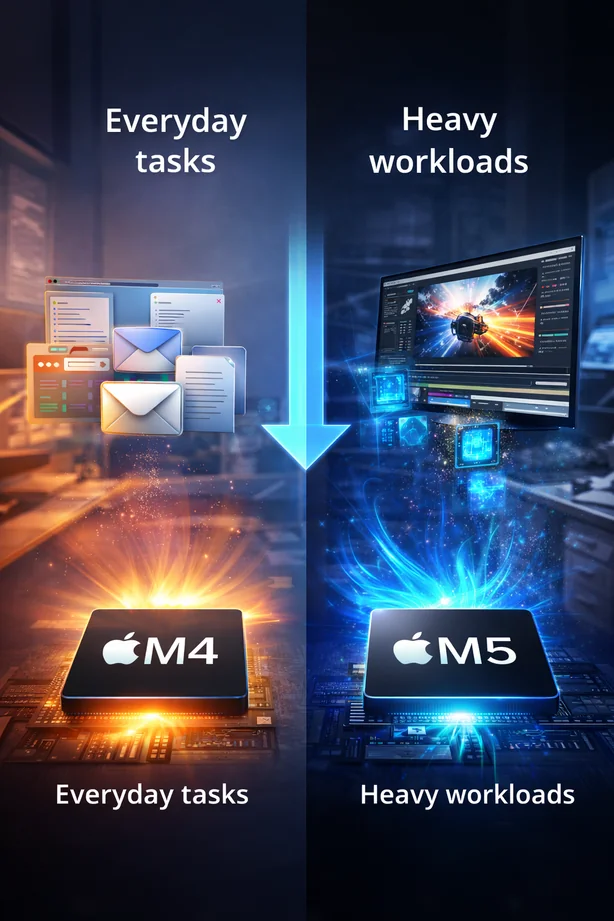
The key distinction remains simple:
Generation influences how modern and refined the platform is 🧩, while tier determines how much sustained performance the system can deliver 🚀.
🟢 Generation — How New It Is
🔵 Tier — How Powerful It Is
Chip Tiers Explained (Base vs Pro vs Max)
| Tier | Best For | Performance Level | Efficiency Focus | Typical Users |
|---|---|---|---|---|
🟢 Base
Base Chip |
Everyday productivity and light creative work | ⚡ Balanced | 🔋 Excellent efficiency | 🎓 Students, general users, office workflows |
🔵 Pro
Pro Chip |
Heavier multitasking and extended professional workloads | 🚀 High | ⚙️ Very good efficiency | 💻 Developers, creators, advanced productivity users |
🟣 Max
Max Chip |
Advanced creative, 3D, and compute-heavy workflows | 🔥 Very high | 🧠 Good under heavy load | 🎬 Video professionals, 3D artists, high-performance users |
While the generation tells you how new the underlying architecture is, the tier determines how much performance that chip delivers within the same generation.
Apple offers three primary tiers in MacBooks: Base, Pro, and Max. Each step up increases processing resources such as CPU cores, GPU cores, and memory bandwidth, allowing the system to handle heavier and more sustained workloads more effectively.
In simple terms:
🟢 The Base chip focuses on efficiency and fast everyday performance.
🔵 The Pro chip is designed for heavier, more consistent workloads.
🔴 The Max chip is built for users who regularly require the highest level of performance available in a MacBook.
Do You Need Pro or Max?
🟢 Choose the standard M-series (Base) chip if your day consists mainly of productivity, study, web tools, and light creative work.
🔵 Choose Pro if you multitask heavily, work with larger files, write code regularly, or rely on creative applications for extended sessions.
🔴 Choose Max if your work consistently involves advanced video production, 3D workflows, AI-assisted processing, or other highly demanding tasks.
The Max tier exists to support workloads that push CPU, GPU, and memory resources much further than typical everyday use.
For most users, however, the Base or Pro tier is already more than sufficient.
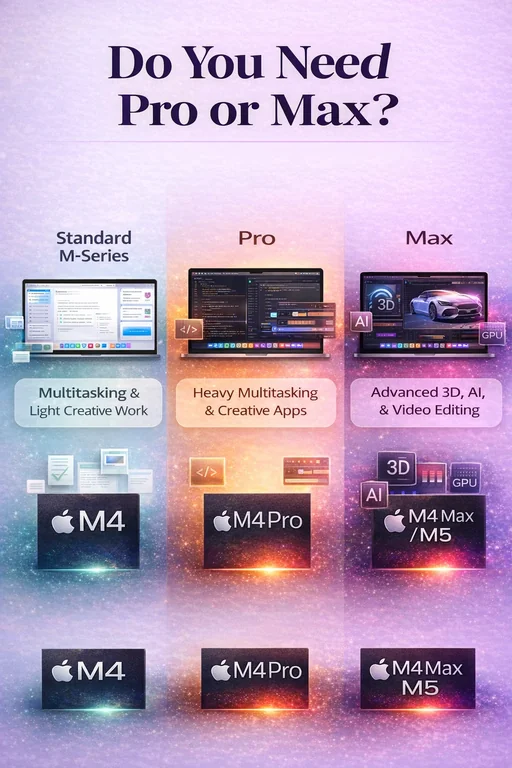
The naming is actually quite literal: base chips are designed for everyday users, Pro chips target professional workloads, and Max chips deliver maximum performance for the most demanding tasks.
CPU Clock Speeds by Chip Tier (current Generation)
🧠 Quick reality check — Apple doesn’t officially publish CPU clock speeds
⚙️ What the numbers mean — observed benchmark frequencies, not Apple spec-sheet numbers
🚀 Why Pro and Max feel faster — more performance cores, higher sustained power, more thermal headroom
📊 What the table will show — approximate frequencies + core layout across M5 tiers
🧠 Important note: Apple does not officially publish CPU clock speeds for Apple Silicon chips. In this section, the frequency figures are based on observed maximum frequencies from benchmark analysis, not Apple’s own spec sheets.
⚙️ Why that matters: With Apple Silicon, clock speed is only one part of performance. Real-world speed depends on a combination of performance cores, efficiency cores, power limits, and cooling, which is why Apple’s official specifications focus more on core layout and chip configuration than on GHz figures.
🚀 What this means in practice: Pro and Max chips are not just “faster clocks.” They also add more performance resources and more thermal headroom, which helps them hold higher performance for longer under sustained workloads. Observed benchmark reporting on M4-family chips supports that these differences are about more than one headline frequency number.
📊 What the table shows
The table below compares the M5 chip tiers by their approximate CPU frequencies and core layout. This makes it easier to see how the base M5, M5 Pro, and M5 Max differ in terms of raw CPU capability.
⚙️ What actually changes between tiers
Moving from the base chip to Pro and Max does not just increase clock speed. Each tier can also include:
• more performance cores for heavy tasks
• different efficiency core layouts for background work
• higher sustained power limits under load
🚀 Why this matters in real workloads
These differences explain why Pro and Max chips handle demanding workloads like video editing, compiling code, or large design projects more comfortably than the base chip — even when clock speeds appear similar.
| Chip Tier | Performance Cores | Efficiency Cores | Approx Max Clock | What This Means |
|---|---|---|---|---|
| M5 | 4 | 6 | ~4.5 GHz |
|
| M5 Pro | 8–10 | 4–6 | ~4.6 GHz |
|
| M5 Max | 12 | 4 | ~4.6 GHz |
|
What’s in MacBooks Right Now
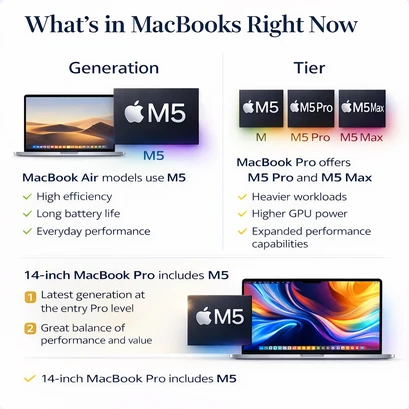
MacBook Air models use the Apple M5 chip 🧠, designed for strong efficiency and everyday performance.
MacBook Pro models offer higher-tier configurations, including M5 Pro and M5 Max 🚀, built for heavier workloads and expanded performance capabilities.
The base M5 chip 🔢 is also available in the 14-inch MacBook Pro, giving users access to the latest generation even in the entry Pro configuration.
GPU Differences
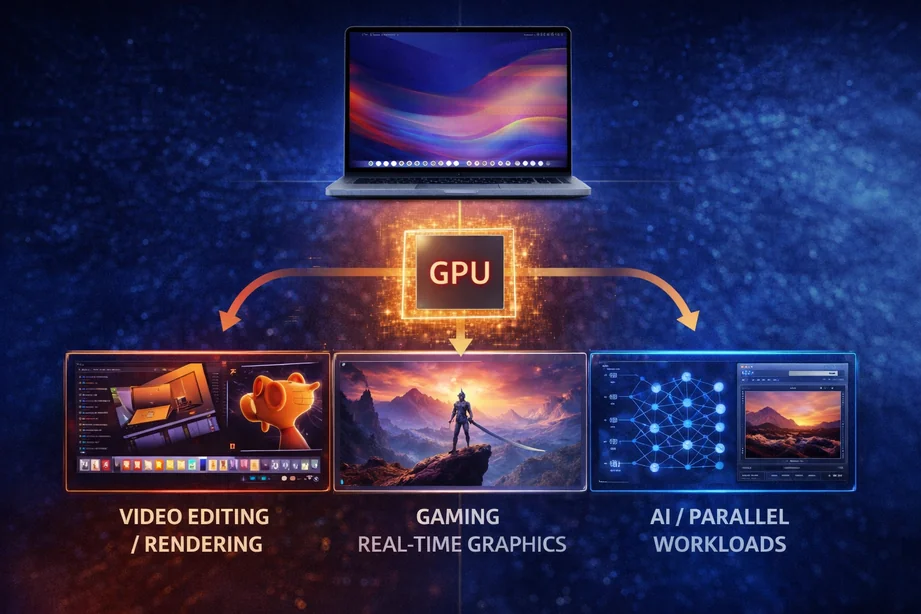
Modern MacBooks use integrated GPUs built directly into Apple’s M-series chips 🎮. While the CPU handles system logic and general computation 🧠, the GPU is responsible for accelerating visual rendering and highly parallel workloads.
GPU capability scales significantly across Base, Pro, and Max tiers 🚀, directly affecting tasks such as video editing, 3D rendering, gaming, and graphics-intensive applications. Understanding how the GPU functions — and when additional GPU cores actually make a difference — is important when comparing MacBook configurations.
What Is a GPU and What Does It Do in a MacBook?
A GPU (Graphics Processing Unit) 🎮 is a specialized processor designed to handle visual rendering and large numbers of calculations simultaneously. Unlike a CPU 🧠, which processes tasks sequentially and manages overall system logic, a GPU is optimized for parallel processing — meaning it can execute thousands of smaller operations at the same time.
This design makes the GPU especially effective for graphics-intensive and visually complex workloads, where many calculations need to happen in parallel rather than one after another.
If your MacBook were a school, the CPU would act like the principal organizing the work, while the GPU would represent the art and media department responsible for visual projects.
Whenever the school needs posters, videos, stage lighting, or visual presentations, those tasks are given to the teacher of the art department to handle.
The size of the art department represents the number of GPU cores. A larger team can work on bigger and more complex visual projects at the same time, allowing graphics-heavy tasks to run more smoothly.
|
In a MacBook, the GPU is responsible for:
🎬 Rendering video and accelerating playback
🎨 Processing images and graphic design work
🧩 Handling 3D modeling and visual effects
🎮 Rendering game graphics
🤖 Assisting with certain AI and machine learning tasks
Apple integrates the GPU directly into its M-series chips rather than using a separate graphics card. This unified design reduces latency, improves energy efficiency, and enables faster communication between the CPU, GPU, and unified memory.
|
Because of this unified architecture, modern MacBooks can deliver strong visual performance 🎮 while maintaining excellent energy efficiency 🔋.
In simple terms:
🧠 The CPU manages system logic and general computation.
🎮 The GPU accelerates graphics and parallel workloads.
For most everyday tasks — browsing, email, streaming, and office work — the CPU plays the dominant role. As visual complexity and parallel processing demands increase, the GPU becomes progressively more important.
|
Do You Need More GPU Cores in a MacBook?
Apple’s M-series chips scale GPU performance primarily by increasing the number of GPU cores 🎮. In general, more GPU cores allow the system to handle more graphical and parallel workloads simultaneously.
However, additional GPU cores do not automatically make a MacBook feel faster for everyday tasks such as browsing, email, or document work 🧠.
|
|
|
Tasks such as:
🌐 Web browsing
📄 Document editing
✉️ Email
🎥 Video streaming
place minimal demand on the GPU. These activities rely far more on the CPU and overall system responsiveness than on graphics processing power.
|
Where additional GPU cores begin to matter is in sustained, graphics-intensive workloads. Examples include:
🎬 Applying complex video effects
🎨 Editing high-resolution image files
🧩 Rendering 3D scenes
🤖 Running certain AI or parallel computation tasks
In these scenarios, more GPU cores allow the system to process visual data and parallel operations more efficiently, especially during longer sessions.
|
|
More GPU cores 🎮 can reduce render times, improve timeline smoothness 🎬, and help maintain performance during longer workloads ⏳.
The key distinction is this:
🚀 More GPU cores increase sustained graphical performance.
🧠 They do not meaningfully improve basic daily usage.
Understanding this difference 💡 helps prevent overpaying for GPU capacity that may never be fully utilized.
|
|
GPU Core Differences Between M5, M5 Pro and M5 Max
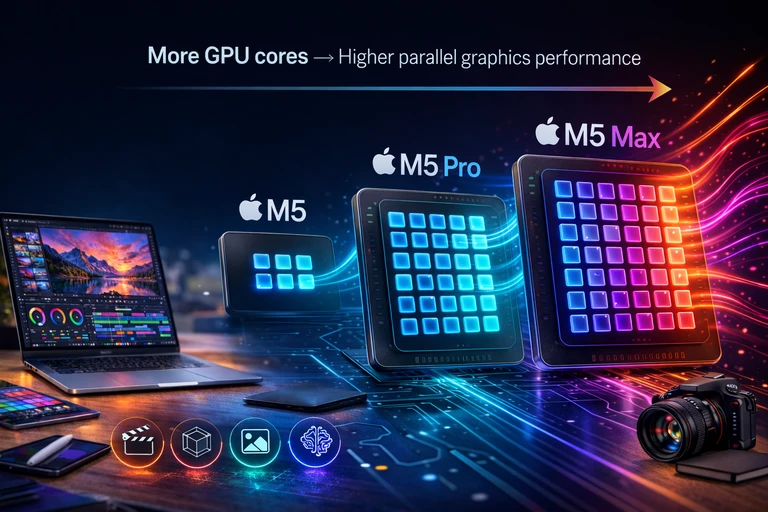
The number of GPU cores is one of the biggest differences between Apple’s M-series chip tiers. As you move from the base M5 to the M5 Pro and M5 Max, the number of GPU cores increases, allowing the system to handle more parallel graphics workloads such as video rendering, 3D animation, and AI-assisted image processing.
🚀 Why GPU cores matter
When people compare chips like M5 vs M5 Pro vs M5 Max, the biggest graphics difference usually comes from the number of GPU cores inside the chip. Each GPU core can process graphics tasks in parallel, which means more cores allow the system to handle complex visual workloads faster.
This is especially noticeable in tasks such as:
🎬 Video editing and color grading
🧩 3D rendering and animation
🎨 Motion graphics and visual effects
🤖 AI-assisted image processing
⚙️ What about GPU clock speeds?
Apple does not officially publish GPU clock speeds for Apple Silicon chips. The approximate frequencies discussed in technical analysis come from observed benchmark measurements, not Apple’s official specification sheets.
📊 Why core count matters more than GHz
Unlike traditional desktop GPUs where clock speed is often emphasized, Apple Silicon graphics performance scales mainly through parallel processing. Each additional GPU core adds more graphics pipelines that can work simultaneously, which is why Pro and Max chips can deliver significantly higher graphics performance even when clock speeds appear similar.
📊 Comparing GPU power across M5 chip tiers
The table below shows how graphics capability scales across the M5, M5 Pro, and M5 Max chip tiers. The biggest change between these chips is the number of GPU cores, which increases the amount of graphics work the system can process simultaneously.
⚙️ What the numbers represent
The comparison includes both GPU core counts and approximate GPU frequencies observed in benchmark testing. While Apple does not publish official GPU clock speeds, these observed values help illustrate how graphics performance scales between chip tiers.
🚀 Why this matters in real workloads
Higher GPU core counts allow Pro and Max chips to handle demanding tasks like 4K video editing, 3D rendering, motion graphics, and AI-assisted workflows more smoothly than the base M4 chip.
| Chip Tier | GPU Cores | Approx GPU Frequency | Graphics Capability | Real-World Meaning |
|---|---|---|---|---|
| M4 | 10 | ~1.4 GHz | Integrated Apple GPU | Strong everyday graphics for light creative workloads. |
| M4 Pro | 16–20 | ~1.4 GHz | Expanded GPU architecture | Much higher graphics throughput for editing, design, and development. |
| M4 Max | 32–40 | ~1.4 GHz | Maximum GPU configuration | Designed for heavy rendering, 3D workloads, and advanced creative pipelines. |
Neural Engine & AI Acceleration
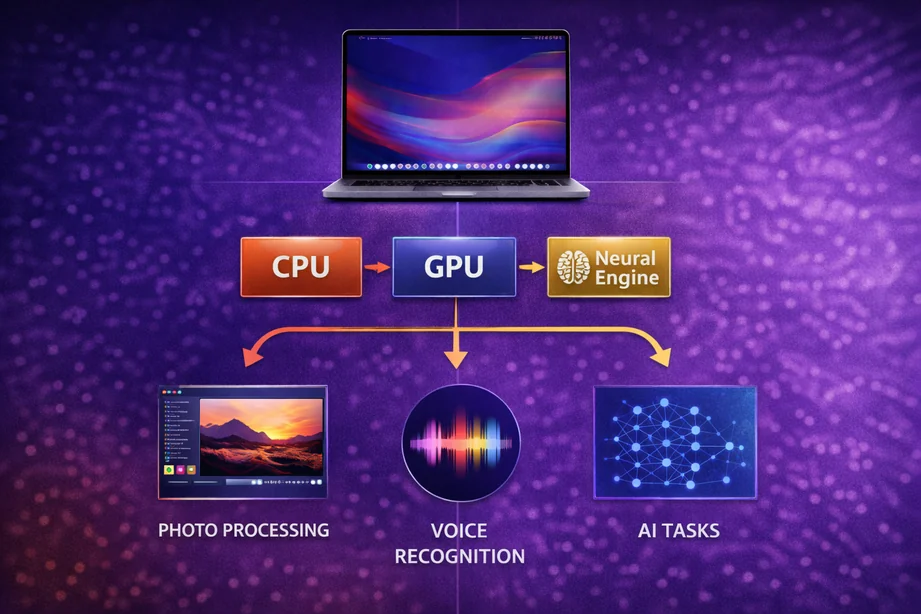
Modern MacBooks include a dedicated component inside the chip called the Neural Engine. This specialized part of Apple Silicon is designed to handle artificial intelligence (AI) and machine learning tasks far more efficiently than the CPU or GPU.
While most users never interact with it directly, the Neural Engine works quietly in the background, accelerating many everyday features and helping macOS run certain tasks faster and more efficiently.
If your MacBook were a school, the CPU would act like the principal coordinating work across the system, while the GPU represents the art department handling visual projects.
The Neural Engine would be a special research club made up of students who specialize in recognizing patterns and solving complex analytical problems.
Whenever the school needs help identifying images, understanding speech, or analyzing large sets of information, these specialists step in to handle those tasks efficiently.
Because the Neural Engine is designed specifically for this type of work, it can perform many AI and machine learning tasks faster and more efficiently than the CPU or GPU.
What Does the Neural Engine Actually Do?
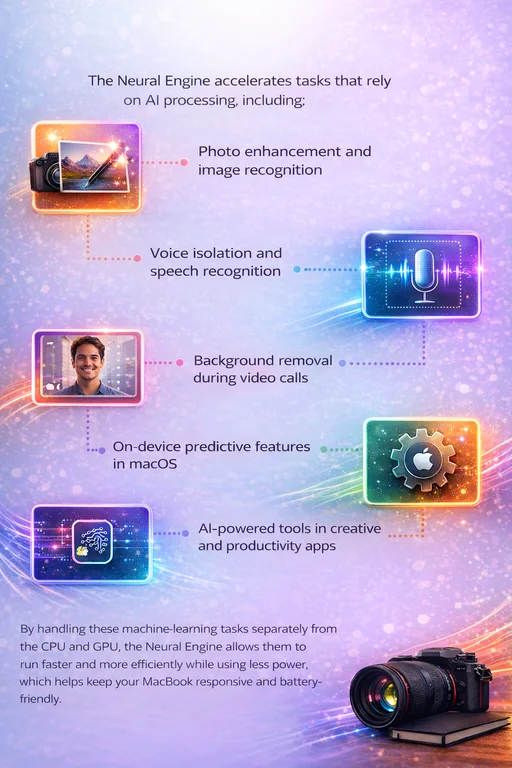
The Neural Engine accelerates tasks that rely on AI processing, including:
🖼️ Photo enhancement and image recognition
🎤 Voice isolation and speech recognition
✂️ Background removal during video calls
🧠 On-device predictive features in macOS
🤖 AI-powered tools in creative and productivity apps
By handling these machine-learning tasks separately from the CPU and GPU.
The Neural Engine allows them to run faster and more efficiently while using less power, which helps preserve battery life.
Does It Differ Between MacBook Air and Pro?
All current Apple Silicon MacBooks include a Neural Engine.
In real-world use, most users will not notice a meaningful difference between MacBook Air and MacBook Pro when it comes to everyday AI-powered features. Tasks such as photo enhancements, video call effects, and system intelligence generally run smoothly across the entire lineup.
Higher-tier chips can handle larger or more demanding AI workloads more comfortably, but for common daily tasks, both Air and Pro models deliver excellent performance.
When Does It Matter?
The Neural Engine becomes more relevant if you:
🧩 Work with AI-powered creative software
🎬 Use advanced video editing tools with automatic effects
🧠 Run machine learning workflows
🤖 Experiment with on-device AI tools
For typical users, it works quietly in the background, enhancing performance without requiring any configuration.

Unified Memory (RAM): What It Is — and What It Isn’t
Continuing with our school analogy:
Unified Memory is simply Apple’s name for the Mac’s RAM — the working memory used while your computer is actively performing tasks.
In our school system, the principal (CPU) organizes the work while different departments like the art team (GPU) handle specialized tasks.
🪑 RAM (Unified Memory) represents the desk space where the materials currently being used are placed.
Because Apple Silicon uses a unified design, both the principal (CPU) and departments like the art team (GPU) work from the same shared desk instead of using separate desks.
If the desk is large, many books and projects can stay open at once and switching between tasks feels smooth. If the desk is small, materials must constantly be moved around to make space.
This is why having more RAM improves multitasking — it simply provides a larger workspace for active tasks.
In our school system:
• 🧑🏫 The principal (CPU) decides what needs to be worked on.
• 🎨 The art department (GPU) handles visual and creative tasks.
• 🪑 The desk space (Unified Memory) is where both of them place the materials they are actively using.
• Unlike some traditional laptops that use separate memory pools for the CPU and a dedicated graphics card, Apple integrates memory directly into the chip itself.
That means:
• ⚡ Both the principal and art team can access the same high-speed memory at the same time
• 🔄 They don’t have to pass materials between separate rooms
• 🚀 Data moves with very low delay (latency)
• 🧠 The system stays efficient even under heavier workloads
To clarify clearly:
• 💾 Unified memory is RAM — the memory your Mac uses while you work.
• 📁 It is not storage — storage (SSD) is where files are saved permanently.
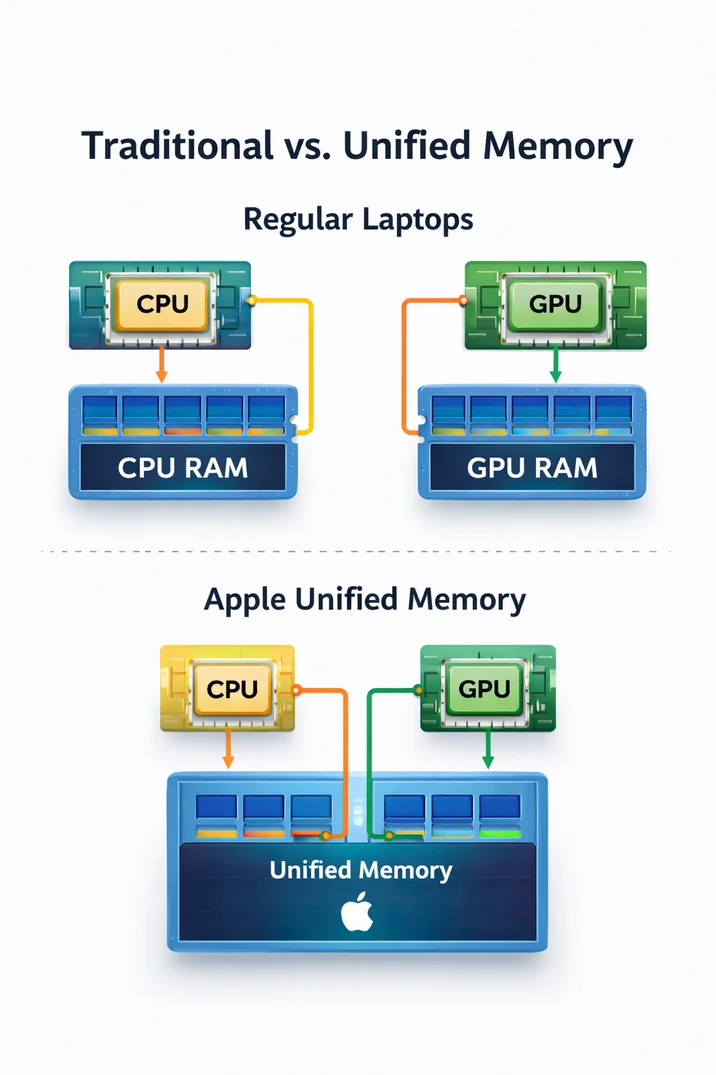
How Unified Memory Actually Works
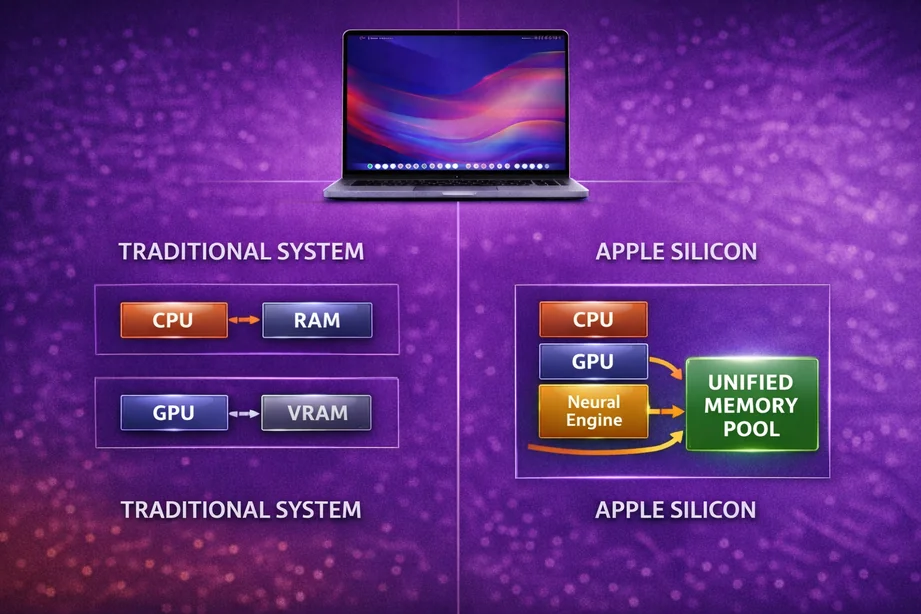
Inside Apple silicon, the 👨🏫 CPU (teacher), 🎨 GPU (art department), and 🧠 Neural Engine are all built onto the same chip. Unified memory sits directly alongside these components rather than being placed separately on the motherboard.
Because everything is integrated into one system-on-a-chip design, the CPU, GPU, and Neural Engine can all access the same memory pool at the same time. ⚡ Data does not need to be copied between separate memory areas, which reduces delays and improves efficiency under load.
In simple terms, everyone is working in the same classroom using the same desk space — not moving materials between different rooms.
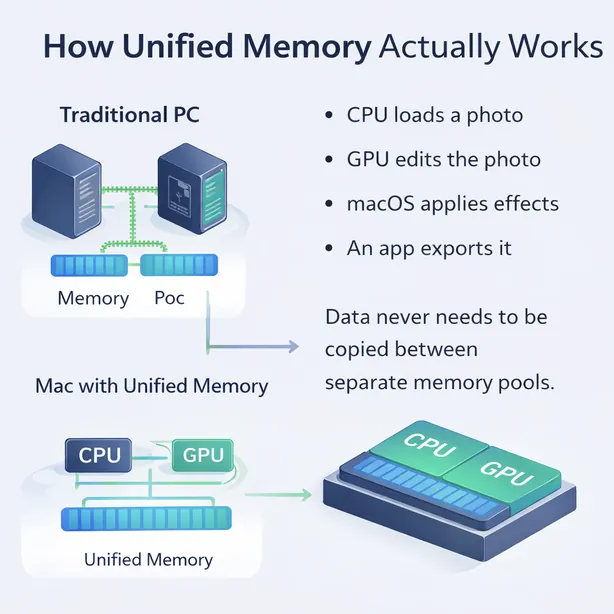
So when:
📷 The CPU loads a photo
🎨 The GPU edits that photo
🖥️ macOS applies visual effects
📤 An app exports the final result
…the data does not need to be copied back and forth between different memory areas.
All components are accessing the same unified memory pool, which reduces delays and improves efficiency during complex workflows.
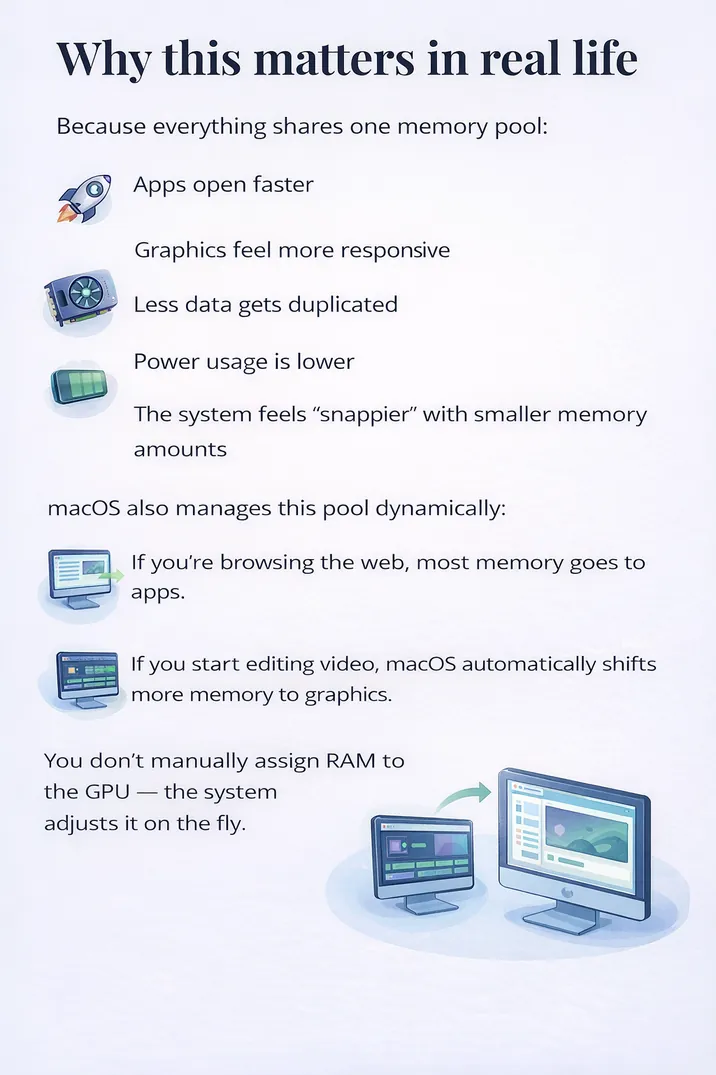
Why this matters in real life
Because everything shares one memory pool:
⚡ Apps open faster
🎨 Graphics feel more responsive
🔄 Less data needs to be duplicated
🔋 Power usage stays lower
🚀 The system feels more responsive even with moderate memory amounts
macOS manages this memory dynamically:
If you’re 🌐 browsing the web, most memory is allocated to active apps.
If you begin 🎬 editing video, the system automatically shifts more memory toward graphics workloads.
You do not manually assign RAM to the GPU — 🧠 macOS adjusts it in real time based on what you are doing.
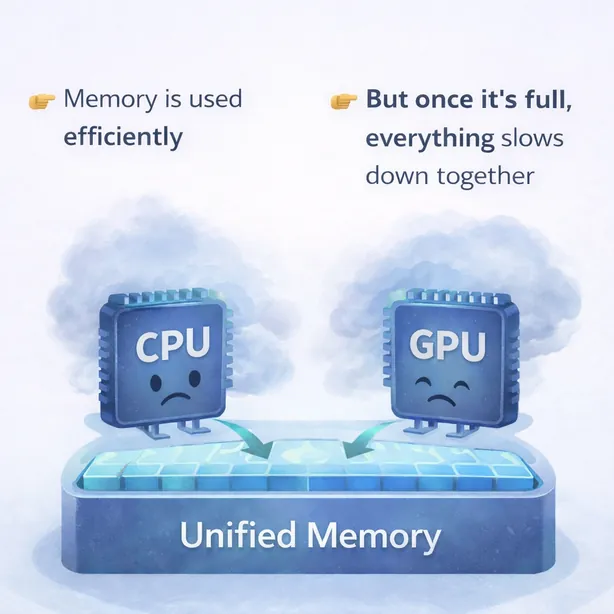
Important consequence (this matters later)
Because the CPU and GPU both pull from the same memory pool:
👉 🧠 Memory is used more efficiently
👉 ⚡ There is no need to duplicate data between separate memory areas
👉 📉 But once memory is full, overall system performance slows down together
When unified memory begins to fill up, macOS can temporarily use part of the internal SSD as swap memory. Because Apple’s SSDs are extremely fast, this often feels invisible during light workloads — but it is still slower than real RAM.
Unlike systems with a dedicated graphics card that has separate VRAM, unified memory does not have an additional memory pool reserved for graphics.
That is why unified memory feels fast and fluid when you have enough —
and why performance can drop noticeably if your memory is consistently maxed out.
Why Apple Uses Unified Memory
Apple designed its silicon and unified memory architecture to reduce inefficiencies found in many traditional systems with separate CPU memory and dedicated graphics memory.
In systems that use discrete graphics cards, the CPU and GPU often rely on separate memory pools. When large files — such as high-resolution photos, video footage, or 3D assets — need to be processed, data may need to be copied between those memory areas. This adds overhead, increases power usage, and can slow complex workflows.
With unified memory on Apple silicon, the 👨🏫 CPU (teacher), 🎨 GPU (art department), and 🧠 Neural Engine all access the same high-speed memory pool. Because they share the same memory space:
Because everything shares one memory pool:
⚡ Data does not need to be copied between separate memory areas
🔋 Less energy is used moving information around
🚀 Workflows remain efficient during demanding tasks
The memory is integrated directly alongside the chip, connected through a high-bandwidth interface. This allows the 👨🏫 CPU (teacher), 🎨 GPU (art department), and 🧠 Neural Engine to access data quickly without unnecessary overhead.
macOS dynamically allocates memory based on workload.
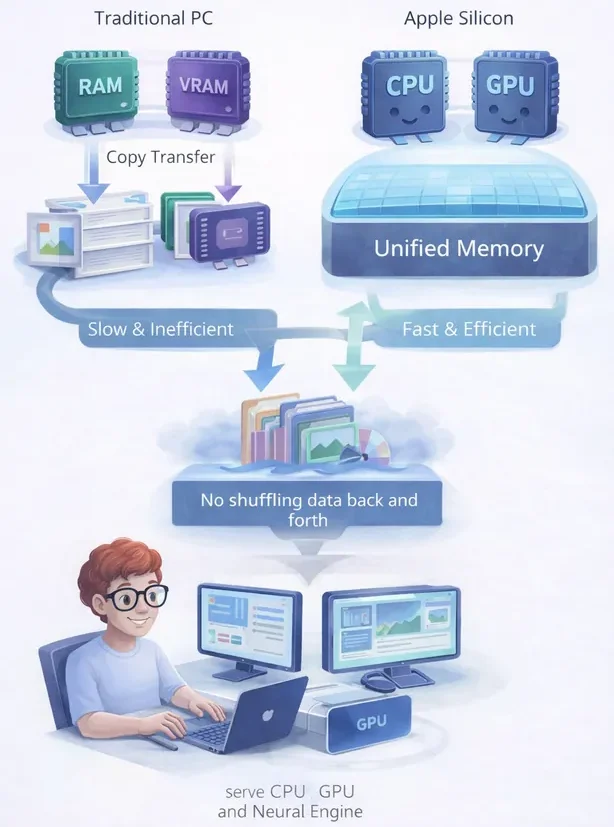
It does not reserve fixed portions for CPU versus GPU — instead, the system assigns memory where it is needed at that moment.
This architectural choice reflects Apple’s broader focus on efficiency and battery life. By reducing duplication and minimizing data movement, the system can maintain strong performance while consuming less power.
How Unified Memory Impacts Graphics Performance
One area where unified memory is often misunderstood is graphics performance — especially for users coming from traditional systems with dedicated graphics memory (VRAM).
On many systems with discrete GPUs, the graphics processor has its own separate video memory. In contrast, Apple’s unified memory design means:
🎨 The GPU (art department) and 👨🏫 CPU (teacher) pull from the same shared memory pool
🧠 macOS dynamically allocates memory based on workload
🔄 No fixed amount is permanently reserved for graphics
This behaves differently in real-world use.
During everyday tasks — 🌐 browsing, 📄 documents, 📊 spreadsheets — most memory is used by CPU-driven processes, because the GPU demand is low.
When you switch to graphics-heavy workflows — 🎬 video editing, 🧩 3D applications, 📤 exporting renders.
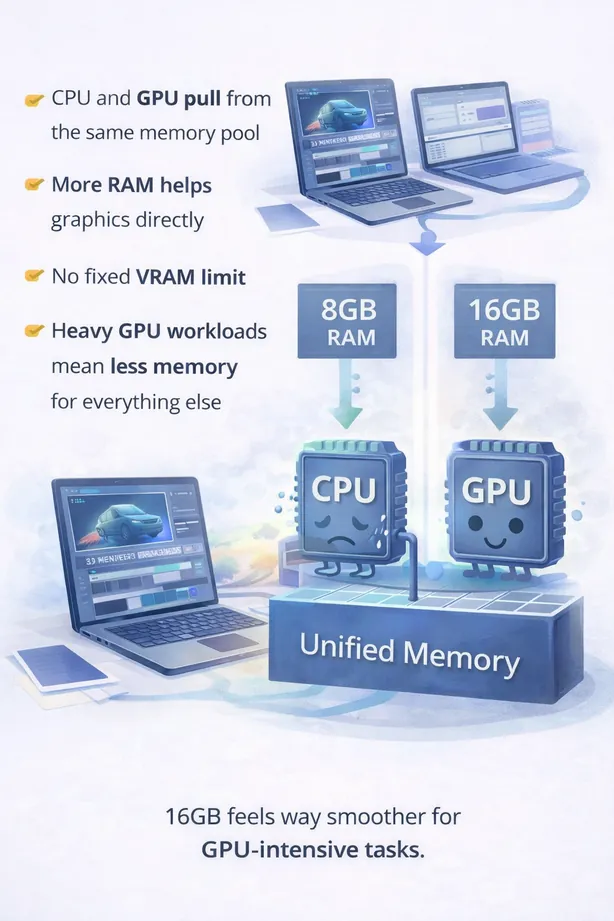
macOS automatically allocates more of the shared memory to GPU workloads.
There is no fixed “VRAM” number like you would see on a discrete graphics card. Instead, the GPU uses as much unified memory as the workload requires, up to the limits of the system.
Why this matters in practice
🎬 Smoother creative workflows:
When editing video, working with large image files, or handling detailed textures, unified memory allows the 🎨 GPU (art department) to access the same data the 👨🏫 CPU (teacher) is already using — without duplicating it. This reduces overhead and helps maintain smoother timelines and exports.
⚖️ Dynamic memory allocation:
If the GPU needs more memory during a demanding task, macOS can allocate more of the shared pool — as long as memory is available. There are no permanently reserved chunks sitting unused.
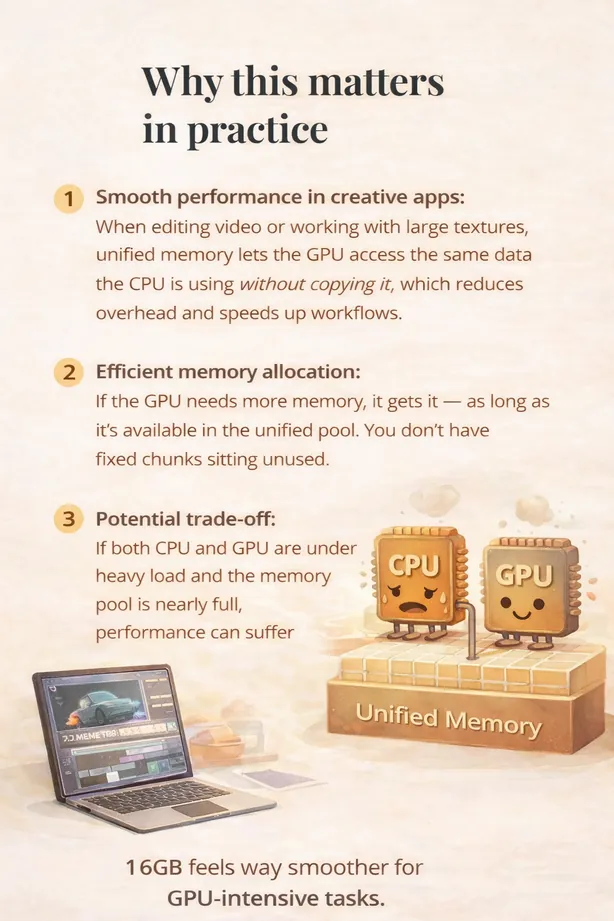
⚠️ The trade-off:
If both CPU and GPU are heavily loaded and the unified memory pool is nearly full, performance can decline because both components are drawing from the same limited space.
This is why memory capacity matters more in unified systems — not just raw processing speed.
How Much Unified Memory (RAM) Do You Really Need on a MacBook?
This is one of the most searched — and most misunderstood — questions:
“How much unified memory do I actually need?”
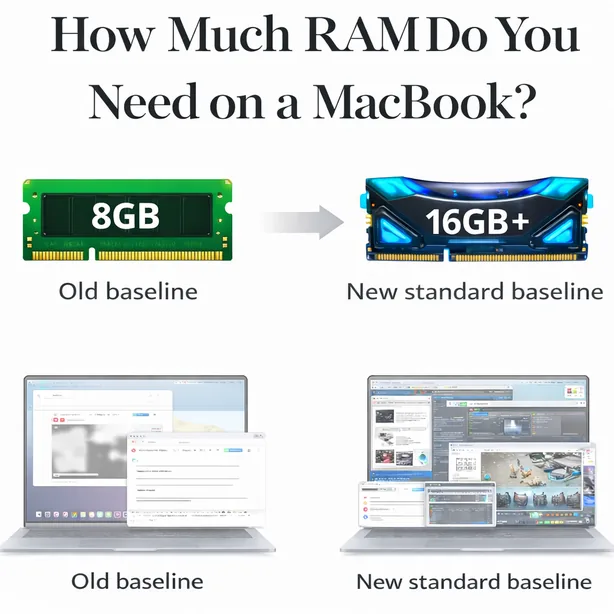
16GB is the new realistic baseline for most users.
Earlier entry-level models offered 8GB configurations, which were suitable for lighter tasks such as:
🌐 Web browsing
📄 Office work
🎬 Streaming
Because unified memory is shared between the  CPU (teacher) and
  GPU (art department), the amount you choose affects the entire system at once — app performance, graphics workloads, multitasking, exports, and even how your Mac feels over time.
 Memory capacity doesn’t just influence speed today — it affects how well your system handles heavier tasks in the future.
Let’s break it down in practical terms.
However, because unified memory is shared between the 👨🏫 CPU and 🎨 GPU, 8GB could fill up quickly under heavier multitasking or creative workloads.
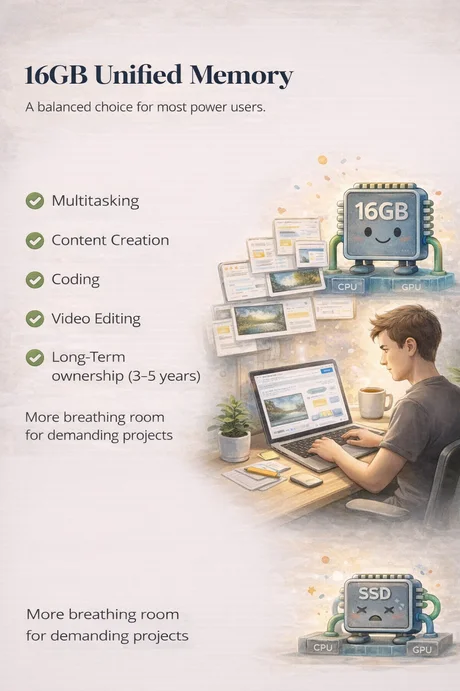
🟢 16GB Unified Memory — The Modern Baseline
When memory becomes full, macOS relies on SSD-based swap memory, which is slower than physical RAM and can reduce responsiveness.
For modern use cases, 16GB is better suited for:
🔄 Multitasking across many apps
🎨 Content creation
💻 Coding and development
🎬 Light to moderate video editing
📆 Long-term ownership (3–5 years)
16GB gives the system meaningful headroom. Because unified memory dynamically shifts between CPU and GPU, this capacity reduces the likelihood of performance bottlenecks under load.
In our classroom analogy, it’s like having a much larger desk — there’s enough space for both the teacher and art department to work comfortably as projects grow.
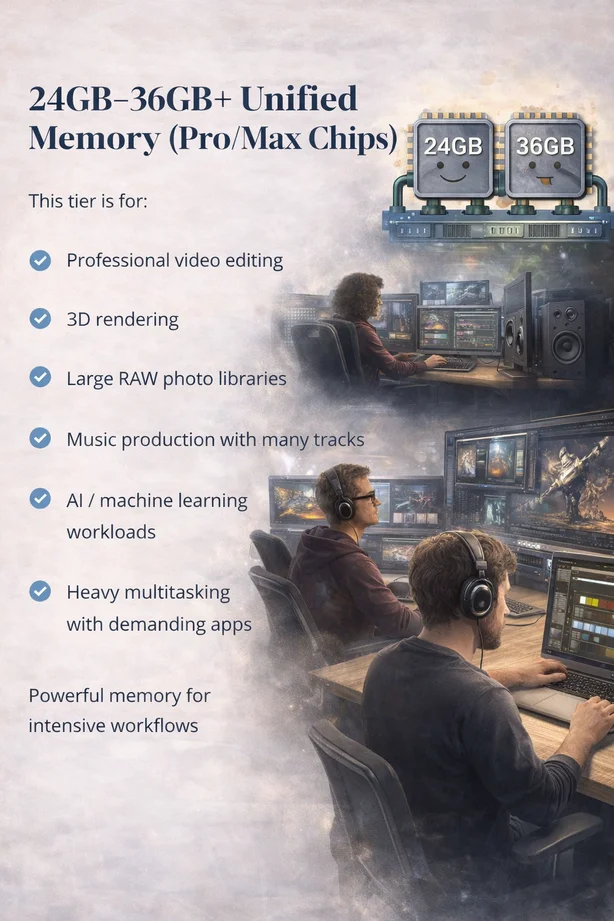
🔵 24GB–36GB+ Unified Memory (Pro / Max Tiers)
This tier is designed for sustained professional workloads.
It is best suited for:
🎬 Professional video editing
🧩 3D rendering and complex visual projects
📸 Large RAW photo libraries
🎵 Music production with many tracks and plugins
🤖 AI and machine learning workflows
🔄 Heavy multitasking with demanding applications
At this level, you are not just avoiding slowdowns — you are enabling workflows that smaller memory configurations struggle to handle efficiently.
Because unified memory is shared across the 👨🏫 CPU, 🎨 GPU, and 🧠 Neural Engine, larger capacities allow all components to operate comfortably under sustained load without competing for limited space.
This is where unified memory provides meaningful advantages for professionals who rely on consistent performance.
| RAM | Best For | Typical Workloads |
|---|---|---|
| 💻 8 GB | Basic everyday computing | 🌐 browsing • ✉️ email • 📝 documents • light multitasking |
| ⚡ 16 GB | Most users and long-term use | 🧑💻 multitasking • 🖼️ photo editing • 💻 coding • productivity apps |
| 🚀 32 GB+ | Professional creative workloads | 🎬 video editing • 🧊 3D rendering • 🎨 large creative projects |
Modern MacBooks are available with a wide range of unified memory configurations, depending on the model and chip tier.
📦 MacBook Air memory options
• 16 GB
• 24 GB
• up to 32 GB maximum
🚀 MacBook Pro memory options
• 16 GB or 24 GB (depending on chip)
• 36 GB
• 48 GB
• 64 GB
• 96 GB
• up to 128 GB maximum
⚠️ Why does MacBook Pro jump from 32 GB to 36 GB?
You may notice that MacBook Air stops at 32 GB, while the next comparable configuration on MacBook Pro is 36 GB rather than 32 GB.
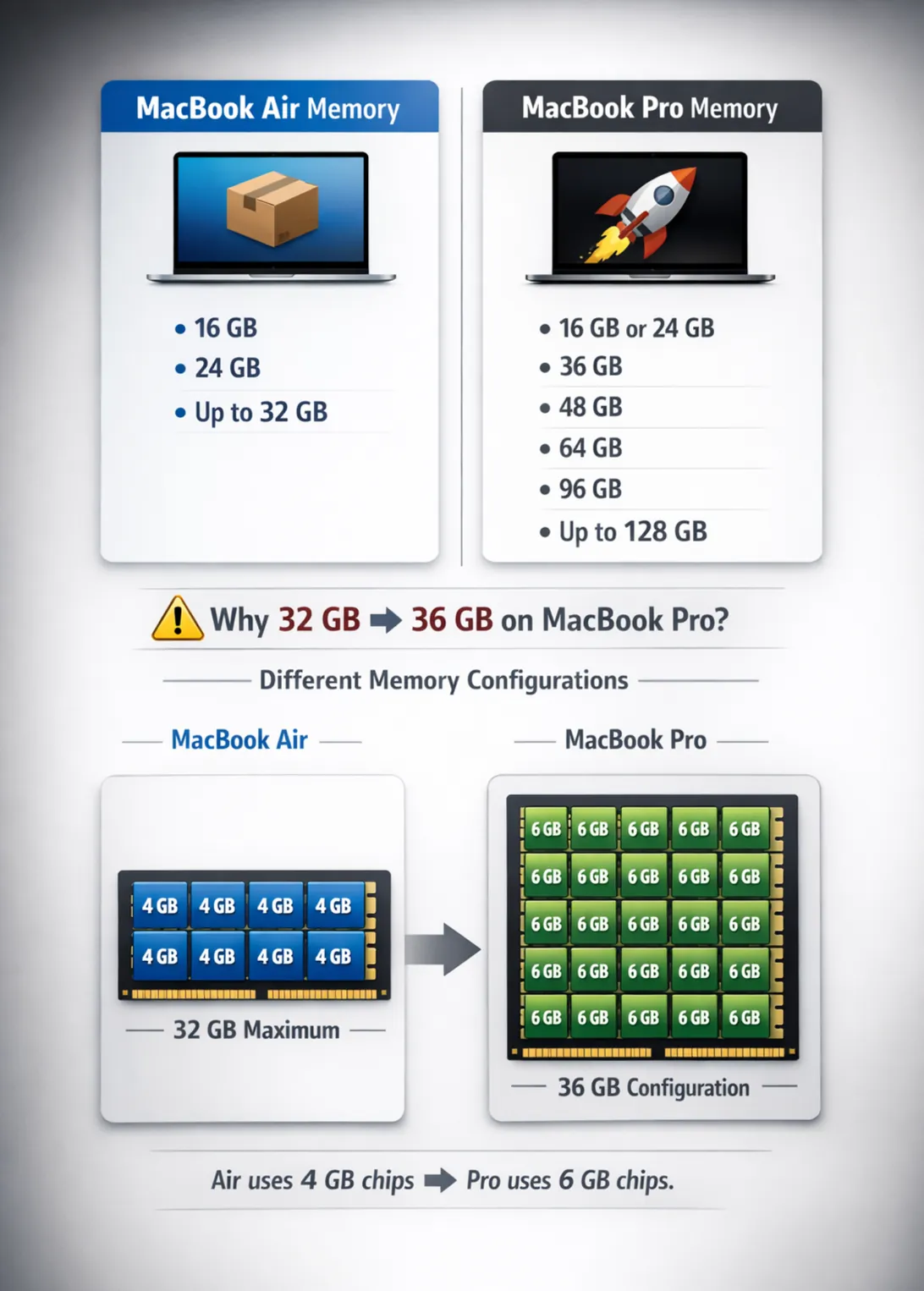
🧩 This happens because Apple’s unified memory is integrated directly into the chip, and different chip tiers use different memory package layouts. As a result, Apple sometimes uses capacities like 24 GB and 36 GB instead of the traditional 16 GB and 32 GB found in many PCs.
Remember: in our school analogy, RAM is your desk space — which means the more RAM you have, the bigger the desk.
Where the SSD Comes In: Memory Swap
When unified memory starts to fill up, macOS uses part of the SSD as temporary swap memory.
Think of it like putting overflow papers into a nearby filing cabinet when your desk becomes full.
Because Apple’s SSDs are very fast, this swap process often feels invisible during light or moderate workloads.
However, there is an important long-term implication:
Using the SSD as memory is still slower than real RAM, and repeated heavy swapping can contribute to SSD wear over years of use.

Why Macs With 16GB Often Feel Faster Than Expected
Many people are surprised when they discover that a Mac with 16GB of unified memory can feel faster than older systems with much larger RAM numbers.
This comes down to three things working together:
🧠 Unified memory architecture
⚙️ macOS memory management
🚀 Extremely fast internal SSDs
Let’s simplify what that means.
Because the 👨🏫 CPU and 🎨 GPU access the same memory pool, the system avoids unnecessary duplication of data. Fewer memory transfers mean less overhead during everyday tasks.
macOS also actively manages memory behind the scenes. If an application is not in active use, the system can compress or offload portions of it, keeping the most important data readily available.
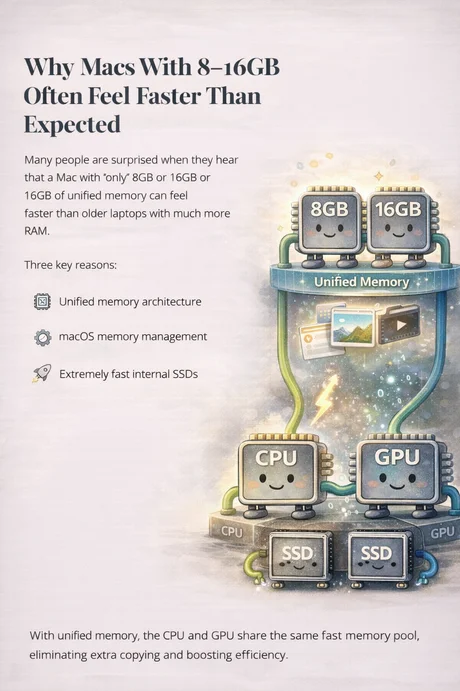
And when memory does become constrained, Apple’s high-speed internal SSD helps the system use swap memory more efficiently than many older systems.
As a result, even moderate memory configurations can feel:
⚡ Quick when launching apps
🪟 Responsive when switching windows
🎨 Stable during light creative tasks
This efficiency is why 16GB on modern Apple silicon often feels more capable than raw memory numbers alone might suggest.
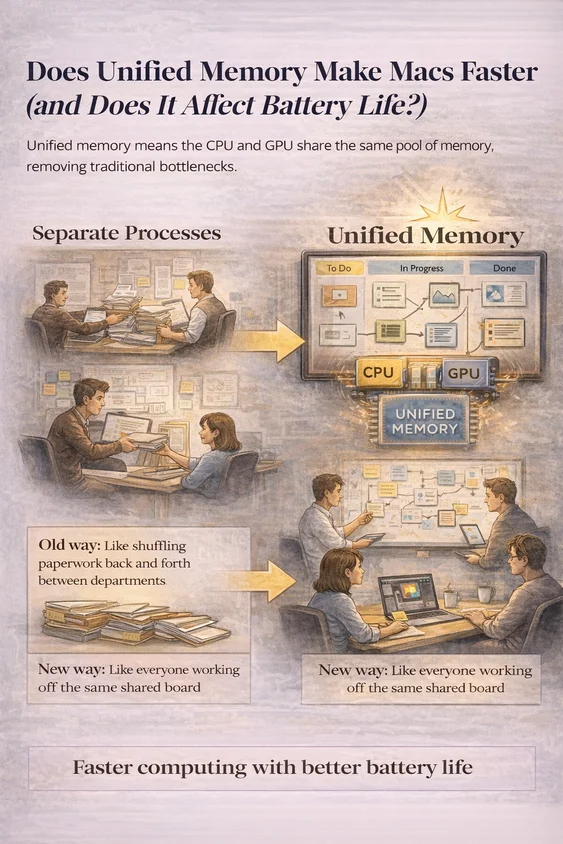
Does Unified Memory Make Macs Faster (and Does It Affect Battery Life?)
Unified memory by itself isn’t magic — but combined with Apple silicon, it removes several traditional bottlenecks that slow computers down.
Because the CPU and GPU share the same memory pool:
⚡ Data doesn’t need to be copied back and forth between separate RAM and VRAM
🔄 Apps can access the same information instantly
🎨 Graphics workloads start faster
📂 Large files move through the system more efficiently
In real life, this shows up as:
🚀 Faster app launches
🪟 Smoother scrolling and animations
🔁 Less stuttering when switching between tasks
🎬 Better responsiveness during creative work
It’s similar to upgrading from passing paperwork between departments to everyone working off the same shared board.
Battery life impact (this part matters)
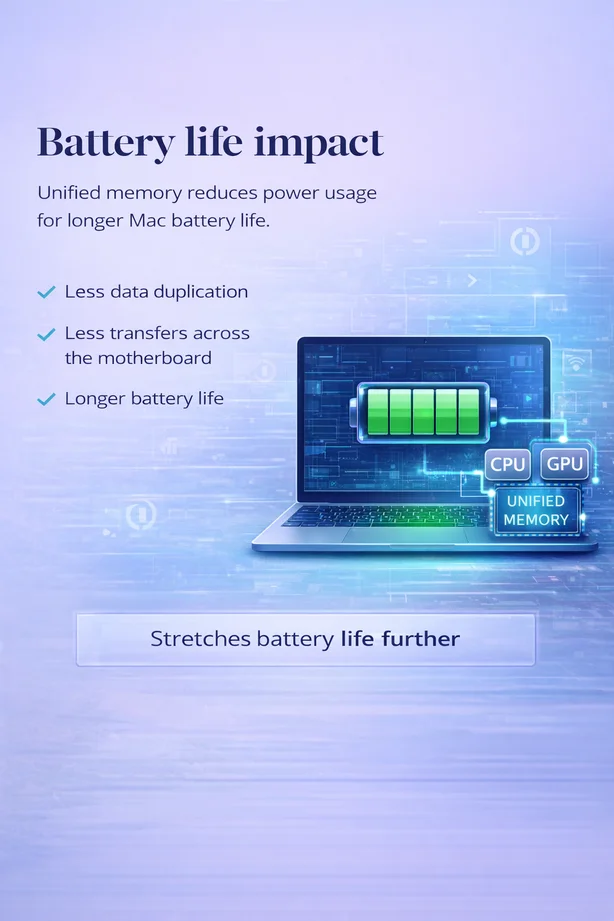
Unified memory also plays a role in Apple’s battery life advantage.
Moving data around inside a computer uses power. Traditional systems often waste energy constantly copying information between CPU memory and GPU memory.
With unified memory:
⚡ Less data is duplicated
🔄 Fewer transfers happen across the motherboard
💤 The chip can stay in low-power states more often
That efficiency directly contributes to:
🔋 Longer battery life during everyday tasks
🌡️ Lower heat output
⚙️ More consistent performance when unplugged
Because the CPU, GPU, and Neural Engine all share the same memory pool, the system spends less time moving data and more time actually processing it.
The result is a computer that can deliver strong performance while using significantly less energy.
Important reality check
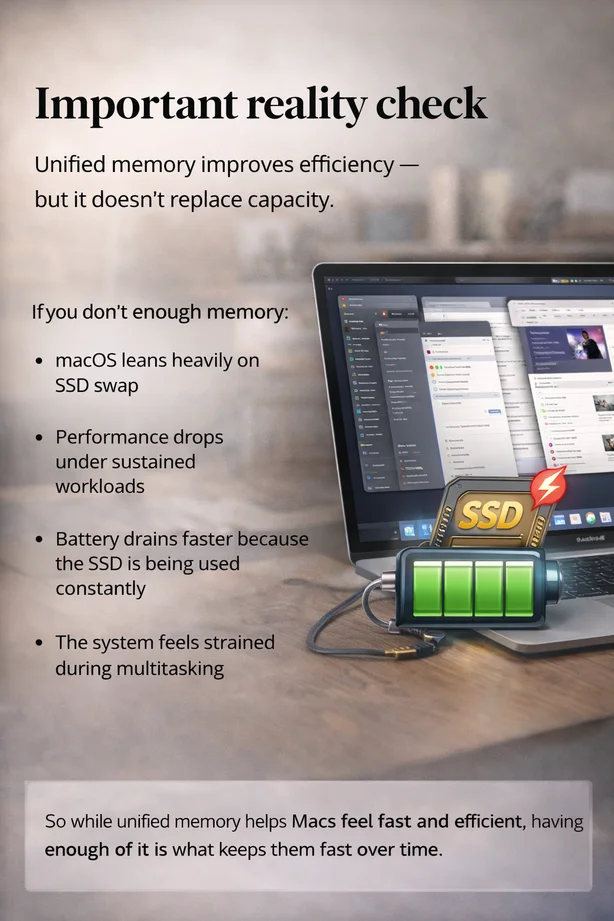
Unified memory improves efficiency — but it does not replace capacity.
If your system doesn’t have enough memory available:
💾 macOS relies more heavily on SSD swap memory
🐢 Performance drops during sustained workloads
🔋 Battery drains faster because the SSD is working more often
🧩 Multitasking begins to feel strained
Unified memory helps Macs use memory more efficiently, but it cannot create memory that isn’t there.
In simple terms: unified memory can make smaller amounts feel faster — but having enough memory is what keeps a Mac fast over time.
How Much RAM and Storage Do You Really Need on a MacBook?
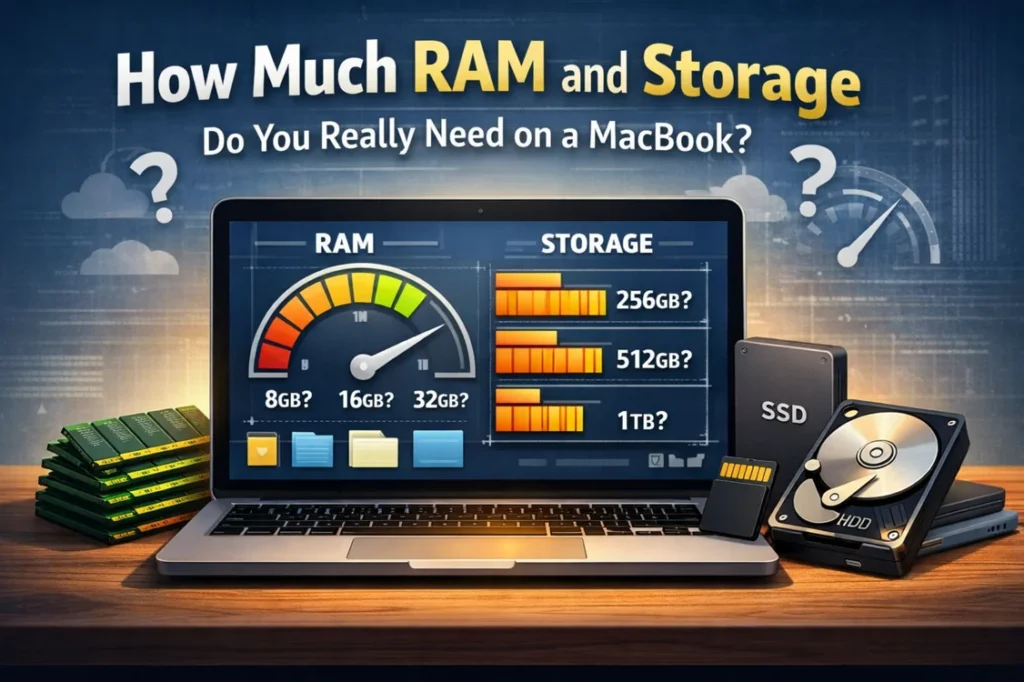
One of the most confusing parts of buying a MacBook is choosing the right amount of memory (RAM) and storage. Apple’s upgrade pricing makes these decisions especially important, because once you buy a configuration, these components cannot be upgraded later.
Here’s the simple way to think about it:
🧠 Memory (RAM) affects how smoothly your Mac handles multitasking, apps, and demanding workloads.
💾 Storage determines how many files, applications, photos/videos, and projects you can keep on the device itself.
The right configuration depends entirely on how you use your laptop — not just today, but over the next several years.
📌 Planning for your future workflow is often more important than simply choosing the cheapest option upfront.
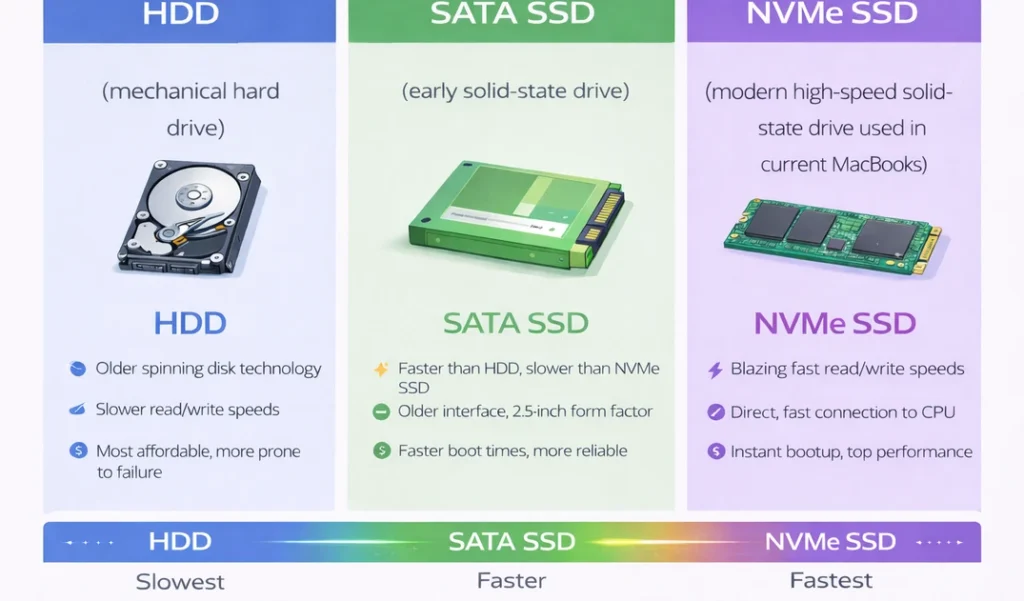
MacBook storage explained: HDD vs SATA SSD vs NVMe SSD
💾 Storage is where your Mac permanently keeps everything — your operating system, apps, documents, photos, and videos.
⚡ Unlike RAM, which works temporarily while your Mac is running, storage is your digital filing cabinet.
The type of storage inside a laptop dramatically affects:
🚀 Boot time
⚡ App launch speed
📁 File transfer speed
🎬 Creative workflow smoothness
To understand why modern MacBooks feel fast, we need to compare three storage technologies:
🔵 HDD (mechanical hard drive)
🟢 SATA SSD (early solid-state drive)
🟣 NVMe SSD (modern high-speed solid-state drive used in current MacBooks)
If your MacBook were a school, storage would be your locker where all your books, notebooks, and projects are kept.
Everything you need for the day lives in the locker, but you don’t actually work inside it.
When class starts, you take the books you need from your locker and place them on your desk so you can work with them during the lesson.
In the same way, your MacBook stores files, applications, photos, and videos on the SSD. When you open something, the system loads that data from storage into memory so the CPU and GPU can work with it quickly.
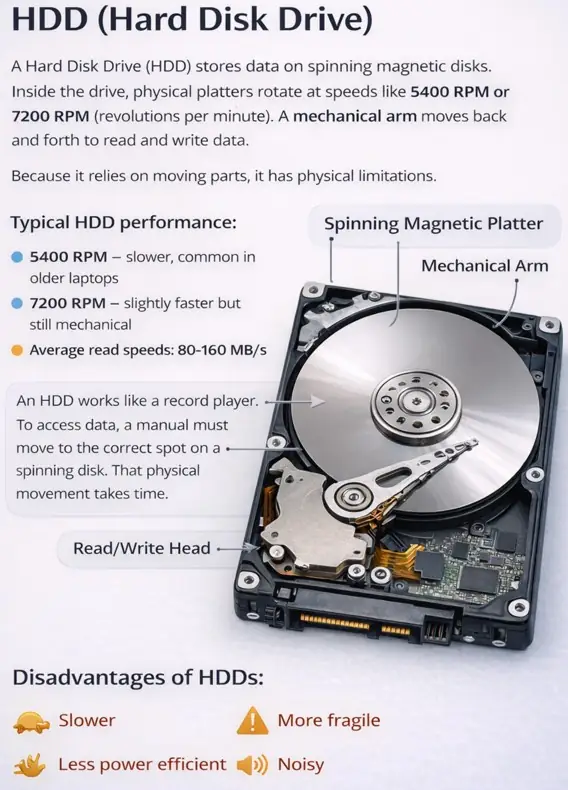
HDD (Hard Disk Drive)
A Hard Disk Drive (HDD) stores data on spinning magnetic disks. Inside the drive, physical platters rotate at speeds like 5400 RPM or 7200 RPM (revolutions per minute). A mechanical arm moves back and forth to read and write data.
Because it relies on moving parts, it has physical limitations.
Typical HDD performance:
🔵 5400 RPM – slower, common in older laptops
🟢 7200 RPM – slightly faster but still mechanical
🟠 Average read speeds: 80–160 MB/s
An HDD works like a record player.
To access data, a physical arm must move to the correct spot on a spinning disk. That physical movement takes time.
This is why older laptops with HDDs:
🔻 Took 30–60 seconds to boot
🔻 Felt sluggish opening apps
🔻 Slowed down when copying large files
Older entry-level MacBooks (pre-2016 base models) used HDDs. Compared to modern storage, they feel dramatically slower.
Mechanical drives are now largely obsolete in premium laptops because they are:
⚠️ Slower
⚠️ More fragile
⚠️ Less power efficient
⚠️ Noisy
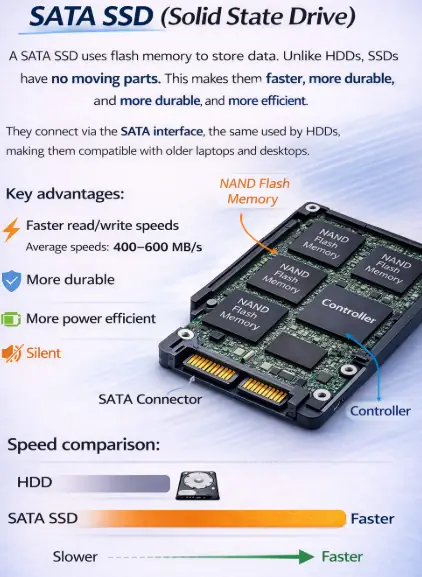
SATA SSD (Solid State Drive)
A SATA SSD was the first major upgrade over HDDs.
Unlike HDDs, SSDs have no moving parts. They use flash memory to store data electronically, which removes the mechanical bottleneck.
Typical SATA SSD speeds:
🟢 Around 450–550 MB/s read/write speeds
That’s roughly 3–5 times faster than most hard drives.
Instead of waiting for a spinning disk, data is accessed electronically and instantly. This eliminates delays caused by mechanical movement.
When MacBooks transitioned from HDDs to SATA SSDs, users immediately noticed:
🚀 Faster boot times
🚀 Quicker app launches
🚀 Smoother everyday performance
However, SATA SSDs are still limited by the older SATA interface, which caps maximum speed.
They’re fast — but not the fastest available today.
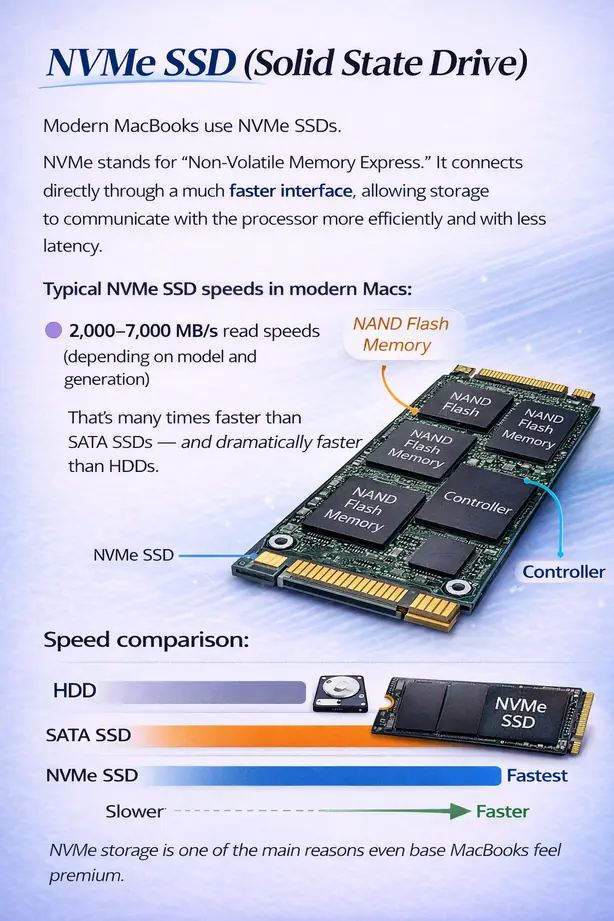
NVMe SSD (Solid State Drive)
Modern MacBooks use NVMe SSDs.
NVMe stands for “Non-Volatile Memory Express.” It connects directly through a much faster interface, allowing storage to communicate with the processor more efficiently and with less latency.
Typical NVMe SSD speeds in modern Macs:
🟣 2,000–7,000 MB/s read speeds (depending on model and generation)
That’s many times faster than SATA SSDs — and dramatically faster than HDDs.
Instead of data traveling through an older bottlenecked pathway, NVMe communicates directly and at high bandwidth with the system. The delay between requesting data and receiving it becomes almost invisible.
This is why modern MacBooks:
⚡ Boot in seconds
⚡ Open apps almost instantly
⚡ Handle large video files smoothly
⚡ Feel “snappy” even under heavy workloads
NVMe storage is one of the main reasons even base MacBooks feel premium.
How Much Storage Do You Need on a MacBook?
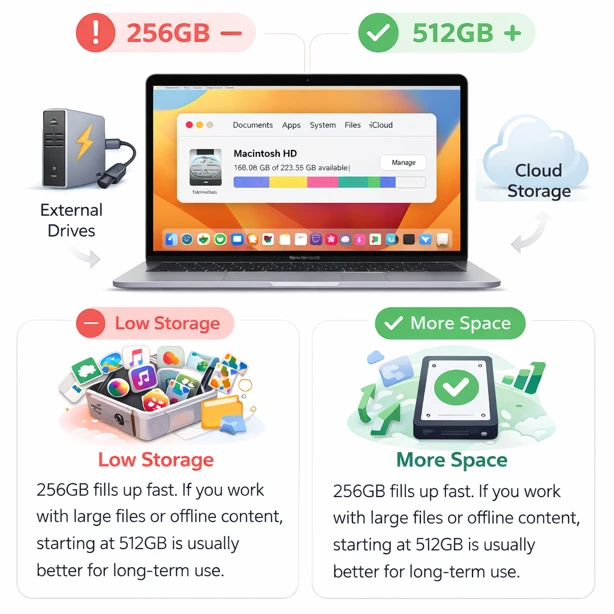
💾 Storage determines how much space you have for apps, photos, videos, and offline files.
⚡ Unlike RAM (which affects performance while you work), storage affects how much you can keep locally without constantly managing space.
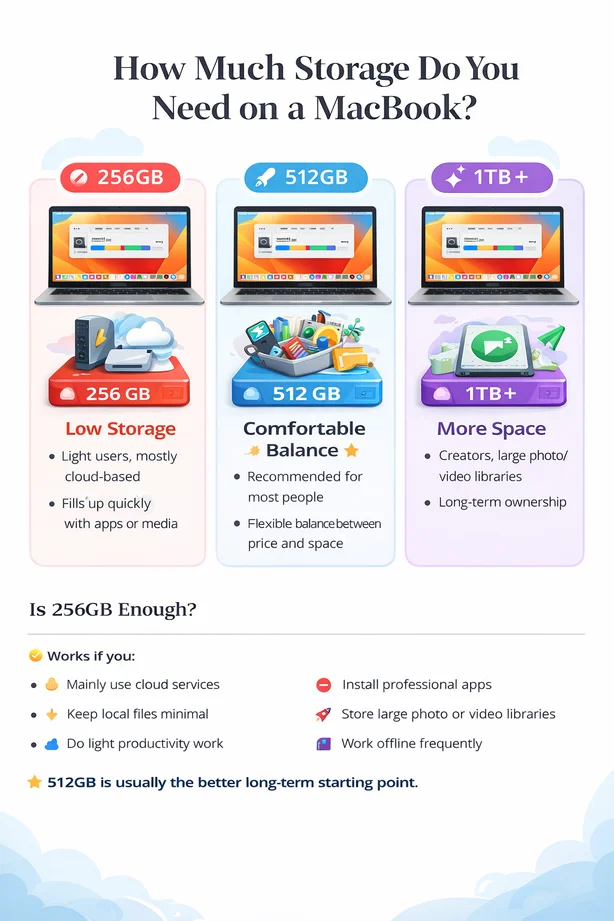
 While 256GB can work for basic users who rely heavily on cloud storage, it fills up quickly once you install larger apps or store media locally.
 For most people, 512GB is a far more comfortable starting point, especially if you plan to keep your MacBook for several years.
 MacBook storage cannot be upgraded internally later — so choosing wisely at purchase matters.
Is 256GB Storage Enough?
🟡 Works if you:
☁️ Mainly use cloud services
📂 Keep local files minimal
📝 Do light productivity work
🔴 Becomes limiting if you:
💻 Install professional apps
📸 Store large photo or video libraries
🌐 Work offline frequently
If you want fewer compromises and more flexibility:
👉 512GB is usually the better long-term starting point.
| Storage Type | Typical Speed | Technology | Real-World Experience |
|---|---|---|---|
| 🟥 HDD | ⚡ 80–160 MB/s | Spinning mechanical disk | 🐢 Slow boot times • slow app launches • outdated for modern laptops |
| 🟦 SATA SSD | ⚡ 400–550 MB/s | Flash storage via SATA interface | 🚀 Much faster than HDD • responsive everyday performance |
| 🟩 NVMe SSD | ⚡ 2,000–7,000 MB/s | Flash storage using PCIe NVMe | 🔥 Extremely fast • instant app launches • smooth large file editing |
If your budget is tight:
👉 Prioritize RAM first.
🧠 RAM has a bigger long-term impact on performance than storage. It affects multitasking, creative work, and how smoothly your Mac handles demanding tasks.
💰 Apple’s price increases are often significant when upgrading to larger SSD storage. In many cases, that money is better spent increasing RAM instead.
🔌 Storage can always be expanded later with:
💾 External SSDs
☁️ Cloud storage
🚫 RAM cannot be upgraded later — not externally, not internally.
So if you must choose:
➡️ Choose more RAM at purchase, and expand storage externally if needed.

Battery Life Differences
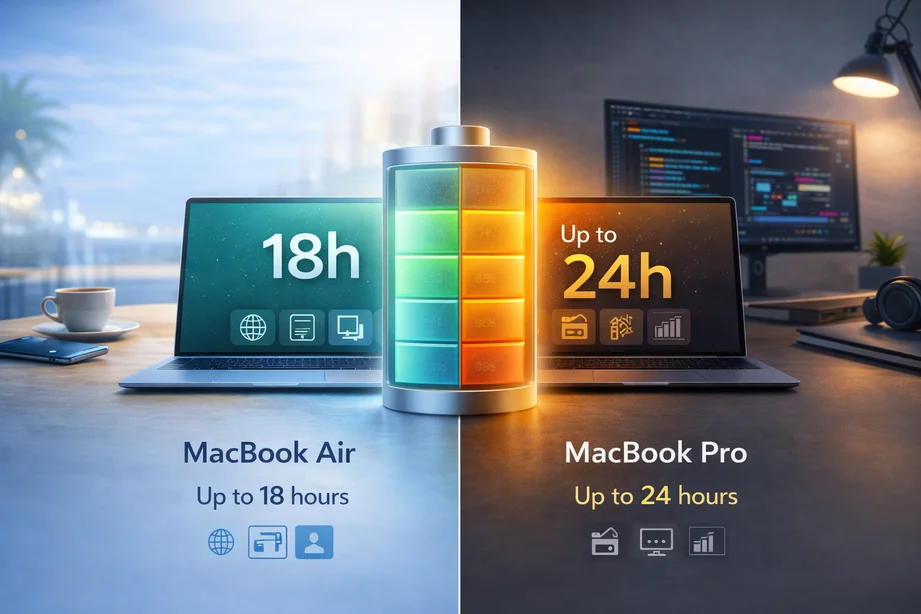
Battery life is one of the most noticeable real-world differences between MacBook models. While Apple Silicon is known for excellent efficiency across the lineup, actual endurance still varies depending on screen size, chip tier, and workload.
Apple publishes separate battery estimates for video playback and wireless web browsing, which provide a standardized way to compare different models.
Apple rates the current MacBook Air (M5) for:
📺 Up to 18 hours of video playback
🌐 Up to 15 hours of wireless web browsing
These estimates apply to both the 13-inch and 15-inch models under Apple’s standardized testing conditions.
In everyday use — browsing, writing, video calls, streaming, and light productivity — the MacBook Air is designed to last through a full day without needing to recharge.
Its fanless design and highly efficient chip help it conserve power effectively during light to moderate workloads.
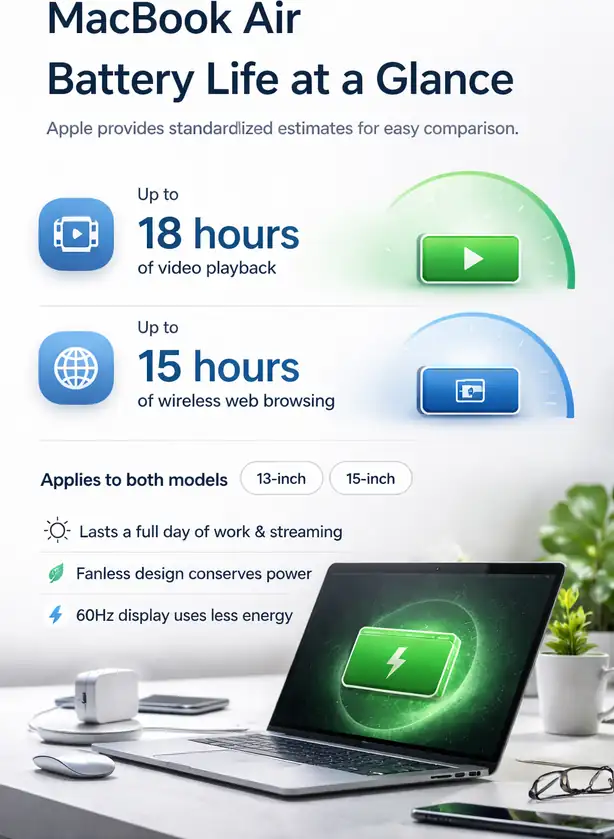
Because it uses a 60Hz display and does not include higher-brightness Liquid Retina XDR technology, the MacBook Air also tends to consume less power than some MacBook Pro configurations under similar conditions.
| Model | 📺 Video streaming | 🌐 Wireless web | What it feels like |
|---|---|---|---|
|
✨ MacBook Air (M5) — 13" / 15"
Fanless • 60Hz display • ultra portable
|
✅ Up to 18 hrs | ✅ Up to 15 hrs | Great for all-day school/office use 🧑💻📚 and travel ✈️. Strong endurance in light-to-moderate workloads. |
|
💼 MacBook Pro 14" (Base M5)
More ports • brighter display options • active cooling
|
🔥 Up to 24 hrs | ⭐ Up to 16 hrs | Excellent endurance plus better “workstation” flexibility 🖥️🔌. Great balance for many users. |
|
🚀 MacBook Pro 14" (Pro / Max tiers)
Higher sustained performance • heavier workloads
|
⚡ Varies by tier
Higher tiers can trade some endurance for sustained performance.
|
⚡ Varies by tier
Expect shorter runtime under heavier GPU/CPU loads.
|
Best for creators who push sustained workloads 🎬🧩. Battery depends heavily on workload intensity. |
|
🧠 MacBook Pro 16" (Pro tier)
Largest chassis • biggest battery • best for long sessions
|
✅ Up to 24 hrs | ✅ Up to 16 hrs | Best “long-day” Pro option 🧳🔋— especially for travel + sustained pro workflows. |
What Do These Battery Differences Actually Mean?
Apple’s battery estimates are best used as a comparison guideline, not a guaranteed result. In real-world use, battery life varies depending on screen brightness, the number of apps running, Wi-Fi strength, and whether you’re performing light tasks or sustained heavy workloads.
|
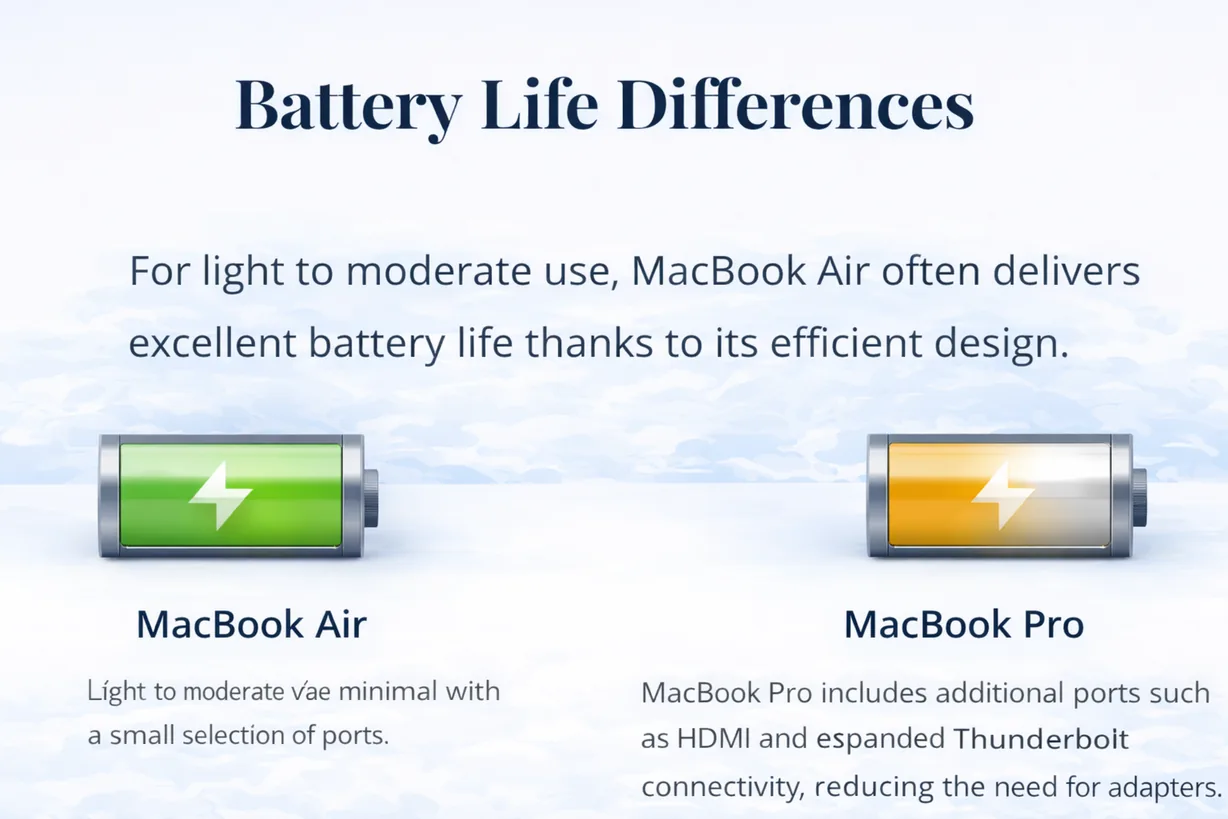
• ✨ MacBook Air is usually the “all-day” choice for light to moderate use. If your day is mostly browsing, writing, admin work, streaming, and meetings, it tends to last a long time because it isn’t being pushed hard.
• 💼 MacBook Pro (14-inch, base) can match or even exceed the Air in light workloads, but real-world results depend on how you use it.
• If your workload is still fairly light, it can last extremely long.
|
• 🚀 MacBook Pro (Pro/Max tiers) are built for sustained performance.
• When you actually use that power (heavy editing, effects, exports, 3D), the battery drains faster — not because the battery is “bad,” but because the workload is much more demanding.
• 🧠 MacBook Pro (16-inch) tends to be the best choice if you want the longest endurance in a Pro workflow, because the bigger chassis can house a larger battery.
|
In simple terms, light workloads allow almost any MacBook to last a very long time on battery.
The more you push performance continuously, the more battery life becomes a trade-off for speed and sustained power.
Why Does Battery Life Differ Between Air and Pro?
Battery life differences between MacBook models mainly come down to three core factors:
⚙️ 1. Chip Tier (Performance vs Efficiency)
Higher-tier chips (Pro and Max) are designed for sustained performance.
When you run demanding workloads — such as:
🎬 Long video exports
🎨 Complex design projects 🧩 3D rendering
…they consume more power in order to maintain that higher level of performance.
🔋 The battery itself isn’t weaker.
⚡ The system is simply doing more work. |
☀️ 2. Display Technology
Pro models use brighter displays and may support higher refresh rates.
☀️ Higher brightness = more energy use
🔄 Higher refresh rate = more power draw
🎬 If you regularly use maximum brightness or work with demanding visual tasks, battery drain increases accordingly.
|
📏 3. Physical Size and Battery Capacity
Larger models — especially the 16-inch MacBook Pro — can accommodate larger batteries.
This allows them to:
🔋 Maintain long endurance
⚡ Support more powerful chips 💻 Drive larger displays
…all without sacrificing runtime during moderate workloads.
|
✨ In Simple Terms
🍃 MacBook Air prioritizes efficiency and portability.
💼 MacBook Pro prioritizes sustained performance and capability.
🔋 Battery life isn’t just about battery size — it reflects how much power the system is designed to deliver under load.
|
Performance and Cooling Differences
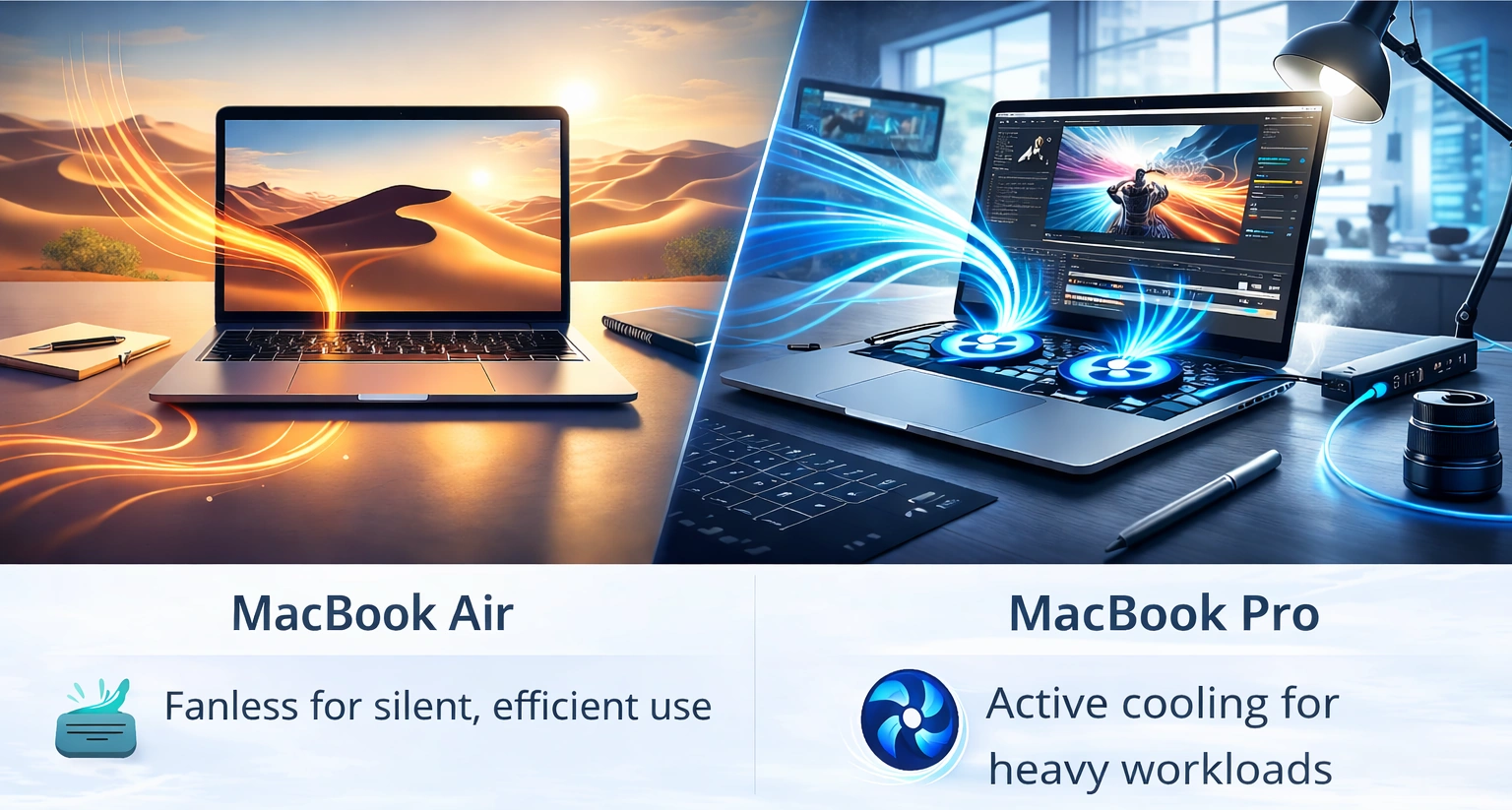
While Apple Silicon is efficient across all MacBook models, cooling design plays an important role in how long performance can be maintained under heavy workloads. The key difference is simple: MacBook Air is fanless, while MacBook Pro uses active cooling with internal fans.
Continuing with our school analogy:
Imagine the school building where the principal, teachers, and departments are all working throughout the day.
🌡️ The cooling system in your MacBook works like the school's air conditioning, keeping the environment comfortable so everyone can stay productive.
If the building becomes too hot, the principal, teachers, and students naturally slow down because it becomes harder to focus and stay productive.
Computers behave the same way. When a processor becomes too hot, the system automatically reduces its speed to protect the hardware. This behavior is known as thermal throttling.
A stronger cooling system helps maintain a comfortable environment for longer periods of time, allowing the computer to sustain higher performance during demanding workloads.
Why Is the MacBook Air Fanless?
The MacBook Air is designed without internal fans, which allows it to operate completely silently while prioritizing power efficiency.
For everyday tasks — browsing, writing, video calls, streaming, and light editing — this design works extremely well.
The chip runs cool enough during these workloads that additional cooling hardware is not necessary.
The benefits of this approach include:
🔇 Completely silent operation
🧳 A thinner and lighter design
⚡ Excellent efficiency for light to moderate use

If you want a deeper look at how the Air performs in daily use, you can also read my MacBook Air review, where I break down real-world performance, battery life, and long-term usability.
🔥 Does the MacBook Air Throttle Under Heavy Workloads?
Under sustained heavy workloads — such as long video exports, compiling large code projects, or complex design tasks — the chip generates more heat.
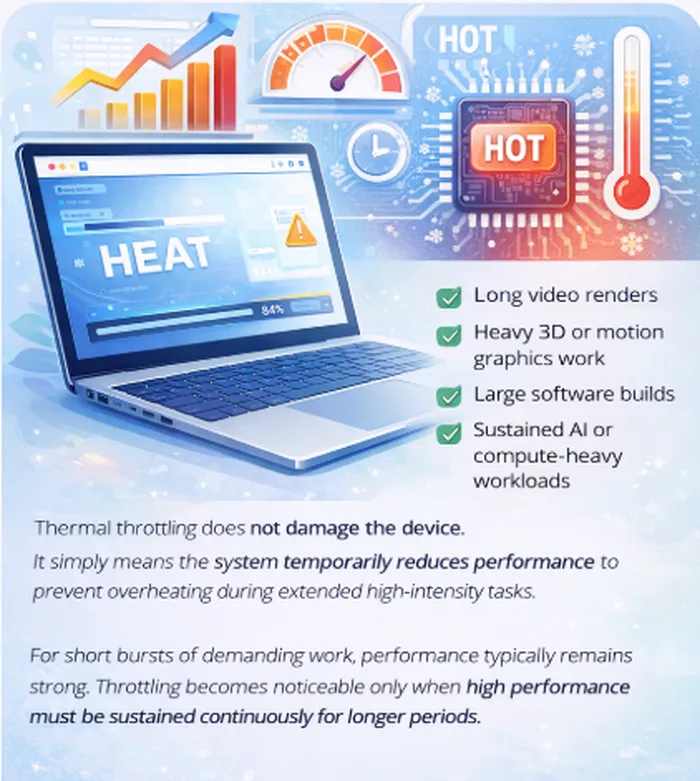
Because the MacBook Air does not have internal fans to actively remove that heat, the system may slightly reduce performance to maintain safe operating temperatures. This behavior is known as thermal throttling.
Thermal throttling does not damage the device. It simply means the system temporarily reduces performance to prevent overheating during extended high-intensity tasks.
You’re most likely to notice this during:
🎬 Long video renders
🧩 Heavy 3D or motion graphics work
💻 Large software builds
🤖 Sustained AI or compute-heavy workloads
For short bursts of demanding work, performance typically remains strong. Throttling becomes noticeable only when high performance must be sustained continuously for longer periods.
Why Does the MacBook Pro Use Active Cooling?
MacBook Pro models include internal fans and a more robust cooling system.
Active cooling allows the system to:
🌡️ Remove heat more effectively
🚀 Maintain higher performance for longer periods
🧩 Handle sustained professional workloads
This design is particularly beneficial when editing video, rendering 3D graphics, compiling large software projects, or running intensive simulations.
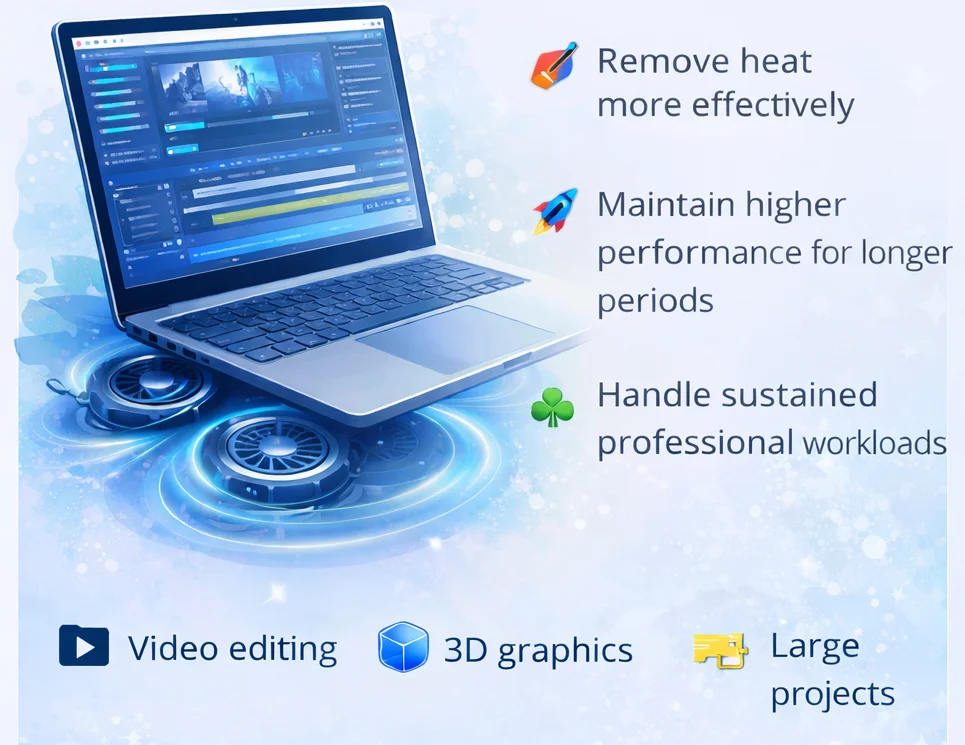
If you want a deeper analysis of the professional models, you can also read my MacBook Pro review, where I cover sustained performance, cooling behavior, and real-world workloads.
When Does Cooling Actually Matter?
Cooling differences matter most during sustained workloads — tasks that keep the CPU and GPU working hard for extended periods.
✨ The MacBook Air Is More Than Enough If Your Day Looks Like:
For these types of tasks, the MacBook Air’s fanless design is typically more than sufficient — while remaining completely silent.
|
🚀 You'll Benefit From MacBook Pro Cooling If You Regularly Do:
Active cooling helps maintain higher performance for longer without slowing down.
|
Display Differences
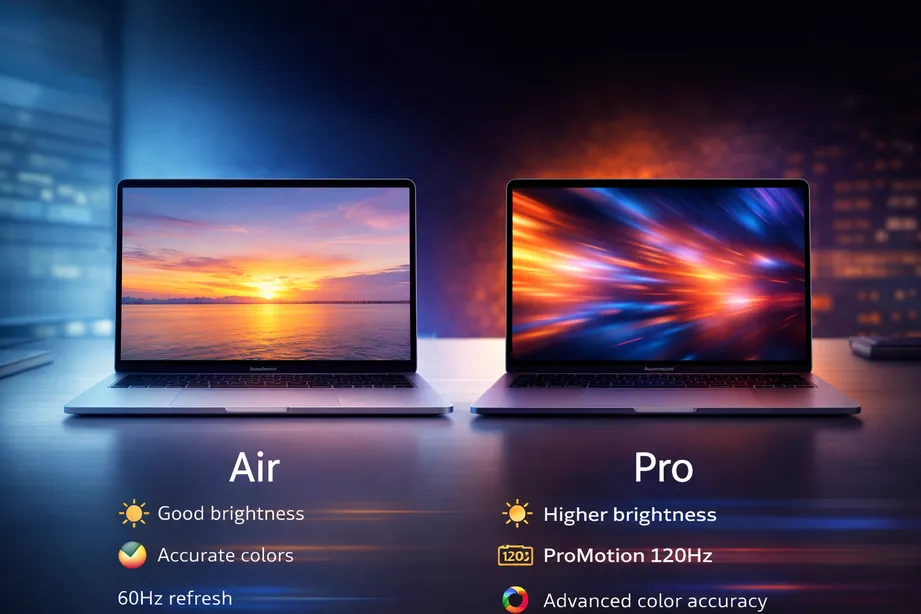
MacBooks use high-quality Retina displays across the lineup, but the MacBook Air and MacBook Pro differ in brightness, refresh rate, and display technology. These differences affect how smooth motion appears, how visible the screen is in bright environments, and how accurately colors are reproduced. Understanding these display characteristics helps determine which model is better suited to your daily use and visual workloads.
Display and Screen Options
| Feature | MacBook Air | MacBook Pro |
|---|---|---|
| Display Type | Liquid Retina (IPS LCD) | Liquid Retina XDR (mini-LED) |
| Sizes | 13-inch and 15-inch | 14-inch and 16-inch |
| Brightness | Up to 500 nits | Up to 1000 nits sustained, 1600 nits peak (HDR) |
| Refresh Rate | 60Hz | ProMotion up to 120Hz |
| HDR Support | No true HDR | Full HDR support |
| Contrast | Standard IPS contrast | Much higher contrast with local dimming |
| Target User | Everyday users | Creators & visual professionals |
How to interpret this table:
Use this comparison to match the display to how you actually work. The MacBook Air screen is excellent for everyday use — reading, writing, browsing, study, and general productivity. The MacBook Pro display becomes valuable when you care about brightness in bright environments, smoother motion (120Hz), HDR playback/editing, and stronger contrast for color-critical work. If your work is mostly documents and web apps, Air is enough. If your work involves editing, design, photography, or HDR video, Pro’s display upgrades are noticeable and worth paying for.
What These Differences Actually Mean
At a glance, both displays are sharp and color-accurate. The differences become clearer when looking at brightness, contrast, and motion smoothness.
MacBook Air
💡 Bright enough for most indoor environments (around 500 nits)
🎨 Sharp and color-accurate for general use with P3 wide color
🎓 Ideal for students, business users, and light creative work
🔄 60Hz refresh rate is smooth for normal productivity and media consumption
MacBook Pro
☀️ Noticeably brighter in sunlight or very bright offices
🌑 Deeper blacks and stronger contrast with Liquid Retina XDR
🔄 Smoother scrolling and motion with ProMotion up to 120Hz
🎬 Better suited for HDR video, color-critical editing, photography, and professional visual workflows
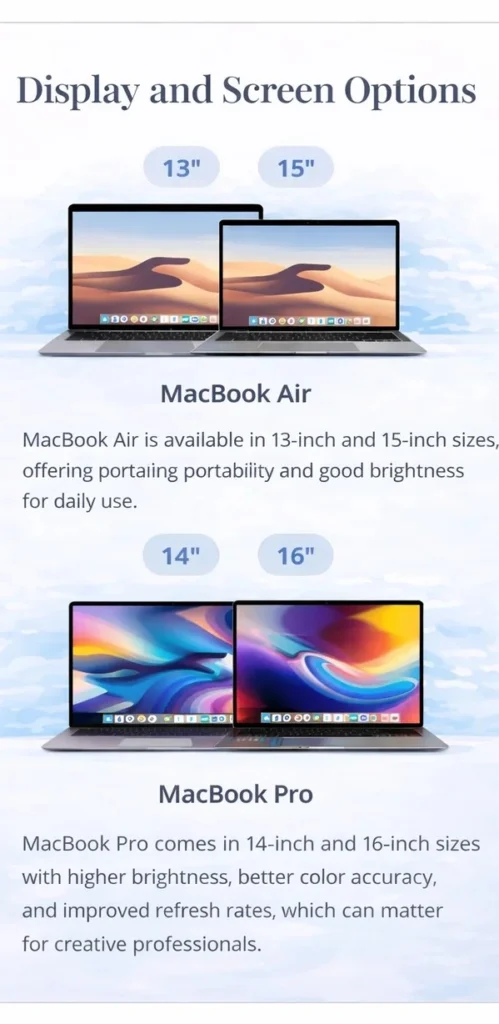
In practical terms, both displays are extremely sharp and high quality. The real difference is not resolution — it’s brightness headroom, contrast depth, motion smoothness, and how demanding your visual work is day to day. For general use, the Air display is excellent. For sustained creative or HDR work, the Pro display offers clear technical advantages.
How Many External Displays Can Each MacBook Support?
Ports and Connectivity
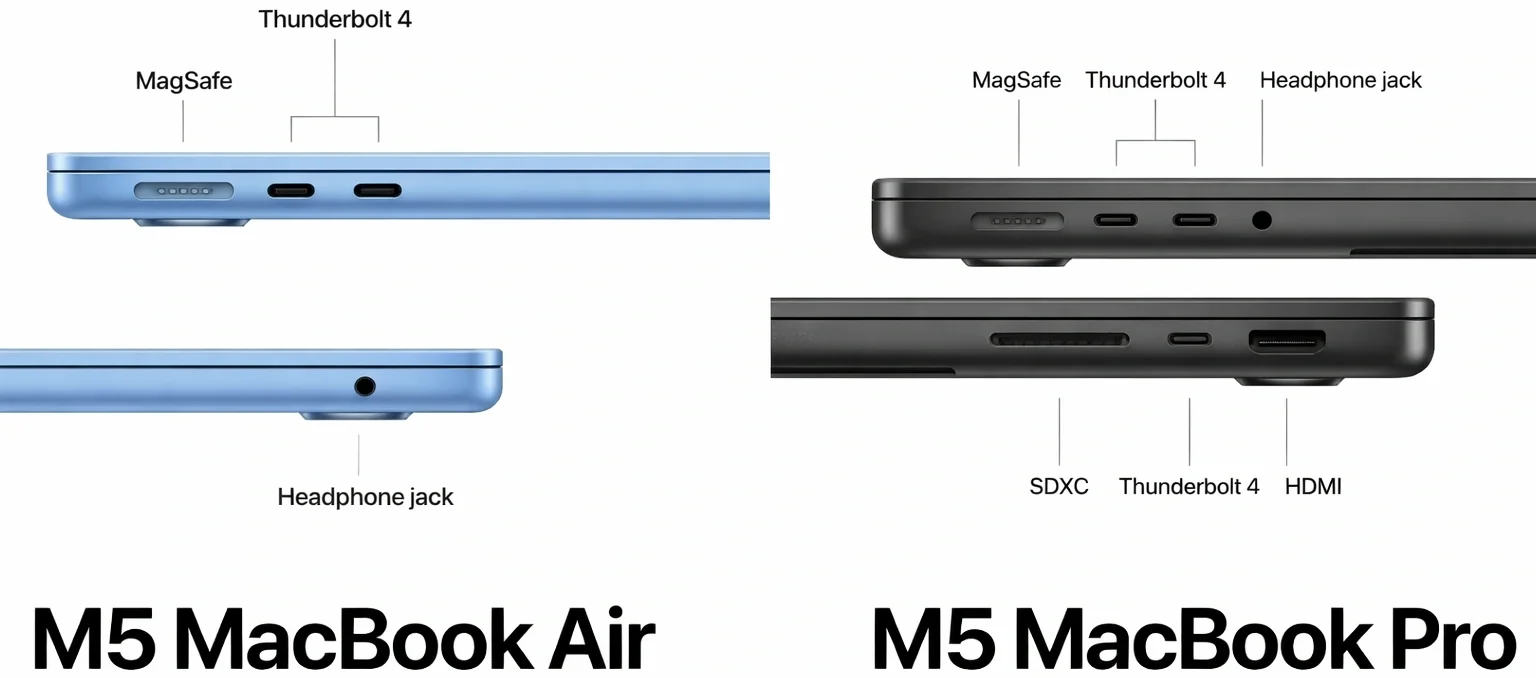
Modern MacBooks differ in their physical port selection. While both the Air and Pro models use USB-C and Thunderbolt connectivity, the Pro includes additional built-in ports that can reduce the need for adapters in more complex setups.
Understanding these differences helps determine whether a minimalist port layout is sufficient for your needs — or whether expanded connectivity will make everyday workflows easier.
| Feature | MacBook Air (Current) | MacBook Pro 14/16 (Current) |
|---|---|---|
| MagSafe charging | ✅ Yes | ✅ Yes |
| USB-C / Thunderbolt ports | 2 × Thunderbolt / USB-C | 3 × Thunderbolt / USB-C |
| HDMI | ❌ No | ✅ Yes |
| SD card slot | ❌ No | ✅ Yes (SDXC) |
| 3.5mm headphone jack | ✅ Yes | ✅ Yes |
What Do These Port Differences Actually Mean?
At first glance, both MacBook Air and MacBook Pro use modern USB-C / Thunderbolt connectivity, and for many users that will feel sufficient. The key difference is how much flexibility you get without relying on adapters.
MacBook Air
- 🔌 Two Thunderbolt ports means you may need to choose between charging and connecting accessories at the same time (unless using MagSafe for power).
- 🖥️ Connecting to external monitors, storage drives, or docks often requires USB-C cables or adapters.
- 🎧 Includes a headphone jack for wired headphones or speakers.
- 💼 Designed for portability and minimal setups rather than complex workstation environments.
For everyday use — charging, one monitor, a drive, maybe a hub — the Air’s ports are typically enough.
MacBook Pro
- 🔌 Three Thunderbolt ports provide more flexibility for multiple accessories at once.
- 🖥️ Built-in HDMI allows direct connection to TVs, projectors, and external monitors without an adapter.
- 📷 SD card slot enables photographers and videographers to import files directly from cameras.
- 🎧 Includes a headphone jack for wired audio setups.
- 💻 Better suited for desk setups with multiple displays, external drives, and professional equipment.
In practical terms, the difference comes down to convenience and workflow. The MacBook Air supports modern connectivity but may require adapters for certain devices. The MacBook Pro reduces adapter dependence by including additional built-in ports designed for professional use.
For users with simple setups, the Air’s port selection is usually sufficient. For those regularly connecting cameras, multiple monitors, or presentation equipment, the Pro’s expanded port array can make daily work smoother and more efficient.
What Is Thunderbolt and Why Does It Matter?
Thunderbolt is a high-speed connection standard used through USB-C ports on modern MacBooks. Although the connector looks identical to a regular USB-C port, Thunderbolt supports much faster data transfer speeds and more advanced capabilities.
With Thunderbolt, a single cable can:
⚡ Transfer data at very high speeds
🖥️ Connect to external displays
🔌 Charge the laptop
💾 Connect to high-speed external storage
🧩 Power docking stations with multiple accessories attached
🎮 Connect to external desktop GPUs (eGPUs) for additional graphics power
In simple terms, Thunderbolt combines multiple functions into one highly versatile connection.
This matters because modern workflows often rely on external monitors, fast storage drives, docking stations, and sometimes external graphics hardware.
A Thunderbolt port can handle all of these through a single cable, reducing cable clutter and simplifying desk setups.
For most users, Thunderbolt works seamlessly in the background. But for professionals using high-speed storage, multiple displays, or complex desk setups, its bandwidth and flexibility become increasingly important.
Do You Still Need Adapters or a Hub?
Whether you need adapters depends largely on the devices you use.
Modern MacBooks rely primarily on USB-C / Thunderbolt connections. If your accessories — monitors, external drives, keyboards, and chargers — already use USB-C, you may not need any adapters at all.
However, many users still own devices that use:
🖥️ HDMI cables for monitors or TVs
🔌 USB-A accessories like older flash drives
📷 SD cards from cameras
🧰 Legacy peripherals designed for older ports
In these situations, a small USB-C adapter or a multiport hub can bridge the gap.
MacBook Air users are more likely to rely on a hub if they connect multiple external devices regularly.
MacBook Pro users, with built-in HDMI and an SD card slot, may find they need fewer adapters for creative or presentation workflows.
In practical terms, adapters are not a requirement for everyone — but they remain common in mixed-device environments. The more specialized or older your accessories are, the more likely a hub will simplify your setup.
Size, Weight & Portability
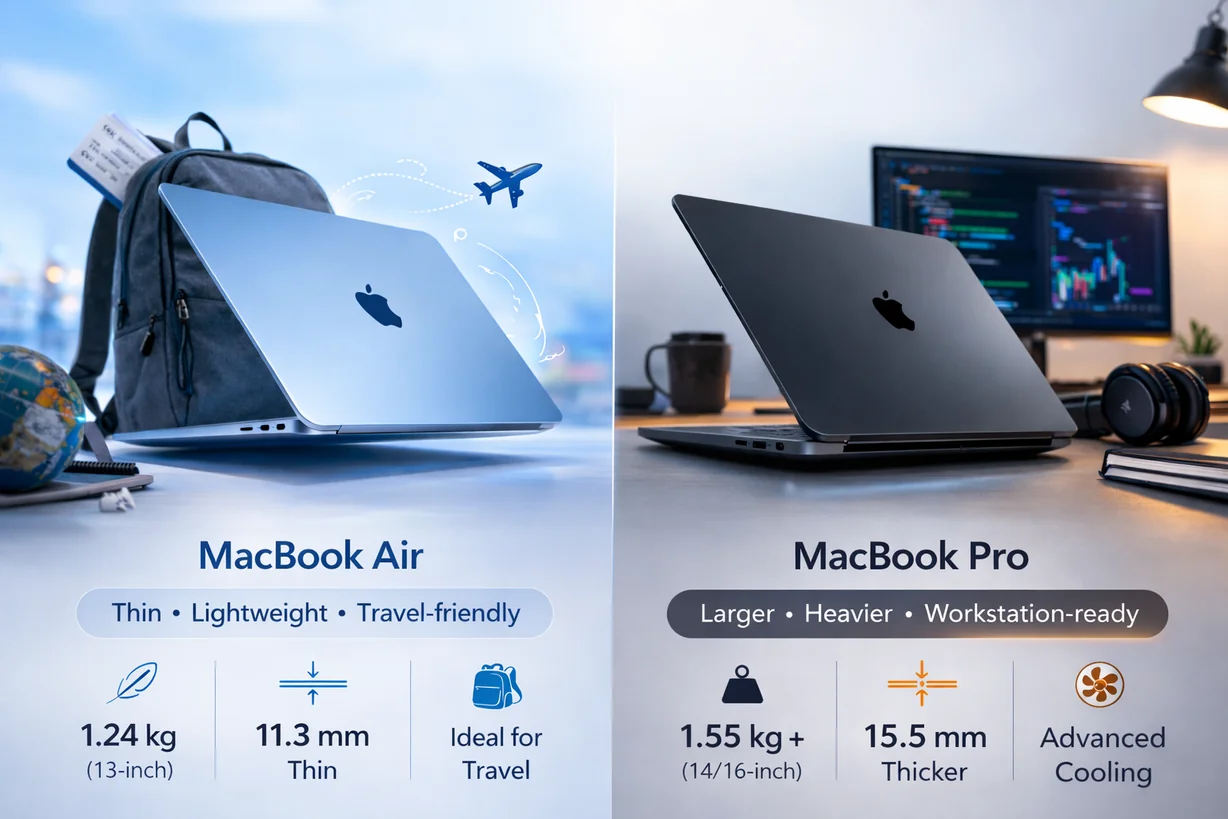
Beyond performance and features, physical size and weight play a major role in everyday usability. While all modern MacBooks are portable, there are noticeable differences in footprint, thickness, and travel comfort.
How Portable Is the MacBook Air?The MacBook Air is designed primarily for mobility.
For users constantly on the move, the Air feels effortless to carry and use anywhere. |
How Portable Is the MacBook Pro?The MacBook Pro is still portable, but it prioritizes performance over minimal weight.
The 14-inch Pro remains reasonably portable, while the 16-inch model is better suited to users who move less frequently or prefer larger screens. |
Does Size Affect Daily Experience?
📏 Larger displays improve workspace visibility
🔊 Bigger chassis allows stronger speakers
🔋 Larger body can house a bigger battery
🎬 More comfortable for extended creative sessions
In short:
✨ Choose Air if maximum portability matters.
💼 Choose Pro if screen space and sustained performance matter more than weight.
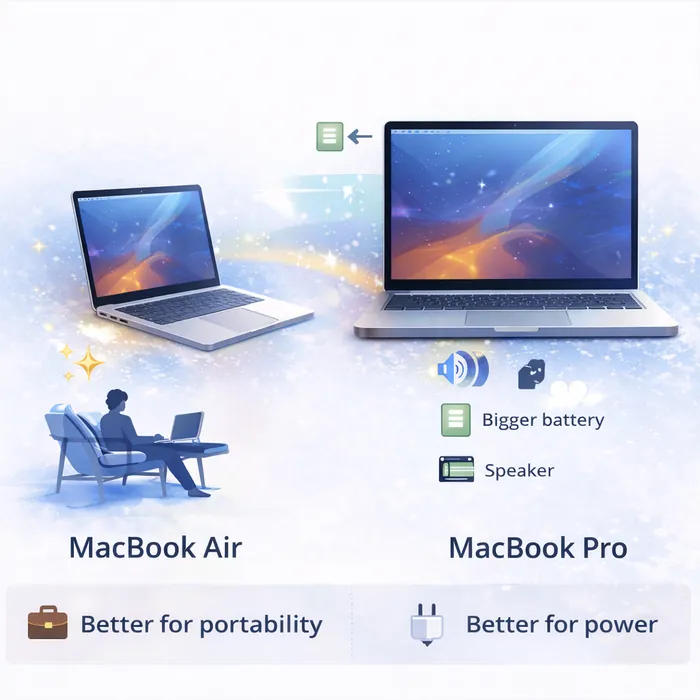
Upgrade Limits & Long-Term Ownership
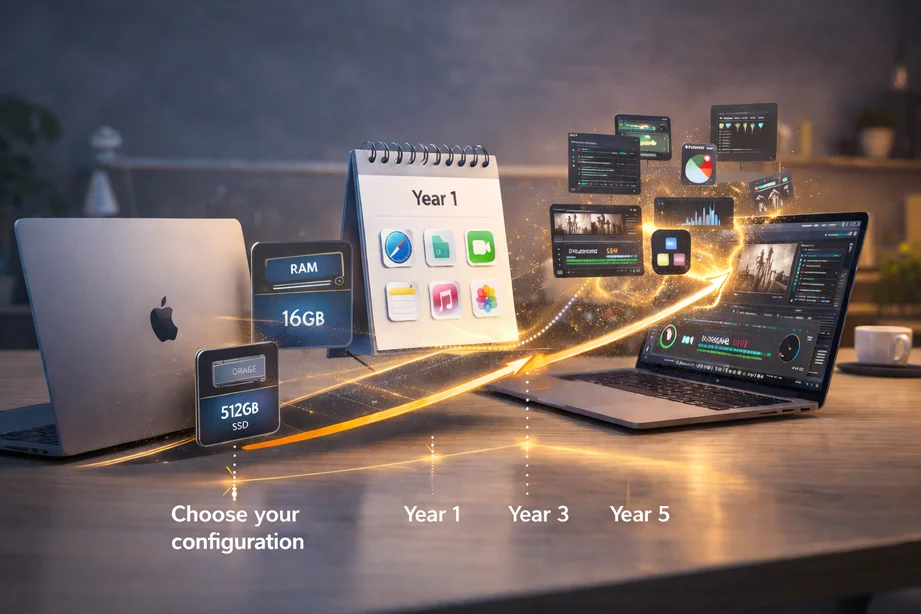
Modern MacBooks are highly integrated systems. Unlike many older laptops, most internal components cannot be upgraded after purchase. This makes your configuration choice at checkout more important than ever.
Can You Upgrade RAM or Storage Later?
Short answer:
❌ No — unified memory cannot be upgraded after purchase.
Unified memory is built directly into Apple’s system-on-a-chip (SoC). It is not a removable RAM module like in many traditional laptops. Because it is physically integrated into the chip package, it enables very high speed and efficiency — but it also means your memory configuration is permanent.
In simple terms:
🚗 Buying a Mac is like buying a car with the engine welded in place. Once you drive it off the lot, that’s the engine you live with.
You can still expand some things later:
|
Why this matters more on Macs than on PCs
On many traditional laptops, RAM could often be upgraded later. If your needs grew over time, you could simply install more memory and extend the life of the machine.
On Apple silicon Macs, memory is integrated directly into the chip and cannot be upgraded after purchase. Because of the unified architecture, the same memory pool is shared by everything:
🧠 CPU processing
🎨 GPU graphics workloads
⚙️ macOS system processes
💻 Applications and creative software
Everything depends on one shared pool of memory.
When that pool starts to fill up:
🐢 Apps slow down together
🎮 Graphics performance can drop
🧩 Multitasking becomes harder
💾 macOS relies more heavily on SSD swap
There’s no separate graphics memory or additional RAM to fall back on.
That’s why choosing the right amount of unified memory upfront matters more on Apple silicon Macs than on most traditional laptops.
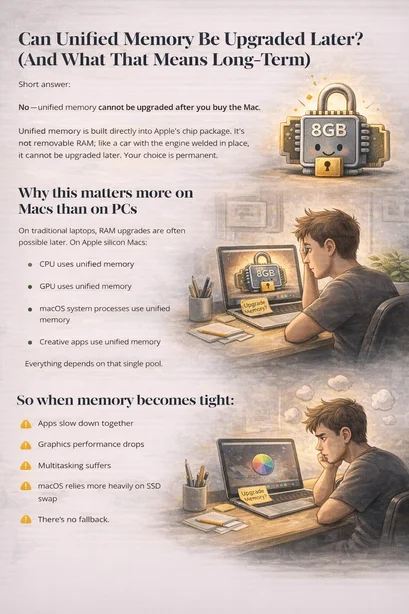
The Most Important Rule
|
Because unified memory cannot be upgraded after purchase, your configuration choice is permanent.
And because the 👨🏫 CPU and 🎨 GPU share the same memory pool, memory capacity influences overall system behavior more than many buyers expect.
If your budget forces a choice between increasing storage or increasing memory, prioritizing memory is usually the more future-proof decision — especially for users who multitask, create content, or plan to keep their Mac for several years.
|
The 2–5 year ownership reality
Most people don’t push their Mac very hard on day one.
But over time:
🌐 Websites become heavier
📱 Apps become more demanding
📂 File sizes grow
🧩 Workflows expand
⚙️ macOS adds new features
What feels “fine” in year one can start to feel constrained by year three.
That’s why memory is often the most important future-proofing decision when buying a Mac.
Not storage.
Not color.
Not screen size.
🧠 Memory.
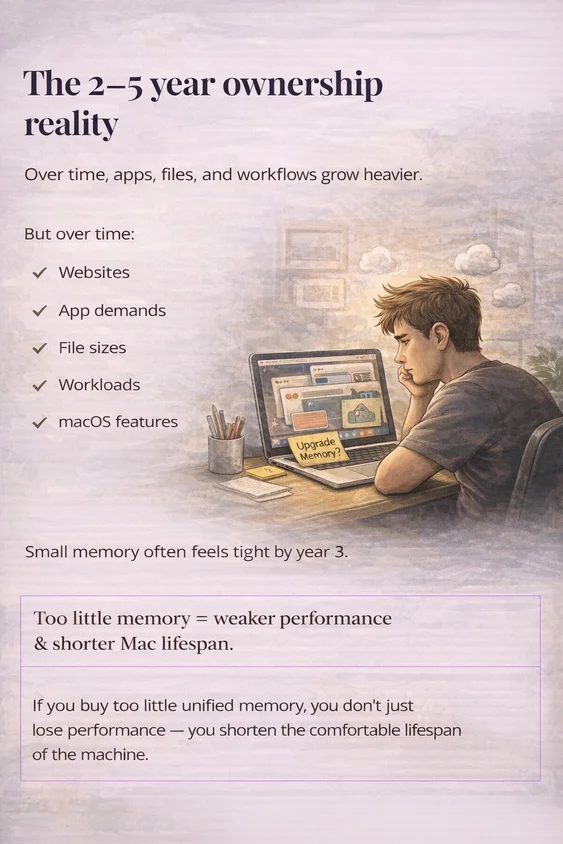
If you buy too little unified memory, you don’t just lose performance — you shorten the comfortable lifespan of the machine.
Who Each MacBook Is For
Choosing a MacBook isn’t about chasing the most powerful option — it’s about matching the machine to your actual daily workflow. Here’s a simplified breakdown based on real-world use.

🎓 Best MacBook for Students
For most students, the MacBook Air (M5) is the ideal choice.
🌐 Research, writing, online classes, and note-taking
📚 Lightweight and easy to carry daily
🔋 Strong battery life for full school days
✍️ Handles light creative projects comfortably

Unless you’re studying something highly demanding like advanced 3D design or heavy video production, the Air is more than capable.
🌤️ Best MacBook for Everyday Use
If your day includes browsing, email, streaming, productivity apps, and general multitasking, the MacBook Air (M5) is usually the best fit.
🌐 Web, office apps, meetings, and streaming
🔇 Silent operation
💼 Easy portability
⚡ Smooth performance for light to moderate workloads
Most everyday users do not need a Pro model.

💼 Best MacBook for Business Professionals
Business users who multitask heavily or connect to multiple displays may benefit from a MacBook Pro (M5 or M5 Pro).
📊 Large spreadsheets and multitasking
🖥️ Dual external monitor setups
📞 Frequent video conferencing
📁 Managing larger files and workflows
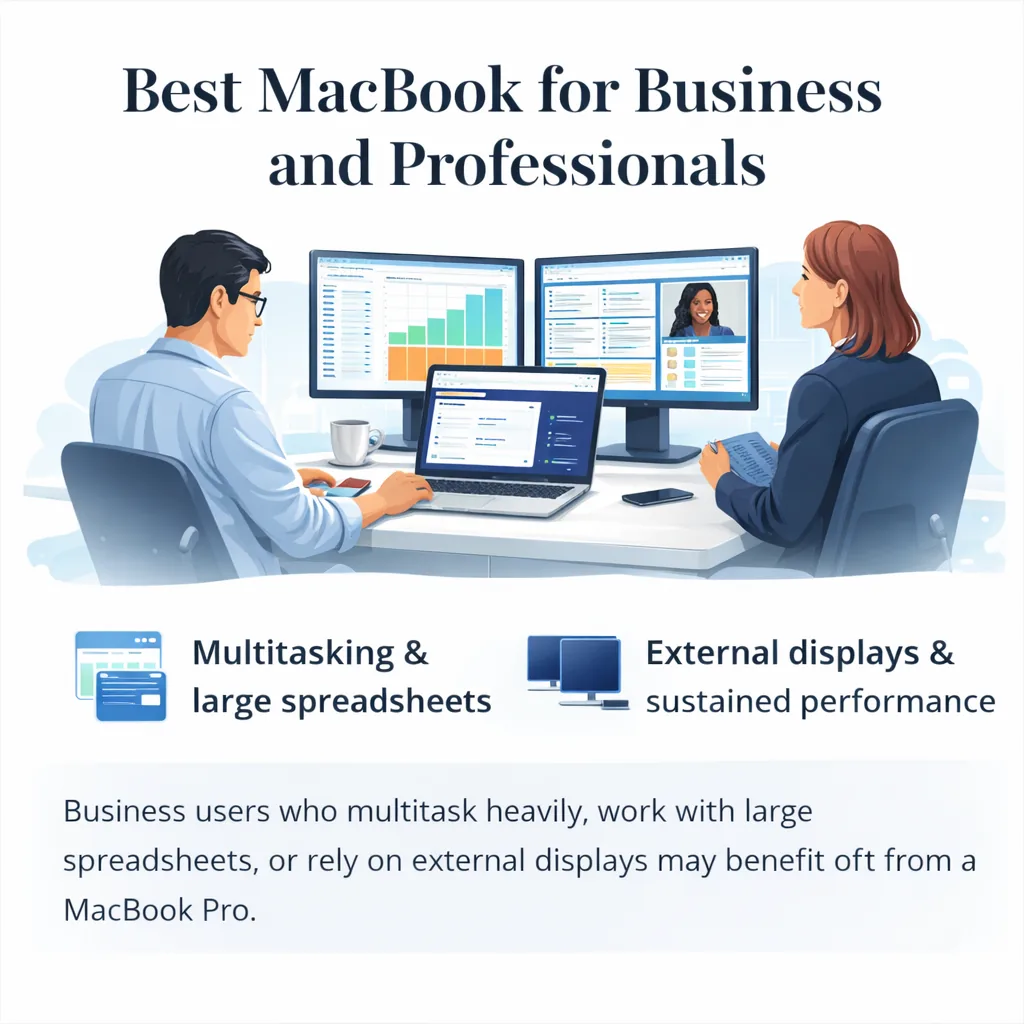
If your work is primarily documents and meetings, however, a well-configured Air remains sufficient.
🚀 Best MacBook for Creators & Power Users
For sustained creative or technical workloads, the MacBook Pro (Pro or Max tiers) is the stronger choice.
🎬 Video editing and rendering
🧩 3D graphics and complex motion work
💻 Large code projects
🤖 AI or compute-heavy tasks
These models are designed to maintain higher performance for longer periods without slowing down.
|
In current Apple Silicon MacBooks:
Both memory and storage are integrated directly into the system architecture. This design improves efficiency and performance, but it also removes the flexibility to upgrade these components after purchase.
If you need more memory or storage in the future, they cannot be added internally.
|
Why This Matters Long-Term
Because upgrades aren’t possible later, your initial configuration determines how long the device remains comfortable to use.
- 🧠More RAM helps with multitasking and future software demands
- 💾More storage prevents reliance on constant external drives
- 🔮Higher configurations often age more gracefully
Choosing the correct configuration upfront can extend the useful lifespan of the machine.
Is Storage as Important
as Memory?
Memory (RAM) typically affects performance more directly than storage.
If budget is limited:
- 🧠Prioritize sufficient RAM first
Storage can be supplemented with:
- 💽External SSDs
- ☁️Cloud storage
While storage can be expanded externally, memory cannot.
What About Battery or Other Repairs?
🔋 Battery replacement is possible through Apple service or authorized repair providers.
However, core components such as:
remain fixed and non-upgradeable.
Because of this design, planning your configuration carefully at purchase becomes especially important if you intend to keep your MacBook for several years.
|
MacBook Air vs MacBook Pro: What’s the Difference and Which Should You Choose?

MacBook Air vs MacBook Pro: Key Differences
The table below highlights the key hardware differences between the MacBook Air and MacBook Pro lineup, including display technology, chip options, ports, and battery capacity.
| Feature | MacBook Air | MacBook Pro |
|---|---|---|
| Display |
MacBook Air
Liquid Retina (IPS)
13.6″ / 15.3″ 500 nits • P3 • True Tone 60Hz |
MacBook Pro
Liquid Retina XDR
14.2″ / 16.2″ 1000 nits sustained • 1600 nits HDR ProMotion 120Hz |
| Chip options | Apple M5 | M5 M5 Pro M5 Max |
| Unified memory | 16GB 24GB 32GB | 16GB 24GB 32GB 36GB 48GB 64GB 128GB |
| Storage | 256GB 512GB 1TB 2TB | 512GB 1TB 2TB 4TB 8TB |
| Ports | MagSafe 3 2× Thunderbolt 4 3.5mm jack | SDXC HDMI MagSafe 3 3× Thunderbolt |
| Battery |
53.8Wh (13″)
66.5Wh (15″) Up to 18h video • 15h web |
72.4Wh (14″)
100Wh (16″) Up to 24h video |
| MacBook Model | Display | Battery |
|---|---|---|
| MacBook Air 13″ | 13.6″ Liquid Retina | 53.8Wh |
| MacBook Air 15″ | 15.3″ Liquid Retina | 66.5Wh |
| MacBook Pro 14″ | 14.2″ Liquid Retina XDR | 72.4Wh |
| MacBook Pro 16″ | 16.2″ Liquid Retina XDR | 100Wh |
While MacBook Air and MacBook Pro may look similar at first glance, they are designed for very different types of workloads. Both use Apple Silicon and share the same core architecture, but they prioritize different things: portability, sustained performance, and hardware capabilities.
Understanding these differences makes it much easier to choose the right model for your workflow.
Performance Differences
The biggest difference between MacBook Air and MacBook Pro is how much sustained performance the system can deliver over time.
MacBook Air focuses on efficiency and portability, while MacBook Pro is designed for heavier workloads that run for longer periods.
Key performance differences include:
For everyday productivity, both machines feel extremely fast. The difference becomes noticeable primarily during long, demanding workloads.
|
Hardware Differences
Beyond performance, MacBook Air and MacBook Pro also differ in several hardware features that affect professional workflows.
Some of the key hardware differences include:
These differences make the Pro models better suited for professional workflows that rely on displays, ports, and sustained processing power.
|
This Is Important: A Base M5 MacBook Pro Is Not Automatically Faster Than a Base M5 MacBook Air
Base M5 Chip
If you compare a MacBook Air with the standard M5 to a MacBook Pro with the standard M5, the chip itself is essentially identical.
⚙️ 10-core CPU
🎮 10-core GPU
🧠 16-core Neural Engine
📊 153GB/s memory bandwidth
The base M5 chip therefore delivers the same core architecture whether it is inside a MacBook Air or MacBook Pro.
Same Short-Burst Performance
For everyday workloads and short creative bursts, a base M5 MacBook Air and a base M5 MacBook Pro should feel extremely similar.
🌐 Web browsing and productivity apps perform the same.
📝 Writing, research, and office work feel identical.
🎨 Light creative workloads behave very similarly.
If both laptops use the same standard M5 chip, raw CPU and GPU capability is not the deciding factor.
Cooling and Sustained Performance
The real difference appears during longer sustained workloads.
🌬️ MacBook Air uses a fanless cooling system.
🌀 MacBook Pro includes active cooling.
⏱️ During long exports or heavy workloads, the Pro can maintain peak performance longer.
Where the Real Performance Jump Starts
The true performance leap begins when moving beyond the standard M5 chip.
🚀 M5 Pro adds significantly more CPU and GPU capability.
🔥 M5 Max dramatically increases graphics performance.
💼 These chips target demanding professional workloads.
This means the base M5 MacBook Pro is not dramatically faster than the base M5 MacBook Air for everyday use, but it can maintain peak performance longer during sustained workloads. The real performance jump appears when moving to M5 Pro or M5 Max configurations, where CPU and GPU capabilities increase significantly.
What This Means for Buyers
If both laptops use the standard Apple M5 chip, their CPU and GPU performance is essentially the same. A base M5 MacBook Pro is not dramatically faster than a base M5 MacBook Air for normal workloads.
The practical difference comes from cooling and sustained performance. MacBook Air is fanless and optimized for portability, while MacBook Pro can maintain peak performance longer during heavier workloads.
The real performance difference appears when moving to M5 Pro or M5 Max configurations, which significantly increase CPU and GPU capabilities.
Who Each MacBook Is Best For
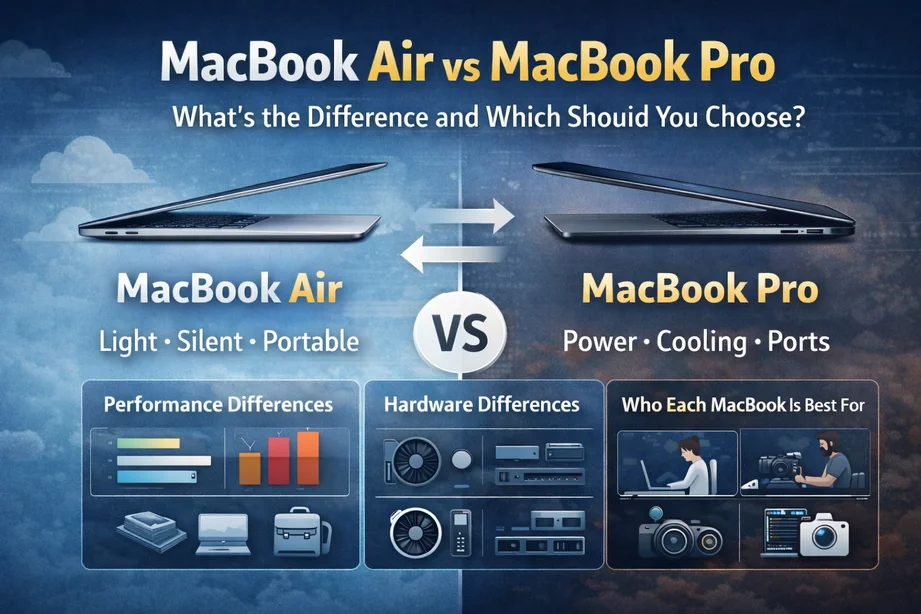
| Choosing between MacBook Air and MacBook Pro ultimately depends on how demanding your daily tasks are. | |
|
MacBook Air is generally the better choice for users who prioritize portability and efficiency.
It is well suited for:
|
MacBook Pro is designed for users who regularly push their machines harder.
It is better suited for:
|
| In simple terms, MacBook Air focuses on efficiency and portability, while MacBook Pro is built for sustained professional performance. | |
| Category |
✨ MacBook Air
Thin, silent, ultra-portable
|
🚀 MacBook Pro
More powerful, actively cooled
|
|---|---|---|
| Performance | MacBook Air ⚡ Excellent for everyday work | MacBook Pro 🚀 Higher sustained performance |
| Cooling | MacBook Air 🔇 Fanless design for silent use | MacBook Pro 🌬️ Active cooling for heavier workloads |
| Battery life | MacBook Air 🔋 Around 12–18 hours in typical real-world use | MacBook Pro 🔋 Around 12–20 hours depending on model and workload |
| Portability | MacBook Air ✈️ Lighter, thinner, and easier to carry all day | MacBook Pro ⚖️ Heavier, but built for more demanding use |
| Best for | MacBook Air 🎓 Students • ✍️ writers • 🌐 browsing • 💼 everyday productivity | MacBook Pro 🎬 creators • 💻 developers • 🎨 advanced editing • 🧠 heavy multitasking |
| Quick takeaway | MacBook Air ✅ Best choice for most people who want portability, battery life, and value | MacBook Pro 🔥 Better choice if your work regularly pushes performance for long periods |
Buying Guide: How to Choose the Right MacBook
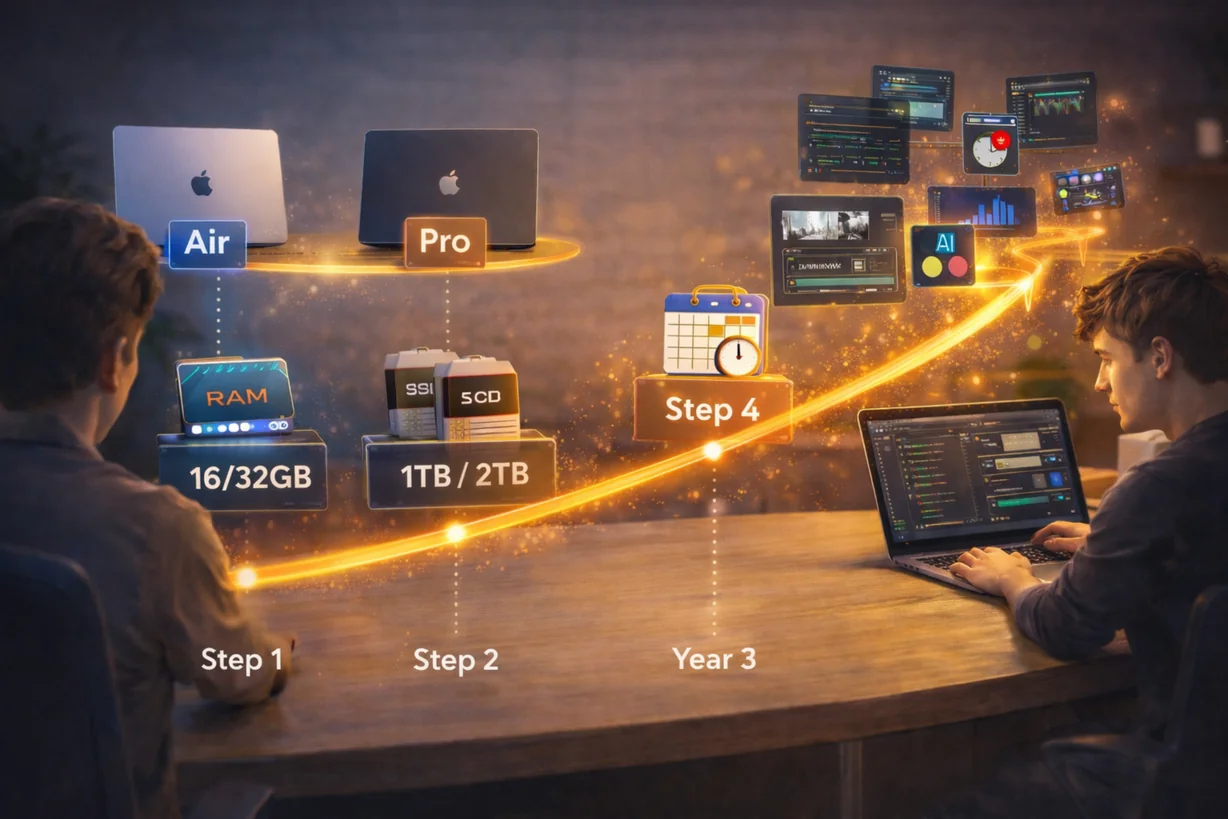
After understanding performance, battery life, display, and cooling differences, the final decision comes down to choosing the right configuration for your needs and budget.
Here’s a simple step-by-step way to decide.
Step 1: Choose the Right Model (Air vs Pro)
Start with workload intensity:
- ✨ Choose MacBook Air (M5) if your work is mostly browsing, productivity, study, streaming, and light creative tasks.
- 💼 Choose MacBook Pro (M5 / M5 Pro) if you regularly multitask heavily, use multiple displays, or run demanding applications.
- 🚀 Choose Pro-tier chips (Pro / Max) only if you perform sustained creative or technical workloads that truly require it.
Most users do not need the highest-tier chip.
Step 2: Prioritize Memory (RAM)
If budget allows, prioritize memory over storage.
- 🧠 More RAM improves multitasking and long-term usability.
- 🔮 It helps the machine age more gracefully as software demands increase.
Memory cannot be upgraded later, so choose carefully.
Step 3: Choose Storage Based on Workflow
Storage needs depend on how you work:
- ☁️ If you rely heavily on cloud storage, moderate internal storage may be sufficient.
- 💽 If you work with large video files, photo libraries, or offline assets, consider more internal storage.
External SSDs remain an option, but internal storage is always more convenient.
Step 4: Think About Longevity
If you plan to keep your MacBook for many years:
- 📈 Consider a slightly higher configuration than your current needs require.
- 🔋 Larger models may provide longer sustained performance and battery endurance under load.
Planning ahead can reduce the need for early replacement.
Final Decision Rule
If your daily tasks rarely push your laptop hard, the MacBook Air is usually the smarter choice.
If your work consistently demands high performance, external displays, or sustained processing power, the MacBook Pro is worth the investment.
Choose based on how you actually work — not simply on the most powerful specification available.
When You Reach a Crossroads and Priorities Collide

Sometimes you may find yourself at a crossroads, where portability matters just as much as performance, or where flexibility is just as important as screen space. In those moments, it can feel like you have to choose one and sacrifice the other.
But you don’t always have to choose.
Apple’s MacBook lineup is designed specifically to address these kinds of trade-offs. If portability and lightweight mobility are your top priorities, the 13-inch MacBook Air is an excellent option. If you still want portability but need significantly more performance, the 14-inch MacBook Pro can be configured with powerful chips and higher specifications while remaining relatively compact. Apple excels at offering multiple configurations that cover a wide range of needs, giving users more flexibility than many competing laptop brands. If you ever need more flexibility than a single laptop can provide, accessories like portable monitors, docking stations, and external storage can help bridge that gap. I cover those options in more detail in my Digital Nomad Accessories Guide.
When priorities collide, there is often a practical workaround.
🟢 Portability path — Some people prioritize mobility, choosing lighter 13–14 inch laptops that are easier to carry every day.
🔴 Performance path — Others prefer powerful setups designed for demanding workloads, larger displays, and higher sustained performance.
🔵 Productivity path — Many users build desk setups with multiple monitors, keyboards, and docking stations to create a full workstation environment.
⚖️ If you want a balance between these paths, accessories can bridge the gap.
🖥️ Portable monitors can expand your screen space while traveling.
🔌 Docking stations can turn a lightweight laptop into a full desk workstation.
🧳 External peripherals allow your setup to grow as your workflow evolves.
Accessories allow you to build around your laptop and adapt your setup as your needs change. The laptop itself doesn’t always have to be perfect — your overall setup does.
🎯 What matters most is understanding your priorities and designing a configuration that supports how you actually work.
Because while accessories can transform your workspace, only you can decide which trade-offs make sense for your daily workflow.
Final Thoughts: Buy for Your Workflow, Not the Hype
There is no single “best” MacBook — only the one that fits your workflow. Marketing, specs, and benchmarks can be distracting, but what truly matters is how you plan to use your laptop day to day.
🎯 Start with your needs. 🔧 Build around them with the right accessories. 💻 Then choose a MacBook that supports your goals — whether that means a MacBook Air or MacBook Pro.
When you make decisions this way, you avoid overspending and end up with a setup that actually works for you.
Whether you’re deciding between MacBook Air and MacBook Pro, or trying to figure out which configuration makes sense, the smartest rule is simple:
🧠 Buy for what you do — not what looks impressive on paper.
This guide exists to help you cut through the noise, understand the real differences between MacBook Air and MacBook Pro, and choose the laptop that fits your everyday workflow.
👉 For most people, the right MacBook isn’t the most powerful one — it’s the one that matches how you actually use your computer.
Frequently Asked Questions About MacBooks

Here are some everyday questions and answers for more clarity, you might have had some of these questions.
What’s the difference between a MacBook Air and a MacBook Pro?
The MacBook Air is built for portability, while the MacBook Pro is built for higher sustained performance.
💻 MacBook Air – thin, silent, and ultra-portable. Best for everyday tasks like browsing, writing, studying, and light creative work.
🚀 MacBook Pro – more powerful with active cooling. Designed for video editing, 3D work, programming, and heavy multitasking.
👉 Simple rule: Air = portability. Pro = performance.
How much RAM do I really need for a MacBook?
For most people, 16 GB is the best choice.
- 💻 8 GB – basic browsing, email, and documents
- ⚡ 16 GB (recommended) – multitasking, photo editing, coding
- 🎬 32 GB+ – video editing, 3D rendering, and heavy creative workloads
Because Apple uses unified memory, 16 GB on a MacBook often feels closer to 24 GB on many Windows laptops.
👉 If you plan to keep your laptop for several years, choosing at least 16 GB is usually the safest option.
Is the base model MacBook worth buying?
Yes, the base model is worth buying for light everyday use, but upgrading memory is usually the smarter long-term choice.
The base model can work well for browsing, documents, streaming, and other basic tasks.
However, increasing RAM often improves real-world performance more than moving to a higher chip tier.
👉 For most people, upgrading memory is a better investment than upgrading the processor.
Are MacBooks good for gaming?
No, MacBooks are not the best choice for serious gaming.
MacBooks are optimized primarily for productivity, development, and creative workflows — not modern AAA gaming.
You can play lighter titles and some optimized games, but serious gamers are usually better served by Windows laptops with dedicated GPUs.
How long does a MacBook battery last in real-world use?
Most MacBooks deliver between 12 and 20 hours of real-world battery life depending on the model and workload.
- ⚡ MacBook Air: 12–18 hours
- ⚡ MacBook Pro: 12–20 hours (depending on model and workload)
This reflects typical tasks like browsing, writing, streaming, and light creative work — not just marketing numbers.
Apple currently leads the laptop industry in battery efficiency.
Which MacBook is best for most people?
For most people, the best choice is a MacBook Air with 16 GB RAM and a 512 GB SSD.
This configuration offers an excellent balance of:
- ⚡ Speed
- 🔋 Battery life
- ✈️ Portability
- ⏳ Longevity
- 💰 Price
👉 Only step up to a MacBook Pro if you know you will regularly push video editing, graphics work, or development workloads.
Are MacBooks worth the money?
Yes — many users find MacBooks worth the money because they last longer and retain strong resale value.
💰 Upfront? They are expensive.
📉 Long term? Often cheaper.
MacBooks hold resale value, age slowly, and often remain smooth for 6–8 years, which many cheaper laptops simply cannot match.
👉 That long lifespan is why many users consider MacBooks a better long-term investment.
Is the MacBook Air good for students?
Yes — the MacBook Air is one of the best laptops for students.
It offers an excellent balance of portability, battery life, and performance for everyday academic work.
It works very well for:
- 📝 Writing and research
- 🌐 Online classes
- 📚 studying and productivity apps
- 🎨 light creative work
👉 Choosing 16 GB RAM is recommended if you plan to multitask heavily or keep the laptop for several years.
How long do MacBooks usually last?
Most MacBooks last around 6–8 years with normal use.
This longevity comes from a combination of:
- 🔧 strong build quality
- 🔄 long software support
- ⚡ efficient Apple Silicon (M-series) chips
Many users replace their MacBook because their needs change — not because the laptop stops working.
Which MacBook model is the most popular?
The 13-inch MacBook Air with the M4 chip (2025 model) is currently the most popular MacBook.
It stands out because it offers an excellent balance of:
- ⚡ Performance
- 🔋 Battery life
- ✈️ Portability
- 💰 Price
👉 For most everyday buyers, it delivers everything they need without the extra cost or size of Pro models, making it the go-to choice for students, remote workers, and general users.
🔹 Apple M-Series Chip Comparison (Quick FAQ)
Are Apple M-series chips really faster than Intel?
Yes — Apple M-series chips are significantly faster, more efficient, and cooler-running than older Intel MacBook chips.
- ⚡ Much faster performance per watt
- 🔋 Longer battery life
- ❄️ Cooler operation
- 🔇 Zero fan noise on MacBook Air
Compared to older Intel MacBooks, even entry-level M-series models feel noticeably quicker in everyday use.
Which Apple chip should I choose?
Most people should choose a base or mid-tier M-series chip, while Pro and Max chips are best for demanding professional workloads.
🔹 M1 / M2 – Everyday users
- 🌐 Browsing
- 📝 Office work
- 🎓 Studying
- 🖼️ Light photo editing
👉 If your laptop is mainly for daily tasks, these chips are already fast enough.
🔹 M3 / M4 / M5 – Power users
- ⚡ Heavy multitasking
- 🎬 Photo and video editing
- 💻 Coding
- 🎨 Content creation
👉 It hits the sweet spot.
🔹 M-Pro / M-Max – Professionals
- 🎥 4K+ video editing
- 🧊 3D rendering
- 🧑💻 Large development projects
- 🎞️ Advanced creative workflows
👉 If you don’t know you need these — you probably don’t.
Will a higher chip make everyday tasks feel faster?
No — higher-end chips usually do not make basic tasks feel noticeably faster.
Web browsing, email, and documents already feel instant on M1 and M2.
Higher chips mainly help with sustained heavy workloads such as rendering, compiling, and large creative projects — not basic daily tasks.
Does chip choice matter more than RAM?
No — for most people, RAM matters more than moving to a higher chip tier.
For most people, memory has a bigger impact on real-world performance.
👉 16 GB RAM usually matters more than jumping from M2 to M3.
Always prioritize memory first when choosing a configuration.
What’s the best MacBook configuration for most people?
For most people, the best MacBook configuration is a base or mid-tier chip with 16 GB RAM and a 512 GB SSD.
- 👉 Base or mid-tier chip
- 👉 16 GB RAM
- 👉 512 GB SSD
This combination provides the best balance of performance, longevity, and resale value for most everyday workloads.
Why is the 13-inch MacBook Air (M4, 2025) the most popular?
The 13-inch MacBook Air with the M4 chip is the most popular because it delivers the best balance of performance, price, battery life, and portability.
Simply put: it hits the sweet spot.
The M4 MacBook Air performs noticeably better than base M3 models while still costing far less than higher-end configurations.
Performance-wise, it sits comfortably between M3 and M5, giving you stronger everyday speed without jumping into premium pricing.
That middle-ground positioning is exactly why it appeals to so many people:
- ⚡ Faster than entry-level M3 for multitasking and light creative work
- 💰 Much cheaper than M5 or Pro-tier models
- 🔋 Excellent battery life for all-day use
- ✈️ Lightweight 13-inch design that’s easy to carry
- 💻 Powerful enough for most real-world workflows
👉 In other words, you’re not settling for basic performance — but you’re also not paying for power you probably won’t use. That balance makes the M4 Air the practical choice for most buyers in Apple’s lineup.