
How Windows
Laptops Work
(Beginner Guide)
Trying to understand how Windows laptops work can feel confusing at first.
There are so many laptops, so many specs, and so many different options that all look similar — but perform very differently.
👉 That’s where most people get stuck and confused.

👉 If you're trying to understand MacBooks, Apple Silicon chips, unified memory, storage options, and the differences between the MacBook Neo, MacBook Air, and MacBook Pro, I recommend reading the Apple guide as well.
💡 Why Windows Laptops Feel So Confusing
Here’s the key reason:
A Windows laptop is not just one type of device.
Unlike a MacBook (which is built in a very controlled way), Windows laptops are made by many different companies — each choosing different parts and designs.
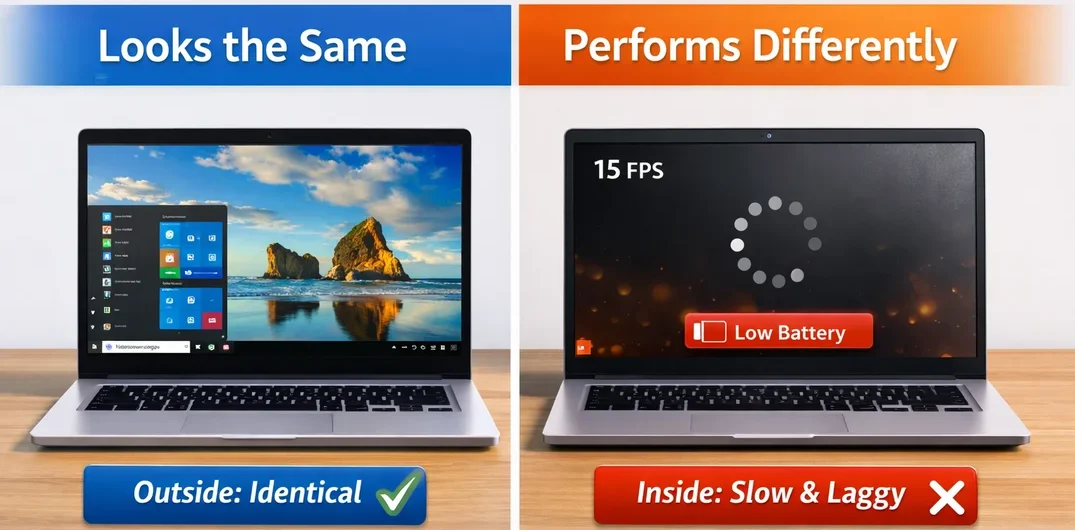
👉 Two Windows laptops can look nearly identical on the outside while delivering completely different experiences in everyday use.
The reason isn’t Windows itself—it’s the combination of components inside the laptop.
So before we can understand why one laptop performs differently from another, we first need to understand the core parts that every Windows laptop is built from.
🧩 The 10 Core Components Inside Every Laptop
Let’s quickly look at what’s actually inside a laptop.
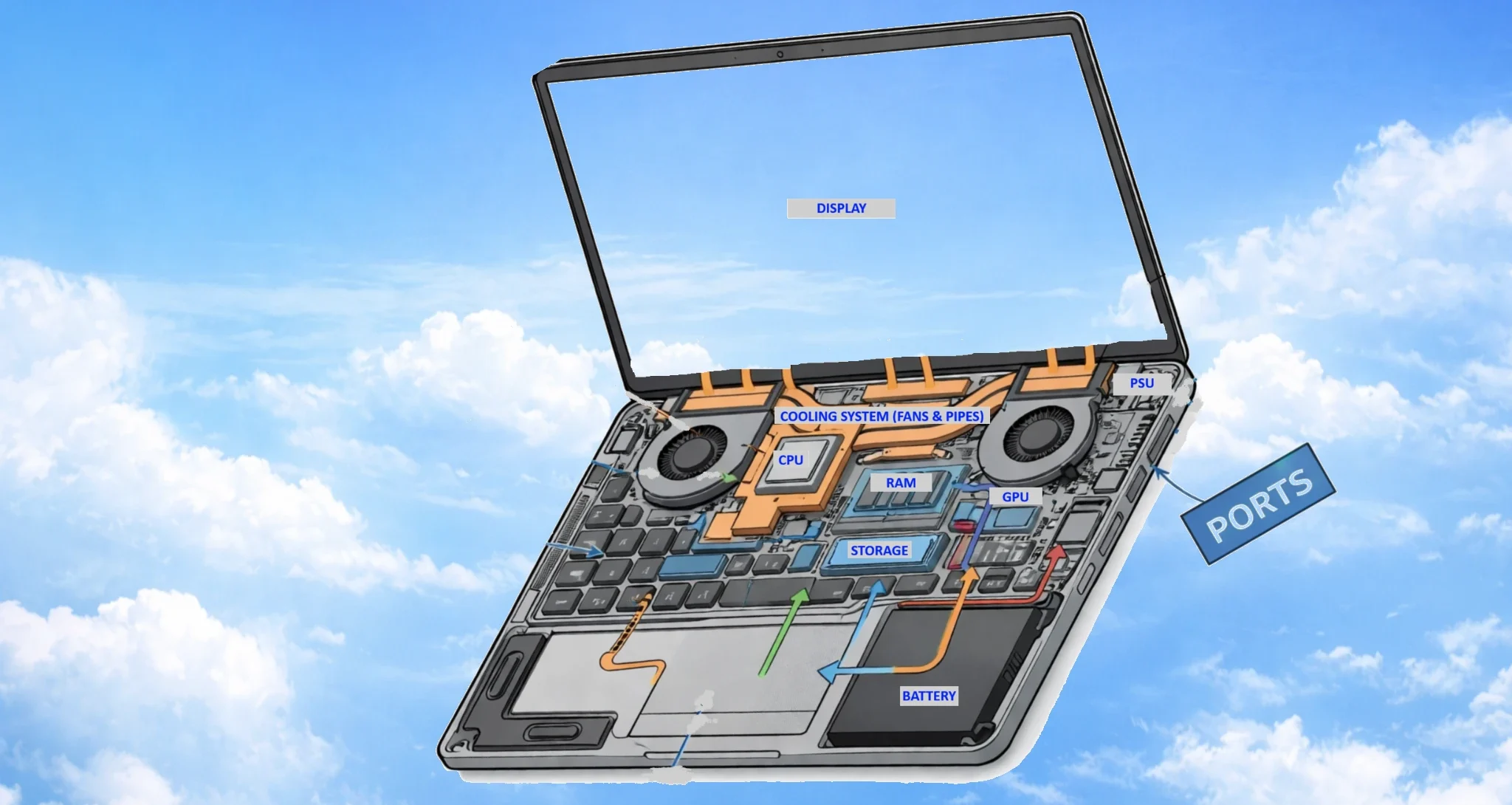
👉 Every Windows laptop is built from the same core components:
- 🧠 CPU (Central Processing Unit) → handles processing and decision-making
- 🧩 Motherboard → connects all components together
- 💾 RAM → handles active tasks and multitasking
- 🎮 GPU → processes visuals and graphics
- 💽 Storage → stores your files, apps, and data
- 🌡️ Cooling System → manages heat and keeps performance stable
- 🔋 Battery → provides power when unplugged
- ⚡ Power Supply (PSU) → delivers power to the system
- 🖥️ Display → shows everything you see and interact with
- 🔌 Ports → allow connection to external devices
👉 Every laptop you will ever use is built from these same parts.
👉 The difference between laptops is simply how these parts are combined and how powerful they are.
At this point, it’s helpful to stop thinking of a laptop as one single device. Instead, think of it as a collection of specialized components working together as one system. That’s exactly what we’ll look at next.
👉 The difference between laptops is simply how these parts are combined and how powerful they are.
🎓 Before We Simplify It
Before we get into analogies, let’s look at this in a simple, real-world way.
A laptop might look like one single device…
👉 But inside, it’s made up of multiple components working together at the same time.
Each part has a specific job:
- Some handle processing
- Some manage memory
- Some store your files
- Some control visuals and output
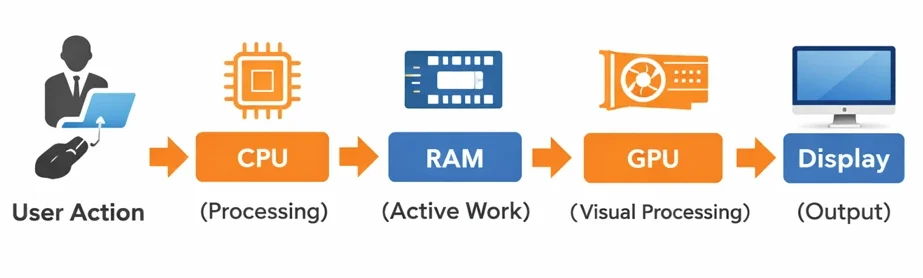
👉 The performance you experience is simply the result of how well these parts work together
👉 The problem is:
👉 Most explanations make this sound complicated.
So instead of throwing technical terms at you…
👉 We’re going to simplify everything using one easy system.
Once you understand this analogy, every component we cover throughout the rest of this guide will become much easier to understand and remember.
We will use one simplified analogy throughout this guide to keep things as simple as possible, so that even a complete beginner can understand windows laptops and how they work.
📚 What You’ll Learn in This Guide
This is not a typical “list of specs.”
👉 This is a complete, beginner-friendly explanation of how Windows laptops actually work.
By the end, you’ll understand:
🧠 What the CPU actually does
🎮 When you need a GPU (and when you don’t)
💾 How RAM affects speed and multitasking
💽 Why storage type matters more than you think
🌡️ Why cooling changes performance
🔋 What really affects battery life
🖥️ What makes a display good or bad
🔌 Which ports you actually need
You won’t just recognize specs…
👉 You’ll understand how everything works together.
And once that clicks:
👉 Choosing a Windows laptop becomes simple.
To make that learning process as easy as possible, we’ll use one simple analogy throughout this guide that ties every component together.
The Analogy
Think of Windows as the curriculum and each laptop as a different school. Every school teaches the same subjects, but the classrooms, equipment, and resources vary. That’s why experiences differ.
🎒 Think of a Laptop Like a School
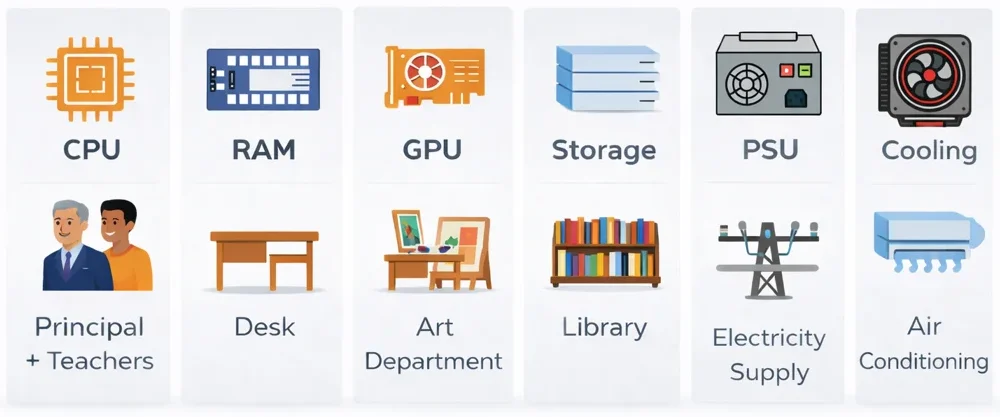
To make this easy (and even a bit fun), we’ll use one simple system throughout this guide:
👉 A laptop works like a school.
👉 Once you understand how the school works…
👉 You understand how a laptop works.
Now let’s introduce the people, departments, and systems inside that school, because each one represents a different component that makes your laptop work.
🧠 The One Idea That Changes Everything
If you understand this, everything else becomes simple:
👉 A Windows laptop is defined by its components — not its name.
Things like:
- 🧠 CPU (the brain / principal)
- 🧩 Motherboard (foundation + connections that link everything together)
- 💾 RAM (your desk — where active work happens)
- 🎮 GPU (the art department — handles visuals and creative work)
- 💽 Storage (where everything is kept — your books and materials)
- 🌡️ Cooling (keeps everything running efficiently at the right temperature)
- 🔋 Battery (backup power system when unplugged)
- ⚡ Power Supply (PSU) → provides power to the entire system
- 🖥️ Display (how you see and interact with everything)
- 🔌 Ports (how your laptop connects to other devices)
👉 These are what actually control performance, usability, and overall experience — not the laptop’s name or branding.
Once you understand that, you’ll stop judging laptops by their name or appearance and start understanding what actually makes one laptop different from another. That’s exactly the skill this guide is designed to teach.
🎯 What Makes This Guide Different
Most guides tell you what to buy.
👉 This guide teaches you how to understand laptops.
So instead of guessing, you’ll be able to:
✔️ Understand what each part does
✔️ Know why some laptops feel fast and others don’t
✔️ Choose confidently without confusion
But before we explore each component individually, there’s one important concept you need to understand first: why Windows laptops can feel so different from one another, even when they look almost identical.
🧱 Why Do Windows Laptops Feel So Different?
Before we get into parts like CPU, RAM, and storage, you need to understand one simple idea:
👉 Not all Windows laptops are the same — even if they look similar.
This is one of the most common questions people have:
👉 “Why does one laptop feel fast and another feel slow?”
🧠 The Real Reason Windows Laptops Vary So Much
With Windows laptops:
👉 There is no single design or standard hardware setup
⚙️ Why?
Because Windows is just the operating system
👉 It is not tied to one specific type of hardware
🍏 Compare That to Apple (For Context)
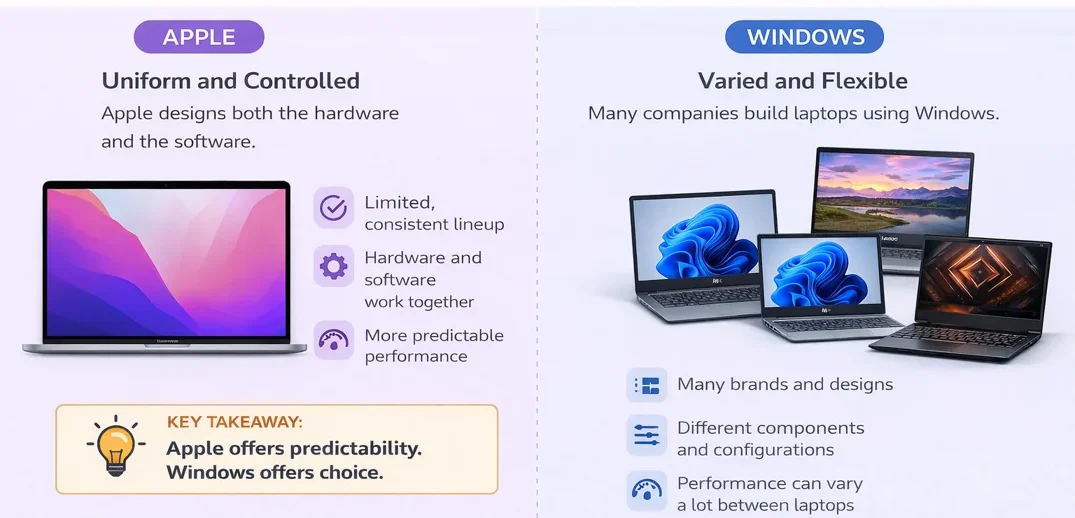
With Apple laptops:
- Apple designs both the hardware and the software
- There is a limited, controlled lineup
- Components are tightly integrated and consistent
👉 This leads to:
👉 More predictable performance across devices
💻 Windows Works Differently
With Windows:
👉 Many different companies build laptops using it
Such as:
- Dell
- HP
- Lenovo
- ASUS
- Acer
APPLE vs WINDOWS
Same Goal. Different Approach.
🔧 Each Manufacturer Makes Their Own Choices
Every company decides:
- Which CPU to use
- How much RAM to include
- Whether to include a GPU (or not)
- What type of storage to use (HDD, SSD, NVMe)
- How strong or weak the cooling system is
- What display quality to include
- What ports and features to offer
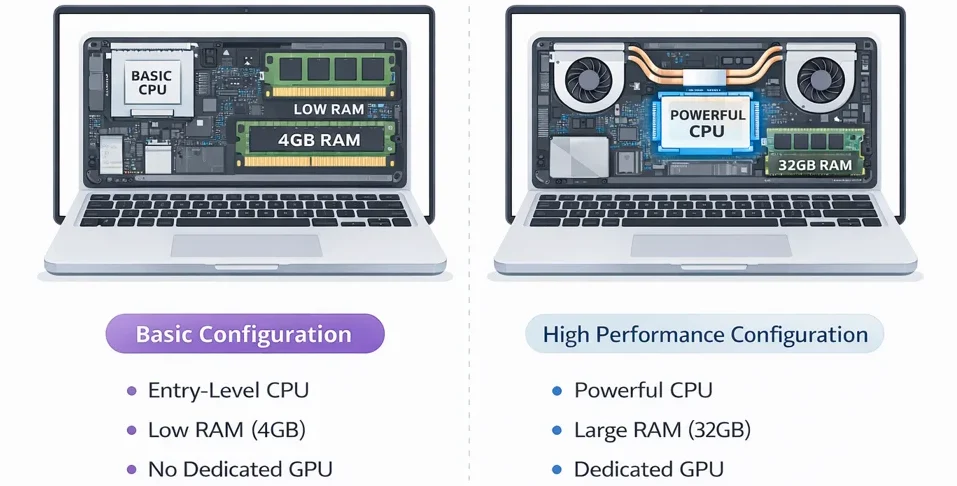
👉 Even two laptops from the same brand can be completely different. Manufacturers often sell multiple configurations of the same laptop series that look identical on the outside but contain different processors, graphics chips, memory, and storage inside—resulting in very different levels of performance.
⚠️ What This Means in Practice
👉 You cannot judge a Windows laptop by:
- Brand name
- Model name
- Price alone
👉 You must understand:
👉 What components are inside and how they are configured
🎒 Think of It Like Different Schools
Let’s go back to our analogy system:
👉 Windows = the curriculum 📚
👉 Laptop brands = different schools 🏫
Every school teaches the same subjects.
But:
- Some schools have better classrooms
- Better air conditioning
- Some have better equipment
- Some are better organized
👉 The result?
Students perform differently — even though they follow the same curriculum.

⚙️ What You’re REALLY Choosing (This Is Critical)
Most people think they are choosing a laptop model.
👉 But in reality:
👉 You are choosing a combination of parts.
That combination is called a configuration.
⚙️ What Is a Laptop Configuration?
A laptop configuration is the combination of all the components inside the system and how they are put together.
👉 It determines how your laptop performs, feels, and behaves in real use.
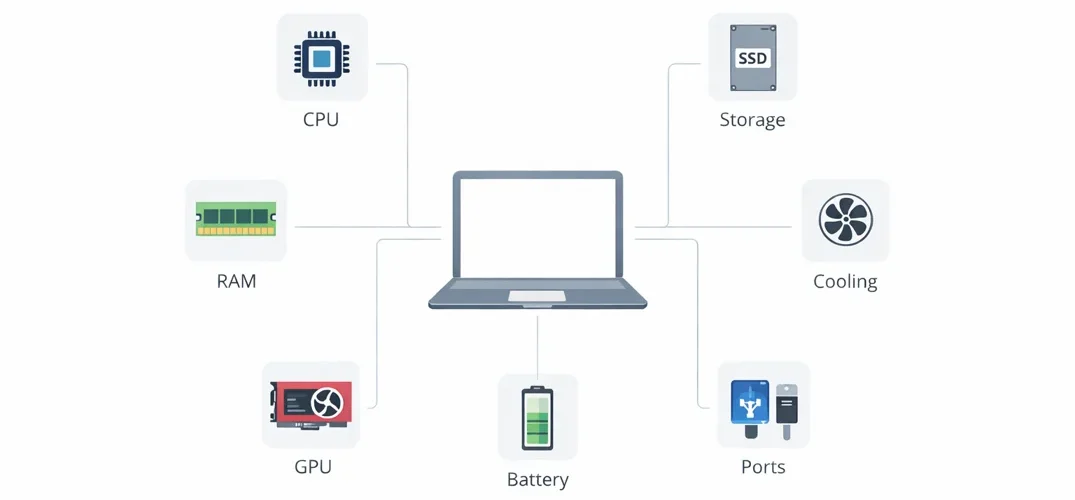
👉 A laptop configuration is simply the combination of those components and how they are put together.
Different combinations create different levels of performance, battery life, portability, and overall user experience.
👉 These components don’t work in isolation.
👉 They work together as a system to determine:
- Speed
- Responsiveness
- Multitasking ability
- Visual performance
- Overall user experience
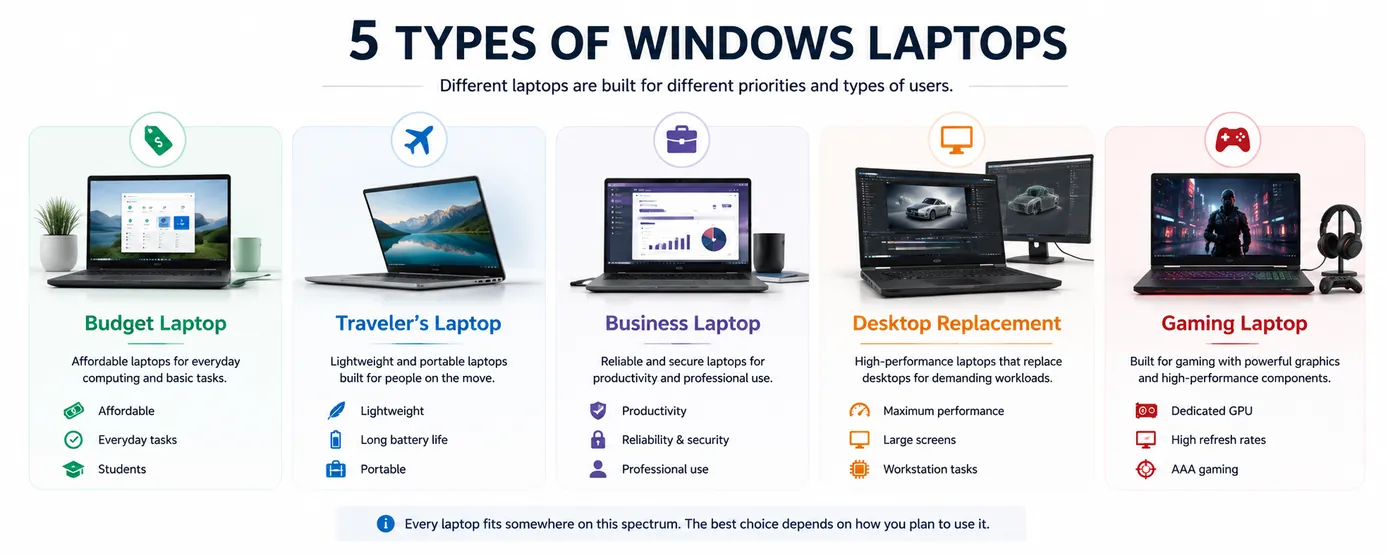
💻What Are the Different Types of Windows Laptops?
To make things easier, laptop manufacturers often group their products into broad categories such as Ultrabooks, Budget Laptops, Performance Laptops, Workstations, and Gaming Laptops.
👉 These are industry labels, not strict rules.
On this website, laptops are organized into five practical categories based on how people actually use them:
- Budget Laptop
- Traveler’s Laptop
- Business Laptop
- Desktop Replacement
- Gaming Laptop
🟢 Ultrabooks (Thin & Light)
Designed for:
- Portability
- Battery life
- Everyday tasks
👉 Best for:
- Students
- Office work
- Travel
Most Ultrabooks fall into the Traveler’s Laptop category, although premium models are often classified as Business Laptops.
💰 Budget Laptops
Designed for:
- Basic tasks
- Lower cost
👉 Best for:
- Browsing
- Documents
- Light use
These laptops typically fall into the Budget Laptop category, although some budget-friendly travel and business laptops also exist.
🔵 Performance Laptops
Designed for:
- Multitasking
- More demanding workloads
👉 Best for:
- Productivity
- Developers
- Power users
Performance laptops often overlap with Business Laptops, Traveler’s Laptops, and Desktop Replacements, depending on their size and hardware. This overlap is simply because different people have different use cases.
🧠 Workstation Laptops
Also referred to as Desktop Replacement Laptops.
Designed for:
- Professional workloads
- Maximum performance
👉 Best for:
- Engineering
- 3D modeling
- Advanced development
These systems usually belong to the Desktop Replacement category because they prioritize performance over portability.
🎮 Gaming Laptops
Designed for:
- High performance
- Graphics-intensive workloads
👉 Best for:
- Gaming
- Video editing
- 3D work
Most gaming laptops fit directly into the Gaming Laptop category, although some high-end models can also function as Desktop Replacements.
Apple laptops excel in categories like travel, business, and now budget with the introduction of the MacBook Neo. However, gaming is where Windows laptops take center stage.
🎮 Why Gaming Laptops Highlight the Strength of Windows
Gaming laptops are one of the clearest examples of where Windows laptops have an advantage.
👉 While MacBooks excel in areas like portability, battery life, and efficiency, gaming remains a category dominated by Windows devices.
⚙️ Why This Happens
Modern gaming places much greater demands on laptop hardware than everyday tasks.
As a result, gaming laptops are typically designed with components that prioritize graphics performance and sustained performance over portability and battery life.
👉 We’ll explore exactly how those components work later in this guide.
🍏 Where MacBooks Differ
MacBooks are optimized for:
Efficiency
Battery life
Quiet operation
Excellent integrated performance
MacBooks are designed primarily for efficiency, battery life, and productivity rather than gaming.
While some games are available on macOS, most PC games are developed and optimized for Windows first. Modern gaming laptops also include dedicated graphics cards that deliver significantly higher gaming performance than the integrated graphics found in MacBooks.
As a result, Mac users may encounter:
A smaller game library
Delayed game releases
Missing support for certain titles
Lower compatibility with gaming-focused software and accessories
🎯 What This Means
👉 If your primary focus is:
Gaming
AAA game titles
High-performance graphics
Real-time rendering
👉 A Windows gaming laptop is usually the best choice.
If your focus is productivity, travel, content creation, battery life, or everyday computing, a MacBook can still be an excellent option.
👉 Gaming laptops represent the maximum performance side of portable computing
And this is where:
👉 Windows hardware flexibility becomes a major advantage
🧠 What This Means for You
When choosing a Windows laptop:
👉 You are NOT choosing a brand
👉 You are choosing a system of components
That means:
- Specs matter more than branding
- Configuration matters more than design
- Understanding matters more than guessing
Understanding the hardware inside a laptop is only part of the equation.
This overview introduces the major categories of Windows laptops, but each category has its own strengths, weaknesses, and ideal users.
For example, a travel laptop prioritizes portability and battery life, while a gaming laptop focuses on graphics performance and cooling. Business laptops, creator laptops, desktop replacements, and budget laptops are all designed around different priorities.
If you'd like a deeper understanding of how these categories differ and which type of laptop is best suited to your needs, read the guide on the different types of laptops explained .
Once you understand that Windows laptops are really just different combinations of components, you’re ready to look at those components in more detail.
But before we examine each one individually, it’s worth taking a quick look at how Windows laptops have evolved over the years. Understanding that evolution helps explain why modern laptops are so much faster, more efficient, and more capable than the machines that came before them.
🕰️ How Windows Laptops Evolved (Quick Story)
In the past, laptops were much simpler:
- Single-core CPUs
- Slower memory speed
- single channel memory
- Mechanical hard drives
👉 They could handle the basic tasks of their time, based on the software and demands of that era.
⚠️ What Many People Don’t Realize
👉 The software back then was also much lighter
- Simpler programs
- Less demanding applications
- Basic games
👉 Even the best-performing laptops from decades ago were designed for a completely different level of workload
⚡ Fast Forward to Today
Modern laptops now handle:
- Complex applications
- High-resolution media
- Advanced multitasking
- Graphics-intensive games
👉 These tasks require significantly more performance
🔥 The Big Reality Check
👉 Even the most powerful laptop from 20 years ago…
👉 Would struggle to run today’s modern applications and games
🎮 Gaming Then vs Now
- Early “gaming laptops” were extremely limited
- Graphics capabilities were basic
- Performance was nowhere near modern standards
👉 In fact:
👉 A budget laptop today can easily outperform older single-core systems
🚀 What Changed
As technology improved, laptop hardware became significantly faster, more efficient, and more capable.
👉 These improvements led to massive performance gains across the board.
In the next sections, we’ll look at each component individually and see exactly how those improvements changed the way modern laptops perform.
👉 Technology hasn’t just improved — it has evolved massively.
👉 That’s why modern laptops feel so much faster, smoother, and more capable.
👉 There is no single “best Windows laptop.”
There is only:
👉 The right combination of components for what you need.
To understand how to choose that combination, we first need to understand the role of each component inside a laptop. And it all starts with the CPU — the brain that controls everything else.
Now it is time to dive into the different components inside a laptop starting with the CPU
🧠What Does a CPU Do in a Laptop?
The CPU (Central Processing Unit) 🧠 is the brain of your laptop. It makes the decisions and controls everything.
Simply put: The CPU is the man in charge.
It is responsible for:
- Running the operating system
- Opening and managing applications
- Processing tasks
- Coordinating everything happening in the system
👉 The CPU determines how fast, smooth, and responsive your laptop feels.
🎒 Think of the CPU as the Principal
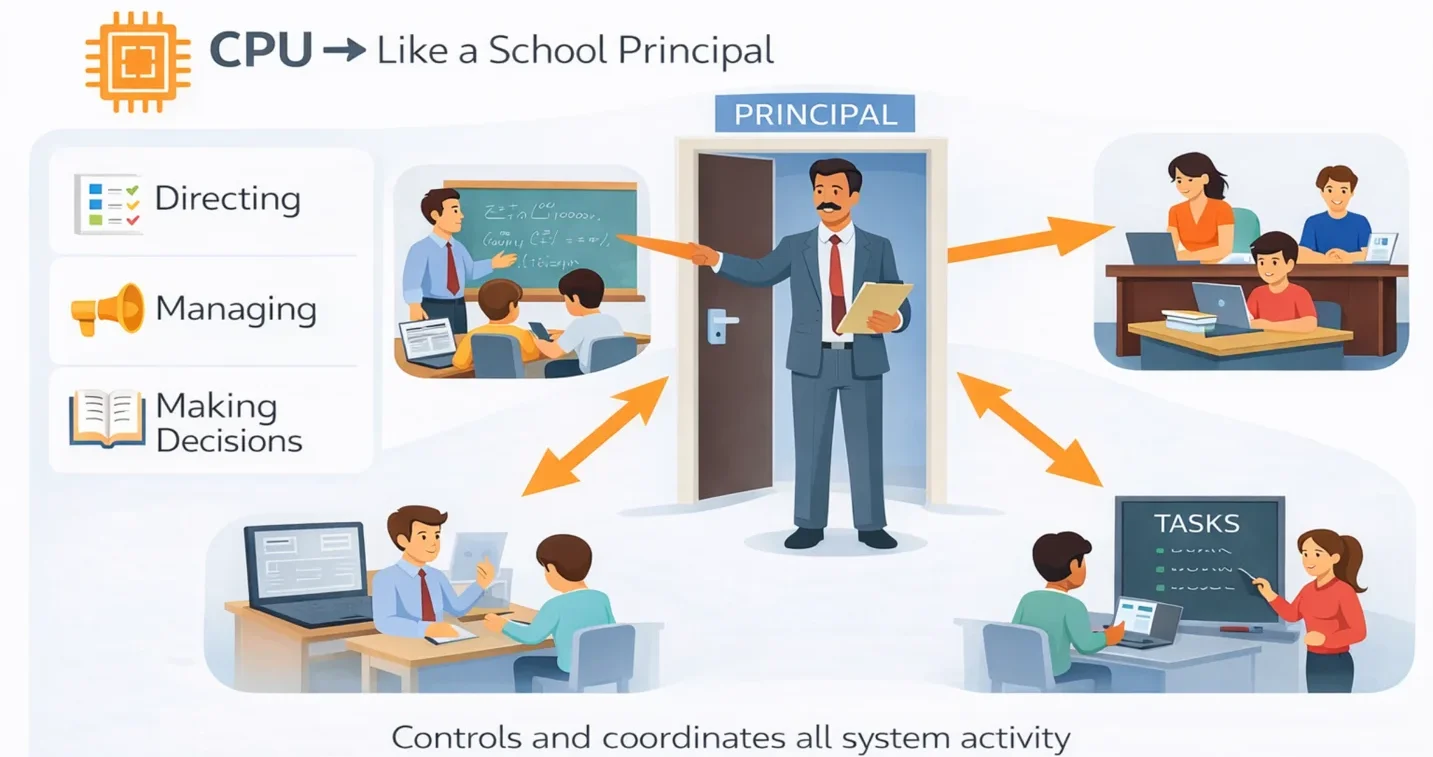
- It decides what needs to be done
- It keeps everything running smoothly
- It assigns work
👉 Like with the principal every task in your laptop goes through the CPU first. It gives instructions to every other component.
⚙️ Why the CPU Matters So Much
On Windows laptops, the CPU plays a huge role in performance.
Because:
👉 Different laptops use different CPUs
👉 And not all CPUs are equally powerful
This directly affects:
• Speed
• Responsiveness
• How quickly programs run
• Overall performance
👉 This shows how much the CPU influences real-world performance.
💻 Intel vs AMD vs Snapdragon (Which CPU Is Better?
Most Windows laptops today use CPUs from:
- Intel
- AMD
- Snapdragon
👉 A very common question is:
👉 “Which one is better?”
🎯 The Real Answer
👉 It’s not about the brand.
👉 It’s about the specific CPU model and whether it matches your needs.
All three companies offer:
- Entry-level processors
- Mid-range processors
- High-performance processors
👉 So instead of asking:
❌ Which brand is best?
Ask:
👉 Is this CPU the right fit for what I want to do?
🔵 Intel
Intel is one of the world’s oldest and most influential CPU manufacturers. Its processors have powered millions of Windows laptops, and before Apple introduced Apple Silicon, MacBooks also relied on Intel processors for many years—highlighting Intel’s long-standing reputation in the laptop industry.
- Powers millions of Windows laptops worldwide.
- Offers processors from everyday computing to professional workstations.
- Known for strong single-core performance, broad software compatibility, and reliability.
- A popular choice for business, productivity, and high-performance laptops.
🟢 AMD
AMD is Intel’s biggest competitor and has become one of the most popular choices for Windows laptops. Its processors are used in everything from affordable everyday laptops to powerful gaming and creator machines.
- Offers processors across every price range.
- Known for excellent multi-core performance and strong value for money.
- Especially popular in gaming, creative, and high-performance laptops.
- Continues to compete closely with Intel across most laptop categories.
🟣 Snapdragon
Snapdragon is the newest of the three major Windows laptop CPU manufacturers. Unlike Intel and AMD, which built their reputation in desktop and laptop computers, Snapdragon first became popular in smartphones before expanding into Windows laptops.
- Designed around ARM architecture rather than traditional x86.
- Focuses on efficiency, battery life, and portability.
- Commonly found in thin, lightweight Windows laptops.
- Becoming increasingly popular among remote workers and digital nomads.
This website has a particular audience
👉 Intel, AMD, and Snapdragon all produce excellent processors, and the best choice depends on how you plan to use your laptop.
Because Best Digital Nomad Gear focuses on remote work, travel, and portability, the next few sections spend a little more time exploring Snapdragon and ARM processors. Their emphasis on efficiency, long battery life, and all-day mobility has made them increasingly popular with digital nomads and remote workers.
🎒 A New Principal Joins The School (Snapdragon cpu)
For many years, schools relied mostly on two experienced principals:
🔵 Intel
🟢 AMD
Both have successfully managed schools and educated students for many years.
Then a new principal arrived:
🟣 Snapdragon
Fresh out of university, this principal brings modern ideas, different management styles, and a new approach to running the school.
Instead of relying heavily on traditional classrooms and large air-conditioning systems, this principal looks for smarter ways to keep the school running efficiently while using fewer resources.
Sometimes lessons are taught in naturally ventilated classrooms.
Sometimes classes are held outside under a large shaded tree.
The students still learn the same curriculum.
The teachers still teach the same subjects.
The school still follows the same rules.
But the school often uses less electricity and stays comfortable with less effort.
👉 Snapdragon processors take a similar approach.
They focus heavily on efficiency, battery life, and accomplishing more while using less power.
📱 Where Did Snapdragon Come From?
Intel and AMD built much of their reputation in desktop and laptop computers.
Snapdragon took a different path.
Unlike Intel and AMD, which built their reputation in desktop and laptop computers, Snapdragon first became popular in smartphones before expanding into Windows laptops.
Because smartphones run on batteries all day, Snapdragon processors were designed to be extremely power efficient from the beginning.
Over time, these designs became more powerful.
Today, Snapdragon processors are used in a growing number of Windows laptops, bringing many of the same efficiency-focused ideas from the mobile world into portable computers.
👉 This is one reason many Snapdragon laptops are known for excellent battery life and low heat output.
But that raises an important question: what makes Snapdragon processors so different from the Intel and AMD processors that have powered Windows laptops for decades? The answer lies in the processor architecture itself—and that brings us to ARM.
Before we look at ARM itself, it’s important to understand one thing: Snapdragon is a processor made by Qualcomm, while ARM is the processor architecture that Snapdragon is built on. In other words, Snapdragon is the product, and ARM is the underlying design philosophy that makes it work.
🏗️ ARM Processors Explained (Simple Beginner Guide)
If you’ve been researching modern Windows laptops, you’ve probably started seeing the term ARM processor everywhere.
This is especially true if you’ve looked at laptops powered by Qualcomm Snapdragon processors.
But what exactly is ARM? The abbreviation ARM officially stands for Advanced RISC Machine (and originally Acorn RISC Machine).
And why are so many manufacturers suddenly building Windows laptops around it?
Let’s simplify it.
🎒 Think of ARM as a Different Way to Run a School
Earlier we explained that the CPU is like the principal of a school.
The principal’s job is still the same:
👉 Organize work
👉 Keep everything running smoothly
👉 Make decisions
👉 Help the school operate efficiently
ARM doesn’t change the principal’s job.
Instead, it changes how the school is designed behind the scenes.
Imagine two schools.
One school is older and relies on large classrooms, powerful air conditioning systems, and lots of electricity to keep everything running.
The other school was designed from the beginning to use less electricity while still teaching the same subjects.
Both schools can produce excellent results.
One simply focuses much more heavily on efficiency.
That is the basic idea behind ARM.
⚙️ ARM vs x86 (The Simple Version)
Most traditional Windows laptops use Intel or AMD processors.
These processors are based on something called x86 architecture (a traditional processor design used by Intel and AMD that focuses on high performance and compatibility with most Windows software).
Snapdragon processors use ARM architecture.
To most users, this doesn’t change how Windows looks or works.
You still:
✔ Browse the web
✔ Use Microsoft Office
✔ Watch videos
✔ Join Zoom meetings
✔ Run productivity software
The difference is happening behind the scenes.
ARM processors are designed to do more work while using less power.
📱 Where ARM Came From
ARM processors became popular in smartphones and tablets.
Why?
Because phones run on batteries all day.
Every bit of efficiency matters.
Manufacturers spent years improving ARM processors so they could deliver strong performance while consuming very little power.
Eventually these designs became powerful enough for laptops.
Today ARM powers:
📱 Smartphones
📱 Tablets
🍎 Apple Silicon MacBooks
💻 Modern Snapdragon Windows laptops
⚡ Why ARM Is So Popular
The biggest advantage of ARM is efficiency.
Compared to many traditional laptop processors, ARM systems often provide:
✔ Longer battery life
✔ Lower power consumption
✔ Less heat
✔ Quieter operation
✔ Better standby time
✔ Thinner and lighter laptop designs
For remote workers and digital nomads, these advantages can make a noticeable difference in daily use.
⚠️ Are There Any Downsides?
ARM laptops are better than they were a few years ago, but there are still some limitations.
Some older Windows applications were originally designed for x86 processors.
Because of this:
👉 Certain software may rely on emulation
👉 Some niche applications may not work perfectly
👉 Certain games may perform differently
👉 Specialized business software may require compatibility checks
For most people using browsers, office applications, communication tools, and cloud services, these limitations are becoming less important every year.
🎯 The Important Takeaway
ARM is not replacing Windows.
ARM is simply a different processor design that allows Windows laptops to become more efficient.
For many users, especially digital nomads and remote workers, ARM laptops offer one of the best combinations of battery life, portability, and everyday performance currently available.
🚀 Why ARM Is Changing Windows Laptops
For many years, Windows laptops followed a simple pattern:
👉 More performance usually meant more heat.
👉 More heat usually meant louder fans.
👉 More power usually meant shorter battery life.
If you wanted a fast Windows laptop, you often had to accept those trade-offs.
ARM is changing that.
⚖️ The Traditional Windows Trade-Off
Think about many older laptops.
As performance increased:
The cooling system became larger.
Fan noise increased.
Battery life often decreased.
The laptop became heavier.
Manufacturers were constantly balancing performance against portability.
📱 ARM Changed the Formula
ARM processors approach the problem differently.
Instead of focusing only on maximum performance, ARM focuses heavily on efficiency.
The goal is simple:
👉 Complete everyday tasks while using as little power as possible.
This allows many ARM-powered laptops to remain:
✔ Cool
✔ Quiet
✔ Lightweight
✔ Efficient
while still feeling fast during normal workloads.
💻 Why This Matters for Modern Windows Laptops
Most people are not spending their day rendering movies or building complex 3D projects.
Instead, they are using:
🌐 Web browsers
📝 Documents
🎥 Video calls
☁️ Cloud applications
🤖 AI-powered productivity tools
These tasks benefit greatly from efficiency.
In many cases, longer battery life provides more value than additional processing power that may never be fully used.
🌍 Why Digital Nomads Should Care
This is where ARM becomes particularly interesting.
Imagine working from:
☕ Coffee shops
✈️ Airports
🏨 Hotels
🏝️ Beachfront workspaces
🏢 Coworking spaces
The fewer times you need to search for a power outlet, the easier remote work becomes.
Longer battery life means:
✔ More freedom
✔ Less charger anxiety
✔ Greater mobility
✔ More comfortable travel
For many digital nomads, that matters far more than achieving the highest benchmark score.
🍏 The Apple Effect
Many people first noticed this shift when Apple introduced Apple Silicon.
Suddenly laptops delivered exceptional battery life while remaining cool and quiet.
Windows manufacturers saw the same opportunity.
Modern Snapdragon-powered laptops are now bringing many of those efficiency-focused advantages into the Windows ecosystem.
🎯 The Bottom Line
ARM is changing Windows laptops because it shifts the focus from maximum performance to maximum efficiency.
For many modern users, that trade-off makes perfect sense.
The result is a new generation of Windows laptops that are quieter, cooler, lighter, and capable of lasting significantly longer on battery power than many traditional designs.
👉 But not all CPUs are created equal. So what actually makes one processor faster or more powerful than another? Let’s start by looking at one of the most important specifications you’ll see when comparing laptops: CPU cores.
🧠 Cores and Threads (What They Actually Mean)
Modern CPUs are designed to handle many tasks at once.
🧩 What Are CPU Cores?
A core is like a teacher in the school.
🎒 Simple Way to Understand It
👉 Think about how classes work in a school:
- You move between classrooms for different subjects
- While you’re in one class, other classes are happening at the same time
👉 Multiple lessons can happen simultaneously because there are multiple teachers
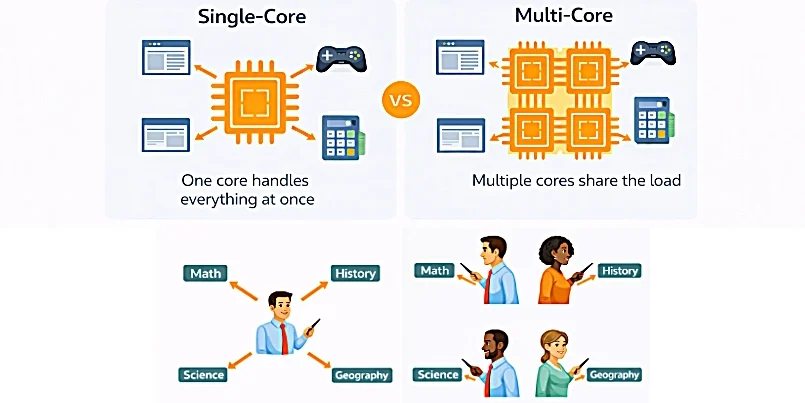
⚙️ Single Core (One Teacher)
👉 Imagine one teacher (or principal) teaching all subjects:
- They teach Class 1
- Class 2 has to wait
- Then they move to Class 2
- Then Class 3 waits
👉 Everything happens one at a time
⚙️ Multiple Cores (Multiple Teachers)
👉 Now imagine multiple teachers:
- One teaches science
- One teaches history
- One teaches math
👉 All classes happen at the same time
👉 No waiting
👉 More cores = more tasks handled at once
👉 Fewer cores = tasks must wait their turn
🧵 What Are Threads? (Making Cores Even More Efficient)
If cores are the teachers…
👉 Threads are how the work is divided and handled inside the classroom
🎒 Simple Example
Imagine a class working on a project to build a car 🚗
The car has multiple parts:
- Engine
- Wheels
- Interior
👉 Each part needs to be worked on to complete the project
⚙️ Single Core, No Threading (Basic)
👉 One teacher is in the classroom
- The teacher helps with the engine first
- Then moves to the wheels
- Then moves to the interior
👉 Only one part is worked on at a time
👉 Everything else must wait
⚙️ Single Core With Threads (Smarter System)
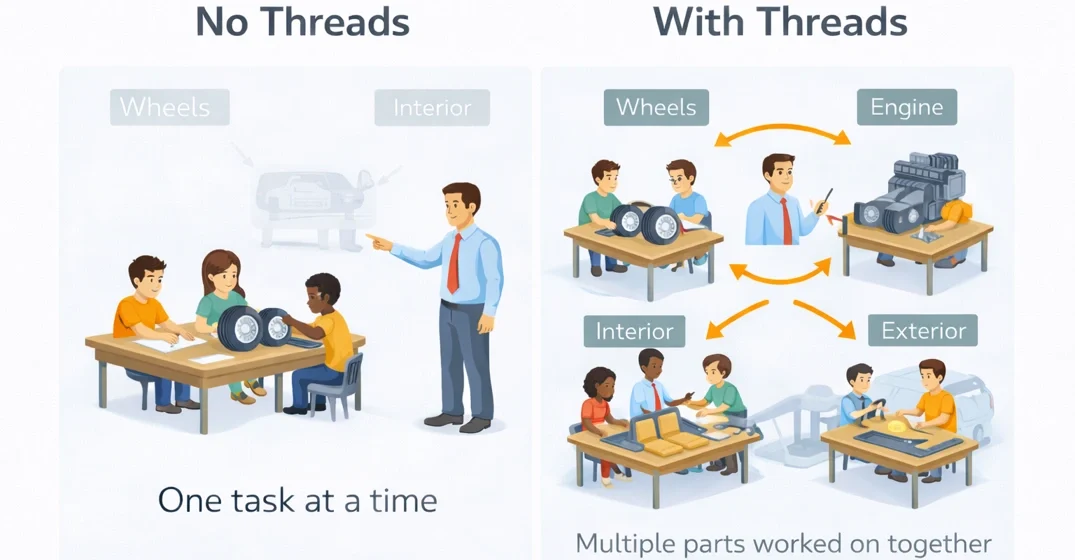
👉 Still one teacher…
👉 But now the teacher can manage multiple parts at the same time
- Starts helping with the engine
- Quickly switches to the wheels
- Then to the interior
- Keeps rotating between them
👉 So all parts are making progress together
👉 Nothing is completely stuck waiting
🔑 What This Means
👉 Threads allow one core (teacher) to:
- Work on multiple tasks
- Switch between them quickly
- Keep everything moving
⚡ Core vs Thread (Simple Summary)
- 🧠 Core = the worker (teacher)
- 🧵 Thread = the tasks being worked on
Easy to Remember
- More cores → better for heavy workloads
- More threads → better for multitasking
But there’s one more important thing to understand. In many modern processors, not all CPU cores are designed for the same job. Some are built for maximum performance, while others are designed to save power and improve battery life. Let’s see how they work together.
⚡ Performance vs Efficiency Cores (Modern CPU Design)
Modern CPUs are designed to balance power and battery life.
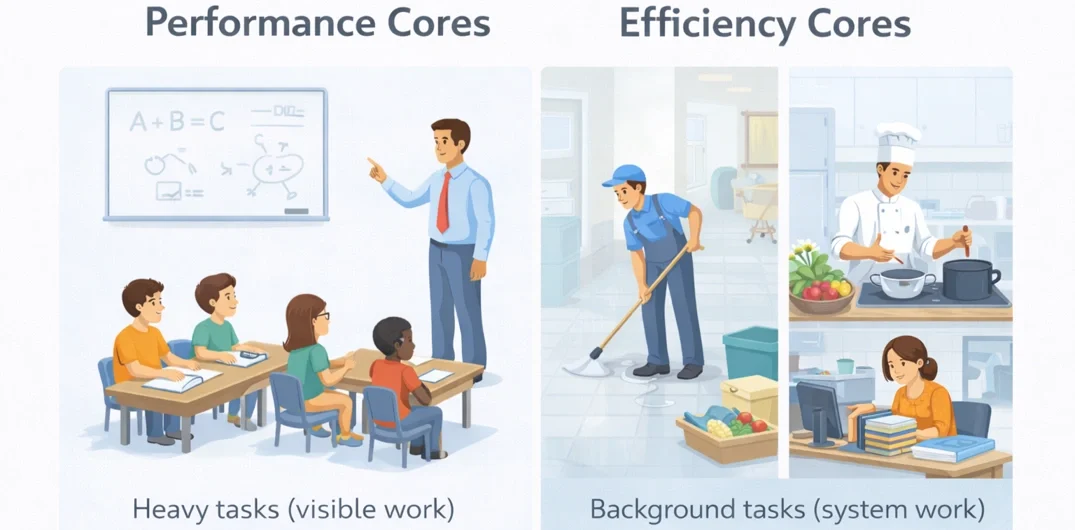
🚀 Performance Cores
- Handle demanding tasks
- Run at higher speeds
Used for:
- Gaming
- Editing
- Heavy applications
Think of performance cores as the main teachers in a school, each responsible for teaching important subjects or majors.
👉 This is the main purpose of being at school — learning, working, and getting results.
👉 We can think of this as the heavy lifting side of the system.
But that’s not the whole picture…
👉 There are also efficiency cores
🔋 Efficiency Cores
- Handle background tasks
- Use less power
Used for:
- System processes
- Background apps
👉 This allows your laptop to:
- Be fast when needed
- Save battery when possible
Efficiency cores handle the behind-the-scenes work.
👉 These are the tasks you don’t directly see, but that keep everything running smoothly.
🎒 School Example
Think about everything that happens at a school outside the classroom:
- The cook prepares meals so you can eat during the day
- The janitor cleans the school so everything stays organized and hygienic
- Learning materials are placed in classrooms so lessons can happen
👉 You don’t see these people working while you’re in class…
👉 But their work makes it possible for everything else to run properly
⚙️ How This Relates to Your Laptop
Efficiency cores work the same way.
👉 They handle:
- Background processes
- System tasks
- Low-power operations
👉 So your laptop stays responsive and organized
⚡ Why Efficiency Cores Matter
These tasks are important…
👉 But they are not as demanding as the “heavy lifting” work
So:
👉 Efficiency cores use less power
👉 This helps:
- Save battery
- Reduce heat
- Improve overall efficiency
👉 Performance cores handle the heavy work you see.
👉 Efficiency cores handle everything in the background.
👉 You may not notice efficiency cores working…
👉 But without them, everything would feel slower, less organized, and less efficient.
Now that you understand why modern CPUs use different types of cores, the next question is how quickly those cores can actually perform their work. That’s where clock speed comes in.
⚠️ Clock Speed (GHz) — What It Really Means
You’ll often see numbers like:
- 3.0 GHz
- 4.5 GHz
This refers to how fast a CPU operates.
⚠️ But here’s the important part:
👉 Clock speed alone does NOT determine performance.
Because performance also depends on:
- Number of cores
- Threads
- CPU design
- Power limits
- Cooling
💡 Simple Explanation
👉 Clock speed is like:
👉 How good a teacher is at explaining a lesson
🎒 Real-Life Example
Think about your experience in school:
- You’ve had different teachers for the same subject
- Some explain things clearly and quickly
- Others take longer or are harder to understand
👉 The difference is:
👉 How effectively they deliver the lesson
⚙️ What This Means for Your Laptop
👉 A higher clock speed means:
- Tasks are processed faster
- Instructions are handled more quickly
🔑 Key Insight
👉 Just like in real life:
👉 Some teachers are simply better and faster at teaching
👉 And that directly affects how quickly you learn.
👉 Clock speed = how fast one “teacher” (core) can do its job.
(Not how many teachers there are — that’s a different concept.)
👉 CPU cores, threads, and clock speed are the traditional specifications that determine how a processor handles everyday computing tasks. But modern CPUs are evolving beyond those fundamentals by adding another specialized processor designed specifically for artificial intelligence: the NPU.
🤖 What Is an NPU? (Neural Processing Unit)
Before we talk about what an NPU does, it’s important to understand that it is not a separate component like your GPU or storage. In most modern laptops, the NPU is built directly into the CPU (or System on a Chip) alongside the CPU cores and other specialized processing units.Modern laptops no longer rely only on CPUs and GPUs.
Many new Windows laptops now include a third type of processor called an NPU.
NPU stands for Neural Processing Unit.
It is specifically designed to accelerate artificial intelligence tasks.
🎒 NPU = The School’s AI Assistant
Not a teacher.
Not a student.
Not the principal.
A new AI system the school recently installed.
Think about modern schools today.
The principal can still do everything manually.
Teachers can still mark papers manually.
Students can still search for information manually.
But now the school has an AI assistant that can help with certain tasks much faster.
Examples:
✔ Automatically translating documents
✔ Creating lesson summaries
✔ Transcribing meetings
✔ Organizing information
✔ Helping students find answers faster
The school still functions without it.
But certain tasks become much easier and more efficient when the AI assistant helps.
That’s exactly what the NPU does.
The CPU and GPU can perform AI tasks.
But they’re general-purpose processors.
The NPU is specifically designed for AI workloads.
So instead of asking the principal or art department to do AI work, the school can hand those tasks directly to the AI assistant.
That saves time and energy.
⚙️ Why NPUs Exist
Artificial intelligence workloads are becoming more common every year.
Features such as:
🎥 Background blur during video calls
📝 Live captions
🌐 Real-time translation
📷 AI image generation
🎤 Voice recognition
🤖 Microsoft Copilot features
all require additional processing power.
Without an NPU, these tasks would rely heavily on the CPU or GPU.
That can increase power consumption and reduce battery life.
🔋 Why NPUs Improve Battery Life
An NPU is designed specifically for AI workloads.
Because it specializes in these tasks, it can often perform them using far less power than a CPU or GPU.
Think of it like assigning a task to the school’s AI assistant instead of asking the principal or art department to handle it manually.
It’s like hiring an expert. The specialist can usually complete the job faster and more efficiently than someone trying to learn it as they go.
The AI assistant was designed specifically for these types of tasks, so it can complete them more efficiently.
This helps:
✔ Reduce power usage
✔ Improve efficiency
✔ Extend battery life
✔ Keep the system responsive
💻 Why NPUs Matter in Modern Windows Laptops
Microsoft is increasingly building AI features directly into Windows.
As AI becomes more common, NPUs will become more important.
This is one reason many modern laptops now advertise:
👉 Copilot+ PC
👉 AI PC
👉 AI acceleration
These features often rely heavily on the NPU.
🎯 The Simple Takeaway
🧠 CPU = General computing and decision-making
🎮 GPU = Graphics and visual processing
🤖 NPU = Artificial intelligence processing
Together, these three processors help modern laptops deliver better performance, longer battery life, and more advanced AI features than previous generations.
👉 Now that you understand how modern CPUs work—from manufacturers and architectures to cores, threads, clock speed, and AI-powered NPUs—the next step is understanding how much CPU performance you actually need.
🧠 Understanding Your CPU Needs
Not every laptop user needs the same level of CPU performance.
The right processor depends on the type of work you do most often. By identifying where your daily workload fits in the categories below, you’ll have a much better idea of how much processing power you actually need.
🟢 Light or basic use
- Browsing
- Documents
- Streaming
- Entry to mid-range CPU
- Focus on efficiency
👉 Most modern CPUs feel fast
If this sounds like you, a budget laptop will comfortably handle your everyday tasks.
🔵 Moderate or balanced use
- Multitasking
- Coding
- Photo editing
- Mid-range CPU
- Good balance of speed and battery
👉 CPU quality starts to matter
If this matches your workload, you’ll likely benefit most from a travel laptop or business laptop, which offer a good balance of performance, battery life, and portability.
🔴 Heavy Use
- Video editing
- 3D work
- Large projects
- High-performance CPU
- More cores and threads
- Strong cooling
👉 CPU becomes critical
If you regularly perform these demanding tasks, a desktop replacement or gaming laptop will usually provide the level of performance you need
👉 As performance requirements increase, the more you’ll typically pay for a laptop. Just keep that in mind.
👉 You now understand the key technologies inside a modern CPU—from cores and threads to clock speed, ARM architecture, and AI-powered NPUs. The next step is learning how to use that knowledge when comparing laptops and avoiding some of the most common CPU buying mistakes.
⚠️ Common CPU Mistakes
❌ Focusing only on brand
👉 Intel vs AMD vs Snapdragon matters less than the actual model
❌ Overbuying
👉 Not everyone needs a high-end CPU
❌ Assuming the CPU tells the whole story
👉 The processor is only one part of your laptop. RAM, storage, cooling, and the overall configuration all work together to determine real-world performance.
🎯 The CPU Starts Everything
👉 The CPU is the foundation of your laptop’s performance because every task begins there.
But before the CPU can process anything, it first needs access to your operating system, applications, and files. Those have to be stored somewhere—and the type of storage your laptop uses has a much bigger impact on your laptop’s speed and responsiveness than most people realize.
💽 What Is Storage in a Laptop?
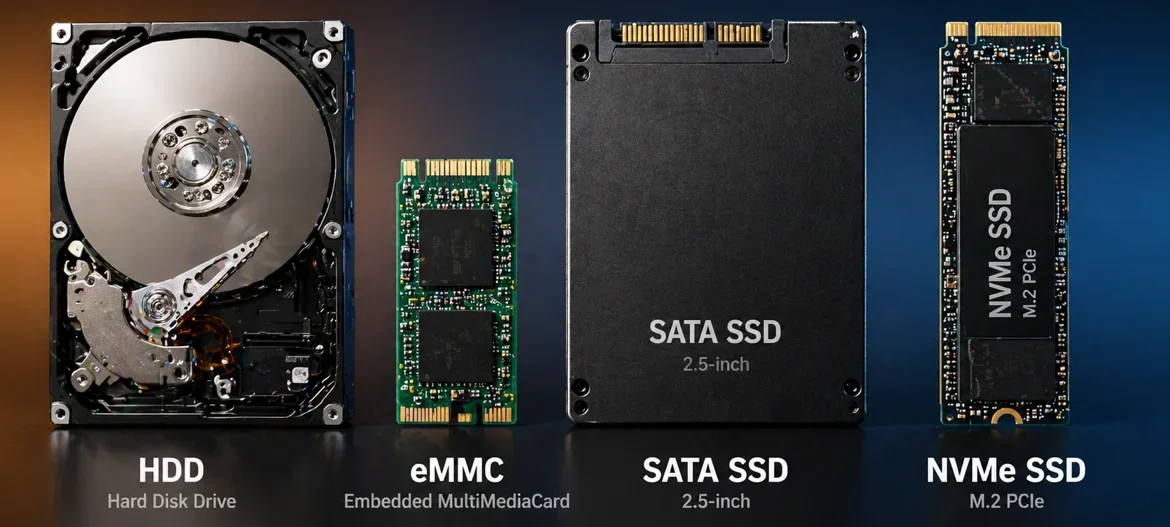
Storage 💽 is where your laptop keeps everything permanently.
This includes:
- Your operating system (Windows)
- Applications
- Files
- Photos and videos
- Documents
👉 Storage is where all your books and stationery are kept when you’re not using them.
🎒 Think of Storage as Different Storage Compartments in a School
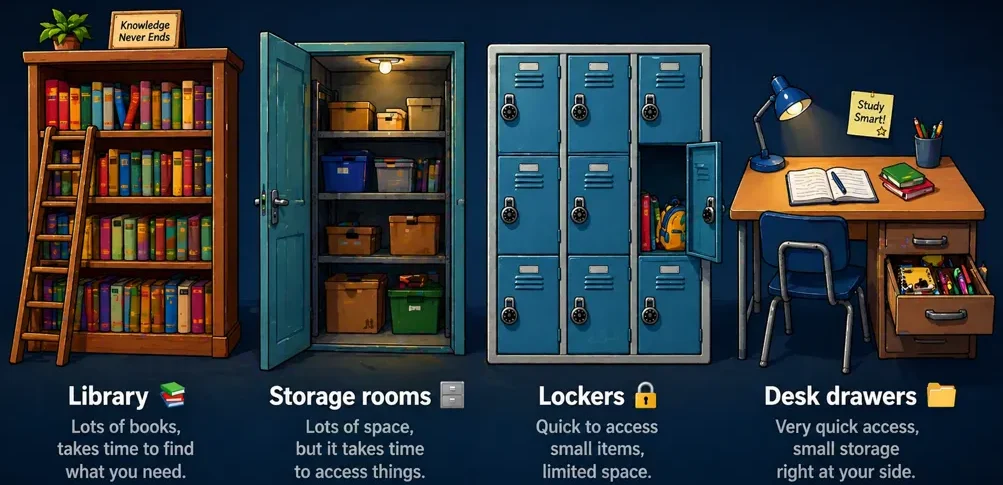
A school doesn’t store everything in one place.
👉 It uses different storage compartments:
- Library 📚
- Storage rooms 🗄️
- Lockers 🔒
- Desk drawers 📂
👉 Each one has:
- Different speed
- Different accessibility
- Different purpose
Each one:
Each one serves the same purpose—storing your books and materials—but they differ in how quickly and conveniently you can access them.
👉 Laptop storage works the same way.
🧩 Types of Storage (Explained Clearly)
Not all storage is the same.
👉 This is one of the biggest reasons why laptops feel fast or slow.
 HDD (Hard Disk Drive)
 What It Is
An HDD is a mechanical storage device.
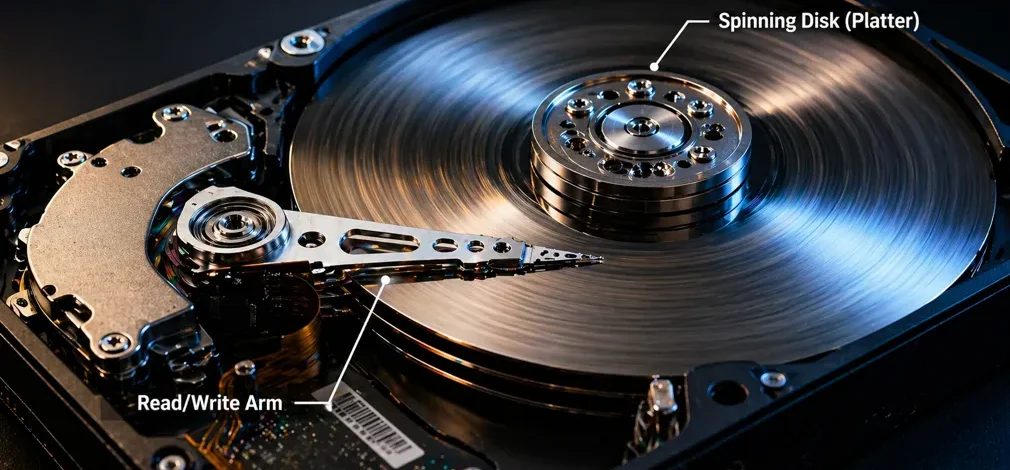
It stores data on spinning metal disks inside the drive called platters.
Because of this, its speed is measured in RPM (Revolutions Per Minute) rather than MB/s. Common speeds are 5,400 RPM and 7,200 RPM, which typically translate to around 80–120 MB/s and 120–160 MB/s. This means a 7200 RPM drive is generally about 25–33% faster than a 5400 RPM drive.
There are higher and even lower rpm speeds but the mentioned 2 are the most common. The other thing that sets this type of storage apart from other types of storage is that it is mechanical. You can hear the disk spinning and even feel the vibrations of the disk when it spins.
How It Works
Inside the HDD:
- The disk spins constantly
- A read/write arm moves across the disk
- It must:
- Locate where the file is stored
- Move to that position
- Read the data
 This is the part that fetches your file
This process takes time because it involves physical movement
 Why It Is Slow
Every time you open a file:
- The disk must spin
- The arm must physically move
- The correct position must be found
The more scattered the data:
The more it has to move
This creates a delay every time data is accessed
🎒 School Analogy
👉 Think of the HDD as the school library 📚

When you go to the library and want a specific book you have to ask the person at the counter. There are many tall shelves and many sections inside the library with lots of books. The following process is how a hard disk drive works:
- You ask for a book from the librarian
- The librarian walks through shelves
- Looks for the specific book
- Finds the book
- Walks back to you with the book
- Then hands it to you.
The HDD process is very similar.
👉Librarian = the arm
👉 Walking = the arm moving
👉 That delay is why an HDD feels slow
💡 Real-World Experience
- Slow startup
- Slow file access
- Sluggish system
- Noisy
What is Defragmentation or Optimization?
Because an HDD is mechanical with moving parts, this is one thing that applies only to Hard Disk Drives. Let’s get into a better understanding of an HDD.
👉 Parts of the same file are stored in different locations on the disk
So when opening a file:
- The arm must move to multiple places
- Collect all pieces
- Only after collecting all pieces do you get access to the file.
👉 This adds extra delay.
Because of this process the HDD requires defragmentation to run optimally.
🎒 Defragmentation simplyfied
Look at it this way:
Let’s say you have a drive with 1TB capacity but only half of the space is utilized so there is 500GB of free space on the drive. Looking again at the analogy of the library.
See the library shelves as the disks inside the HDD. New books that are added to the library are placed randomly and not organized for example by genre. It is scattered among all shelves leaving empty spaces between books and shelves and not stacked together or filled from the front to the back. This leaves it messy and unorganized.
The librarian knows exactly where to find your requested books. Imagine if the librarian doesn’t know where it is and has to search for it. This would cause even more delay. This is exactly what happens when your drive is not defragmented or optimized.
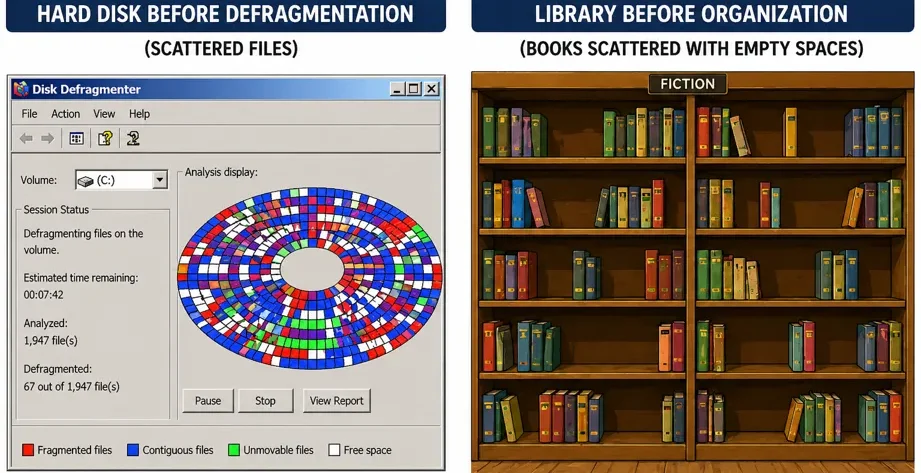
🧠 Why Defragmentation Exists
Because HDD relies on movement:
👉 File placement matters
Over time:
- Files get broken into pieces
- Stored in different places
👉 This increases movement distance
👉 Which makes everything slower
If we think of the pieces/fragments stored in different locations, it’s like this:
The cover of the book is at the far back of the library, now the librarian has to fetch the book, go to the back to get the cover, complete the book, and then walk all the way back to the counter to hand it to you.
If the librarian organizes the books better for example: Leave empty shelves at the back. Occupy the shelves closest to the reception desk. Add the shelf with the book covers next to the desk so you can get the book you want much faster.
Moves frequently used books closer together
That process is called: DEFRAGMENTATION!
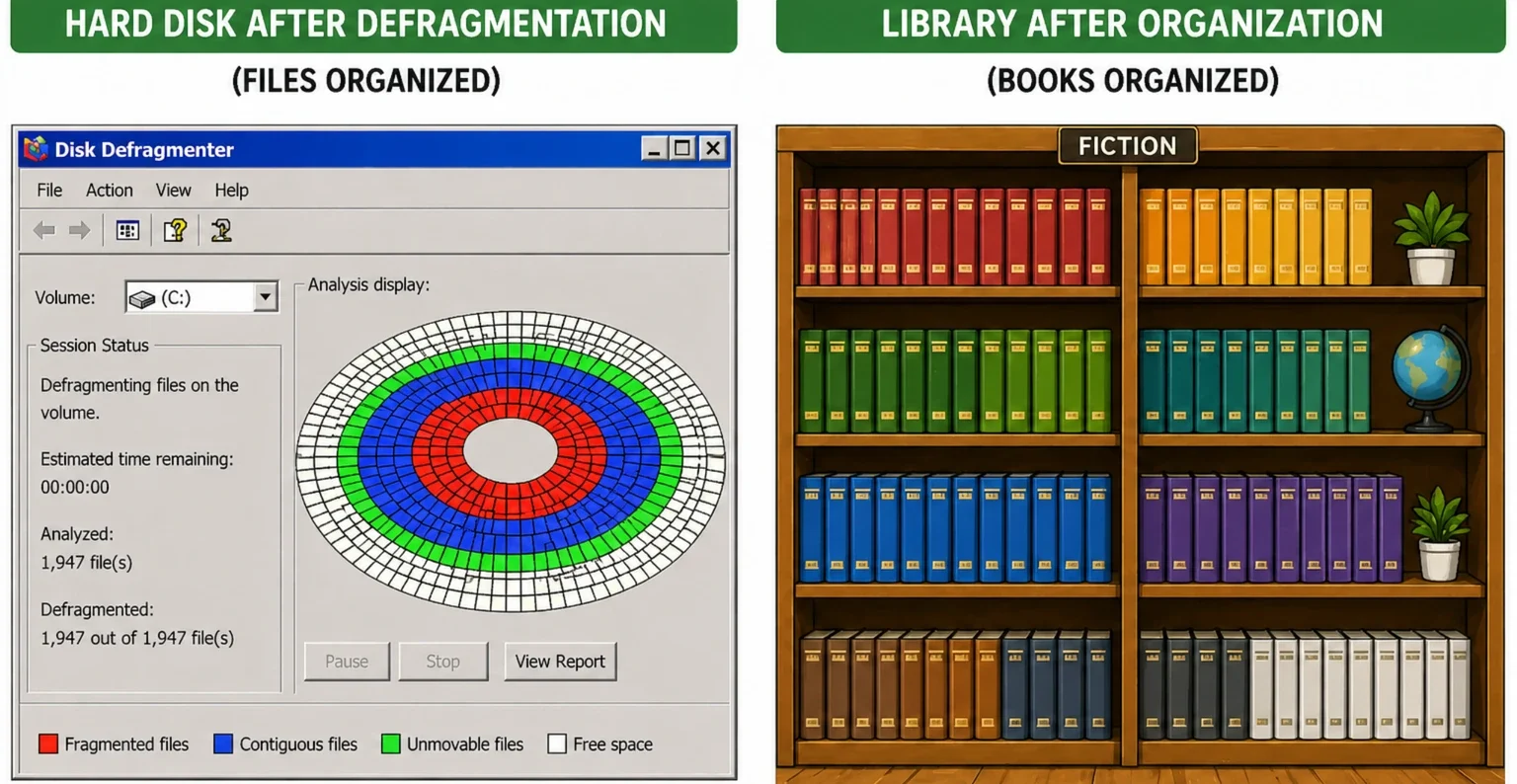
⚙️ What Defragmentation Does
- Rearranges file pieces
- Places them closer together
- Reduces how far the arm must move (Reduces the walking distance for the librarian significantly)
👉 Result:
- Faster file access
- Smoother performance
💡 Windows Naming Difference
- Older Windows operating systems called it Defragmentation
- Modern Windows operating systems call it Optimization
Just to make sure that this does not confuse you: The important takeaway here is that it is the exact same thing. Microsoft just changed the name from Defragmentation to Optimization.
🎒 School Analogy (Defragmentation)
👉 The librarian reorganizes the library:
- Popular books are moved closer
- Frequently used materials grouped together
👉 So less walking is needed
👉 Just like the system learns what files you use most
💡 Real-World Impact
Without optimization:
- Slower file access
- Sluggish system
With optimization:
- Noticeable improvement
💡 IDE VS SATA
Like every storage device, an HDD also needs a way to communicate with the rest of the laptop. Over the years, that connection changed from IDE to SATA to improve data transfer speeds and efficiency. IDE cables (Integrated Drive Electronics) were used with earlier HDD’s but newer models connected with a SATA cable (Serial Advanced Technology Attachment)
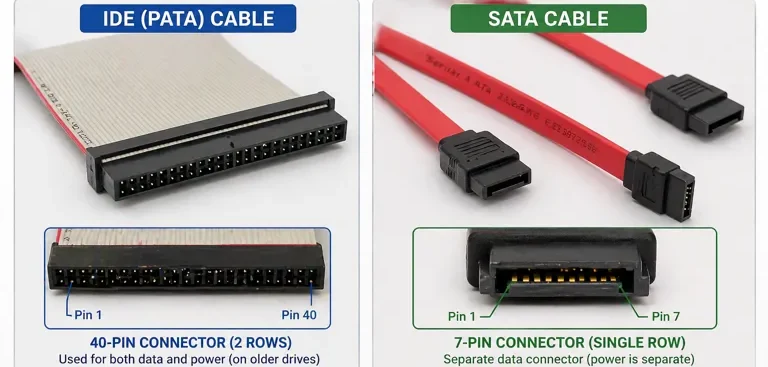
Why the change?
High-performance HDDs (such as 10,000 RPM models) could push closer to the limits of IDE, which caused a bottleneck for faster drives, as they were limited by IDE technology.
This means both the drive itself and the connection could act as bottlenecks, depending on the situation.
SATA improved bandwidth, efficiency, and overall scalability, removing many of the limitations of IDE. However, the mechanical nature of HDDs remained the primary limitation.
🧠 SIMPLE WAY TO THINK ABOUT IT
HDD = 🏃 runner
IDE = ⛰️ uphill road with stops
👉 Before: both the runner and the road slow things down
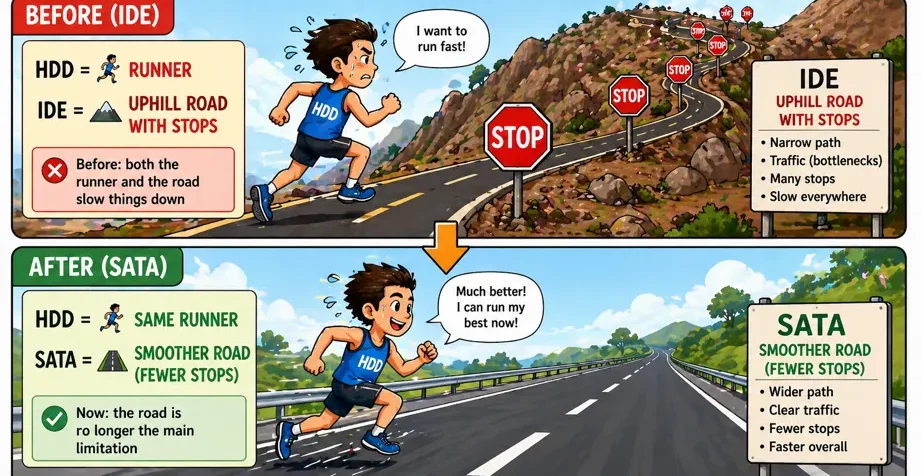
After SATA:
HDD = 🏃 same runner
SATA = 🛣️ smoother road (fewer stops)
👉 Now: the road is no longer the main limitation
👉 The runner has now become the main limitation.
With this upgrade, the HDD became the main bottleneck. SATA could handle much higher speeds (IDE was limited to around 133 MB/s), but HDDs could not take full advantage of that extra bandwidth.
👉 Mechanical hard drives served laptops well for many years, but their moving parts limited both speed and reliability. As laptops became thinner, lighter, and more portable, manufacturers began looking for alternatives. One of the first solutions was eMMC storage.
🟨 eMMC Storage
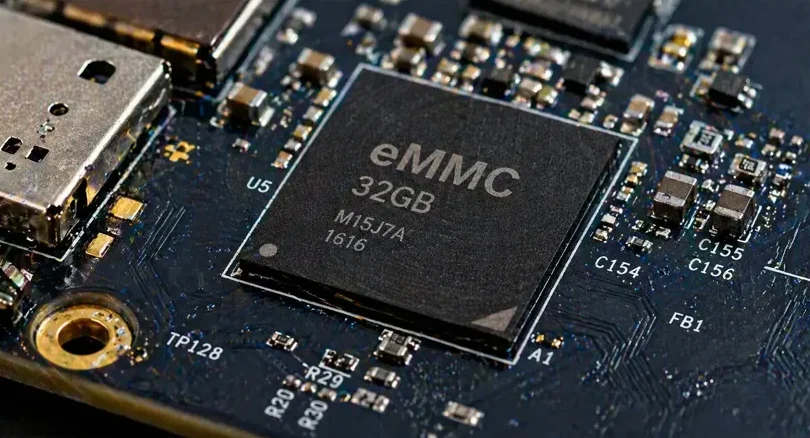
⚙️ What It Is
eMMC (embedded Multi Media Card) is a basic type of flash storage, generally faster than a 7200 RPM HDD, with roughly double the read speeds and much faster response time.
It’s commonly used in:
- Budget laptops
- Tablets
- Mobile devices
Unlike an HDD, eMMC is soldered directly onto the motherboard instead of being connected with a cable.
eMMC is a type of flash storage (like SSD), but it uses a simpler controller and slower interface, which limits its performance.
Unlike an HDD, the bottleneck is no longer the connection. Because eMMC is soldered directly to the motherboard, the limitation now comes from the eMMC technology itself—its simpler controller and slower design.
eMMC is still faster than HDD but could not reach SATA speeds either.
⚙️ How It Works
- Data is stored electronically (no moving parts)
- Built directly into the system
- Uses a simpler internal controller
👉 Unlike HDD:
👉 There is no movement which results in a completely silent drive.
⚠️ Why It Still Feels Slow
Even though it has no moving parts:
- It has limited bandwidth
- Slower communication with the system
- Not designed for high-performance workloads
👉 So while it avoids mechanical delay:
👉 It still cannot process data quickly enough
🎒 School Analogy

Simpler and closer to your classroom than the library.
👉 Storage room 🗄️
- You must call the janitor
- He comes and unlocks the room
- Then he gives you your materials
👉 You depend on someone else
👉 It adds delay
💡 Real-World Experience
- Better than HDD in some cases
- Still noticeably slower than SSD
🟦 SATA SSD
⚙️ What It Is
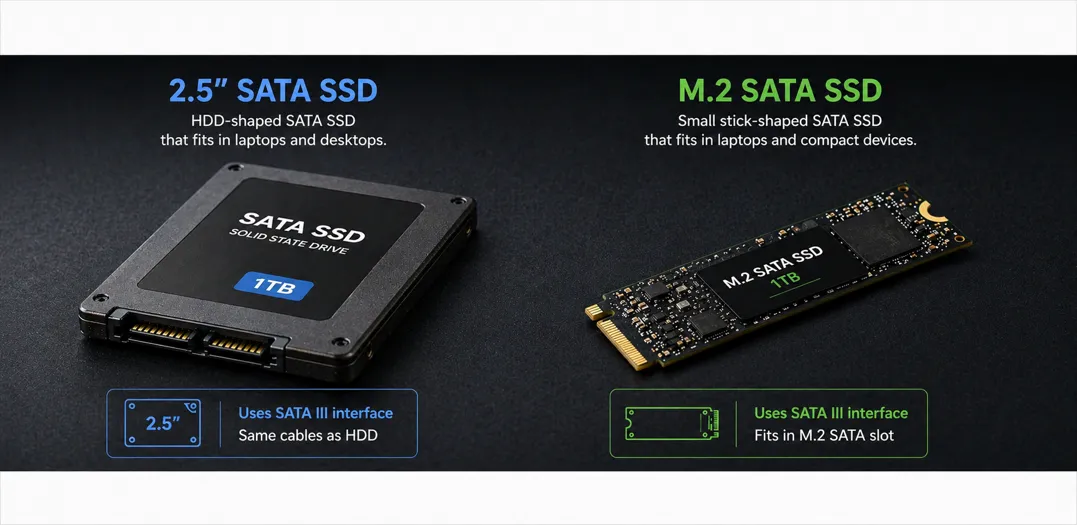
A SATA SSD is a (solid-state drive) with no moving parts. It connects to the system with a SATA cable (Serial Advanced Technology Attachment)
👉 SATA SSDs come in two physical forms: the traditional 2.5-inch drive and the smaller M.2 version shown above.
👉 Both use the same SATA technology — only the size and connection style differ.
This was the biggest storage speed upgrade of the time as it was the first time that a drive could take full advantage of the SATA cable connection speeds. Now the SATA connection became the bottleneck. The SSD itself was capable of even higher speeds, but the SATA connection had reached its limit and became the new bottleneck.
⚙️ How It Works
- Uses flash memory
- Data is accessed electronically
- No mechanical movement
⚠️ Why It Is Faster
- No mechanical delay
- Faster access to data
- But limited by the SATA connection speed
👉 Think of it as:
👉 Fast storage, with a speed limit but so much faster than an HDD.
My own experience with an ssd upgrade:
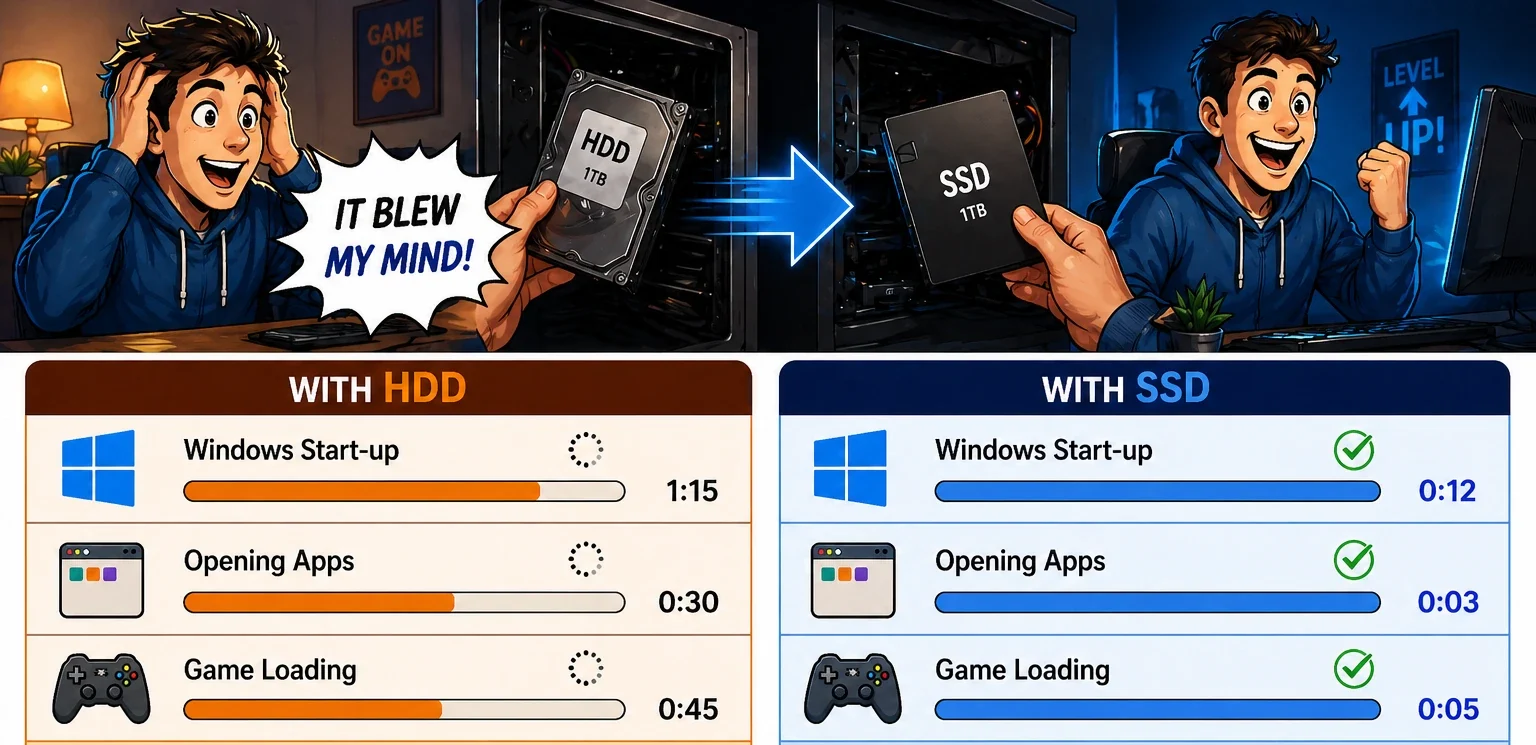
I don’t think most of the younger generation can fully grasp how far we have come.
I still remember the day I replaced my HDD with an SSD, it actually blew my mind. From opening Windows to apps to games loading, it felt blazing fast!
With an HDD after start up you have to give your computer maybe 2 minutes to complete its loading (that is called boot time). The difference was incredible! Everything felt so much faster and more responsive.
🎒 School Analogy

👉 Your locker 🔒
- You have your own key
- You have direct access to it
- You access things immediately
👉 No waiting for the key.
👉 No dependency on the janitor.
👉 In many schools, lockers are located just outside the classroom in the hallway. Students can quickly step outside, grab what they need, and return to class within seconds.
Compared to walking all the way to the library, the locker is much closer and easier to access. That’s why SSDs can retrieve files much faster than traditional hard drives.
💡 Real-World Impact
- Fast boot times
- Quick file access
- Smooth everyday use
- Silent
 NVMe SSD
What It Is
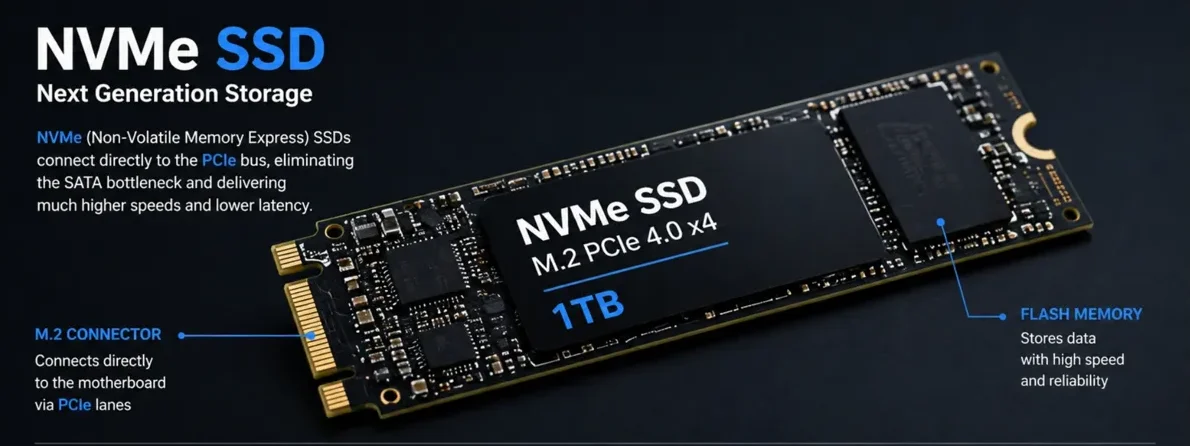
NVMe (Non-Volatile Memory Express) connects through high-speed PCIe lanes, allowing much faster communication with the system.
It is essentially still a solid state drive but where an SSD connects to the system with a SATA cable, NVMe connects to the motherboard through PCIe (Peripheral Component Interconnect Express)
Both SATA and PCIe are connection technologies, but PCIe provides much higher bandwidth, allowing NVMe drives to communicate with the system far more quickly than SATA.
How It Works (Key Difference)
Unlike SATA:
NVMe connects:
- No cables
- Shorter path
- Faster communication
👉 It communicates much faster with the processor, allowing data to be accessed with far less delay.
Why It Is So Fast
- NVMe is faster because it uses PCIe, which provides significantly higher bandwidth and more efficient data handling than SATA.
🎒 School Analogy

👉 Your desk drawer 📂
- Built into your desk
- Open instantly
- No walking or waiting
- Right next to your workspace
💡 Real-World Experience
- Near-instant startup
- Extremely fast file access
- Smooth performance even with large files
🧠 M.2 vs NVMe (Important Clarification)
This is where many people get confused.
👉 M.2 and NVMe are not the same thing
 What Is M.2?
M.2 is the physical form factor.
I think the simplest way to understand the physical form factor is:
An SSD comes in two different physical forms. One has the same general shape as a 2.5-inch laptop HDD, while the other is much smaller and resembles a flat stick. The smaller M.2 size makes it perfect for laptops where everything is compact. Important note: They are both still SSDs.
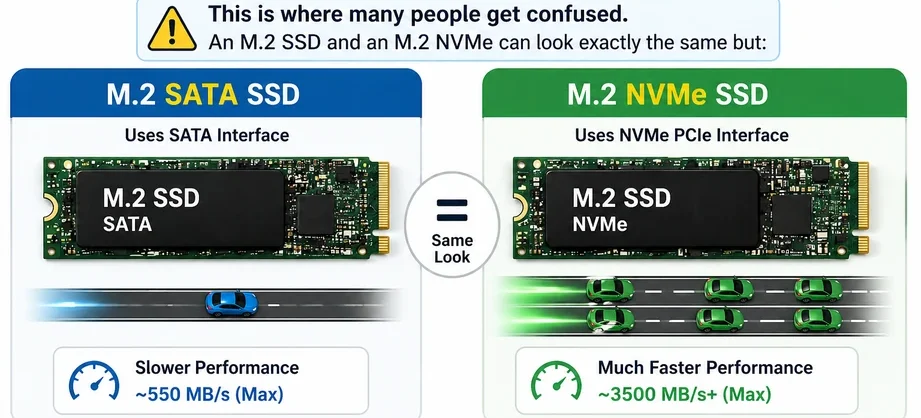
An M.2 ssd and M.2 NVMe can look exactly the same just because they both have M.2 as their physical form factor.
M.2 describes the shape and size of the drive. That is all it is.
- Small
- Flat
- Stick-like design
⚡ What Is NVMe?
NVMe is a communication protocol.
👉 It controls how fast data moves between the storage and the CPU
👉 It is specifically designed for high-speed SSDs
👉 You can have:
- M.2 SATA drive → slower
- M.2 NVMe drive → much faster
👉 Even though they look the same physically
⚡ The Key Difference
- M.2 SATA → uses older, slower communication
- M.2 NVMe → connects directly to PCIe lanes (high-speed pathways)
👉 This direct connection allows much higher speeds
🎒 Simple Way to Think About It
👉 Think of M.2 as the road itself
👉 And NVMe as how traffic moves on that road
🚗 Step-by-Step Explanation
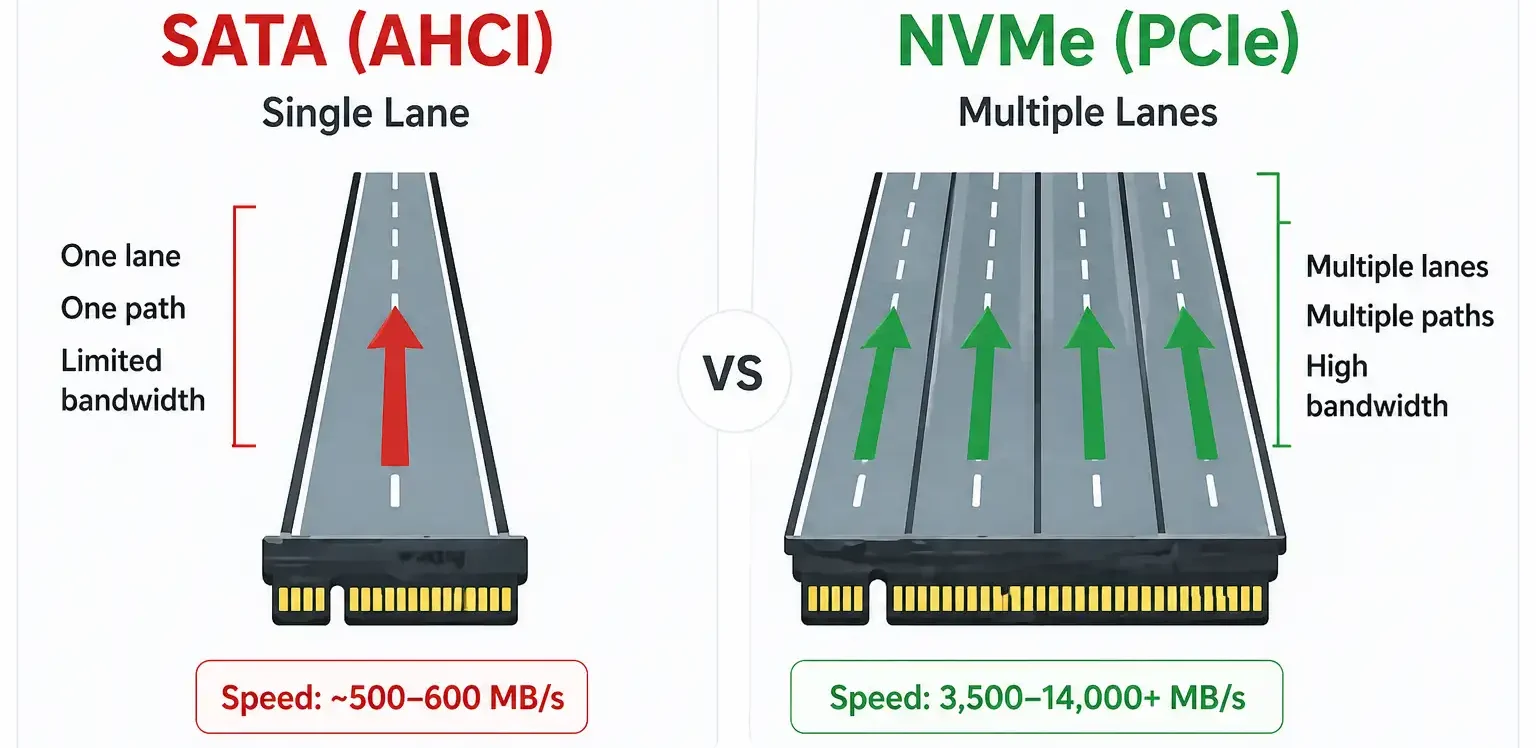
- The road (M.2) tells you:
- How big it is
- Where it connects
- What kind of vehicles can use it
👉 But the road does NOT determine speed by itself
- The traffic system (NVMe vs SATA) determines:
- How fast cars can move
- How many can move at once
- How efficiently everything flows
⚠️ Why Two M.2 Drives Can Feel Very Different
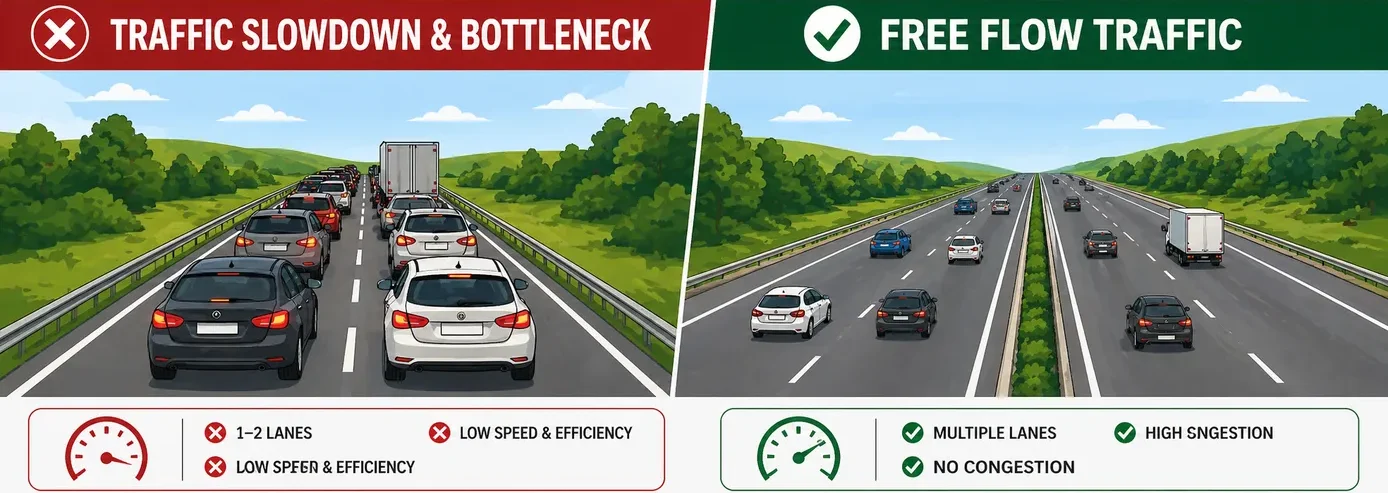
Imagine two roads that look exactly the same:
🟡 Road 1 (M.2 SATA)
- Narrow lanes
- Slower traffic flow
- More limitations
👉 Even though the road looks modern:
👉 Traffic still moves slowly
🟢 Road 2 (M.2 NVMe)
- Wide, high-speed lanes
- Multiple lanes open
- Designed for fast movement
👉 Traffic flows quickly and efficiently
👉 Always check NVMe, not just M.2
Because:
👉 The speed difference is massive — even if the drives look identical
⚡ Why Storage Speed Matters
👉 Storage affects how fast your laptop:
- Starts up
- Opens apps
- Loads files
👉 Even with a fast CPU:
👉 Slow storage will make everything feel slower
⚡ Storage Speed Comparison (Critical for Understanding)
| Storage Type | Typical Speed |
|---|---|
| HDD | ~80–160 MB/s |
| eMMC | ~150–300 MB/s |
| SATA SSD | ~400–550 MB/s |
| NVMe SSD | ~2,000–14,000+ MB/s |
 How Storage Evolved (Quick Story)
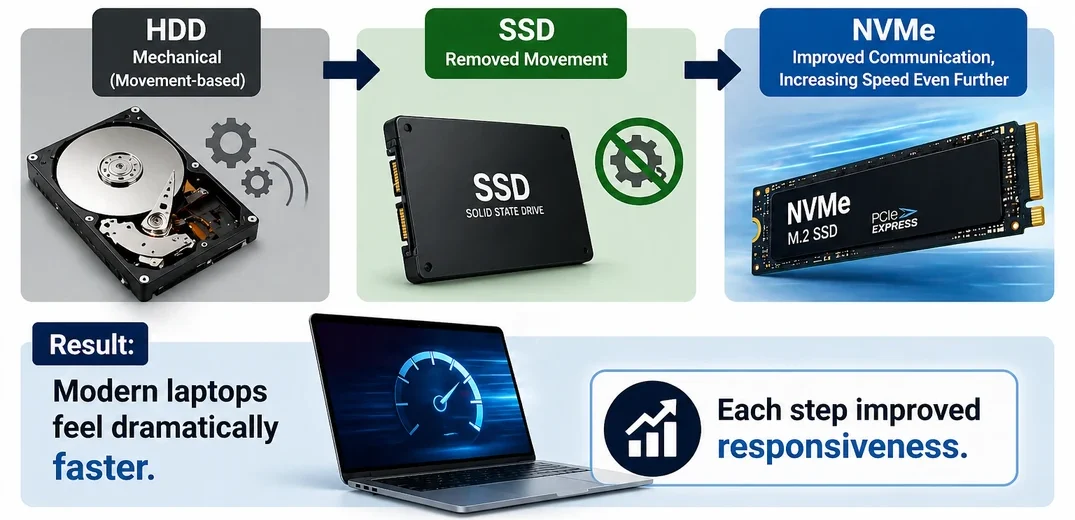
In the past:
HDDs relied on mechanical movement
- HDD → mechanical (movement-based)
- SSD → removed movement
- NVMe → improved communication, increasing speed even further
Result:
Modern laptops feel dramatically faster
👉 Each step improved responsiveness
Now everything connects:
- Slow storage → delays opening files
- Fast storage → smooth experience
👉 Together:
👉 They determine how your laptop feels
🕒 Storage Longevity (How Long It Lasts)
Not all storage types age the same.
👉 HDD (Hard Disk Drive)
Uses moving parts, which wear out over time. More prone to mechanical failure, especially with heavy use or physical movement.
👉 eMMC
No moving parts, but uses simpler flash memory with limited write cycles. Designed for light use, not long-term heavy workloads.
👉 SATA SSD
More reliable than HDDs due to no moving parts. Has limited write cycles, but modern drives are built to last many years under normal use.
👉 NVMe SSD
Similar to SATA SSD in lifespan, but often built with higher-quality controllers and memory. Designed for high performance and heavier workloads.
⚠️ Rewrites & Lifespan
Flash storage (eMMC, SATA SSD, NVMe) wears down slightly every time data is written or rewritten.
👉 In real-world use:
Normal activities (apps, browsing, documents) won’t noticeably reduce lifespan
👉 Heavy workloads (constant large file writes, video editing, servers):
Can reduce lifespan over time
This is worth mentioning:
👉 For most users, modern SSDs will last many years without issues
👉 Longevity differences matter most in heavy or professional use scenarios
👉 Different types of storage can make a huge difference to how quickly your laptop starts up, opens applications, and loads files.
But storage has one important limitation—it isn’t designed to be the CPU’s active workspace. Once your files and applications are loaded, the processor needs somewhere much faster to access the information it’s working on in real time. That’s where RAM comes in.
💾 What Does RAM Do in a Laptop?
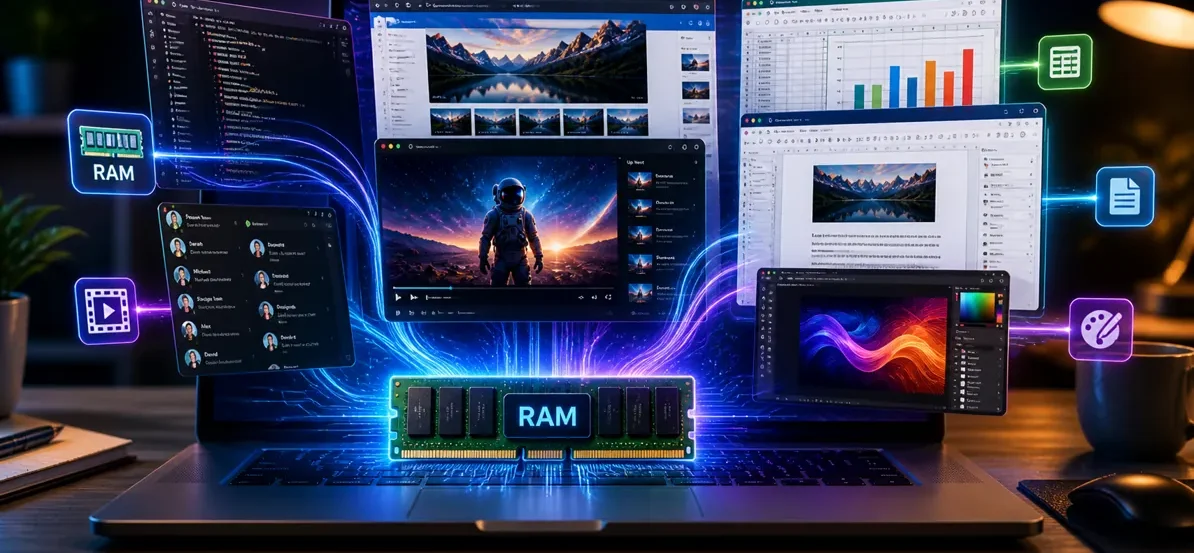
RAM (Random Access Memory) 💾 is your laptop’s working memory.
It’s where everything happens while you’re actively using your laptop.
- Apps run in RAM
- Files you open load into RAM
- Tasks you’re working on stay in RAM
👉 RAM determines how smoothly your laptop can handle multiple things at once
This is the actual sequence inside a computer: Storage stores the data → RAM temporarily holds the data → CPU processes the data.
💡 Think of RAM as Your Desk

🧠 CPU = principal
💾 RAM = your desk
💽 Storage = library 📚 / storage rooms 🗄️ / lockers 🔒 / desk drawers 📂
👉 RAM is your desk 🪑
Everything you’re actively working on sits on your desk.
Small desk → things pile up → you slow down
Large desk → everything fits → you work smoothly
👉 That’s exactly how RAM works.
🧠 RAM vs Storage (Quick Reminder)
Before we go deeper, keep this in mind:
💾 RAM = your desk → what you’re working on right now
💽 Storage = where everything is kept
👉 When you open a file:
It moves from storage to RAM.
Then you work on it.
👉 When you’re done:
It gets saved back to storage.
RAM is essentially a type of storage but temporary storage. It is not permanent like your HDD or SSD.
🔄 What Happens When RAM Is Full on a laptop?

👉 When your RAM (desk) runs out of space, your laptop doesn’t stop working.
Instead, it uses a process called memory swapping.
Memory Swapping Explained
🎒 School Example
Your desk (RAM) is full
But you still need to keep working
👉 So you take some of your work and move it into your desk drawer (NVMe storage)
🔁 Now the Important Part (This Is What Causes Slowdowns)
Let’s say you need something that’s in the drawer:
👉 You go to the drawer and take it out
But your desk is already full
So you must:
Take something from your desk
Put it into the drawer
Then place the new item on your desk
👉 Every time this happens, you are:
Moving things back and forth
Reorganizing your workspace
Losing time
👉 This process is called memory swapping
⚠️ Why This Feels Slow
👉 Your desk (RAM) = instant access
👉 Your drawer (SSD) = fast, but not instant
So this constant switching:
Adds extra steps
Breaks your workflow
Slows everything down
👉 The more this happens:
👉 The slower your laptop feels
💡 This means: Your laptop uses storage as temporary space when RAM is full.
⚡ RAM vs NVMe SSD Speed (Very Important)
👉 RAM operates at tens of thousands of MB/s
👉 RAM operates at speeds far beyond even the fastest NVMe SSDs.
👉 That’s why:
👉 The desk is on a completely different level of speed
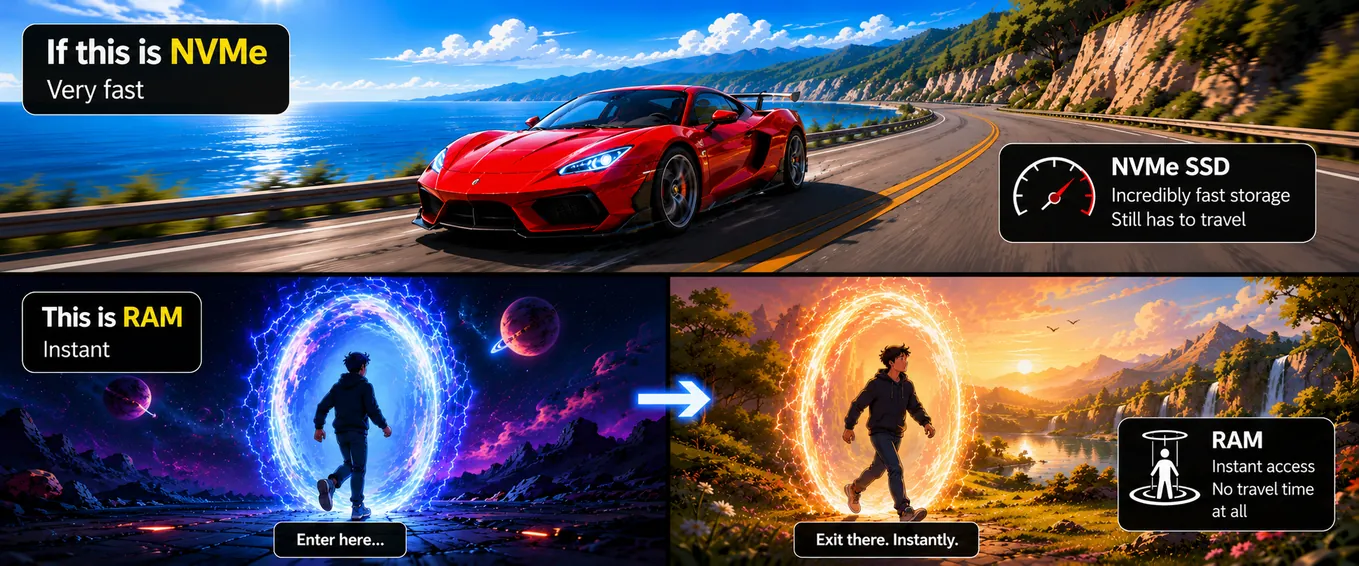
👉 It might sound crazy, but the speed difference really is that big — RAM is in a different league.
👉 RAM (your desk) is extremely fast — almost instant
👉 SSD storage (your drawer, including fast NVMe drives) is very fast — but still much slower than RAM
👉 That’s why relying on storage instead of RAM always reduces performance
💡 Even though modern SSDs are incredibly fast, they are not designed to replace RAM
👉 RAM operates in a completely different level of speed.
That’s why:
👉 Using storage as a backup always feels slower — no matter how fast your SSD is
- RAM latency = nanoseconds
- NVMe latency = microseconds
RAM isn’t just faster—it operates in an entirely different class.
⚠️ Does Memory Swapping Affect Your Laptop Over Time?
👉 Yes — but mostly under heavy and constant use
When your laptop relies on memory swapping a lot:
More data gets written to storage
More read/write activity happens in the background
👉 Over a long period, this can contribute to storage wear
💡 But here’s the important part:
👉 Modern SSDs are built to handle this very well
👉 Like anything that gets used, storage will experience wear over time — that’s completely normal
What matters is how heavily it’s used, not the fact that it’s being used
For most users:
You will not notice any real impact over the normal lifespan of your laptop
⚠️ When it becomes a concern
👉 If your system is constantly running out of RAM
👉 And relying heavily on swapping every day
Then:
Performance will suffer
And long-term storage wear increases slightly
👉 Occasional swapping is normal
👉 Constant swapping is a sign you need more RAM
❓ Why Not Just Use RAM for Everything?
👉 If RAM is so fast… why not use it for everything?
🎒 School Explanation
Think of your desk (RAM):
It’s where you do your work
Everything is fast and easy to access
But at the end of the day:
👉 Your desk gets completely cleared
Loose papers are thrown away 🗑️
Any work left on it disappears
👉 Leaving school is like turning off your computer
The classroom gets cleaned
Nothing stays behind
👉 When you come back the next day:
👉 Your desk is empty again
📚 Storage Is Different
Your storage (drawer, locker, library) keeps your books and materials safe.
- Your files stay there
- Your work is saved
- Nothing disappears
Think of it like this: the files in your locker does not get thrown away or cleared.
👉 You can come back later and continue where you left off
⚠️ The Simple Difference
👉 RAM is:
- Extremely fast
- Temporary (cleared when power is off)
👉 Storage is:
- Slower
- Permanent (keeps your files safe)
🔑 Remember this:
👉 RAM = working right now
👉 Storage = saving for later
- RAM = fast but forgets
- Storage = slower but remembers
❓ Can RAM Replace an SSD or Be Used as Storage?
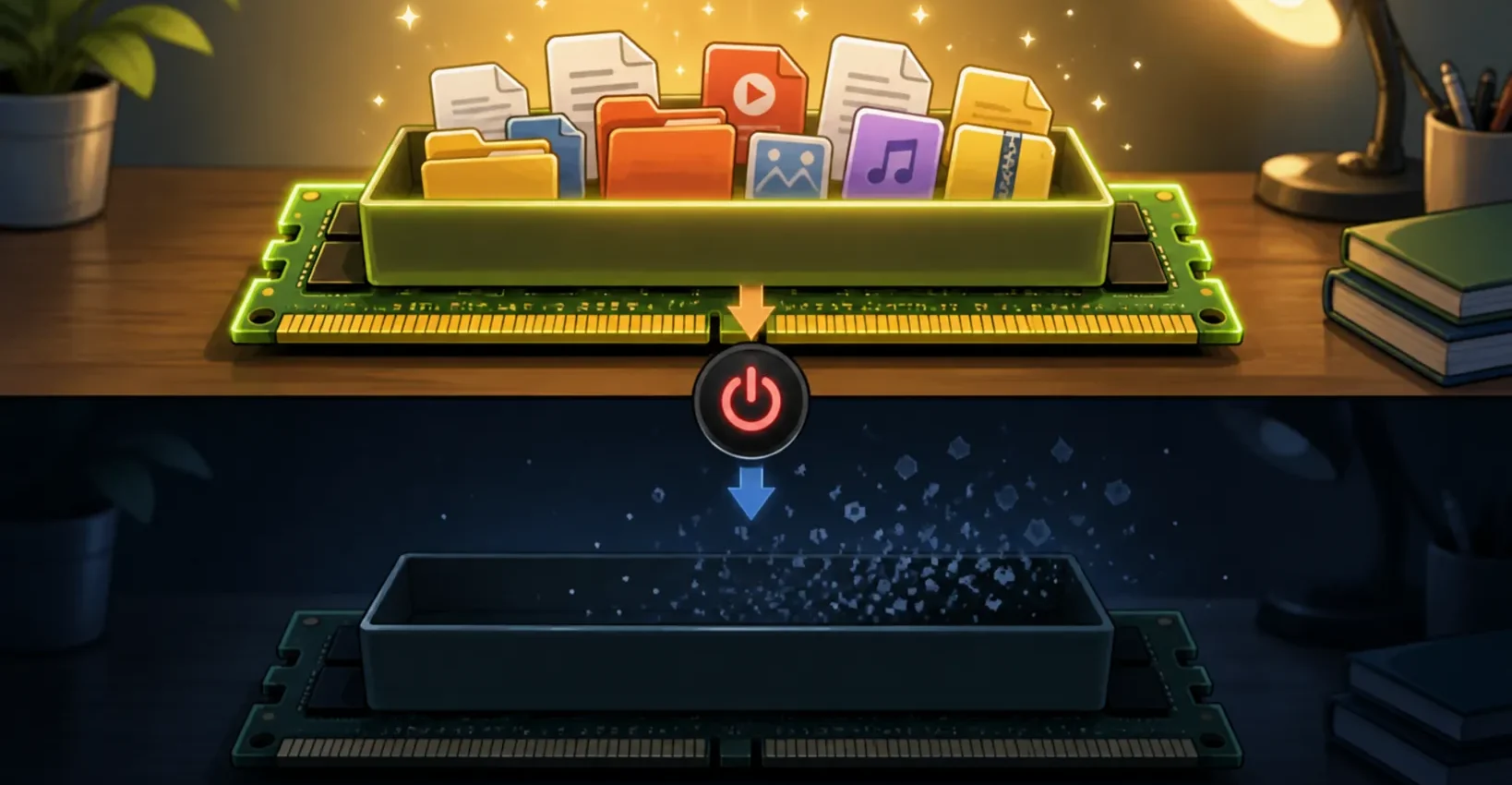
👉 Short answer: not really — at least not in a practical way
Many people ask:
👉 “can RAM replace SSD?”
👉 “can you run a PC on RAM only?”
💡 The idea comes from something called a RAM disk
So what is a RAM disk?
A RAM disk is when part of your RAM is used like storage
👉 So yes — in a very limited way, RAM can act like storage
⚠️ But here’s the major problem:
RAM is temporary
When your computer turns off:
👉 Everything in RAM gets erased
That means:
No saved files
No operating system
Nothing to load when you turn your laptop back on
⚠️ Why this doesn’t work in real life
👉 To make this usable, your system would need to:
Reload everything every time you start your computer
Or copy everything back from storage before you can use it
💸 Other major limitations
RAM is much more expensive than storage
RAM comes in much smaller sizes
Storage (SSDs) can hold terabytes of data
👉 That’s why laptops come with:
16GB RAM
But 1TB or more storage
👉 RAM and storage are designed for different jobs
RAM = speed
Storage = saving
👉 You cannot replace one with the other — they work together
💡 If laptops used only RAM:
- All your files would disappear every time you shut down
- Nothing would ever be saved
👉 That’s why both are essential.
⚙️ Why RAM Matters So Much
RAM directly affects how your laptop feels when you use it
👉 Not just how fast it is — but how smooth everything runs
💡 Here’s where you actually notice it:
Opening multiple apps
Switching between tasks
Browsing with many tabs
Running demanding software
👉 With enough RAM:
Everything feels smooth
Apps stay open
You can move between tasks instantly
👉 With not enough RAM:
Apps reload constantly
Switching feels slow
Your system starts to lag
⚠️ Even with a powerful CPU:
👉 Not enough RAM will still slow everything down
Because:
👉 RAM is the space where your work happens
If that space is limited:
👉 Everything becomes harder for your system to manage
🧩 How RAM Works in Windows Laptops
Not all RAM is used in exactly the same way
👉 How your system uses memory depends on your hardware setup
🧠 System RAM
This is your main memory
Used for:
Windows
Applications
Background processes
👉 This is where most of your everyday tasks happen
🟢 Shared Memory (Integrated Graphics)
👉 In systems without a dedicated GPU:
The CPU and graphics share the same RAM
👉 This means:
Part of your RAM is used for graphics
Less RAM is available for apps and tasks
👉 Example:
If you have 16GB RAM:
👉 A portion is reserved for graphics
👉 Leaving less available for everything else
🎮 Graphics Memory (VRAM)
If your laptop has a dedicated graphics card:
👉 It uses its own memory (called VRAM)
👉 This means your system RAM is not heavily affected by graphics tasks
👉 This means:
System RAM is fully available for apps
Graphics tasks run separately
👉 Result:
More stable performance
Better for demanding workloads
🔜 We’ll explore the difference between shared memory and dedicated graphics in much more detail in the GPU section, where you’ll see how they affect gaming, creative work, and overall graphics performance.
⚡ RAM Speed (What It Actually Means)
RAM is not just about how much you have (8GB, 16GB, etc.)
👉 It also has speed
RAM speed determines how quickly data can move between your CPU and memory
💡 What this means in real use:
Faster RAM can help your system respond quicker
Tasks feel smoother
Data moves more efficiently in the background
👉 This is especially noticeable when:
Multitasking
Running demanding apps
Using integrated graphics
⚠️ Important to understand
👉 RAM size (how much you have) usually matters more than speed
👉 But once you have enough RAM:
👉 Faster RAM can still improve overall responsiveness
👉 Capacity = how much you can do at once
👉 Speed = how quickly it happens
🔄 Single-Channel vs Dual-Channel RAM
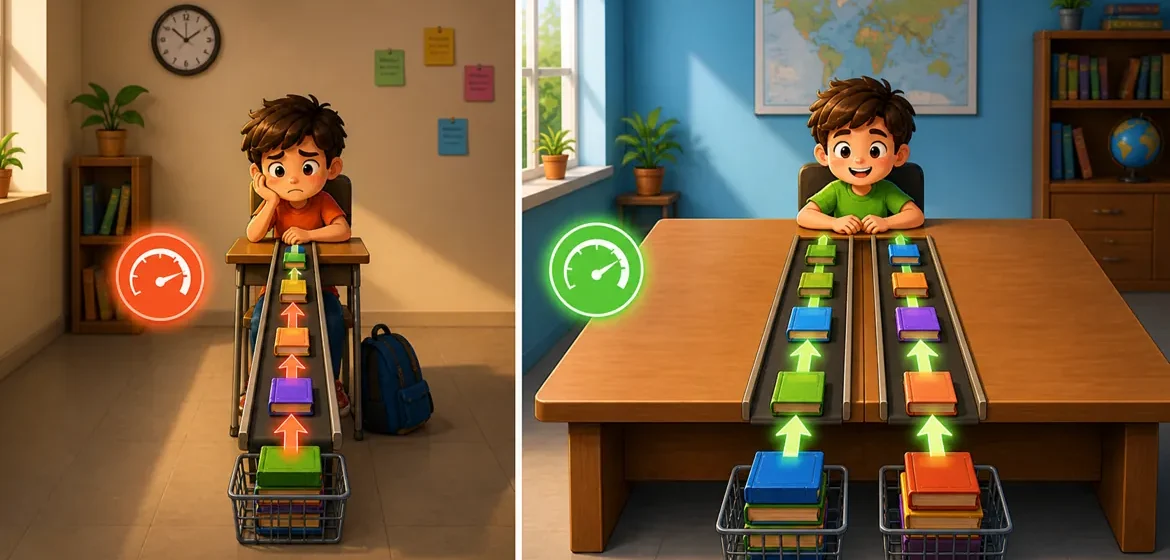
👉 It’s not just how much RAM you have — it’s how it’s set up
🔴 Single-channel
One path for data → slower performance
🟢 Dual-channel
Two paths for data → faster performance
🎒 A Simple way to think about it:
👉 A narrow desk
You can only work on one thing at a time
Everything has to move through one space
👉 A wide desk
You have more room to work
You can handle more at once without slowing down
👉 Dual-channel improves:
System responsiveness
Multitasking
Integrated graphics performance
🔑 Just remember:
👉 Dual-channel = smoother experience
👉 Single-channel = limits performance
🧠How Much RAM Memory Do You Really Need?
🟡 8GB RAM
Works for:
Basic use
Browsing
Documents
⚠️ Limitations:
Struggles with multitasking
Can feel slow over time
🟢 16GB RAM (Recommended)
Best for:
Most users
Multitasking
Productivity
Light creative work
👉 This is the safest choice for most people and I would set this as the base if you don’t want to buy another laptop in the very near future.
🔵 32GB RAM
Best for:
Heavy multitasking
Video editing
Development
More demanding workloads
🔴 64GB+ RAM
Used for:
Professional workloads
Advanced software
Large AI models
Specialized use cases
⚠️ Why RAM Matters Even More with Integrated Graphics
👉 If your laptop uses integrated graphics:
Part of your RAM is shared with the GPU
Less memory is available for apps
👉 This means:
👉 16GB is often the real minimum for a smooth experience
💡 Remember this:
👉 8GB = basic use only
👉 16GB = best balance (recommended)
👉 32GB+ = for demanding work
⚠️ Why 8GB RAM Can Become a Problem
👉 8GB RAM can still handle basic tasks today
But:
Operating systems and apps are becoming more demanding every year
👉 This means:
More memory usage
More background activity
More pressure on your system
⚠️ The real issue over time
👉 Less RAM = more memory swapping
👉 More swapping = slower performance
And:
👉 Increased reliance on storage can also contribute to long-term wear
💡 This matters even more for laptops
Many modern laptops have RAM soldered onto the motherboard
👉 This means:
You cannot upgrade it later
You are stuck with what you buy
👉 Unlike storage, RAM cannot be added externally
🔑 Simple takeaway:
👉 Choosing more RAM now = better performance later
👉 More RAM = less swapping + smoother experience over time
👉 If you plan to keep your laptop for several years, 16GB is the safer choice
⚠️ Common RAM Mistakes
❌ Choosing too little RAM
👉 Leads to slowdowns, lag, and constant memory swapping
❌ Thinking you can upgrade later
👉 Many laptops have soldered RAM and cannot be upgraded
🔑 This is the important thing:
👉 RAM decisions matter more than most people think
👉 Getting it right upfront saves you from problems later
👉 The more RAM your laptop has, the more information it can keep readily available for the CPU to access.
👉 That helps your laptop feel faster, smoother, and more responsive when you’re multitasking.
So far we’ve looked at how your laptop processes information and where it temporarily stores it. But not every task is about calculations. Your laptop also has to display images, play videos, render games, and produce everything you see on the screen. That’s the job of the GPU.
🎮 What Does a GPU Do in a Laptop?
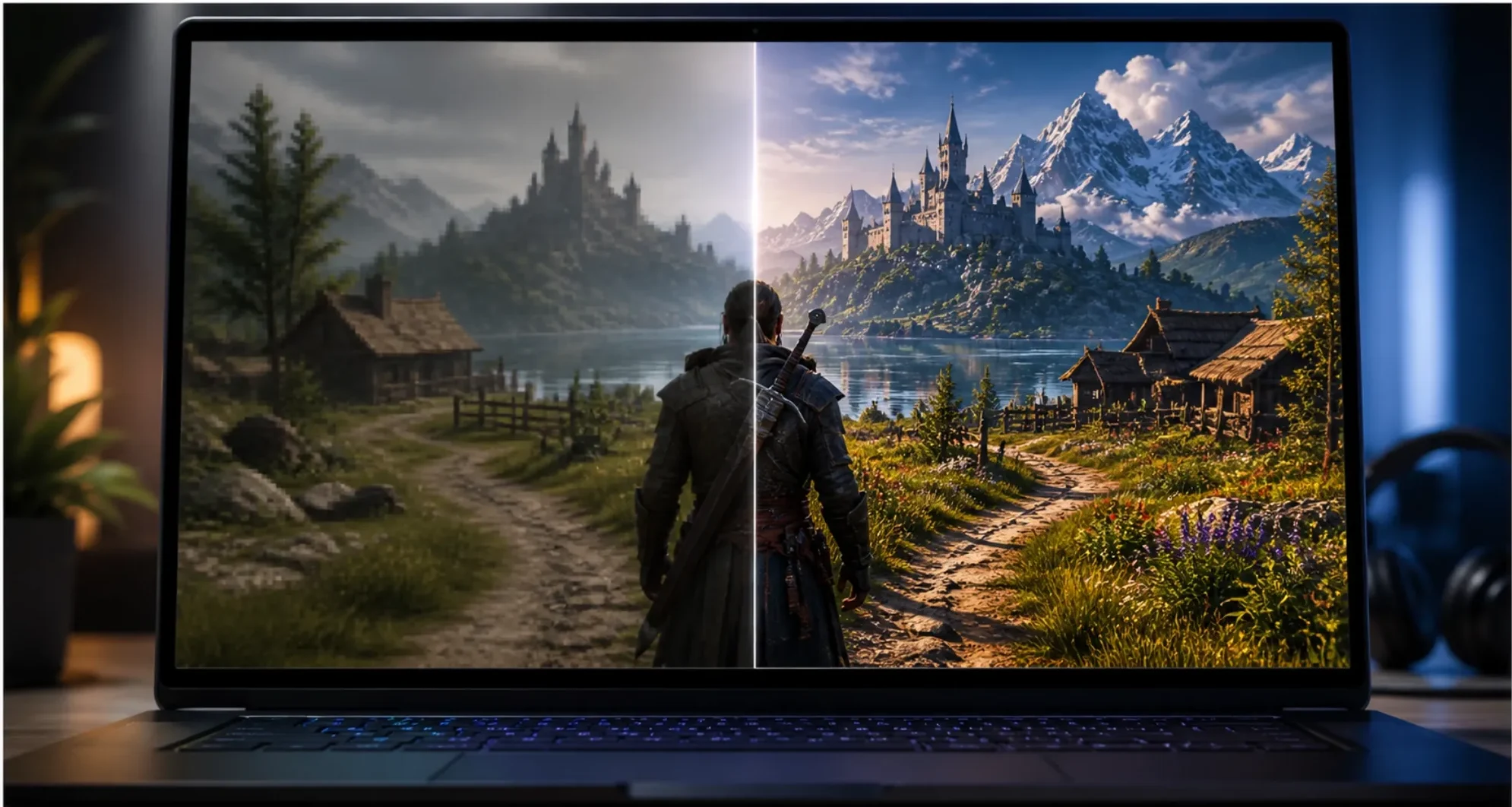
The GPU (Graphics Processing Unit) 🎮 is responsible for everything you see on your screen.
It handles:
Images
Videos
Animations
Games
Creative work (like editing and design)
👉 The GPU controls how smooth, detailed, and fast visuals appear on your laptop — especially in games, videos, and creative work.
🎒 Think of the GPU as the Art Department
Using the same system:
👉 The GPU is the art department in the school 🎨
Whenever your laptop needs:
Visual output
Design work
Video playback and editing
Games and 3D graphics
👉 The art department takes over.
Inside the art department, different types of work happen at different levels:
🎨 Design class → creating and displaying images and graphics
🎬 Film class → smooth video playback and editing
🎮 Effects class → handling games and complex 3D visuals
👉 The more complex the work becomes:
👉 The more powerful the GPU needs to be.
👉 The art department has its own workspace. The GPU is the head of that department like the principal is the head of the school. Modern GPU’s also have cores and clockspeed. This means that there are teachers under the head of the department just like with the Principal (CPU).
- GPU uses its own memory (VRAM)
- RAM is fully available for the system
👉 Result:
- More stable performance
- Better for heavy workloads
⚙️ Why GPU Matters More on Some Laptops
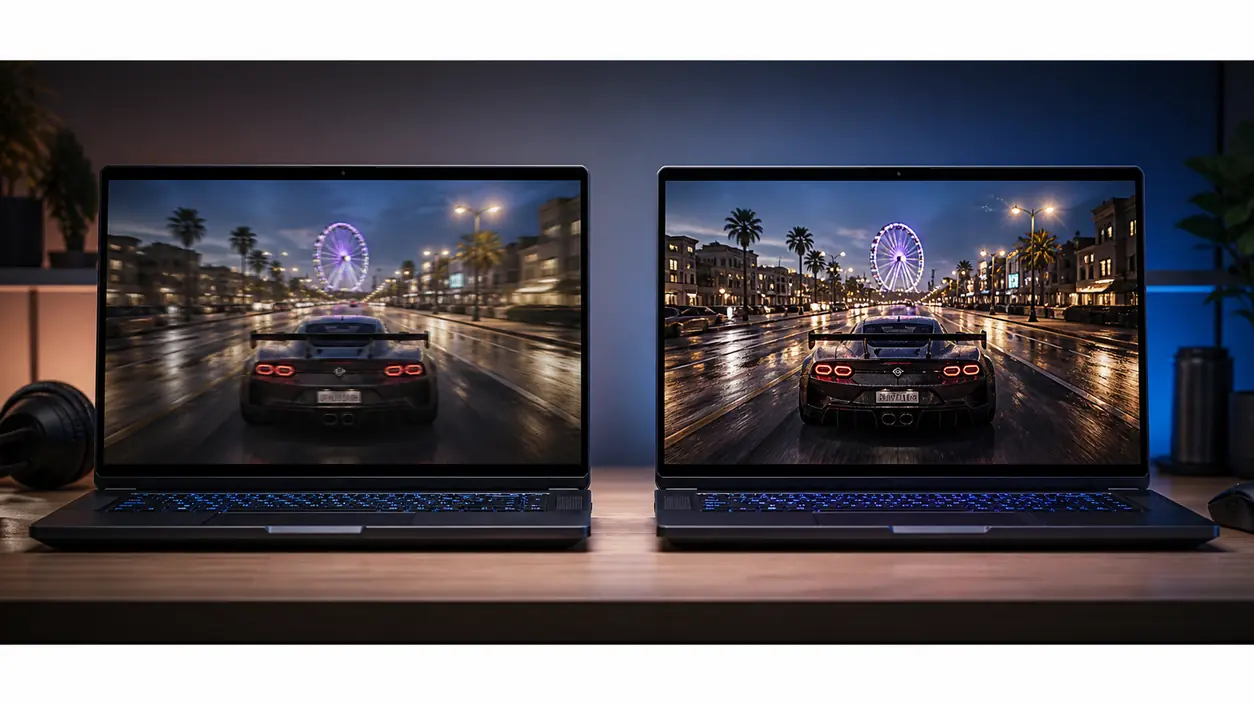
Like we discussed earlier, dedicated graphics and integrated graphics are fundamentally different technologies and can deliver dramatically different levels of performance.
👉 This is one of the biggest reasons why laptops perform differently.
Two laptops can:
Have the same CPU
Have the same RAM
👉 Yet perform very differently depending on the GPU.
👉 This difference is especially noticeable in gaming, video editing, 3D rendering, and other graphics-intensive workloads.
🧩Integrated vs Dedicated Graphics
This is one of the most important concepts to understand.
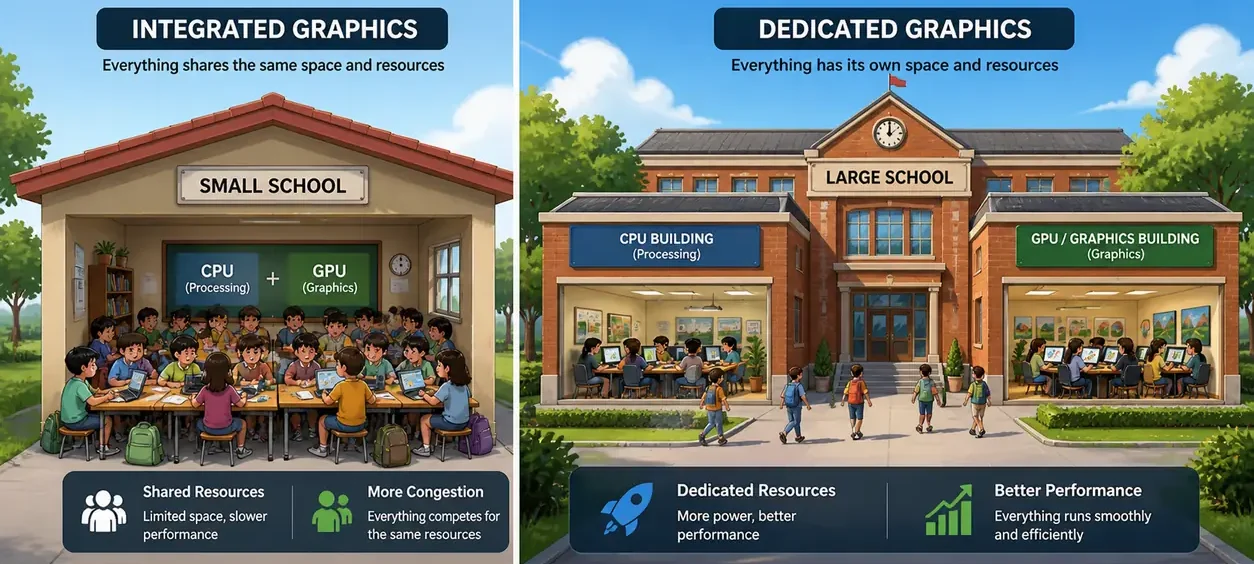
🎒 School Example
Two schools each have an art department:
One has proper space and ventilation
One is cramped and overheats
👉 Result:
One performs well
One struggles
👉 This is why specs alone don’t tell the full story.
🟢 Integrated Graphics (Small School Setup)
👉 The school is small.
The principal is also the head of the art department
Everything happens at the same desk (RAM)
👉 Result:
Limited workspace
Shared resources
Slower under heavy workloads
✅ Best For:
Browsing
Streaming
Office work
Light editing
🔵 Dedicated Graphics (Large School Setup)
👉 The school is larger and more advanced.
The art department has its own building
It has its own:
Classrooms (VRAM)
Teachers (GPU cores)
👉 Result:
Much more power
Handles complex work easily
Works independently from the CPU
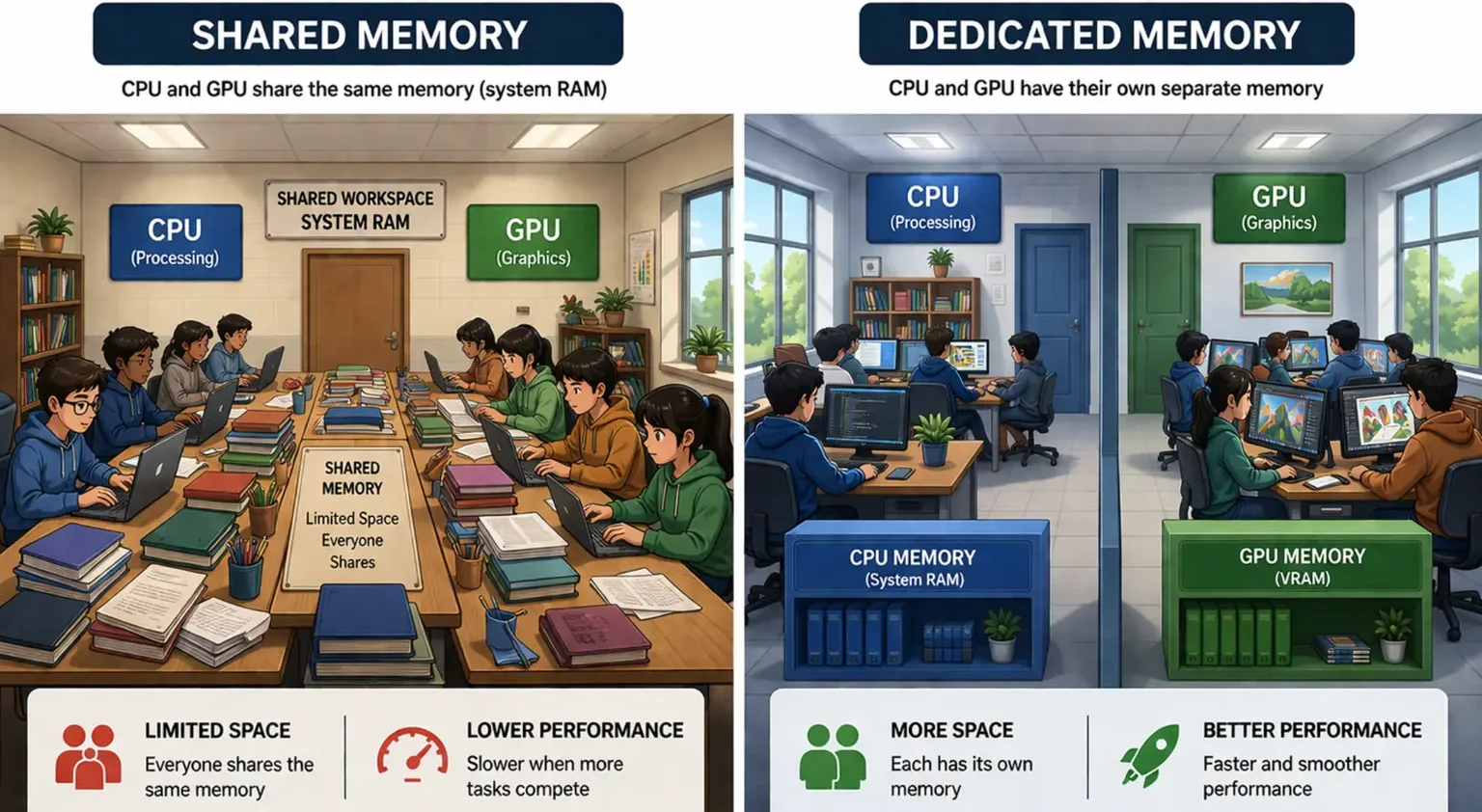
🎨 Inside the Art Department (Dedicated Setup)
🎨 Painting → image creation and graphics
🎬 Film → video editing and playback
🎮 Effects → games and complex 3D visuals
👉 Everything runs independently and more efficiently.
✅ Best For:
Gaming
Video editing
3D work
Creative applications
🧠 Understanding this concept is very important when sourcing out the laptop you actually need
🔥 GPU Performance Is Not Just About the GPU
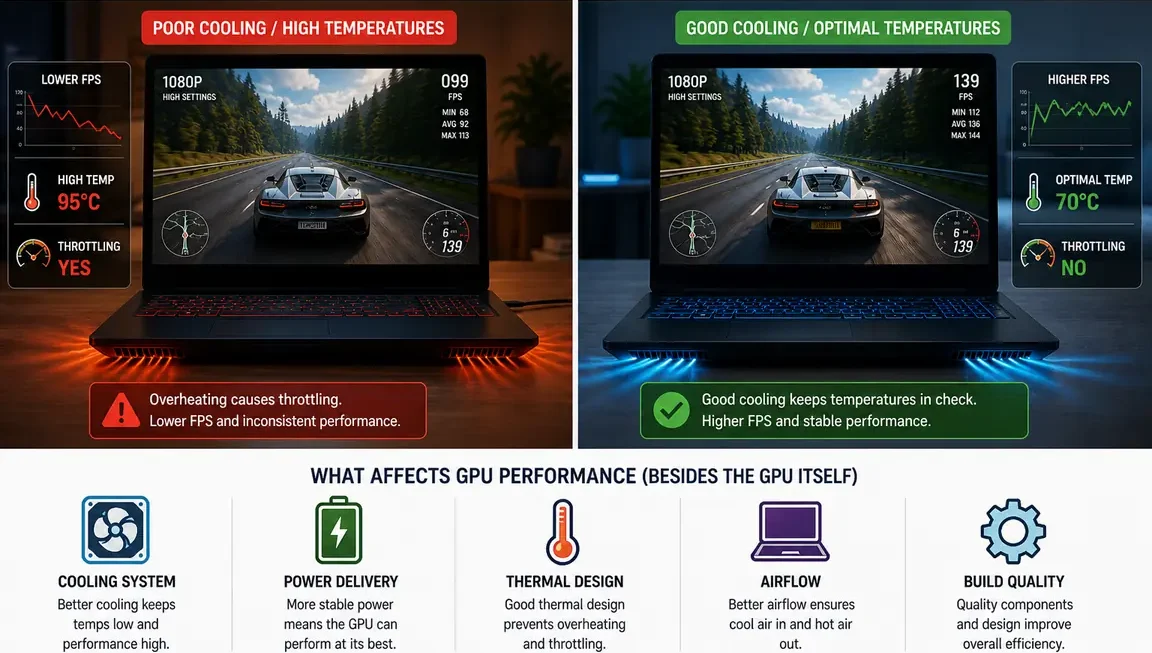
Here’s something most people don’t realize:
👉 The same GPU can perform very differently depending on the laptop it’s installed in.
👉 Performance is influenced by factors such as:
Cooling efficiency
Manufacturer power limits
Airflow and ventilation
The overall thermal design of the laptop
That’s why two laptops with the same GPU don’t always deliver the same gaming or creative performance.
👉 We’ll break this down in more detail when we cover laptop cooling shortly.
⚡ Power and Battery Impact
The GPU is one of the most power-hungry parts of a laptop.
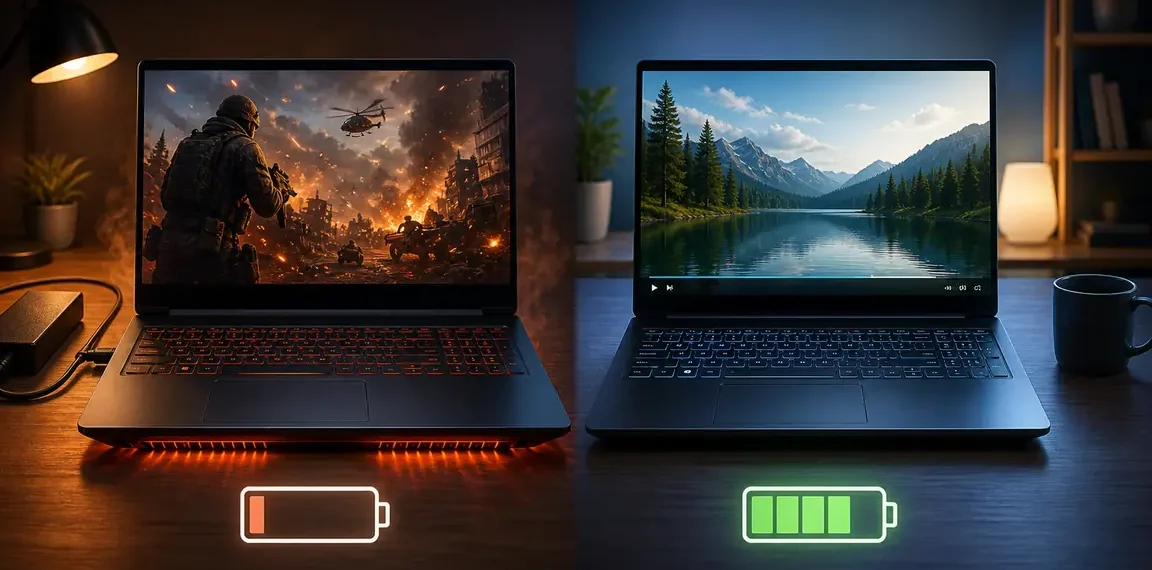
🟢 Integrated Graphics
Very efficient
Better battery life
🔵 Dedicated Graphics
Uses more power
Generates more heat
Reduces battery life
👉 This is why high-performance laptops don’t last as long on battery — especially during gaming or heavy creative work.
🧠 When Do You Need a Dedicated GPU?
🟢 Light Use
Browsing
Streaming
Documents
👉 Integrated graphics are enough
🔵 Moderate Use
Photo editing
Light creative work
👉 Integrated graphics or an entry-level dedicated GPU
🔴 Heavy Use
Gaming
Video editing
3D applications
👉 A dedicated GPU is required
⚠️ Common GPU Mistakes
❌ Buying a powerful GPU without needing it
👉 Wastes money, reduces battery life, and adds unnecessary heat
❌ Assuming all GPUs are equal
👉 Performance can vary massively depending on the model and laptop
❌ Ignoring cooling and laptop design
👉 Can severely limit GPU performance
👉 Most laptop manufacturers design cooling systems to match the GPU and hardware inside. For everyday buyers, cooling is rarely a major purchasing consideration, but it can become important in gaming laptops and high-performance systems where sustained performance matters. This is one reason laptop reviews are valuable. If you have a specific laptop in mind, consider reading a review or two before making a purchase.
👉 The GPU is what determines how smooth, detailed, and powerful your visual experience feels.
👉 Understanding it helps you choose the right balance between:
Performance
Battery life
Cost
Integrated = efficient and enough for everyday use
Dedicated = more powerful and built for heavy workloads
⚖️ CPU vs GPU — Simple Comparison
Now that you understand both, here’s the simplest way to think about it:
👉 The CPU is the decision-maker — it tells the system what to do
👉 The GPU is the executor — it handles many visual tasks at the same time
💡 In simple terms:
CPU = thinking, control, and instructions
GPU = visuals, repetition, and parallel processing
👉 That’s how your laptop balances intelligence and performance
👉 The CPU and GPU don’t compete—they work together. But as they work harder, they also generate more heat. That’s why the next component is just as important: your laptop’s cooling system.
🌡️ How COOLING Affects Laptop Performance
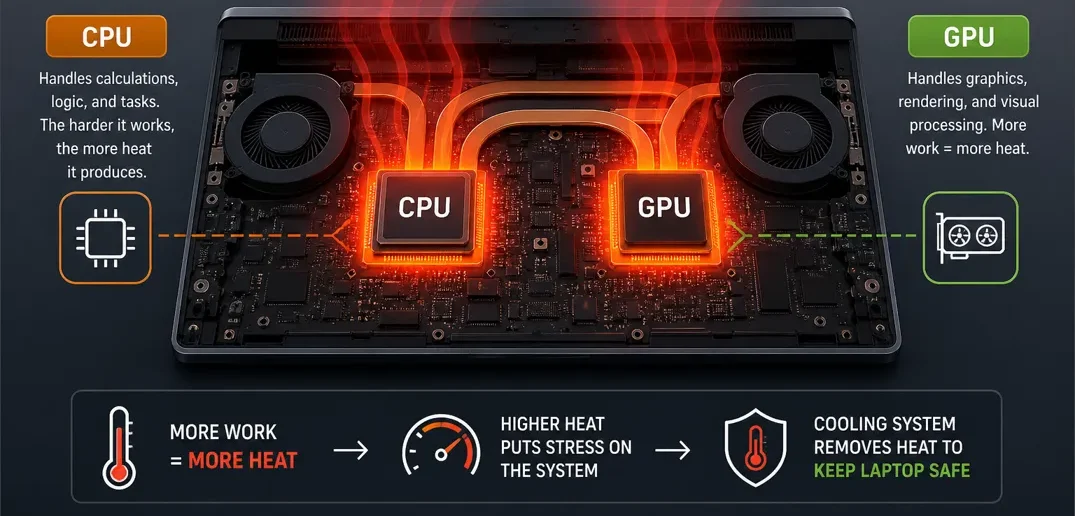
Cooling 🌡️ controls how well your laptop handles heat.
Every time your laptop is working:
👉 The CPU generates heat
👉 The GPU generates heat
👉 The more work they do, the more heat they produce.
⚠️ Why Laptops Slow Down When They Get Hot
Computers are sensitive to heat.
👉 Too much heat can:
– Reduce performance
– Cause instability
– Damage components over time
👉 That’s why laptops must carefully control temperature.
💡 Think of Cooling as the Air Conditioning System
Using your locked analogy system: 🎒 School Example
🧠 CPU = principal
🎮 GPU = art department
🌡️ Cooling = air conditioning system
👉 Imagine a classroom on a hot day ☀️
– If it’s cool → students work well
– If it’s too hot → everyone slows down
👉 Computers behave the same way.
When temperatures rise, the system reduces performance to protect itself.
⚙️ What Happens Inside a Laptop
When your laptop is under load:
- The CPU and GPU work harder
- They generate more heat
- The cooling system tries to remove that heat
👉 If the cooling system cannot keep up, the laptop protects itself by reducing performance. This process is called thermal throttling.
🔥 What Is Thermal Throttling?
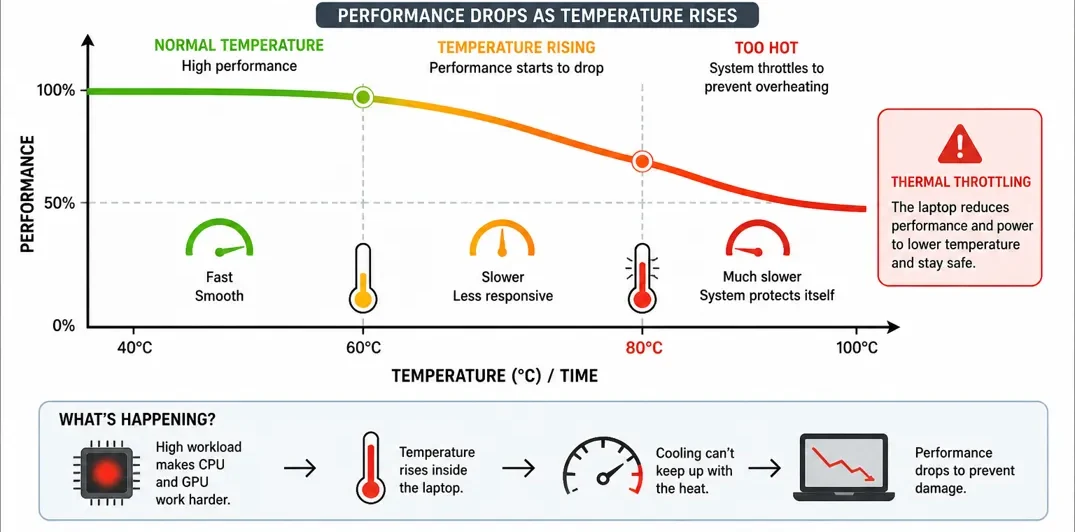
Thermal throttling is when your laptop slows itself down to prevent overheating.
This happens when:
- The CPU or GPU reaches high temperatures
- The cooling system cannot remove heat fast enough
👉 It is a normal behavior built into all modern laptops.
👉 This is why cooling plays such a big role in real-world performance.
🔥 Power Limits and Cooling (Why CPUs Perform Differently)
This is one of the most important concepts:
👉 The same CPU can perform very differently in different laptops.
Why?
Because of:
- Power limits
- Cooling system
🎒 School Example
Think of two separate schools:
🔴 Small School (Passive Cooling)
- Small and overcrowded
- No air conditioning
- Only relies on natural ventilation
👉 As more students fill the classrooms:
- Heat builds up quickly
- The environment becomes uncomfortable
👉 Result:
👉 Performance drops under pressure
🟢 Large School (Active Cooling)
- Bigger and more spacious
- Well-ventilated
- Uses air conditioning systems
👉 Even with more students and activity:
- Heat is controlled
- The environment stays stable
👉 Result:
👉 Performance stays consistent
⚙️ Passive vs Active Cooling (Simple Insight)
👉 Passive cooling:
- No active cooling system (no “air conditioning”)
- Works well for lighter workloads
- Limited under heavy use
👉 Active cooling:
- Uses fans (like air conditioning)
- Handles more heat
- Maintains higher performance
👉 Better cooling allows a system to:
- Run faster
- Stay consistent under pressure
- Handle heavier workloads
👉 That’s why:
👉 Cooling directly affects performance — not just specs.
👉 If cooling plays such an important role in real-world performance, the next question is: what actually makes a good cooling system? Let’s look at how a cooling system works and the parts that keep modern laptops running efficiently under load.
⚙️ What Makes a Good Cooling System
A cooling system isn’t just a fan. Several components work together to move heat away from the CPU and GPU.
Cooling systems typically include:
- Fans
- Heat pipes
- Air vents
🔄 How Cooling Works
- Heat is transferred away from the CPU and GPU
- Fans push hot air out
- Cooler air is pulled in
👉 This cycle helps keep temperatures under control.
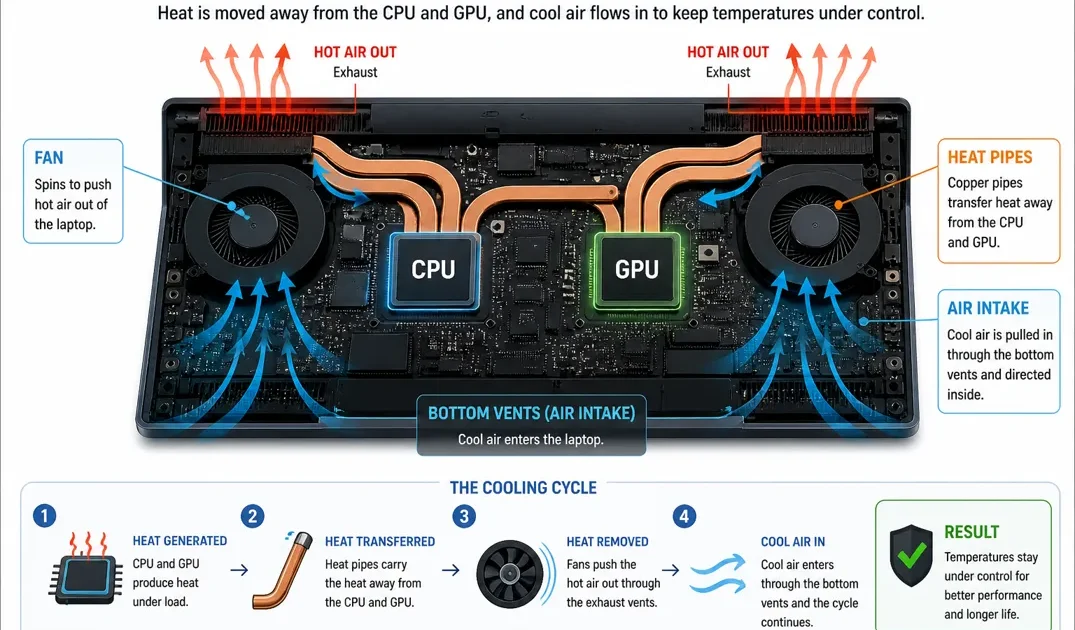
🧠 Thin vs Thick Laptops (Important Insight)
🟢 Thin & Light Laptops
Designed for:
- Portability
- Efficiency
- Quiet operation
Typical characteristics:
- Smaller cooling systems
- Fewer or smaller fans
- Limited airflow
👉 Result:
- Great for everyday use
- May throttle under heavy workloads
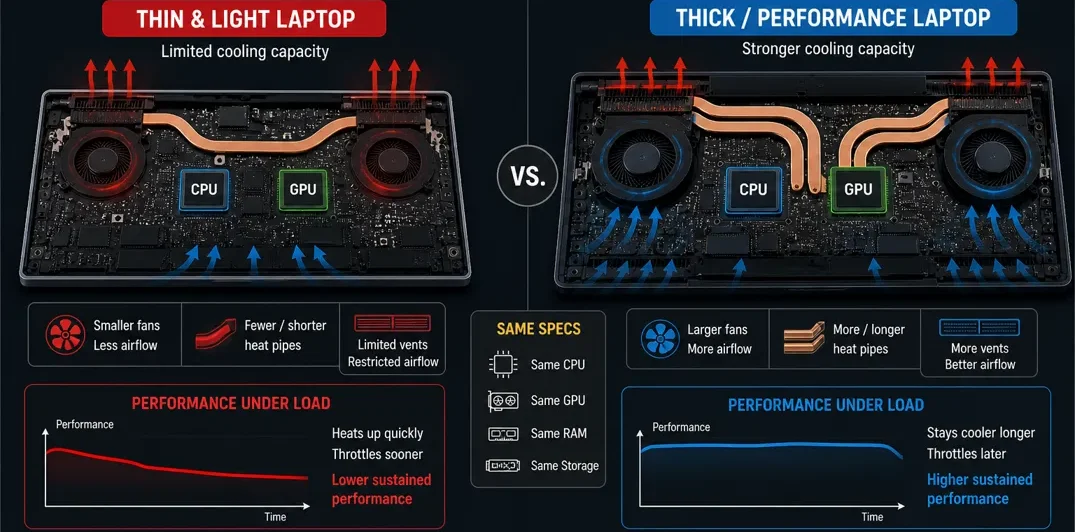
🔵 Larger Performance Laptops
Designed for:
- Higher sustained performance
Typical characteristics:
- Larger cooling systems
- Better airflow
- More heat dissipation
👉 Result:
- Better performance under load
- Less throttling
🔴 Gaming / High-Performance Laptops
Designed for:
- Maximum performance
Typical characteristics:
- Multiple fans
- Advanced cooling systems
- High airflow
👉 Result:
- Sustained high performance
- Handles heavy workloads well
🎒 School Analogy
👉 Small classroom vs large classroom
- Small room → heats up quickly
- Large room → stays cooler longer
⚡ Sustained Performance (Very Important Concept)
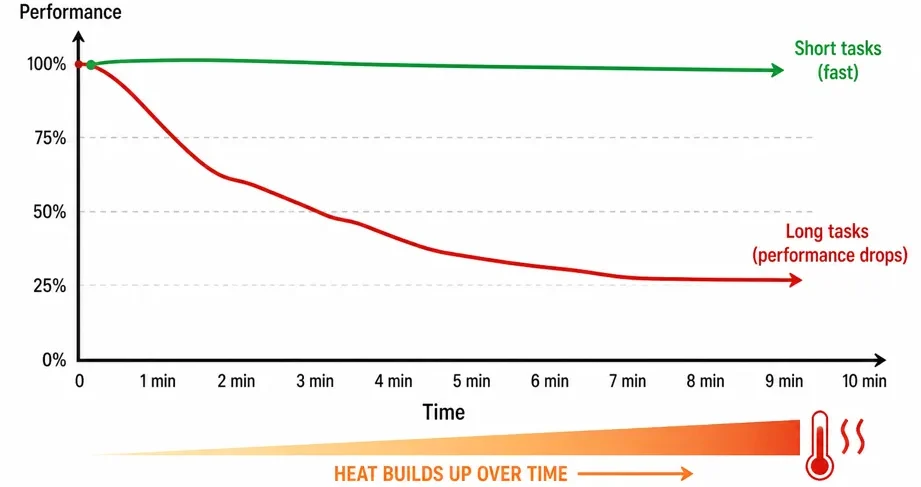
👉 Short bursts of performance are easy.
👉 Maintaining performance over time is harder.
Example:
- Opening an app → fast
- Running heavy software for several minutes → performance may drop
🧠 Why This Happens
- Heat builds up over time
- The cooling system reaches its limit
- Performance is reduced to control temperature
⚠️ Real-World Signs of Cooling Limits
You may notice:
- Fans getting loud
- The laptop getting hot
- Performance dropping during longer tasks
⚠️ Common Cooling Mistakes
❌ Ignoring cooling
👉 Can cause unexpected performance drops
❌ Choosing thin laptops for demanding workloads
👉 Often leads to thermal throttling
👉 You don’t need to obsess over fan sizes, heat pipes, or cooling specifications when shopping for a laptop. The goal here is simply to help you understand how cooling affects performance.
Most laptop manufacturers design cooling systems to match the hardware inside. Cooling can significantly affect real-world performance, but it is usually a much bigger consideration for custom desktop PC builds, where users must choose their own coolers, fans, and airflow configuration.
🔑 Final cooling Insight
👉 Thin laptops are not “bad” — they are designed for portability and efficiency.
👉 Performance laptops are not “better” — they are designed for sustained power and heavy workloads.
👉 The key is choosing the right tool for your needs.
Cooling is one of the biggest hidden differences between Windows laptops.
👉 It does not determine how fast a laptop is — but how long it can stay fast.
👉 Understanding cooling helps you choose a laptop that performs consistently—not just on paper. But all that performance comes at a cost: the more work your laptop does, the more power it consumes. That brings us to one of the most important topics for any laptop user—battery life.
🔋 What Affects Laptop BATTERY Life?
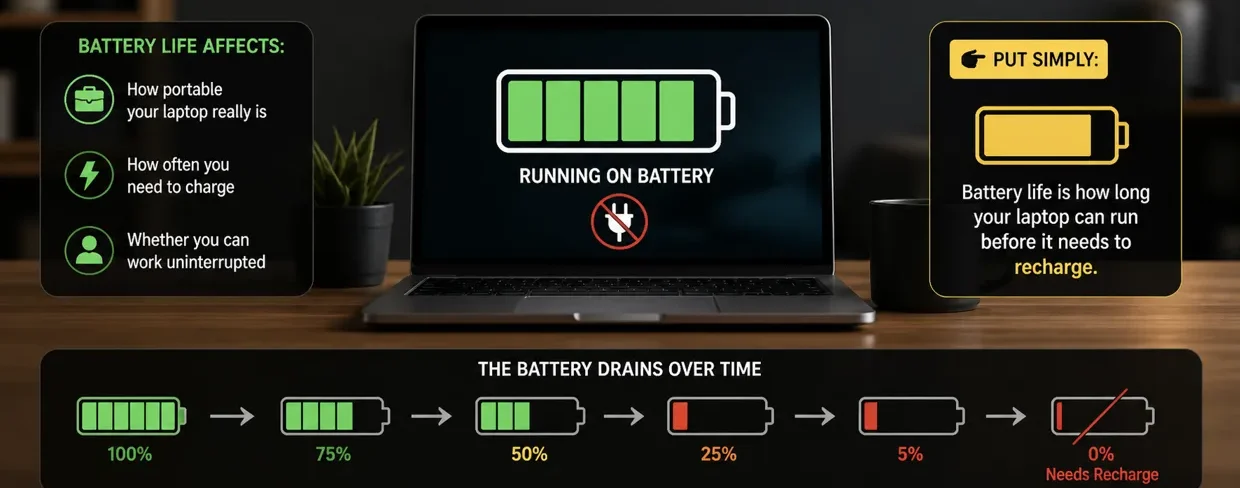
Battery life 🔋 determines how long your laptop can run without being plugged in.
It affects:
- How portable your laptop really is
- How often you need to charge
- Whether you can work uninterrupted
👉 Battery life is how long your laptop can run before it needs to recharge.
⚠️ Why Battery Life Is So Misunderstood
Many people see a manufacturer’s battery-life claim and assume:
👉 “This laptop gets 12 hours of battery life.”
But that’s not how battery life works.
Those estimates are usually measured under specific conditions, such as light web browsing, video playback, or low screen brightness.
👉 The harder you make the laptop work, the faster the battery drains.
Think of it like a car: the faster you drive or the harder the engine has to work, the more fuel it uses. If you drive slowly and efficiently, it uses less fuel. Car manufacturers also publish fuel-economy figures based on tests performed under very specific conditions.
A laptop that lasts 12 hours while browsing the web may last only a fraction of that time when gaming, editing videos, rendering 3D projects, or running demanding software.
👉 Battery life is not a fixed number. It changes based on your workload.
💡 Think of Battery as the School Backup Power System
Just to recap:
- 🧠 CPU = principal
- 🎮 GPU = art department
- 🌡️ Cooling = air conditioning
- 🔋 Battery = backup power system
If the main power goes out:
- The school continues running on backup power
- But how long it lasts depends on how much energy is being used
👉 Laptops work the same way.
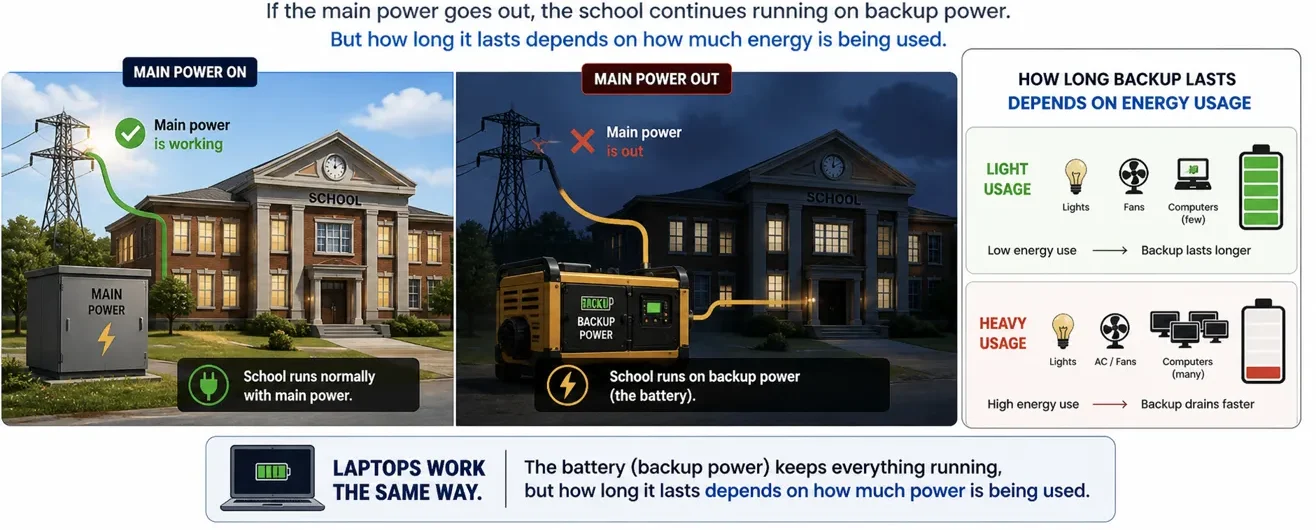
🔋 What Actually Uses Battery Power
🧠 CPU (Processor Efficiency)
Uses power based on workload:
Light tasks → low power
Heavy tasks → high power
👉 Efficient CPUs → longer battery life
👉 High-performance CPUs → higher power usage
👉 Modern CPUs try to balance both, but performance still increases power consumption.
Why Does My Laptop Battery Drain Fast?
👉 A simple analogy — A sports car has a bigger engine than a standard car, so it uses more fuel because it produces more power.
In the same way, a large school typically uses more electricity than a small school. More students, more classrooms, and more activity require more energy to keep everything running.
👉 The more work being done, the more power is needed.
.Laptops work in a similar way. More powerful hardware can complete demanding tasks faster, but it often consumes more power while doing so.
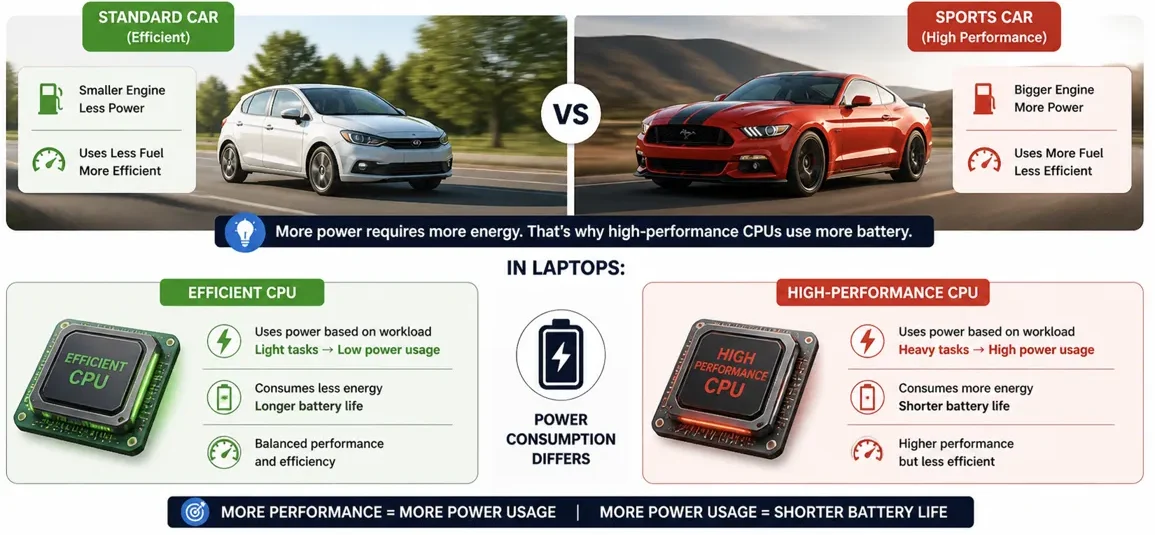
🎮 GPU (Graphics Power)
One of the biggest power consumers.
👉 Especially:
- Gaming
- Video editing
- 3D work
👉 Integrated graphics → very efficient
👉 Dedicated GPU → significantly higher power usage
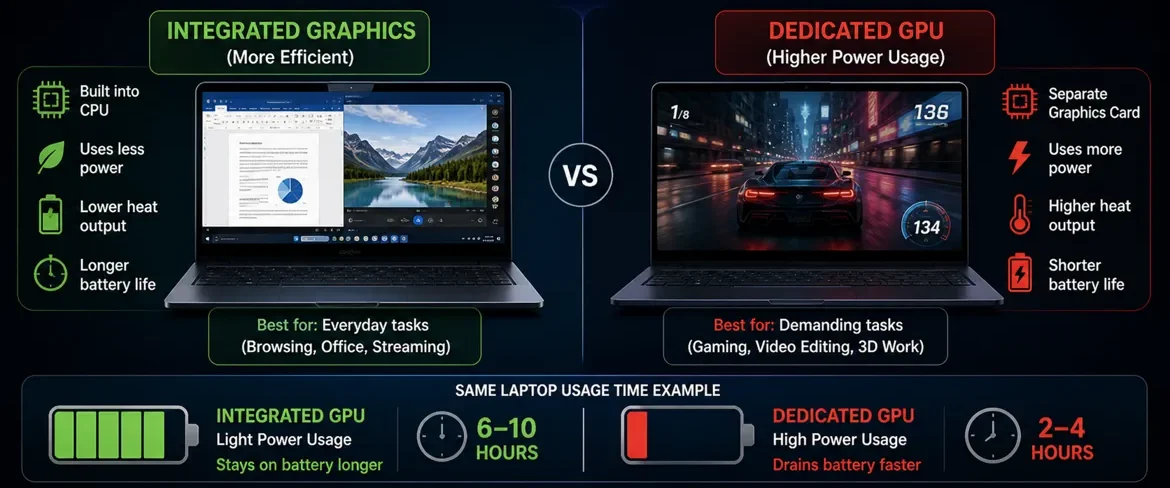
🖥️ Display
The screen is one of the largest power consumers.
- Brightness uses a lot of power.
- Higher brightness → more drain.
Factors that affect battery:
- Brightness level
- Resolution (higher = more power)
- Refresh rate (120Hz+ uses more power)
- Panel type (OLED vs IPS)
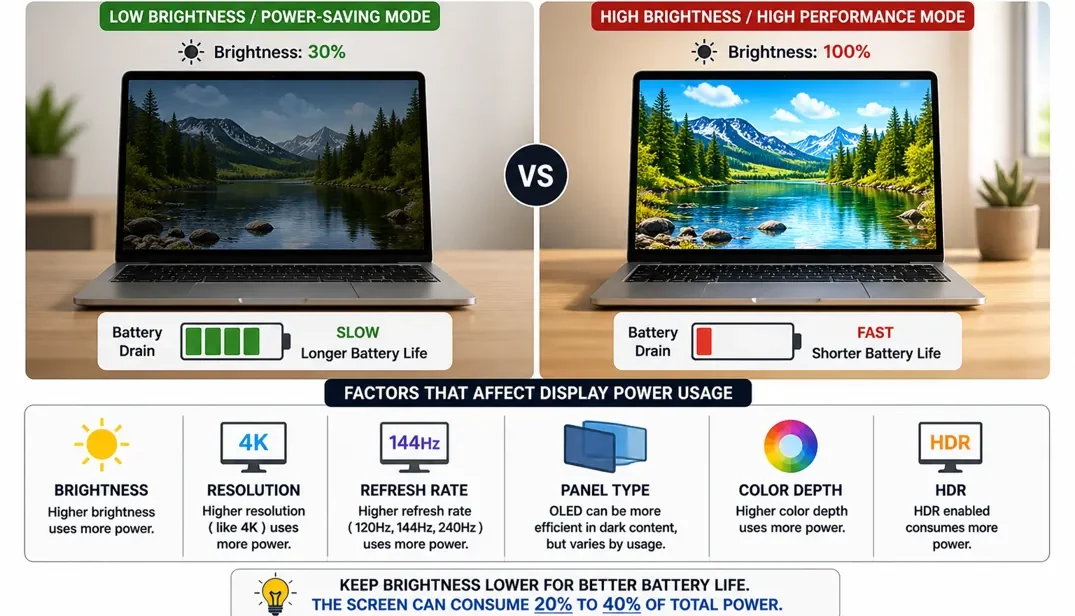
💾 RAM & Storage
- Use power constantly.
- But less than CPU and GPU.
🔋 Battery Size
Measured in watt-hours (Wh)
- Larger battery → longer runtime
- Smaller battery → shorter runtime
Just like mobile phones that use mAh (milliamp-hours), the higher the Wh number, the larger the battery.
👉 But battery size alone is not enough — efficiency matters just as much.
🌐 Background Processes
- Apps running in the background
- System processes
👉 These add up over time
🌡️ Cooling and Power Design
High-performance laptops use more power because their components work harder.
For example, a powerful GPU can consume a significant amount of power on its own. As it generates more heat, the cooling system ramps up to remove that heat. This adds even more battery drain on top of the GPU’s already high power consumption. As long as the GPU remains under heavy load, the process repeats: more GPU workload creates more heat, more heat requires more cooling, and more cooling uses more power. The result is a chain reaction that drains the battery even faster than a laptop using integrated graphics..
🔴 Powerful GPU ➜ 🔥 More Heat ➜ 🌡️ Cooling System Ramps Up ➜ ⚡ Higher Power Consumption ➜ 🔋 Faster Battery Drain
Thin and lightweight laptops are usually designed with efficiency as a higher priority, which helps reduce power consumption and extend battery life.
👉 This is one reason high-performance laptops typically have shorter battery life than efficiency-focused laptops.
⚡ Light Use vs Heavy Use (Very Important)
Battery life is not fixed — it changes based on what you do.
🟢 Light Tasks
- Browsing
- Documents
- Streaming
👉 Lower power usage
👉 Longer battery life
🔵 Moderate Use
- Multitasking
- Streaming
👉 Battery drains faster
🔴 Heavy Tasks
- Gaming
- Video editing
- Rendering
👉 High power usage
👉 Faster battery drain
👉 The more demanding the task:
The faster your battery drains
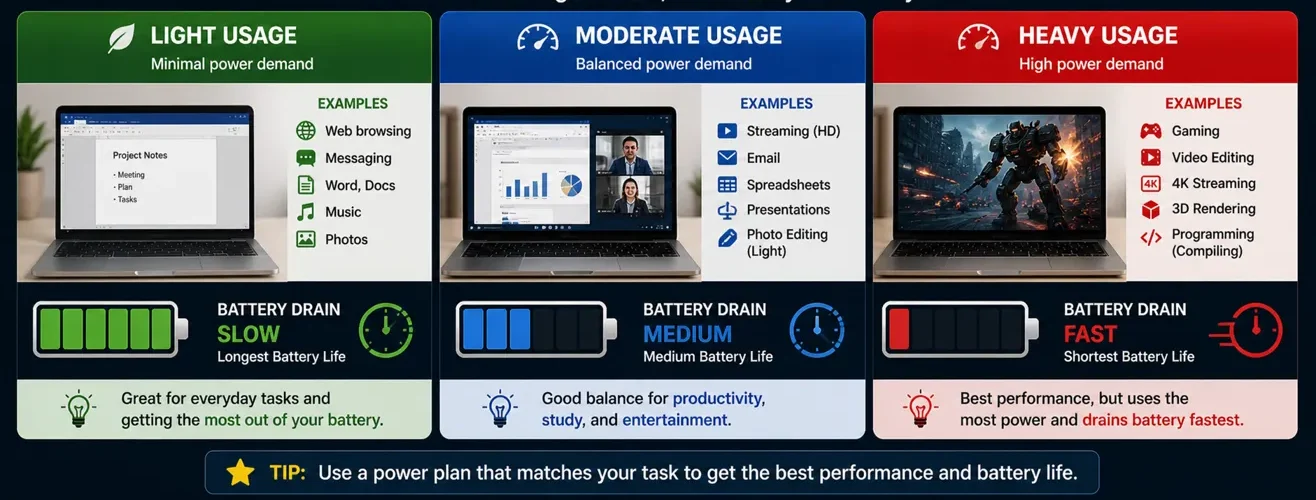
🎒 School Analogy
👉 School backup power system
🟢 Light Day
- Normal cool day
- Light tasks only
- No heavy physical tasks
👉 No air conditioning needed
🔴 Busy Day
- Very hot day
- Carrying heavy loads
- More power is needed to keep the classrooms cool
👉 Air conditioning becomes necessary
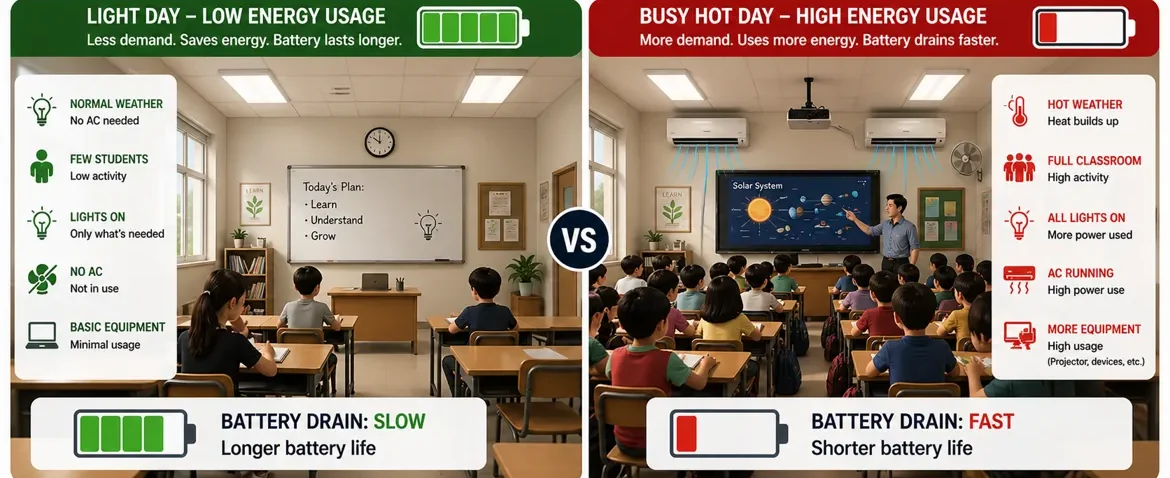
⚡ Battery Size vs Battery Efficiency
🔋 Battery Size
Measured in watt-hours (Wh)
👉 Bigger battery = more total energy
⚡ Efficiency
How efficiently your laptop uses power
👉 Better efficiency = slower drain
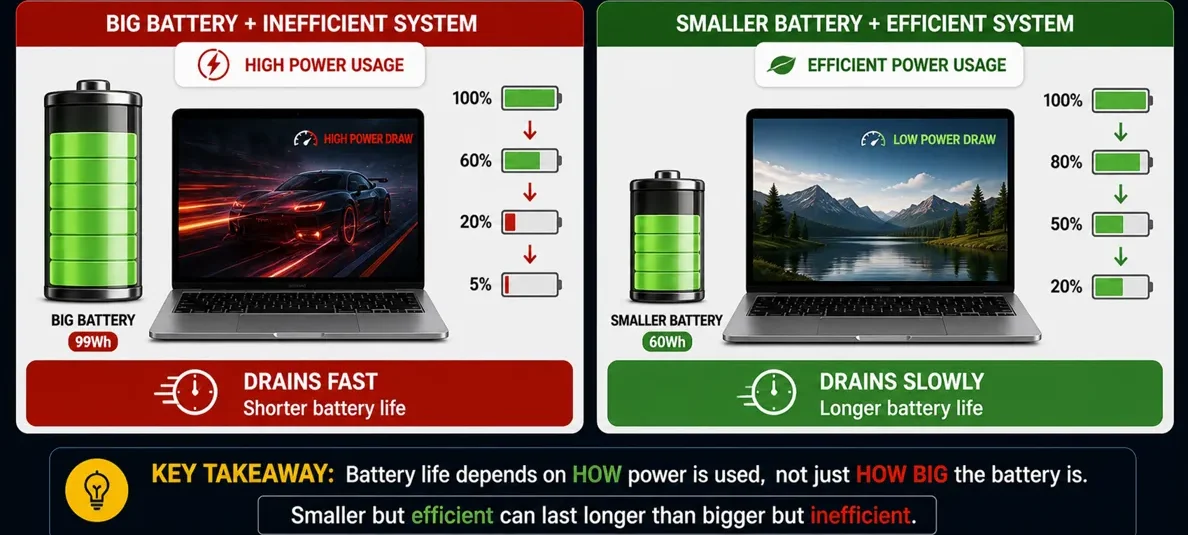
⚠️ Heat and Battery
Heat also affects battery life.
👉 More heat = more energy used
👉 Cooling plays a role here too
🔌 Charging and Battery Behavior
- Charging adds energy back to the battery
- Fast charging fills it quicker
- But does not change total capacity
🕰️ Battery Degradation (Important Insight)
Over time:
- Batteries lose capacity
- They hold less charge
👉 This is normal
💻 Realistic Battery Expectations
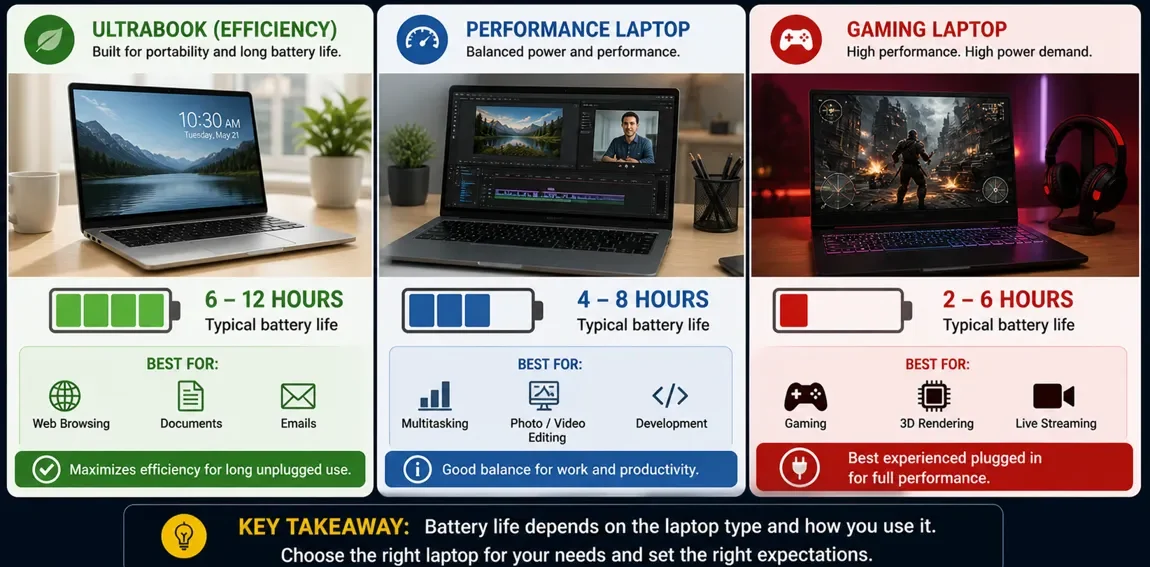
🟢 Ultrabooks (Thin & Light)
- Typically 6–12 hours
- Designed for efficiency
🔵 Performance Laptops
- Typically 4–8 hours
- Depends on workload
🔴 Gaming Laptops
- Typically 2–6 hours
- Much lower during gaming
👉 Gaming laptops are usually designed to be used plugged in for full performance.
⚠️ Important Insight
👉 Battery life is always a trade-off.
- More performance → more power usage
- More efficiency → less performance
👉 You cannot maximize both at the same time.
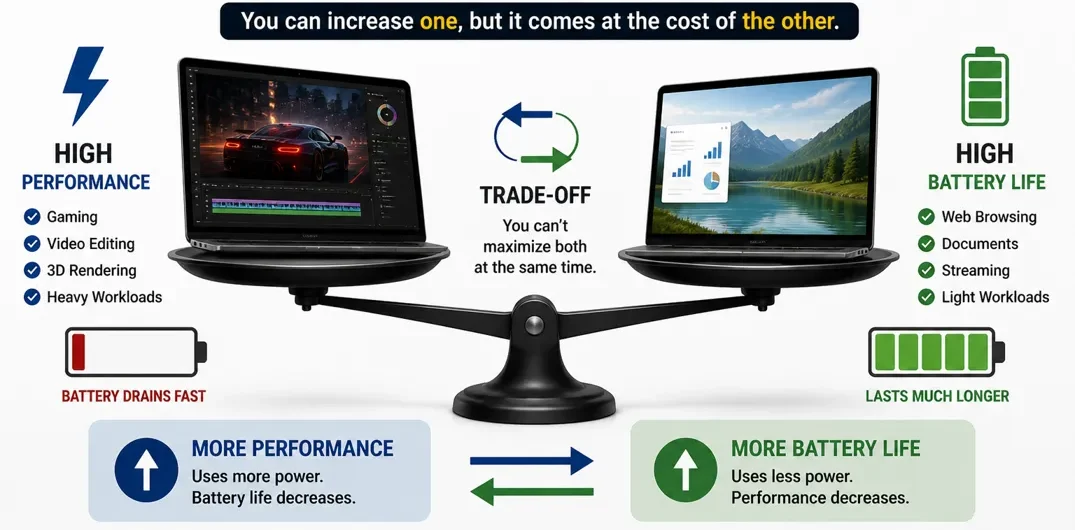
🧠 Choosing the Right Battery Setup
🟢 Long Battery Life Priority
Choose:
- Efficient CPU
- Integrated graphics
- Lower power display
🔵 Balanced Use
Choose:
- Mid-range CPU
- Moderate performance setup
🔴 Performance Priority
Choose:
- High-performance CPU
- Dedicated GPU
👉 Accept shorter battery life
⚠️ Common Battery Mistakes
❌ Assuming bigger battery always means better life
👉 The battery can be bigger, but if the laptop consumes a lot of power, it will drain quickly.
❌ Ignoring brightness and usage
👉 Higher brightness = more power usage
❌ Trusting advertised battery life blindly
👉 Often based on ideal conditions
❌ Ignoring GPU impact
👉 Dedicated GPUs reduce battery significantly
❌ Expecting gaming laptops to last long unplugged
👉 Not designed for that
👉 Battery life in Windows laptops depends on the combination of components — not a single number.
- Efficient system → longer battery life
- High-performance system → shorter battery life
👉 Lower workload = longer battery
👉 Higher workload = shorter battery
👉 Efficiency matters just as much as size
👉 Battery life varies widely because Windows laptops are built differently.
Because:
- Different components
- Different designs
- Different priorities
👉 Understanding what affects battery life helps you choose a laptop that fits how you actually use it.
👉 Battery life is not just about the battery itself.
It’s about:
👉 How much power your laptop is using at any moment—and one of the biggest contributors is the display. Since it’s also the part of your laptop you’ll spend the most time looking at, let’s take a closer look at what makes a good laptop screen.
🖥️ Display Explained (What Makes a Screen Look Good?)

The display 🖥️ is what you interact with every time you use your laptop.
It affects:
- How sharp everything looks
- How smooth motion feels
- How accurate colors appear
- How comfortable it is to use for long periods
👉 It determines how everything looks on your screen.
⚙️ Why Display Quality Varies More on Windows Laptops
Unlike MacBooks, which use consistently high-quality displays, Windows laptops vary significantly.
Display quality depends heavily on the specific model and configuration you choose.
🧩 Key Display Factors Explained
🔍 Resolution (How Sharp the Image Is)
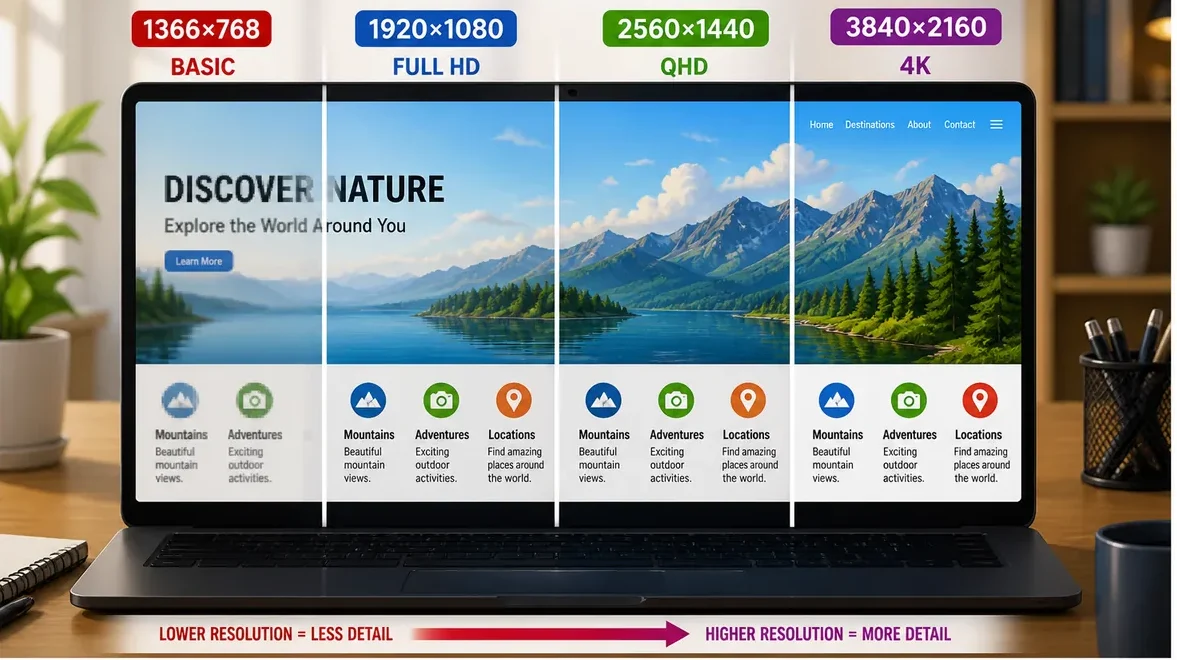
Resolution determines how detailed and sharp the screen looks.
⚙️ What It Is
Resolution is the number of pixels on the screen.
👉 More pixels = more detail
💡 Common Resolutions
- 1366×768 → basic
- 1920×1080 (Full HD) → standard
- 2560×1440 (QHD) → sharper
- 3840×2160 (4K) → very sharp
⚠️ Why It Matters
- Low resolution → blurry image
- High resolution → sharp image
- But it also increases power usage
🔄 Refresh Rate (How Smooth the Screen Feels)
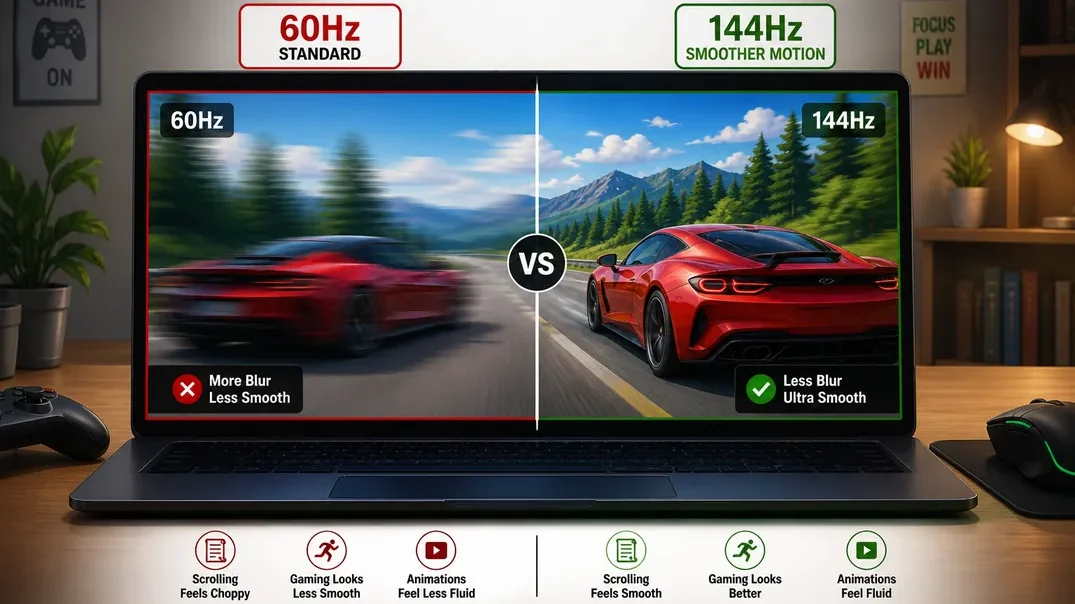
Refresh rate is how many times the screen updates per second.
Common options:
- 60Hz → standard
- 120Hz / 144Hz / 165Hz+ → smoother motion
👉 With a higher refresh rate:
- Scrolling feels smoother
- Gaming looks better
- Animations feel fluid
⚠️ A simple way of understanding it
- Lower refresh rate → less smooth
- Higher refresh rate → smoother motion
🌈 🎨 Panel Type (How Colors and Viewing Angles Look)
The type of display panel affects color accuracy, contrast, and viewing angles.
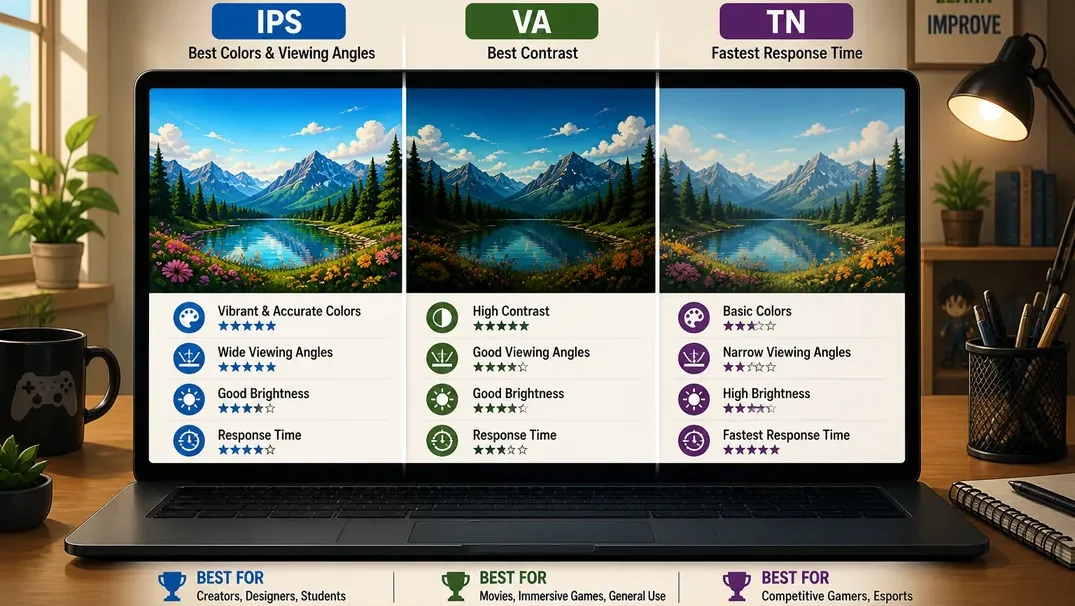
⚙️ Panel type determines:
- Color quality
- Brightness
- Viewing angles
🧩 Common Display Types
🔴 TN Panels
- Faster response
- Poor colors
- Narrow viewing angles
⚡ Power usage:
- Generally low power consumption
- More efficient, but at the cost of visual quality
🔵 IPS (In-Plane Switching)
- Good color accuracy
- Wider viewing angles
- Good balance of quality and performance
👉 Most common in modern laptops
⚡ Power usage:
- Uses moderate power
- Slightly higher than TN due to better color and brightness
🟣 OLED
- Deeper blacks
- Higher contrast
- More vibrant colors
👉 Best for:
- Media consumption
- Creative work
⚡ Power usage:
- Power usage depends on what’s on the screen
- Dark content → more efficient
- Bright content → higher power usage
Darker colors use less energy. This is why some apps have darkmode.
👉 Better visuals usually require more power — especially with brighter and more advanced displays.
☀️ Brightness (How Visible the Screen Is)
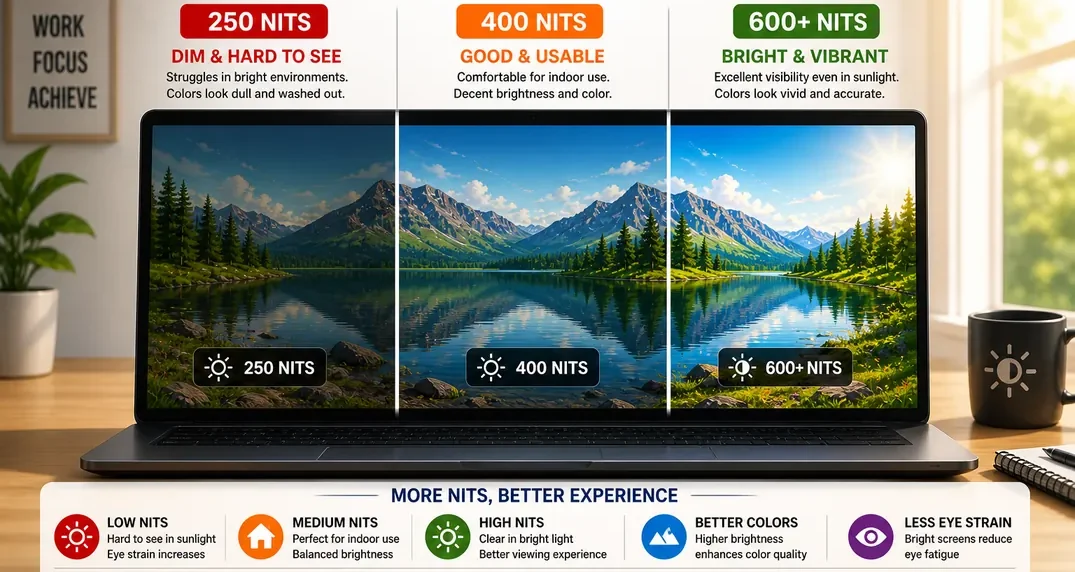
⚙️ What It Is
Brightness is how much light the screen produces.
Measured in nits.
General guidelines:
~250–300 nits → basic indoor use
~400–500 nits → good for most environments
500+ nits → better for bright environments
👉 Higher brightness improves visibility in well-lit spaces.
⚠️ Why This Matters
- Low brightness → hard to see in sunlight
- High brightness → clear in bright environments
🧩 Display Finish (Glossy vs Matte vs Anti-Glare Laptop Screens)
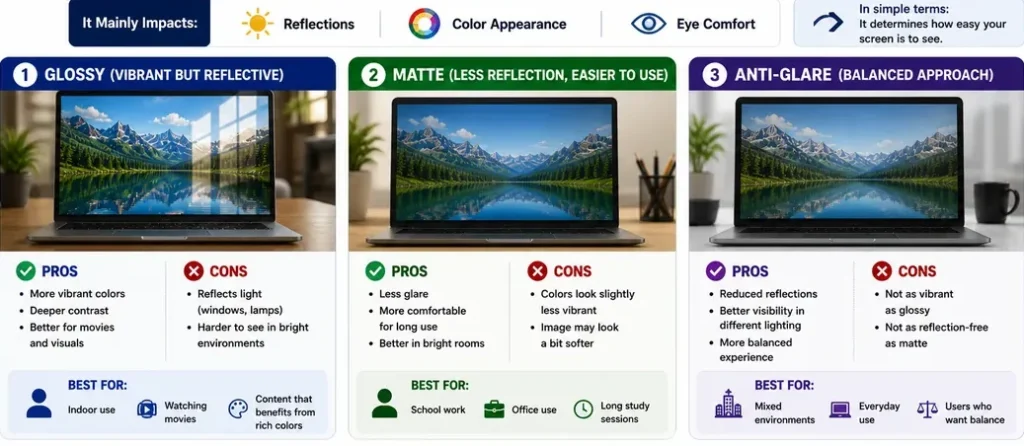
The display finish affects how your screen looks in different lighting conditions.
It mainly impacts:
- Reflections
- Color appearance
- Eye comfort
👉 It determines how easy your screen is to see in different environments
🔵 Glossy (Vibrant but Reflective)
Glossy screens make colors look more vivid and contrast look stronger.
Pros:
- More vibrant colors
- Deeper contrast
- Better for movies and visuals
Cons:
- Reflects light (windows, lamps)
- Harder to see in bright environments
👉 Best for:
- Indoor use
- Watching movies
- Content that benefits from rich colors
🟢 Matte (Less Reflection, Easier to Use)
Matte screens reduce reflections, making them easier to use in most environments.
Pros:
- Less glare
- More comfortable for long use
- Better in bright rooms
Cons:
- Colors look slightly less vibrant
- Image may look a bit softer
👉 Best for:
- School work
- Office use
- Long study sessions
🟣 Anti-Glare (Balanced Approach)
Anti-glare screens are designed to reduce reflections while keeping good image quality.
Pros:
- Reduced reflections
- Better visibility in different lighting
- More balanced experience
Cons:
- Not as vibrant as glossy
- Not as reflection-free as matte
👉 Best for:
- Mixed environments
- Everyday use
- Users who want balance
⚠️ Which Display Finish Is Best?
For most people:
👉 Matte or anti-glare is the best laptop display finish
Why:
- Easier to use in real-world conditions
- Less eye strain
- More practical for daily use
👉 Glossy only makes sense if:
- You mostly use your laptop indoors
- You care more about visuals than reflections
🔑 Simple way to remember
👉 Bright environment → Matte / Anti-glare
👉 Indoor visuals → Glossy
⚠️ Display vs Battery
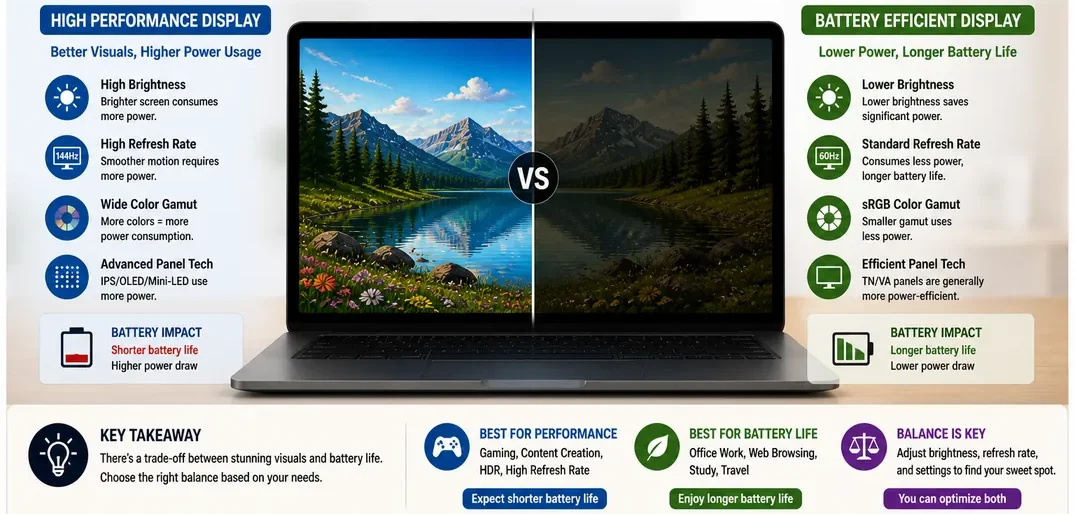
👉 Better displays often use more power.
Examples:
• Higher brightness → more battery drain
• Higher refresh rate → more power usage
• OLED displays can use more or less power depending on what’s being shown on the screen. Dark content generally uses less power than bright content.
🧠 This Is What Matters Most
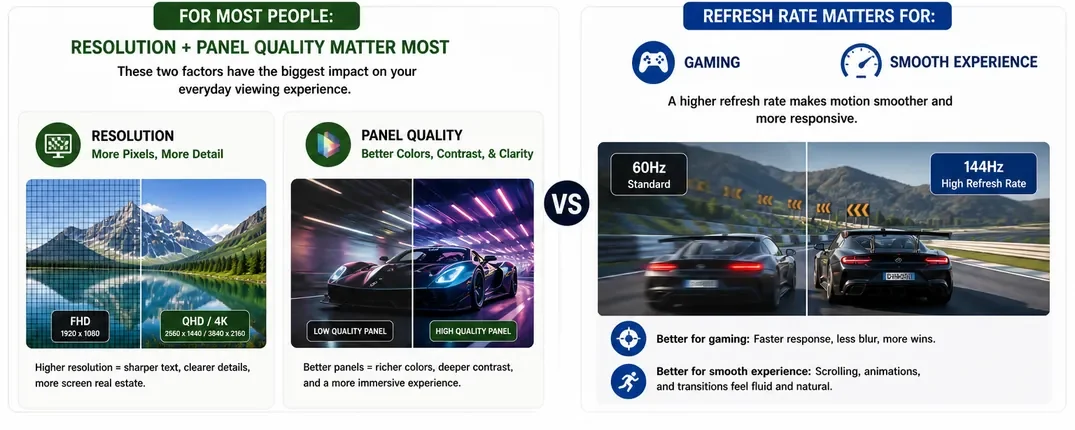
For most people:
👉 Resolution + panel quality matter most
👉 Refresh rate matters for:
- Gaming
- Smooth experience
⚠️ Display Quality vs Performance
Display quality does NOT affect processing performance.
But it affects:
- Comfort
- Visual clarity
- Overall experience
👉 A poor display can make a powerful laptop feel worse to use. If you cannot see properly it becomes difficult to get work done and you feel less productive.
🧠 Choosing the Right Display
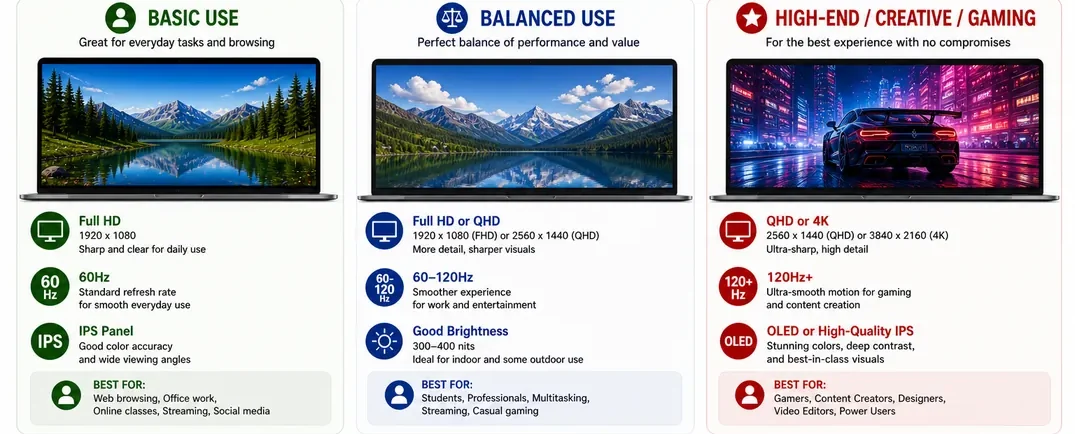
🟢 Basic Use
- Full HD
- 60Hz
- IPS panel
🔵 Balanced Use
- Full HD or QHD
- 60–120Hz
- Good brightness
🔴 High-End / Creative / Gaming
- QHD or 4K
- 120Hz+
- OLED or high-quality IPS
🕰️ How Displays Evolved (Quick Insight)
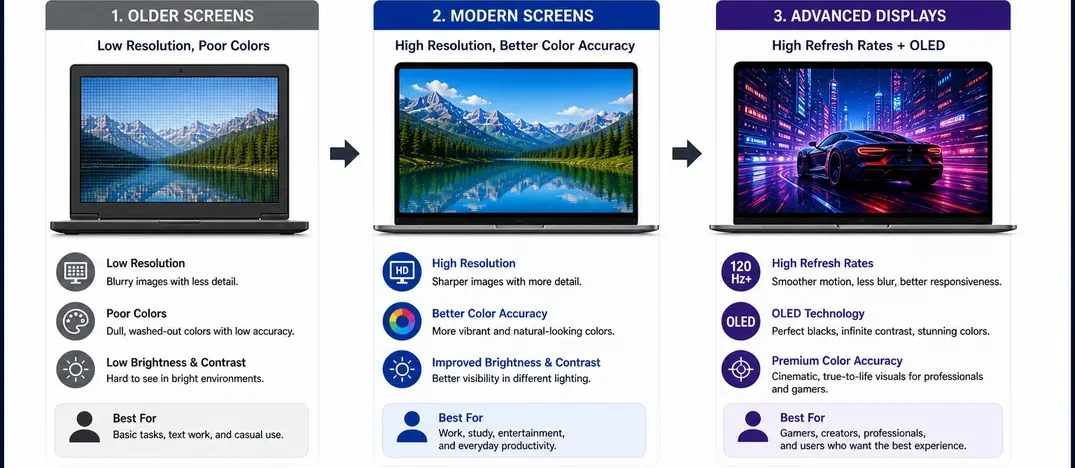
- Older screens → low resolution, poor colors
- Modern screens → high resolution, better color accuracy
- Advanced displays → high refresh rates + OLED
⚠️ Common Display Mistakes
❌ Focusing only on resolution
❌ Ignoring panel type (colors can look bad even on high resolution)
❌ Choosing high resolution without needing it (reduces battery life)
🔑 Display quality determines quality and comfort
👉 The display is one of the most important quality-of-life factors in a laptop.
- Better display → better daily experience
- Poor display → reduced usability
👉 Want sharp image → higher resolution
👉 Want good colors → IPS or OLED
👉 Want smooth motion → higher refresh rate
👉 The display is what you interact with the most.
So even if your laptop is powerful:
👉 A poor display can ruin the experience
👉 This is because display quality varies widely across Windows laptops.
👉 Because:
- Different manufacturers use different panels
- Not all displays are built to the same standard
Choosing the right display ensures your laptop is not just powerful—but also enjoyable to use. Once you’ve seen everything happening on the screen, the next step is understanding how your laptop connects to everything outside of it. That’s where ports come in.
🔌 Ports Explained (How Your Laptop Connects to the World)
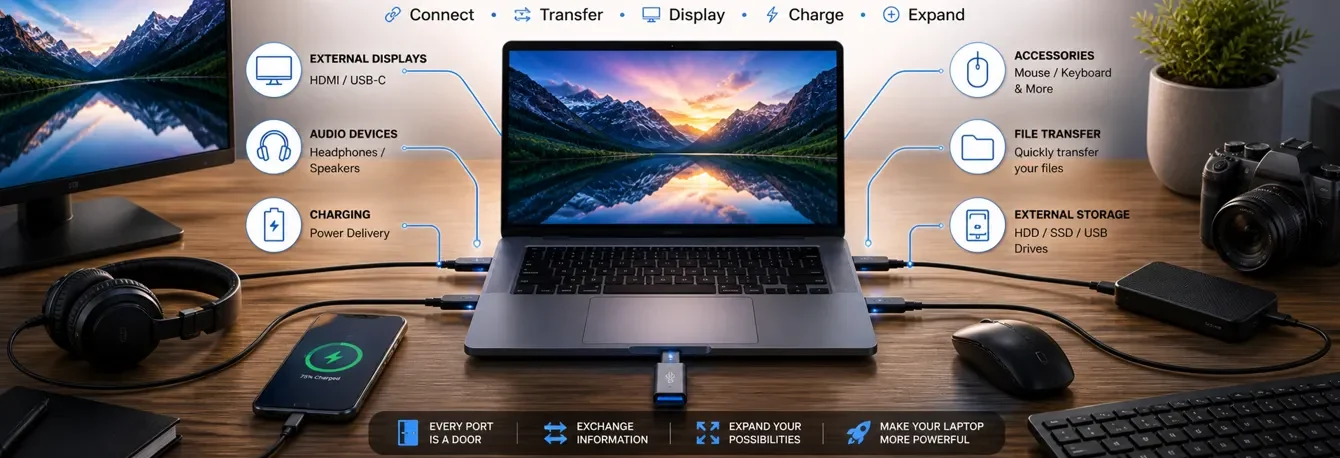
Ports 🔌 are how your laptop connects to external devices.
They allow you to:
Connect external displays
Connect audio devices
Plug in accessories (mouse, keyboard)
Transfer files
Charge your laptop
Use external storage
🎒 Think of Ports as Doors
Using our locked analogy system:
 CPU = principal
 GPU = art department
 RAM = desk
 Storage = locker
 Cooling = air conditioning
 Battery = backup power
 Ports = doors and gates
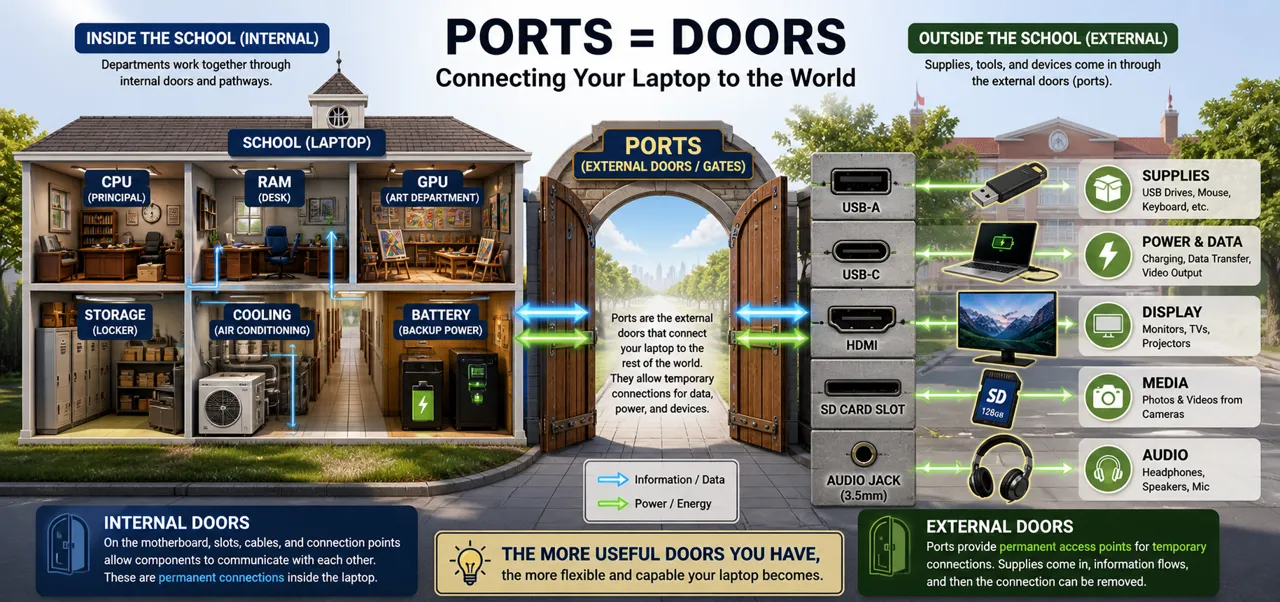
Each port is like a door that connects your laptop to the rest of the school.
Ports are the external doors/gates and entry points to exchange information or files.
Internal doors are on the motherboard itself. The motherboard connects all components to each other.
On the motherboard are slots, cables, or connection points that allow components like the CPU to communicate with RAM and storage. Whether those connections are soldered or removable, they are essentially internal ports connecting to the external world.
Doors allow communication between the principal, departments, teachers, and staff. External doors are the school’s gates or points of entry.
Some doors are small. Some are large.
Some doors allow specific things through. This is where ports come in—for example, accessing a flash drive on your laptop.
Think of it like supplies the school needs, such as food for the kitchen, cleaning supplies, or learning material.
The supply is temporary—after delivery, the supplier leaves, while internal doors remain permanent.
Ports provide permanent access points for temporary connections.
👉 The most important thing isn’t having the most ports—it’s having the ports you actually use most often.
💡 The right ports are better than the most ports.
⚙️ Ports Matter More Than People Think
Ports don’t affect performance directly.
But they affect:
- Convenience
- Workflow
- Daily usability
- Enhance user experience
- Expand your laptop into a workstation
👉 Two laptops can have the same performance but very different usability—because of ports.
🧩 Types of Ports on a Laptop
🔌 USB-A (Traditional USB)
The traditional USB port everyone knows.
- Rectangular port
- Widely supported
Used for:
- Mouse
- Keyboard
- USB drives
- External accessories
👉 Still very common
⚡ USB-C
A smaller, reversible USB port. Very multi-purpose.
👉 Can be plugged in either way
- Smaller, modern connector
- Very versatile
⚙️ What It Can Do
Depending on the laptop:
- Data transfer
- Charging
- Video output
👉 Becoming the standard on modern laptops
⚠️ USB-C vs USB-A (What’s the Difference?)
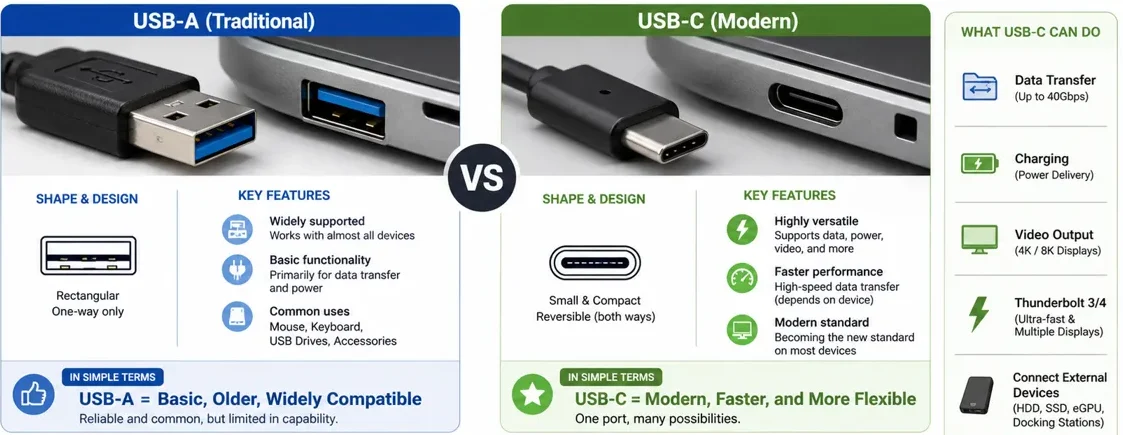
USB-A and USB-C are both used to connect devices, but they are very different.
USB-A is the older, traditional rectangular port that has been used for many years. It only works one way when plugging it in and is mainly used for basic accessories like a mouse, keyboard, or USB drive.
USB-C is newer, smaller, and reversible, meaning it can be plugged in either way. It is much more versatile and can handle data transfer, charging, and even video output depending on the laptop.
USB-A = basic, older, widely compatible
USB-C = modern, faster, and more flexible
👉 This is why many modern laptops are moving toward USB-C and reducing USB-A ports.
⚠️ Important
👉 This is where confusion happens:
👉 Not all USB-C ports are equal—always check what your laptop supports.
🚀What Is Thunderbolt on a Laptop?
A high-speed version of USB-C (on supported laptops).
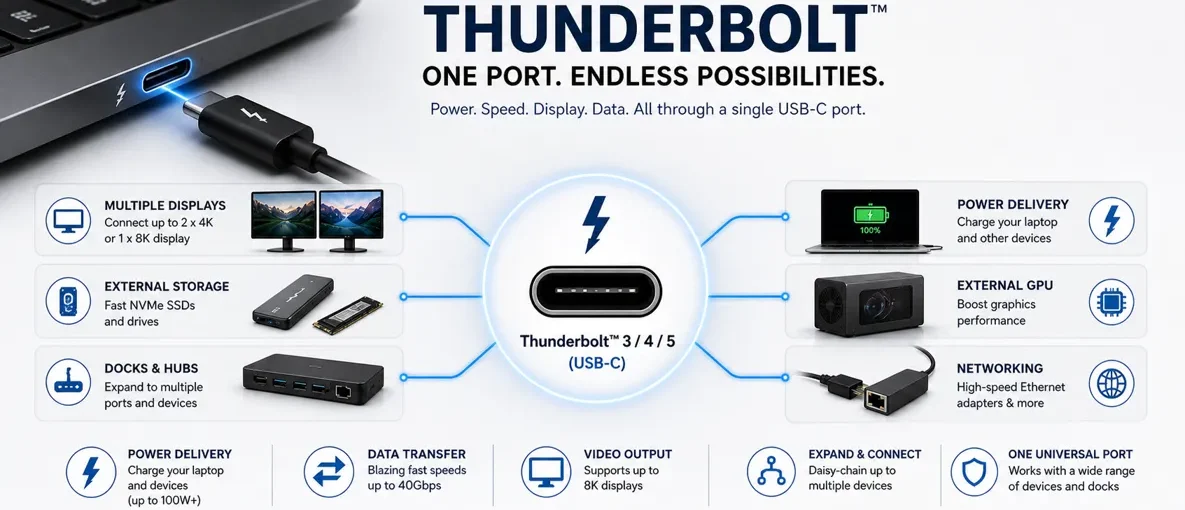
⚙️ What Thunderbolt Does
- Extremely fast data transfer
- Supports multiple displays
- Can connect to powerful external devices
💡 Not all USB-C ports support Thunderbolt
Laptops that do support thunderbolt offer much more.
Not limited to these but things like:
- External monitors
- Docking stations
- High-speed storage
- External GPUs
Ever heard of using an external GPU with a laptop? This port also supports exactly that.
Think of it like a private contractor connecting a diesel generator to provide extra power for a specific event for the art department.
🖥️ HDMI
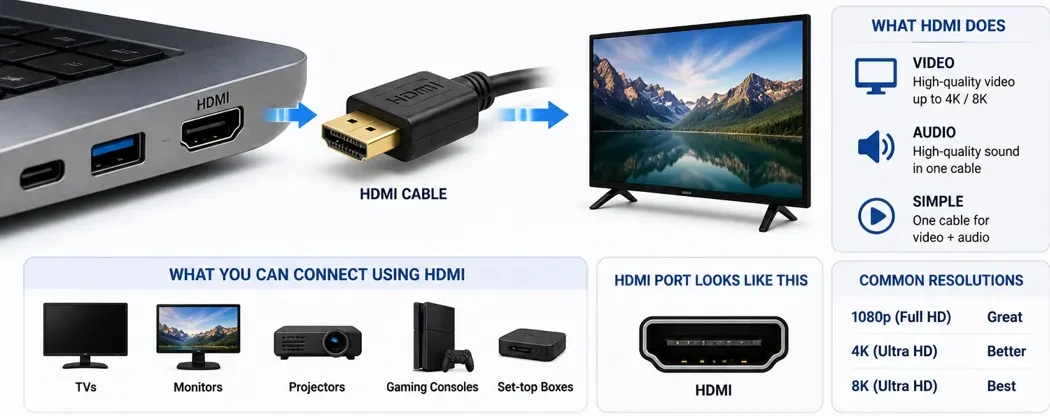
⚙️ What is HDMI
High-Definition Multimedia Interface. A port used to connect to external displays.
⚙️ It:
- Connects to monitors or TVs
- Transfers video (and audio)
- Lets you display your work somewhere else
💡 Real-World Use
- Presentations
- Dual monitors
- Watching content on larger screens
📷 SD Card Slot (Optional)
⚙️ What Is A Card Slot?
A slot for memory cards.
⚙️ What does it do?
- Transfers photos and files from cameras and other media devices
👉 Useful for:
- Photographers
- Content creators
🎧 Audio Jack (3.5mm)
⚙️ What Is It?
Standard headphone jack.
- Used for wired audio
👉 Still common on most laptops
⚙️ What It Does
- Connects headphones or speakers
👉 A direct communication line for audio
- Simple and reliable
🧠 Do I need ports?
Everyone needs at least one port. What those ports are is defined by your requirements.
- No USB-A → Need adapters
- No HDMI → harder to connect to screens
- Limited USB-C → less flexibility
👉 Ports affect:
- Convenience
- Compatibility
- Workflow
⚡ Why Do Modern Laptops Have Fewer Ports?
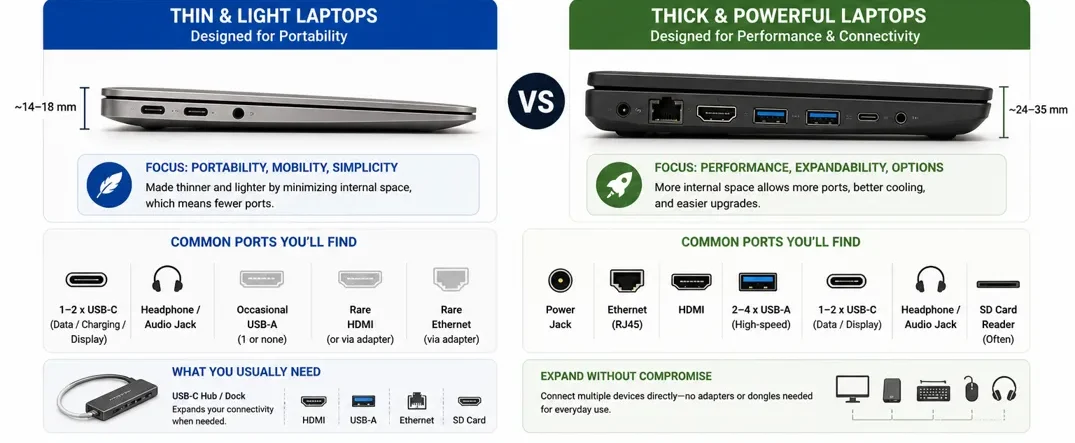
Modern laptops often reduce the number of ports.
👉 This is mainly because manufacturers prioritize:
Thinner and lighter designs
Cleaner, more minimal builds
Better portability
👉 As a result:
Some ports are removed
More reliance is placed on USB-C
You may need adapters or hubs for certain devices
👉 So you may need:
USB hubs
Adapters
Docking stations
🎒 Analogy
👉 Carrying keys or adapters to open different doors
🧠 What Ports Do You Actually Need on a Laptop?
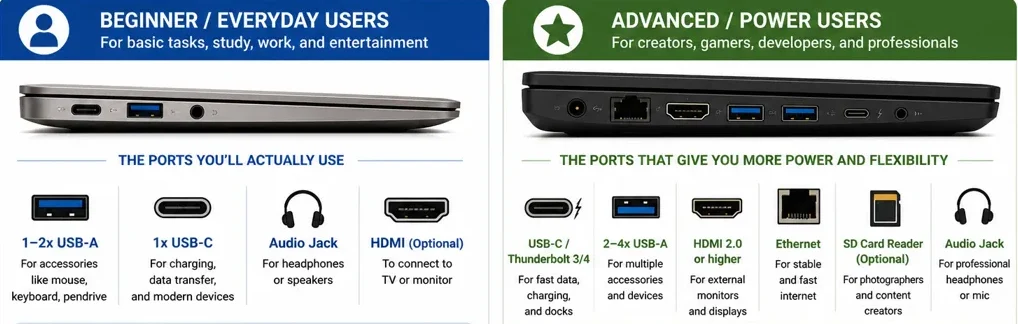
🟢 Basic Use
- USB-A
- USB-C
- Audio jack
🔵 Productivity
- Multiple USB ports
- HDMI or USB-C display support
- SD Card slots
🔴 Advanced Use
- Thunderbolt
- Multiple display outputs
- High-speed data ports
⚠️ Why Ports Vary on Windows Laptops
Windows laptops vary widely. This depends on the manufacturer. Some are built for portability and others for performance which come with more port options.
🧩 Do You Need a Hub or Adapter?
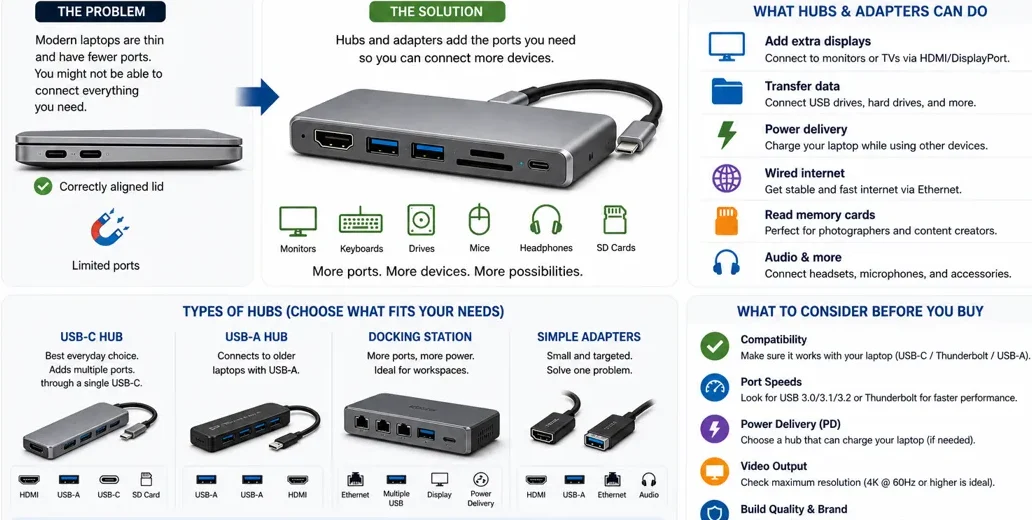
You may need a hub if:
- Your laptop has limited ports
- You use multiple external devices
Common use cases:
- External monitors
- USB accessories
- Storage devices
👉 Especially important for thin laptops
⚠️ Port Selection vs Daily Use
Photographers, vloggers appreciate an SD card slot for example because the SD card can just be removed from their camera and inserted into the laptop to transfer files. Most everyday users have a backup storage drive like a flashdrive that requires a USB-A or type C port. Choosing the right laptop ports depends on how you use your device. You should prioritize ports based on your needs.
🟢 Simple Setup
- Minimal devices
- Few connections
👉 Fewer ports are fine
🔵 Complex Setup
- Multiple devices
- External monitors
- Accessories
👉 More ports are important
⚠️ Common Ports Mistakes
❌ Ignoring ports completely
👉 Leads to needing adapters for everything
❌ Assuming all USB-C ports are the same
👉 Some support charging and displays, while others do not
❌ Not checking the number of ports
👉 May leave you with nowhere to connect all your devices
❌ Relying too much on adapters
👉 Creates extra cost, clutter, and inconvenience
❌ Not planning for future use
👉 Can limit flexibility as your needs change
👉 Ports determine how practical your laptop is to use every day.
- Fewer ports → more adapters
- More ports → more convenience and flexibility
👉 Ports don’t affect performance directly…
👉 But they strongly affect usability and workflow
👉 Port selection varies widely across Windows laptops
Because:
- Different designs prioritize different use cases
- Thin laptops prioritize portability
- Larger laptops prioritize connectivity
👉 Choosing the right ports ensures your laptop fits your workflow without limitations.
But those ports are only the connection points you can see. Behind the scenes, they all connect to one central component that allows every part of your laptop to communicate with each other: the motherboard.
🧩 Motherboard Explained (How Everything Connects)
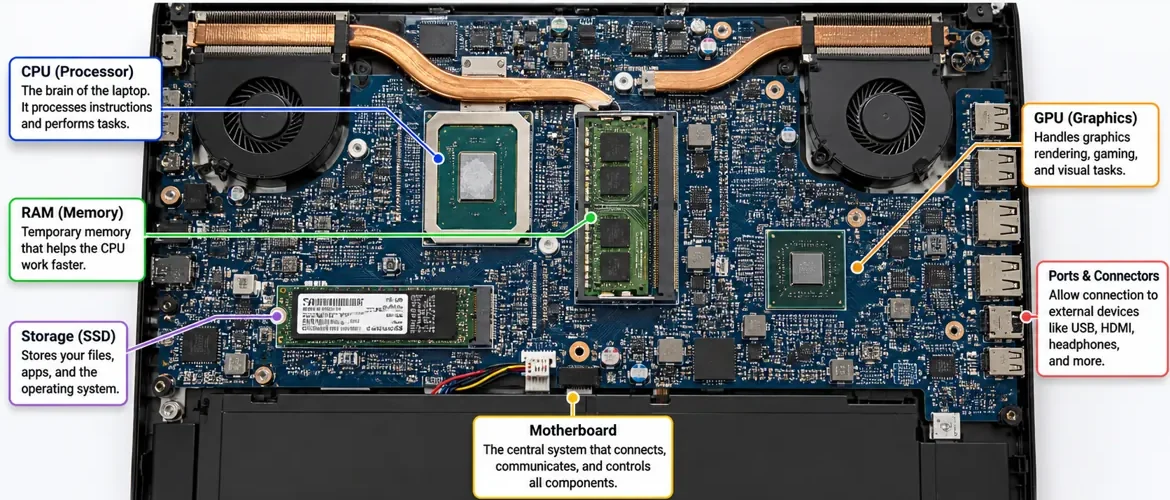
⚙️ What Is the Motherboard?
The motherboard 🧩 is the main circuit board inside your laptop.
👉 It connects all the core components:
- CPU
- RAM
- Storage
- GPU
- Ports
👉 The motherboard allows everything in your laptop to connect, communicate, and work together
⚙️ Compatibility (Simple Explanation)
👉 CPUs are not universally compatible
- An Intel CPU will not fit into a motherboard designed for AMD processors.
- An AMD CPU will not fit into a motherboard designed for Intel processors.
- The same principle applies to Snapdragon processors.
👉 Each CPU type requires a specific motherboard design so the type of CPU you choose determines the motherboard it can work with.
🎒 Simple Way to Think About It
👉 Think of it like different plug types:
- They may look similar
- But they are designed to fit only their matching socket
Luckily for laptop buyers that is not something you have to worry about as laptop components are chosen by the manufacturer.
👉 Which means it comes pre-fitted within the laptop.
👉 This is more relevant for desktops, where components are chosen separately…
👉 But it helps you understand how these systems are built
The CPU is where every task begins, but it can’t do everything on its own. Once it decides what needs to happen, it relies on other components to store data, display graphics, and keep everything running smoothly. One of the most important decisions you’ll make when buying a laptop is choosing the right type of processor, so let’s look at the three main CPU families you’ll find in modern Windows laptops.
🎒 Think of the motherboard as the school’s foundation and infrastructure
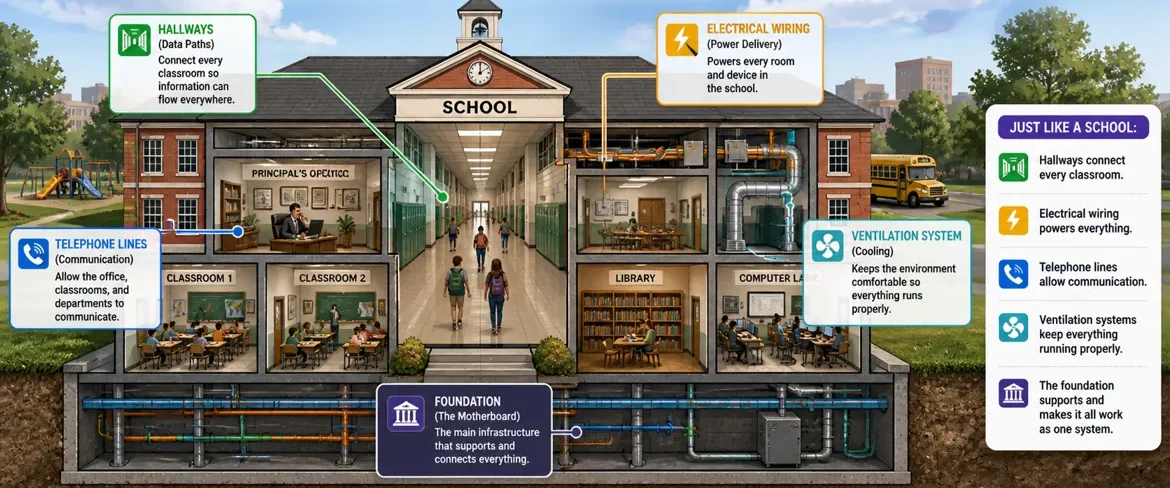
👉 The motherboard is the foundation and full infrastructure of the school 🏫
- The building is constructed on it
- Hallways connect every classroom
- Electrical wiring powers everything
- Telephone lines allow communication
- Ventilation systems keep everything running properly
👉 It’s not just what components sit on…
👉 It’s what allows everything to work together as one system
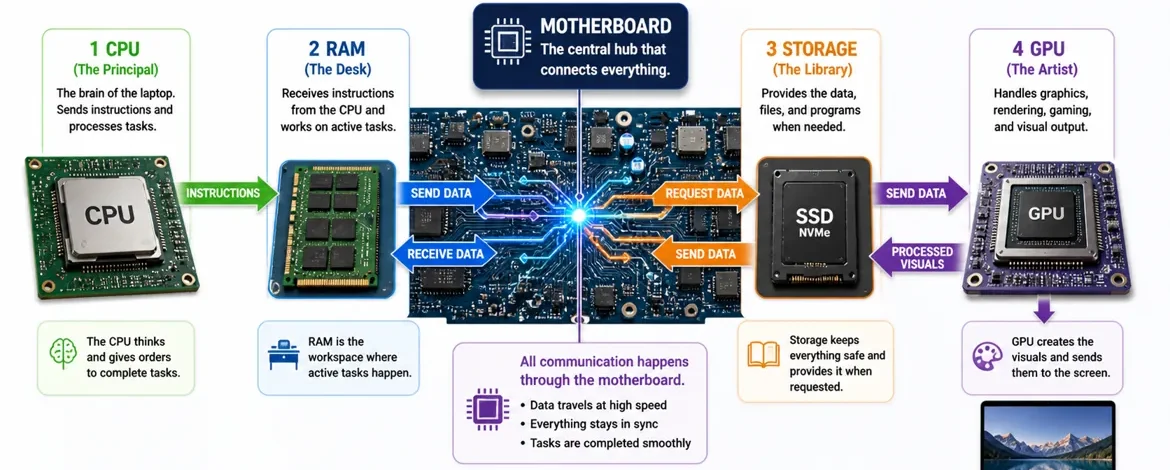
- The CPU (principal) sends instructions
- RAM (desk) receives and processes tasks
- Storage provides materials
- GPU handles visual work
👉 The motherboard ensures all of this can communicate with each other.
The motherboard is the central system that connects everything.
👉 For laptop buyers, the motherboard is rarely a purchasing consideration because the manufacturer chooses and designs it to support the laptop’s hardware. But no matter how well it’s designed, none of those components can do anything without power. So next, let’s look at how electricity flows through your laptop and keeps every component running.
⚡ Power System Explained (How Laptops Get Power)
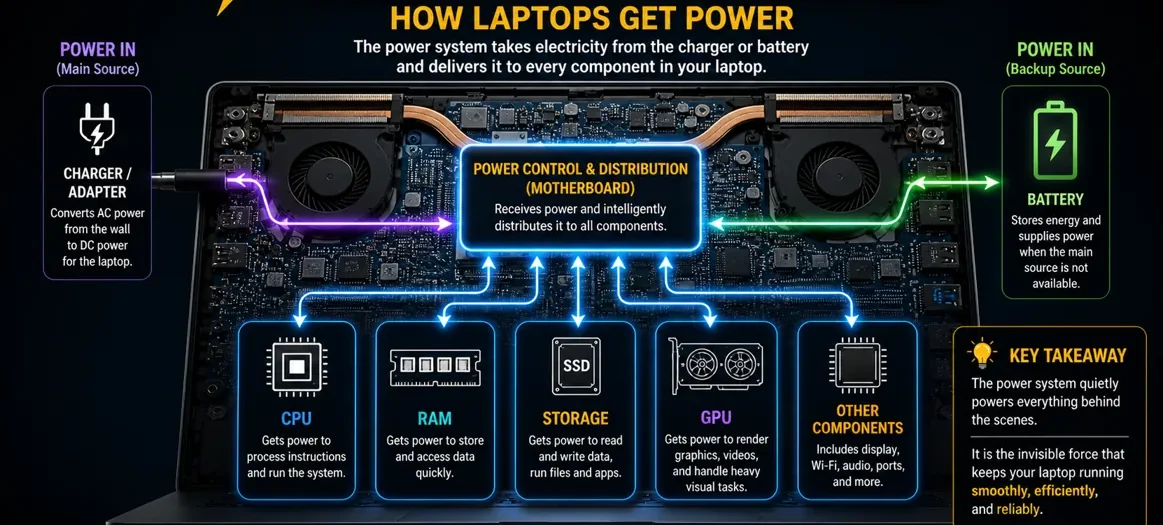
The power supply unit ⚡ is what provides electricity to all components in your laptop.
👉 It takes power from the charger and distributes it to:
- CPU
- RAM
- Storage
- GPU
- Motherboard
👉 The PSU powers the entire system
⚡ How Power Actually Flows Through the Laptop
👉 The power supply sends electricity to the motherboard first
👉 The motherboard then distributes that power to all connected components:
- CPU
- RAM
- Storage
- GPU
👉 All power flows through the motherboard before reaching the rest of the system
🎒 School analogy Explanation
👉 Think of it like the school’s main power system:
- Power enters the school
- It flows through the electrical wiring system (motherboard)
- Then reaches each classroom and department
👉 Everything receives power from the same central source
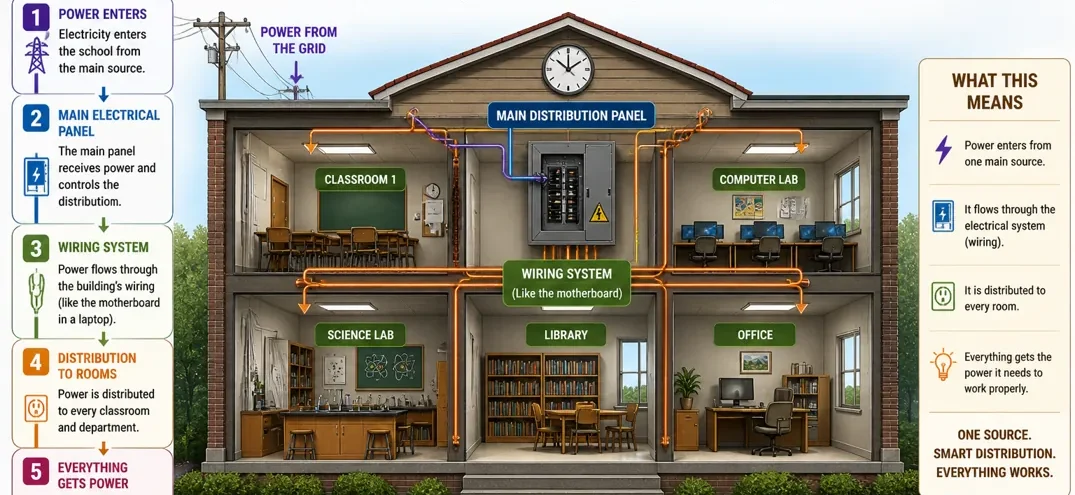
🔋 What About the Battery?
👉 The laptop battery works like a backup power system (similar to an uninterruptible power supply — UPS)
- It also connects through the same system
- It provides power when the main source is not available
👉 Just like in a school:
- Main power runs everything normally
- Backup power keeps things running when needed
⚡ Why Power (Wattage) Matters in Laptops
Power supplies are designed to handle a certain amount of power, measured in watts (W).
👉 More powerful components need more power:
- Basic laptop → lower power needs
- High-performance CPU + GPU → higher power needs
👉 The power system must be able to handle the total demand which is why a laptop with a dedicated GPU will have a higher wattage output.
⚠️ Something to remember
👉 More powerful system → higher power requirement
👉 If available power is limited, performance can be restricted.
💡 If you’ve ever looked at desktop PCs, you may have seen power supplies labeled Bronze, Silver, Gold, or Platinum. Here’s what those ratings mean:
🟡 Power Supply Efficiency (Desktop PCs)
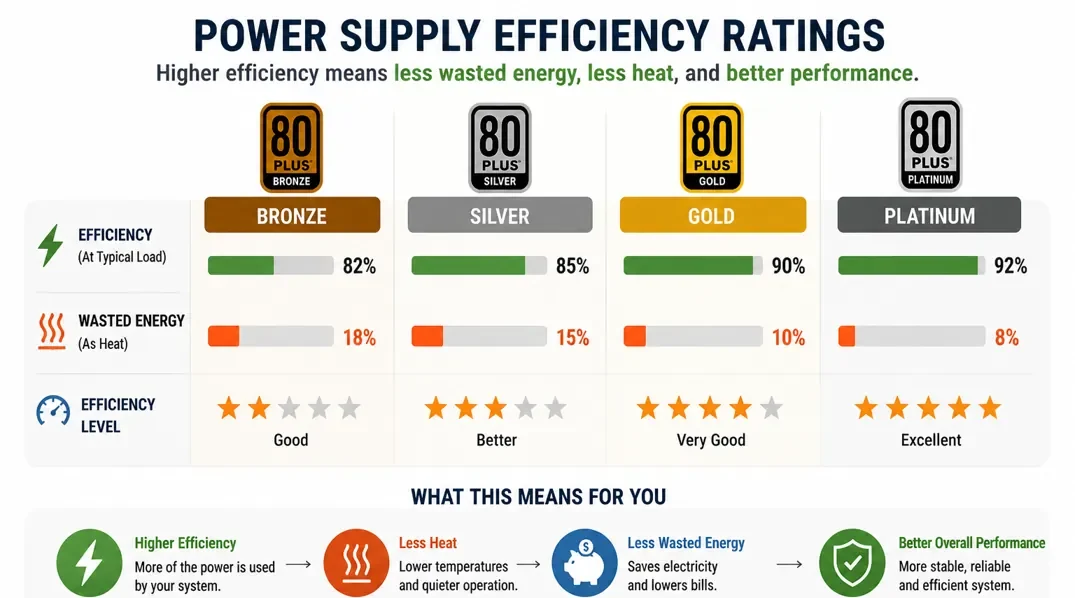
Just like home appliances, power supplies also have efficiency ratings, such as:
- Bronze
- Silver
- Gold
- Platinum
👉 These indicate how efficiently power is used.
💡 What this means
- Higher efficiency → less wasted energy
- Less heat
- Better overall efficiency
In laptops, the power system is fully integrated into the system.
👉 This means:
- You cannot choose or replace it
- It is designed specifically for that laptop’s components
- Power delivery is tightly controlled and optimized by the manufacturer
👉 In desktops, it’s different:
- The PSU is a separate component
- You choose it based on your system’s power needs
- It can be upgraded or replaced
🎒 Simple Way to Understand It
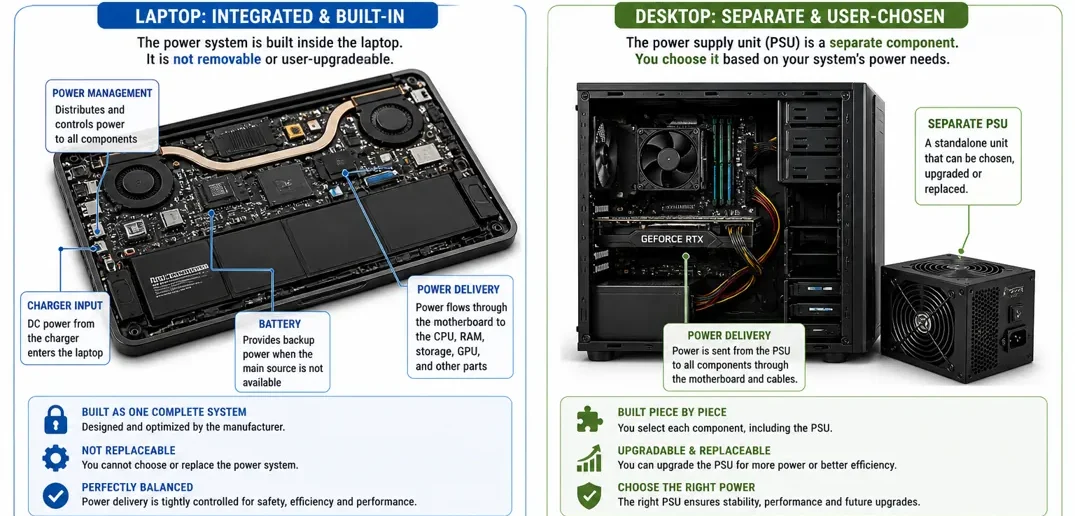
👉 Laptop:
- Built as one complete system
- Power system is fixed and optimized internally
👉 Desktop:
- Built piece by piece
- You choose how much power the system needs
🔑 This matters because:
👉 In a laptop:
- You don’t need to worry about PSU selection
- Everything is already balanced for you
👉 In a desktop:
- Choosing the wrong PSU can limit performance or cause instability
👉 This is another example of the core difference:
👉 Laptops are pre-built systems, desktops are customizable systems
Before we continue, it’s important to clarify the focus of this guide.
👉 This website focuses on portable technology and gear, designed for people who need to work, travel, and stay productive from anywhere.
That means the primary focus here is on laptops and mobility-first devices — not desktop computers.
However, to build a complete understanding and avoid confusion, it’s still useful to briefly explain how laptops compare to desktops.
👉 The next section is included purely for clarity and context — not as a shift in focus.
Before comparing laptops and desktops, it’s important to understand something key.
👉 The components we’ve covered in this guide are the same components used in desktop computers — just not in a portable form.
If you’ve ever seen someone build a desktop PC, you’ve already seen these parts:
- CPU
- RAM
- Storage
- GPU
- Cooler
- Motherboard
- Power supply
👉 The difference is simple:
👉 In a desktop, these components are separate and assembled individually
👉 In a laptop, everything is built into one compact system — often soldered directly onto the motherboard
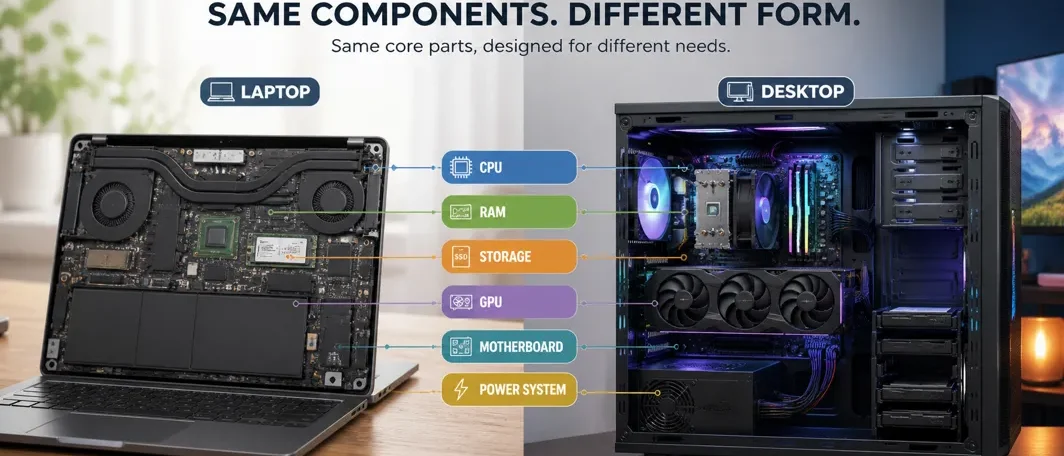
There is only one real difference in how they are powered:
👉 A laptop has an internal battery, allowing it to run anywhere
👉 A desktop runs directly from mains power — meaning it does not work without electricity
🔋 The Bridge Between the Two
There is a way to give a desktop temporary backup power:
👉 It’s called a UPS (Uninterruptible Power Supply)
- It acts like an external battery
- Keeps the system running during temporary power outages
👉 But it is not part of the desktop itself — just an additional device
👉 So while laptops and desktops may look very different on the outside…
👉 At their core, they are built from the same fundamental components
👉 You now understand how the major components inside a Windows laptop work together. Before we bring everything together, there’s one important question many people still have: how is a laptop actually different from a desktop computer? Let’s answer that briefly before we continue.
🖥️ Laptops vs Desktops (What’s the Real Difference?)
Up to this point, we’ve focused on laptops.
But there’s one important question:
👉 How do laptops compare to desktop computers?
🎒 Think of It Like a School vs a University
👉 A laptop is like a school 🏫
👉 A desktop is like a university 🎓
Both are designed for learning and productivity…
👉 But they operate on completely different scales
⚙️ Why Desktops Are More Powerful
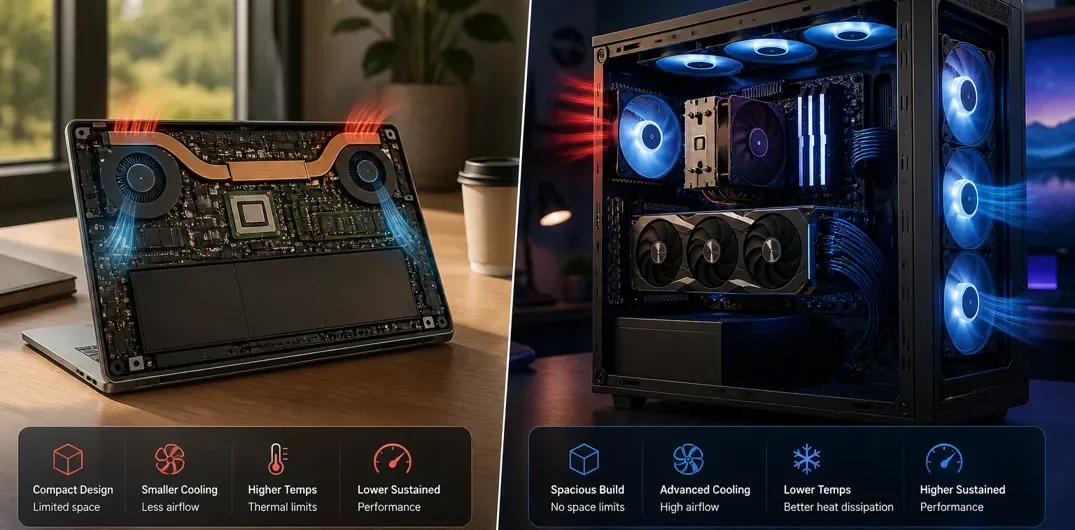
Desktop computers are not limited by size or portability.
👉 This allows them to have:
- Larger and more powerful components
- Better cooling systems
- Higher power delivery
- More space for performance
👉 As a result:
👉 Desktops operate on a completely higher level of performance
🔥 Performance Difference (Important Insight)
Even though modern laptops can be very powerful:
👉 They still cannot match high-end desktop performance
Because desktops can:
- Use more power
- Stay cooler for longer
- Run at higher performance consistently
⚠️ Important Note
👉 There are some high-end laptops that can outperform entry-level desktops
But:
👉 The exception does not define the rule
👉 At the top end:
👉 Desktops are always more powerful
Even this comparison can be misleading — it’s like comparing apples to oranges when looking at entry-level desktops vs laptops. If you want to compare apples to apples you need to compare a desktop gaming setup with a gaming laptop both at the top end.
⚡ Why This Happens
Everything comes back to constraints:
🟢 Laptops
- Limited space
- Limited cooling
- Limited power
👉 Designed for portability
🔵 Desktops
- No space constraints
- Large cooling systems
- High power availability
👉 Designed for maximum performance.
🎒 School Analogy Expanded
👉 A school (laptop):
- Smaller classrooms
- Limited space
- Designed to be flexible and mobile
👉 A university (desktop):
- Large buildings
- Specialized departments
- More resources and capacity
👉 Can handle much larger workloads
🔋The importance of portability
👉 If performance was the only goal:
👉 Everyone would use desktops
But:
👉 Portability changes everything
💡 The Real Reason Laptops Exist
👉 People need:
- Mobility
- Convenience
- Flexibility
👉 Laptops provide:
- Work anywhere
- Easy transport
- All-in-one system
⚖️ The Trade-Off
👉 Laptops:
- Portable
- Convenient
- Less powerful
👉 Desktops:
- Not portable
- More powerful
- Better long-term performance
🔑 The Key Insight
👉 Laptops exist because people need portability
👉 Desktops exist to deliver maximum performance
🔧 Upgradeability (Laptops vs Desktops)
One of the biggest differences between laptops and desktops is upgradeability.
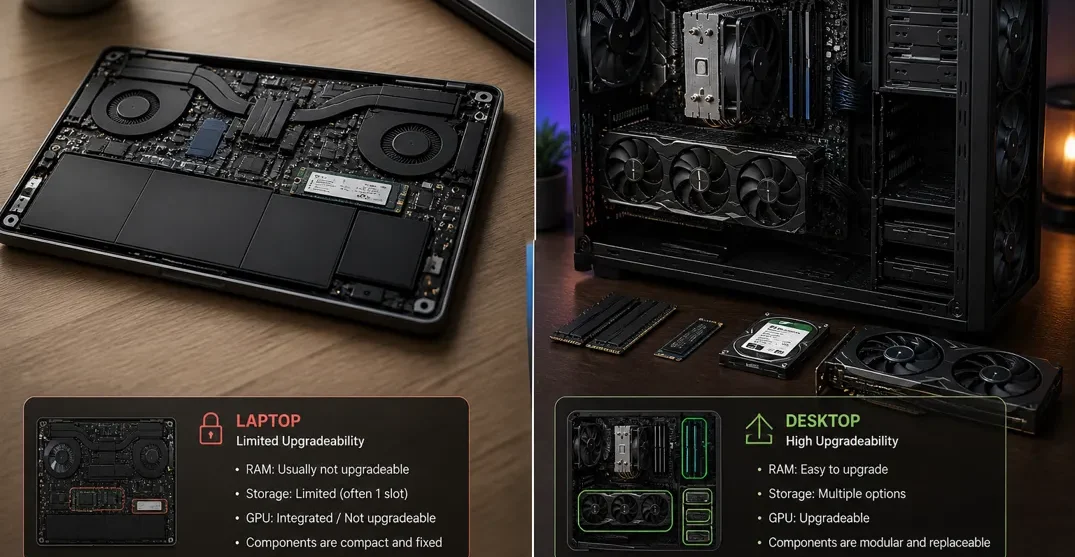
🟢 Laptops
👉 In laptops, upgradeability is very limited
- Many components are built into the system
- Some parts (like RAM or storage) may be upgradeable
- Others (like CPU or GPU) are often fixed or soldered
👉 This means:
👉 What you buy is mostly what you keep
🔵 Desktops
👉 In desktops, almost everything is replaceable and upgradeable
- CPU can be upgraded
- GPU can be upgraded
- RAM can be expanded
- Storage can be replaced or added
- PSU can be changed
👉 This is because:
👉 All components are separate parts assembled together
👉 Laptops are designed for convenience and portability
👉 Desktops are designed for flexibility and customization
🧠 A simple understanding to Remember
👉 If you need to move → laptop
👉 If you need maximum power → desktop
👉 If you need flexibility → a laptop is often the better choice
💡 How People Actually Use Both
In real life, many people don’t choose one or the other…
👉 They use both a laptop and a desktop
🟢 Why?
Because each serves a different purpose:
💻 Laptop (Mobility & Flexibility)
- Used when traveling
- Working from different locations
- Everyday tasks on the go
👉 Designed for portability and convenience
🖥️ Desktop (Power & Performance)
- Used mostly at home or in an office
- Handles heavier workloads
- Delivers stronger and more consistent performance
👉 Designed for maximum performance
⚖️ The Common Setup (Best of Both Worlds)
👉 Many people use:
- A powerful desktop at home
- A laptop for mobility
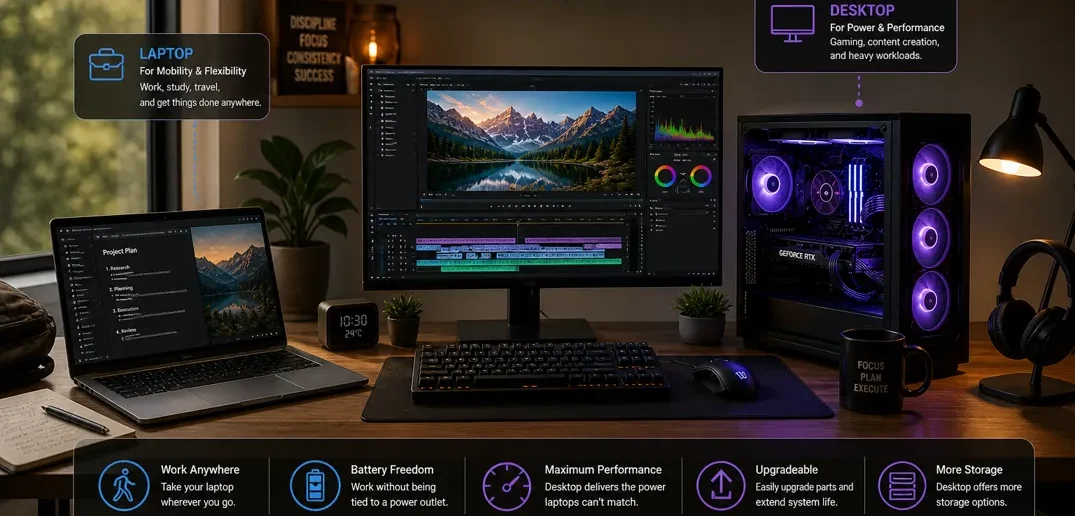
🎒 Example
- Heavy work → done on desktop
- Travel / remote work → done on laptop
👉 This gives:
- Performance when needed
- Flexibility when needed
⚡ Why Not Just Use a High-End Laptop?
This is an important question.
👉 High-performance laptops exist…
👉 But there are two key limitations:
💰 1. Cost (Portability Comes at a Price)
👉 High-end laptops are much more expensive than desktops with similar performance
⚙️ Why?
To make a laptop powerful, manufacturers must:
- Fit everything into a very small space
- Design advanced cooling systems
- Carefully manage power and heat
👉 All of this adds complexity and cost
🔥 Result
👉 A desktop with the same performance is usually significantly cheaper.
🚀 2. Performance Limit (This Is Critical)
It’s worth emphasizing this because it’s a common misconception. A high-end laptop can be extremely powerful, but it is not a direct replacement for a high-end desktop when maximum performance is the goal.
💡 No matter how powerful a laptop is:
👉 It cannot match the performance of a high-end desktop
⚙️ Why This Happens
Laptops are always limited by:
- Space
- Cooling
- Power delivery
👉 These limits prevent components from running at their full potential
Even the most powerful laptops:
- Cannot sustain the same performance
- Cannot match top-tier desktop hardware
- Will eventually be limited by heat and power
🎯 Who This Matters Most For
This becomes extremely important for users who need maximum performance:
- 🎮 High-end gaming
- 🎬 3D rendering
- 🧠 Complex simulations
- 🎨 Professional creative work
👉 For these users:
👉 Having both a desktop and a laptop is not just helpful…
👉 It is essential
👉 Laptops can be powerful…
👉 But desktops operate on an entirely different level when it comes to maximum performance
👉 Laptops give you freedom to move
👉 Desktops give you maximum power for your money
👉 Using both gives you the best of both worlds
💡 There is however one exception
Some people travel so frequently that they’re rarely in one place long enough to justify having a desktop computer.
Digital nomads, frequent business travelers, and people who move between cities or countries regularly often need all of their computing power in a single portable device.
💰 For these users, a desktop replacement laptop is often the most practical solution, even though it typically comes at a much higher price than a standard laptop, they have no other option.
👉 That’s enough context on desktops — let’s continue where we left off.
🧠 Simple Summary
(Bringing It All Together)
Now let’s bring everything together with one simple recap of how all these components work as one complete system.
👉 The goal of this guide was simple:
👉 Turn something confusing into something clear and easy to understand
🎒 Final School System Recapped
Here’s the full system using the school analogy:
- 🧠 CPU → Principal (makes decisions and controls everything)
- 🧩 Motherboard → Foundation + hallways + wiring (connects everything together)
- 💾 RAM → Desk (where active work happens)
- 🎮 GPU → Art department (handles visuals and creative tasks)
- 💽 Storage → Books & storage areas (where everything is kept)
- 🌡️ Cooling → Classroom temperature system (keeps everything running properly)
- 🔋 Battery → Backup power system (keeps everything running when main power is unavailable)
- ⚡ Power Supply (PSU) → Electrical system (supplies electricity to the entire laptop)
- 🖥️ Display → How you see and interact with everything on your laptop
- 🔌 Ports → Doors (how your laptop connects to the outside world)
💡 If you understand this system:
👉 You understand how any laptop works
👉 No more guessing
👉 No more confusion
👉 No more relying on marketing terms
🎯 Keeping It Simple (Important)
I’ve done my best to:
- Break everything down step-by-step
- Use simple analogies
- Avoid unnecessary complexity
👉 The goal was never to overwhelm you…
👉 But to make everything finally make sense
👉 If everything now feels clearer than it did before…
👉 Then the system worked.
🚀 One Sentence to Remember
👉 A laptop is not complicated — it’s just a system of simple parts working together
A laptop is the most important tool for a digital nomad. If you want to understand why I make that statement you can read the importance of a laptop here.
⚙️ Start With Your Use Case (Not Specs)

Most people make this mistake:
❌ They look at specs first
❌ They compare models
❌ They try to find “the best laptop”
👉 This is the wrong approach.
Instead, start with:
“What do I actually need this laptop to do?”
Because:
- Different tasks require different components
- More expensive does not always mean better for your needs
🧩 The Four Core Performance Components
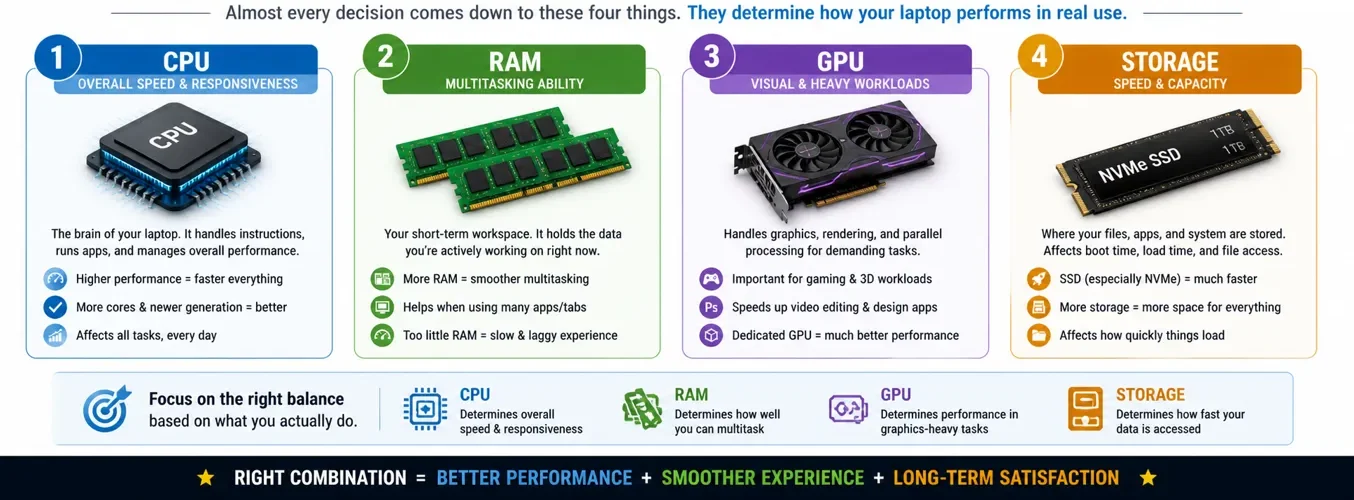
Almost every decision comes down to four things:
🧠 CPU → Overall speed and responsiveness
💾 RAM → Multitasking ability
🎮 GPU → Visual and heavy workloads
💽 Storage → Speed and capacity
👉 These determine how your laptop performs in real use.
🎯 Choose Based on What You Actually Do
🎓 Students & Everyday Use
If your usage includes:
- Browsing
- Documents
- Streaming
- Light multitasking
👉 You need:
- 🧠 CPU → Mid-range modern processor
- 💾 RAM → 16GB recommended
- 🎮 GPU → Integrated graphics
- 💽 Storage → 512GB SSD
👉 Prioritize:
- Battery life
- Portability
- Display quality
💻 Productivity & Multitasking
If you:
- Use multiple apps at once
- Work with documents, tabs, and tools
- Do light creative work
👉 You need:
- 🧠 CPU → Strong mid-range
- 💾 RAM → 16GB minimum (32GB ideal for heavy multitasking)
- 🎮 GPU → Integrated or entry-level dedicated
- 💽 Storage → 512GB–1TB
👉 Prioritize:
- RAM
- CPU efficiency
- Cooling
🎨 Creative Work (Photo, Video, Design)
If you:
- Edit photos or videos
- Use design software
- Work with large files
👉 You need:
- 🧠 CPU → High-performance processor
- 💾 RAM → 16GB–32GB+
- 🎮 GPU → Dedicated GPU recommended
- 💽 Storage → 1TB+
👉 Prioritize:
- GPU
- RAM
- Display quality
🎮 Gaming
If you:
- Play modern games
- Want smooth and stable performance
👉 You need:
- 🧠 CPU → Strong performance CPU
- 💾 RAM → 16GB minimum
- 🎮 GPU → Dedicated GPU (critical)
- 💽 Storage → 1TB SSD
👉 Prioritize:
- GPU
- Cooling
- Display refresh rate
🧠 Professional / Heavy Workloads
If you:
- Work with 3D applications
- Run simulations
- Use advanced development tools
👉 You need:
- 🧠 CPU → High-end processor
- 💾 RAM → 32GB+
- 🎮 GPU → High-end dedicated GPU
- 💽 Storage → 1TB–2TB
👉 Prioritize:
- RAM
- Cooling
- Sustained performance
🧠 A Simple Decision Framework
If you’re unsure, use this:
Step 1 → Define your main use
Step 2 → Choose CPU level
Step 3 → Choose RAM (minimum 16GB)
Step 4 → Decide if you need a GPU
Step 5 → Choose storage
👉 This ensures you don’t overbuy or underpower your laptop.
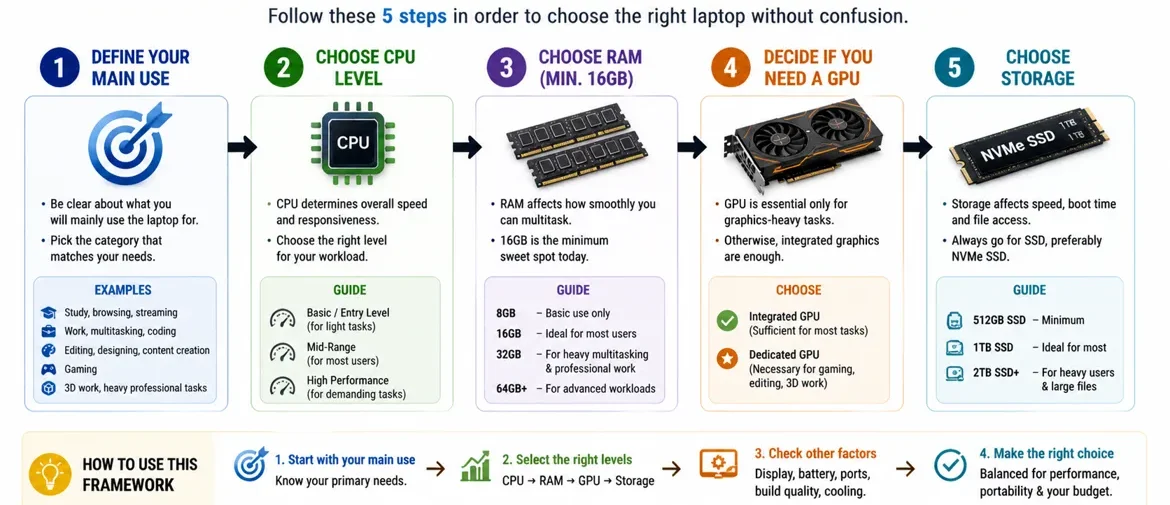
⚖️ Balance Performance, Battery, and Portability
Every laptop is a trade-off.
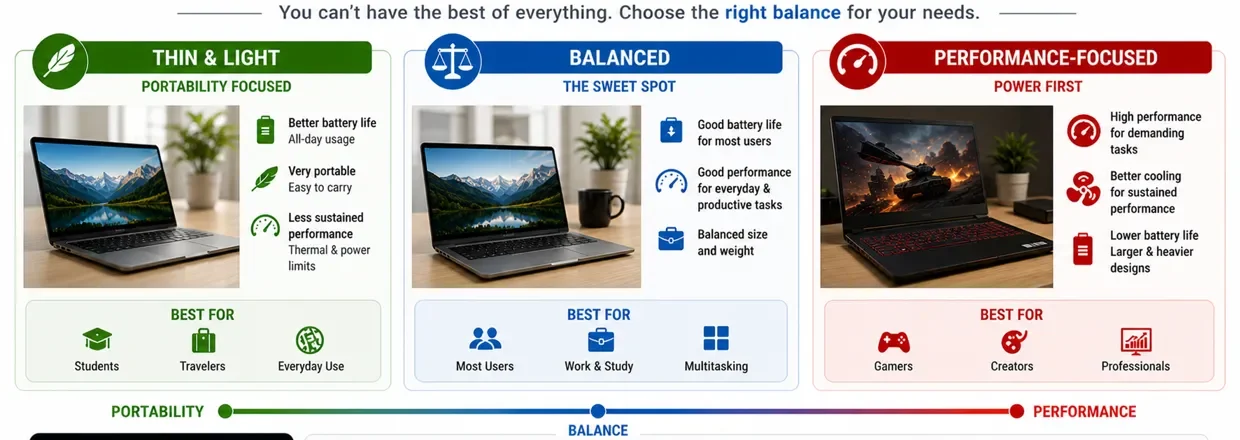
🎒 Final School Analogy (Putting It All Together)
👉 You are not choosing a laptop…
👉 You are building a school.
Ask yourself:
- How many students (tasks) will I have?
- How big should my classrooms (RAM) be?
- Do I need an art department (GPU)?
- How fast should access to materials be (storage)?
👉 Once you answer these:
👉 The right laptop becomes obvious
⚠️ Common Buying Mistakes to remember
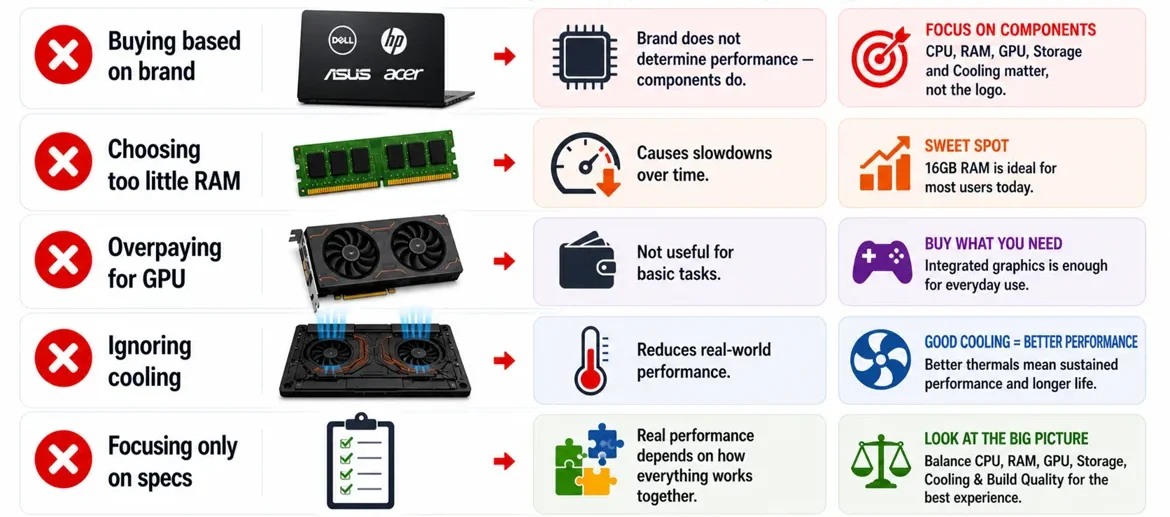
❌ Buying based on brand
Brand does not determine performance — components do.
❌ Choosing too little RAM
Causes slowdowns over time
❌ Overpaying for GPU
Not useful for basic tasks
👉 The best laptop is not the most powerful one — it’s the one that matches your needs.
👉 Once you understand that, choosing the right laptop becomes simple.
🔗 Where to Go Next
👉 The next step is choosing a laptop based on your specific needs.
👉 Now that you understand how laptops work, the next step is simple:
👉 Choose the right combination of components for how you actually use your laptop.
Follow the laptop buying checklist . It walks you through the key decisions step by step and helps you avoid common mistakes that lead to buyer's remorse.
👉 Choose what matters most to your daily experience
🏁 Final Verdict
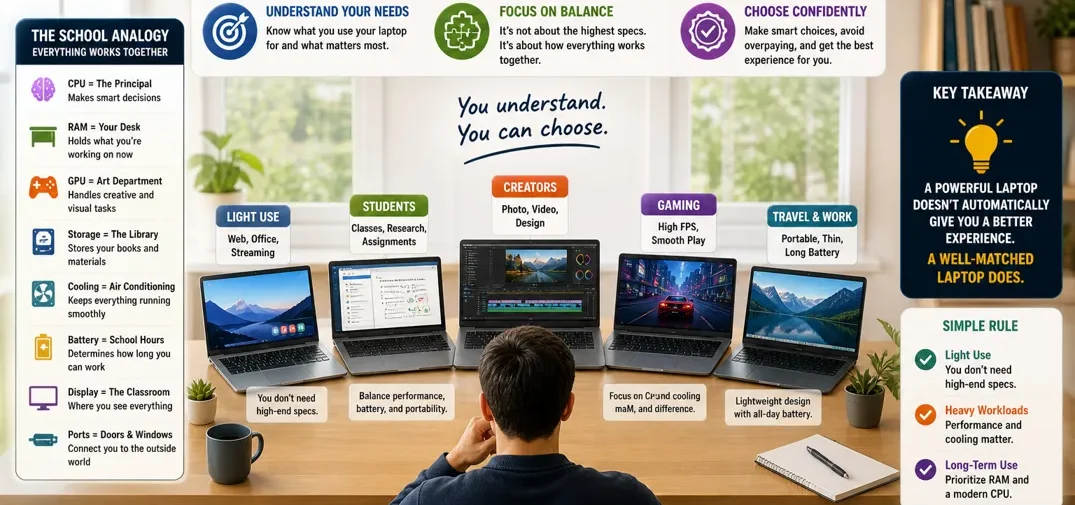
Windows laptops offer something fundamentally different from MacBooks:
👉 Flexibility:
Instead of a single, controlled system, Windows gives you access to a wide range of laptops built for different needs, budgets, and performance levels.
⚖️ Flexibility vs Simplicity
- 🍎 MacBooks focus on simplicity and consistency
- 🪟 Windows laptops focus on flexibility and variety
👉 That flexibility is powerful — but only if you understand how to choose the right configuration.
🚀 What Happens Next
👉 You now have the knowledge to choose a Windows laptop with confidence.
👉 You’re ready to choose confidently.
You can now explore:
🔑 Simple Rule to Remember
- Light use → you don’t need high-end specs
- Heavy workloads → performance and cooling matter
- Long-term use → prioritize RAM and a modern CPU
🚀 Final Takeaway
👉 Windows laptops give you the freedom to choose — but that freedom requires understanding.
Once you understand how everything works together:
- You avoid overpaying
- You avoid underpowered systems
- You choose confidently
👉 And that is the goal of this guide. If this guide can save you money in the process it has done its job.
👉 A powerful laptop doesn’t automatically give you a better experience.
👉 A well-matched laptop does.
If there’s one sentence to remember, it’s this:
👉 The best laptop is the one that fits your needs — not the one with the highest specs.
❓ Windows Laptop FAQ (Common Questions Answered)
Choosing a Windows laptop can feel confusing because there are so many options and configurations.
👉 These are the most common questions people search for when choosing a laptop and understanding performance.
❓ What do laptop specs actually mean?
Laptop specs describe the components inside your laptop.
👉 The most important ones are:
- 🧠 CPU → processing power
- 💾 RAM → multitasking ability
- 💽 Storage → speed and file access
- 🎮 GPU → graphics performance
👉 Together, they determine how your laptop performs.
❓ How much RAM do I need in a laptop?
👉 It depends on what you do:
- 8GB → basic use
- 16GB → most users (recommended)
- 32GB+ → heavy workloads
👉 More RAM = smoother multitasking.
❓ Is 8GB of RAM enough for a laptop in 2026?
8GB can work for basic use, but it is no longer ideal.
👉 It may struggle with:
- Multitasking
- Modern applications
- Long-term use
👉 16GB is a much safer choice for most users.
❓ Is 16GB of RAM enough for a Windows laptop?
Yes — for most users, 16GB of RAM is the ideal baseline.
It’s enough for:
- Multitasking
- Productivity
- Programming
- Light creative work
👉 If your laptop uses integrated graphics, part of that RAM is shared with the GPU, which makes 16GB even more important.
❓ Do I need a dedicated GPU or is integrated graphics enough?
For most users, integrated graphics are enough.
They handle:
- Browsing
- Streaming
- Office work
- Light editing
👉 You only need a dedicated GPU if you:
- Play games
- Edit videos
- Work with 3D or heavy visual tasks
❓ What is more important, CPU or RAM?
Both are important, but they affect different things:
- CPU → speed of processing
- RAM → ability to handle multiple tasks
👉 In most cases:
Not having enough RAM causes more noticeable slowdowns than a slightly weaker CPU.
❓ How much storage do I need on a Windows laptop?
- 256GB → light use
- 512GB → recommended for most users
- 1TB+ → creative work or large files
👉 If unsure, choose 512GB or higher.
❓ What type of storage is best for a laptop (SSD vs NVMe)?
👉 The best option is an NVMe SSD.
- Much faster than HDD
- Faster than SATA SSD
- Improves overall system responsiveness
👉 Avoid HDD for modern laptops.
❓ Why is my laptop slow even with good specs?
👉 The biggest culprit is usually “not enough RAM.”
👉 Performance depends on more than just specs.
Possible reasons:
👉 Poor cooling (thermal throttling)
👉 Slow storage
👉 Not enough RAM
👉 Background processes
👉 Specs alone do not guarantee performance.
❓ Is a more expensive laptop always better?
👉 No.
👉 The best laptop is the one that matches your needs.
👉 Overpaying for unused performance is common.
❓ Why do some laptops with the same specs perform differently?
👉 Because of:
- Cooling
- Power limits
- Build quality
- Optimization
❓ How long should a Windows laptop last?
👉 Typically:
- 3–5 years for most users
- Longer with good care and proper specs
👉 Choosing more RAM and modern components helps extend lifespan.
❓ What screen is best for a laptop?
👉 Depends on your needs:
- IPS → balanced (most users)
- OLED → best visuals
- TN → basic
👉 Resolution and brightness also matter.
❓ What ports do I need on a laptop?
👉 Common useful ports:
- USB-A → accessories
- USB-C → modern connectivity
- HDMI → external display
- Audio jack → headphones
👉 Everything comes down to the ports you use daily.
❓ Do I need a USB-C hub for my laptop?
You may need one if your laptop has limited ports.
👉 Especially if you use:
- External monitors
- Multiple USB devices
- External storage
👉 Thin laptops are more likely to require adapters.
❓ Why is battery life different on every Windows laptop?
Because Windows laptops are built differently by different brands.
Battery life depends on:
👉 CPU efficiency
👉 GPU type
👉 Display
👉 Battery size
👉 There is no single standard across all devices.
❓ Can I upgrade RAM or storage later?
👉 With most laptops no but sometimes — it depends on the laptop.
👉 Some allow upgrades
👉 Some are fully fixed
👉 Always check before buying as components are usually soldered onto the motherboard with most laptops
❓ Is it better to upgrade RAM or storage?
Always prioritize RAM:
👉 Upgrade RAM first
Because:
👉 RAM affects performance directly
👉 Storage can be expanded later
❓ What is the most important thing to consider when buying a Windows laptop?
Answer:
👉 Start with your use case—not the specs.
The best laptop depends on how you plan to use it.
A student, gamer, programmer, and video editor all have different hardware requirements.
Choose the laptop that matches your needs—not the one with the highest specifications.