
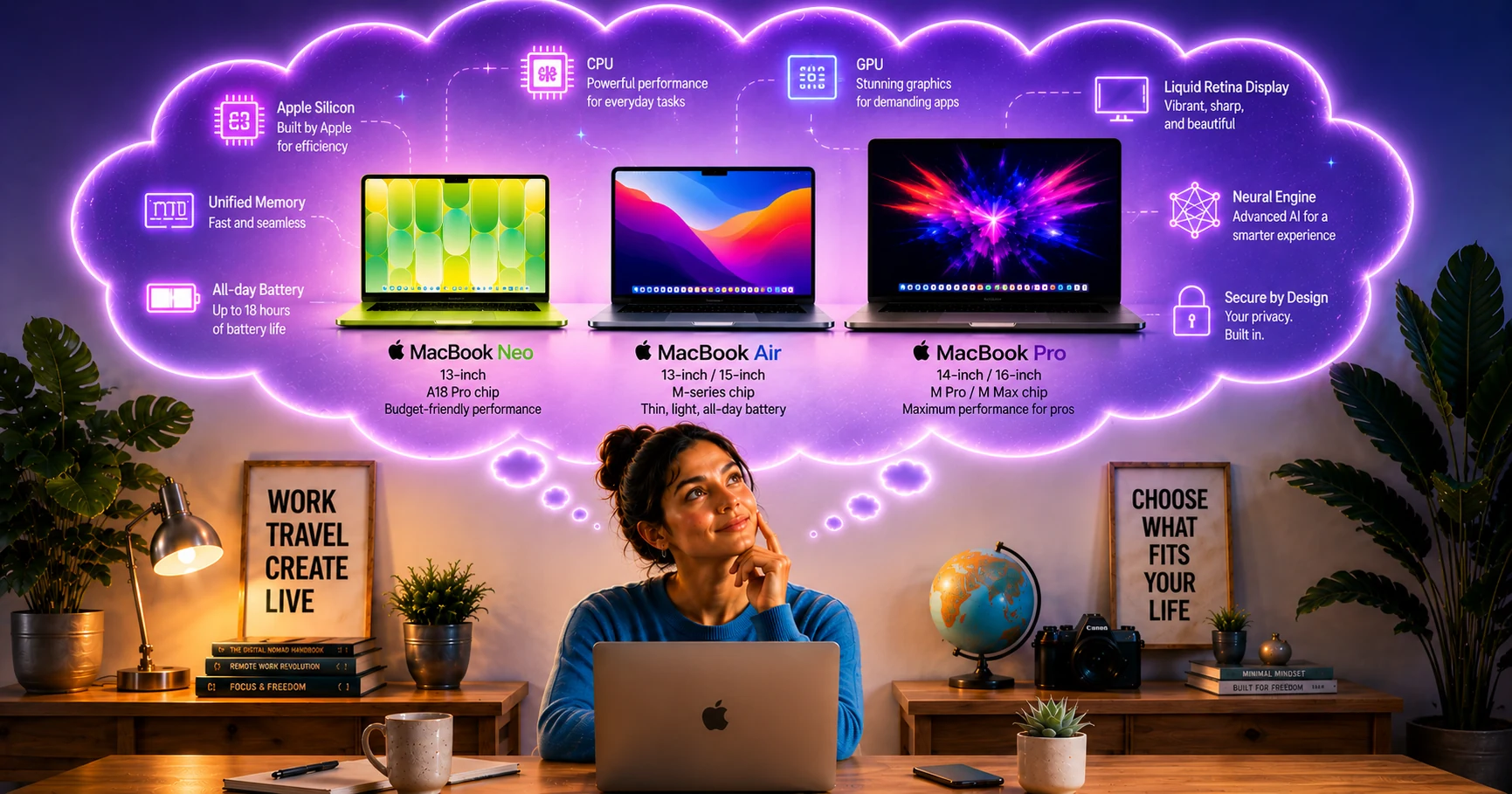
To understand why MacBooks often feel different from many Windows laptops, you first need to understand how Apple designs them.
At first glance, every laptop seems to be made from the same basic parts: a processor, memory, storage, a battery, a display, and an operating system. So why do MacBooks often feel smoother, quieter, more responsive, and deliver exceptional battery life even when the specifications don’t always look dramatically different on paper?
The answer isn’t a single component.
It’s the way every component is designed to work together.
👉 This guide isn’t about convincing you to buy a particular MacBook. It’s about helping you understand how Apple’s laptops work so you can confidently decide whether a MacBook—and which MacBook—is right for you.
Imagine you’re building a school.
The architect designs the classrooms.
The engineers design the electrical system.
Another company designs and installs the air conditioning.
The builders construct the walls.
Every company is highly skilled.
But there’s one problem…
None of them planned the project together.
The architect works for one company in Washington.
The processor engineers work in California.
The air conditioning specialists are based in Taiwan.
The builders are somewhere else again.
The school still gets built.
The students still learn.
But compromises have to be made because different teams designed different parts of the project.
Eventually, all those separate pieces are brought together into one finished school.
That’s very similar to how much of the Windows ecosystem works.
Microsoft designs Windows.
Companies like Intel, AMD, and Qualcomm design processors.
Other companies build graphics hardware.
Laptop manufacturers bring all those different pieces together into one finished computer.
The result can be excellent.
But every company has to coordinate with the others.
Now imagine building another school.
Before a single brick is laid…
The architect…
The engineers…
The builders…
The electricians…
The air conditioning designers…
And the software team…
are all sitting around the same table planning the entire project before construction even begins.
The builder already knows exactly where every desk will go.
The carpenter already knows the exact dimensions of every classroom before cutting a single piece of wood.
The classrooms weren’t designed first and the desks added later.
They were designed around each other.
Nothing needs to be adapted later because everything was designed to fit together from the very beginning.
Apple had the architect, engineers, builders and software developers sitting around the same table from day one, designing every part of the MacBook to work together before construction even started.
That single philosophy explains almost everything that makes a MacBook different.
Apple didn’t design macOS to fit the chip. It designed the chip and macOS to fit each other.
Apple’s advantage isn’t that it fixes problems faster.
It’s that many problems never exist because the planning happened before anything was built.
That philosophy explains why Apple Silicon behaves differently.
Why Unified Memory works differently from traditional RAM.
Why MacBooks often feel incredibly responsive.
Why battery life is so good.
Why Apple already knows exactly how the processor will behave before designing the MacBook, allowing it to engineer a cooling system specifically for that processor from the very beginning.
And ultimately…
Why choosing the right MacBook is about understanding Apple’s design philosophy—not just comparing specifications.
Throughout this guide, we’ll build on that philosophy one component at a time, explaining how each part of a MacBook works and why Apple designed it that way.
👉 By the end, you won’t just know which MacBook is right for you. You’ll understand why it’s the right MacBook for the way you live, work and travel.
👉 You’ve now seen the fundamental difference between Apple’s integrated approach and the Windows ecosystem. If you’re more interested in understanding how Windows laptops are designed, our How Windows Laptops Work guide explores the Windows approach using the same beginner-friendly style.
Understanding Apple’s MacBook Lineup
Now that you understand how Apple designs its laptops, the next question is simple:
What did Apple actually build?
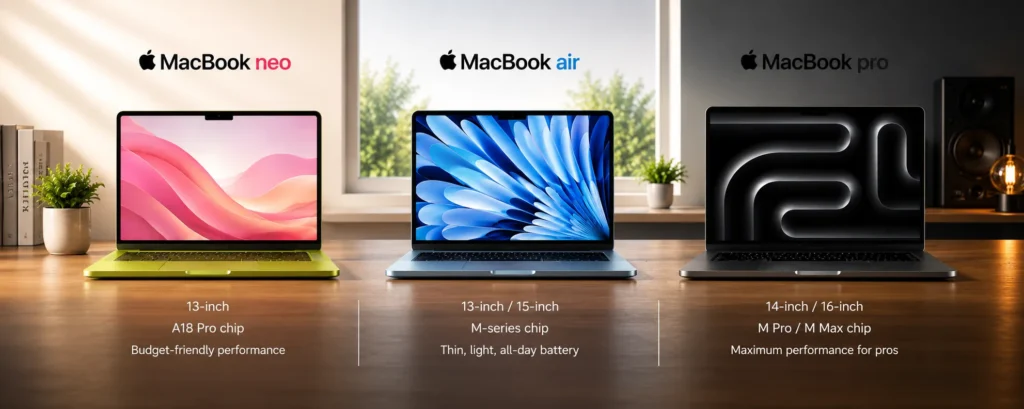
Unlike many Windows manufacturers that offer dozens of different laptop families, Apple keeps its lineup intentionally small and easy to understand.
Instead of creating separate laptops for gaming, business, travel, creators and everyday users, Apple focuses on just three MacBook families.
Each one is designed for a different type of user and workload—not because one MacBook is better than another, but because different users simply have different needs.
- 💻 MacBook Neo — Apple’s entry-level MacBook, designed for students, everyday computing and anyone looking for the most affordable way to experience macOS.
- ✈️ MacBook Air — Apple’s mainstream MacBook, offering the best balance of portability, performance, and battery life for most people.
- 🚀 MacBook Pro — Apple’s professional lineup, designed for creators, developers, engineers, and demanding workloads.
| 💻 Model | 📏 Screen Size | 🎯 Best For |
|---|---|---|
| 🍏 MacBook Neo | 13″ |
Students Everyday computing Outstanding value |
| 🍃 MacBook Air | 13″ / 15″ |
Business Travel Everyday productivity |
| 💼 MacBook Pro | 14″ / 16″ |
Creative professionals Software development Demanding workloads |
At first, this may seem surprisingly simple.
In reality, that’s exactly the point.
Apple doesn’t build dozens of laptop families because it doesn’t need to.
Once you see how Apple has organized its lineup, the difference becomes obvious.
Windows has many laptop families because different manufacturers build laptops for different types of users.
Apple covers many of those same needs with only three MacBook families.
👉 As you move from the MacBook Neo to the MacBook Air and finally to the MacBook Pro, you’re not moving between different kinds of laptops. You’re moving through different levels of performance while staying within the same Apple ecosystem.
💥 Apple isn’t asking you to choose between three different philosophies. It’s asking you to choose the MacBook that best fits the way you work, create and travel.
👉 Before we explore the technology that powers every MacBook, here’s a quick overview of where each model fits within Apple’s lineup.
Before we look at what you can see…
Let’s first understand everything you can’t.
🧩 Apple Silicon Explained
Now that you understand Apple’s MacBook lineup, the next question is obvious:
How did Apple build laptops that work so differently from many traditional laptops?
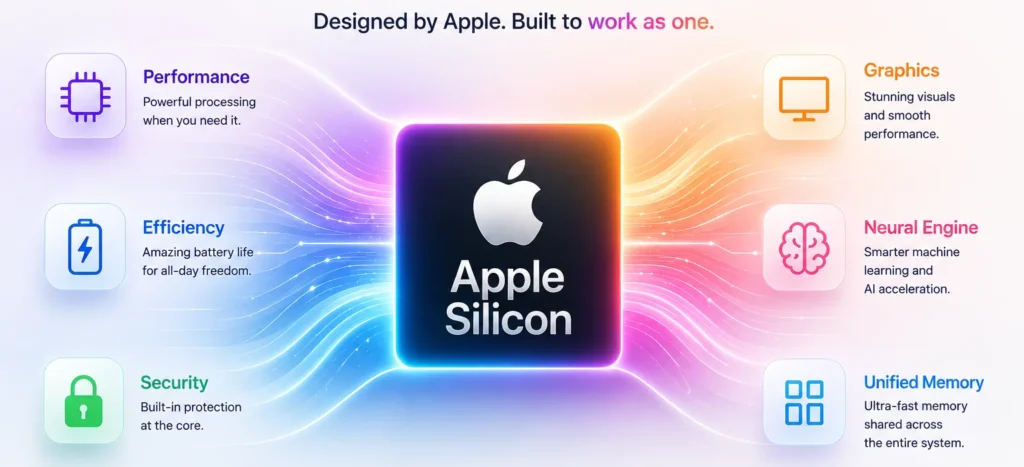
The answer is Apple Silicon.
For many years, Apple used Intel processors in its MacBooks, just like many Windows laptops still do today. Intel continues to make excellent processors, but Apple wanted complete control over its entire product. To achieve that, it eventually decided to design its own processor.
Apple didn’t design Apple Silicon because Intel’s processors were bad. Intel continues to build excellent processors that power many excellent Windows laptops today.
Apple designed Apple Silicon because it wanted complete control over how every major part of the MacBook worked together from the very beginning.
Remember the school from our introduction.
Apple didn’t just want to design the classrooms.
It wanted to design the electrical system, the air conditioning, the desks, and every other part of the school so they would all work together from the very beginning.
Designing the processor was no longer a question of “if.”
It was a question of “when.”
Eventually, Apple asked:
“Why don’t we design the processor too?”
The answer became Apple Silicon.
💥 Apple Silicon wasn’t created to make a faster processor. It was created to build a better MacBook.
🤔 What Is Apple Silicon?
Many people think Apple Silicon is simply Apple’s processor.
That’s partly true because the CPU is one of the most important parts of Apple Silicon.
But it’s only one part.
Apple Silicon isn’t just a processor. It’s Apple’s way of designing the most important parts of a MacBook to work together as one complete system.
Instead of designing these components separately and making them work together afterward, Apple designed them together from the very beginning.
Apple didn’t design macOS to fit the chip. It designed the chip and macOS to fit each other.
That single design philosophy explains many of the characteristics people associate with modern MacBooks.
It explains why they often feel incredibly responsive.
Why they deliver exceptional battery life.
Why hardware and software work together so seamlessly.
Why Apple already knows exactly how the processor will behave before designing the MacBook, allowing it to engineer the cooling system specifically for that processor from the very beginning.
In the next few sections, we’ll break down each major part of Apple Silicon one step at a time, starting with the CPU. By understanding what each component does individually, you’ll also understand why Apple designed them to work together as one complete system—and why modern MacBooks feel so different from many traditional laptops.
🧠 Understanding the CPU Inside Apple Silicon
Every time you click an app, open a file, or browse the web, one component inside your MacBook decides what happens next.
That component is the CPU.
You can think of the CPU as the principal of a school.
The principal isn’t teaching every lesson or cleaning every classroom. Instead, they’re responsible for keeping the entire school running smoothly.
When a decision needs to be made, the principal decides what should happen next.
The CPU works much the same way.
It decides which tasks need immediate attention, which can wait, and how the MacBook’s resources should be used to keep everything running efficiently.
💡 Simple Way to Understand It
👉 Imagine the school day has just begun.
Students are arriving.
Teachers are preparing lessons.
The receptionist is answering phone calls.
The janitor is unlocking classrooms.
The cook is preparing lunch.
The principal doesn’t do all of those jobs personally.
Instead, they coordinate everything so the right people are doing the right jobs at the right time.
That’s exactly what the CPU does inside your MacBook.
It coordinates thousands of operations every second, ensuring every component works together efficiently.
This is why the CPU is often called the brain of a computer.
While every component has an important job, the CPU is responsible for making the decisions that keep the entire system running smoothly.
💥 A great CPU isn’t the one that works the hardest. It’s the one that keeps everything working together efficiently.
👉 CPU simply stands for Central Processing Unit. You’ll see the abbreviation everywhere when comparing laptops, but don’t worry about memorizing the name.
Understanding what the CPU does is far more important than remembering what the letters stand for.
👉 But even the best principal can’t run a school alone
The principal relies on a team of teachers, each teaching different classes while working together to educate the entire school.
The same idea applies to a CPU.
Let’s meet those teachers in the next section.
👨🏫 CPU Cores Explained
Now that you understand what the CPU does, the next question is obvious:
How does one CPU handle so many tasks at once?
The answer begins with CPU cores.
💡 Simple Way to Understand It
👉 Think about how classes work in a school.
You move between classrooms for different subjects.
While you’re in one class, other classes are happening at the same time.
👉 Multiple lessons can happen simultaneously because there are multiple teachers.
⚙️ Single Core (One Teacher)
👉 Imagine one teacher (or, in a very small school, even the principal) teaching every subject.
They teach Class 1.
Class 2 has to wait.
Then they move to Class 2.
Then Class 3 waits.
👉 Everything happens one lesson at a time.
⚙️ Multiple Cores (Multiple Teachers)
👉 Now imagine multiple teachers.
One teaches Science.
One teaches History.
One teaches Mathematics.
👉 All classes happen at the same time.
👉 Far less waiting.
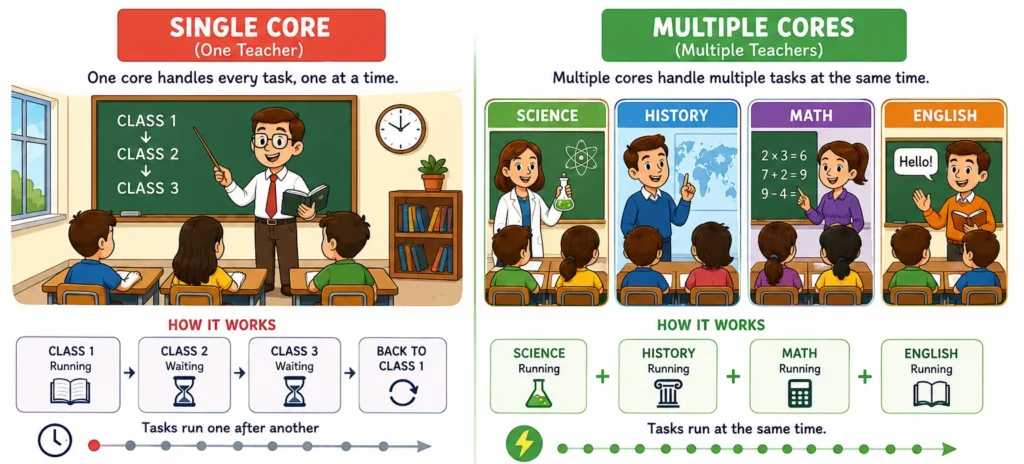
💥 More CPU cores don’t make one task faster. They allow more tasks to happen at the same time.
This is why modern processors use multiple CPU cores. Instead of one core handling every task one after another, multiple cores can work at the same time, helping your MacBook stay responsive when you’re running several applications.
💥 Adding more teachers doesn’t make each teacher better. It simply allows the entire school to teach more students at the same time.
In the next section, we’ll discover what determines how quickly each teacher can teach a lesson.
⚡ CPU Clock Speed Explained
After learning about CPU cores, another specification you’ll often see is clock speed.
Many people assume that a processor with a higher clock speed is automatically faster.
In reality, clock speed is only one part of the story.
💡 Simple Way to Understand It
👉 Imagine two mathematics teachers.
Both teach exactly the same lesson.
Both know the subject extremely well.
The first teacher explains everything so clearly that the entire class understands the lesson in 30 minutes.
The second teacher teaches the exact same lesson, but it takes 45 minutes.
Neither teacher is wrong.
Neither teacher is smarter.
One simply teaches the lesson faster.
💥 Clock speed doesn’t tell you how many teachers a school has. It only tells you how quickly each teacher can teach.
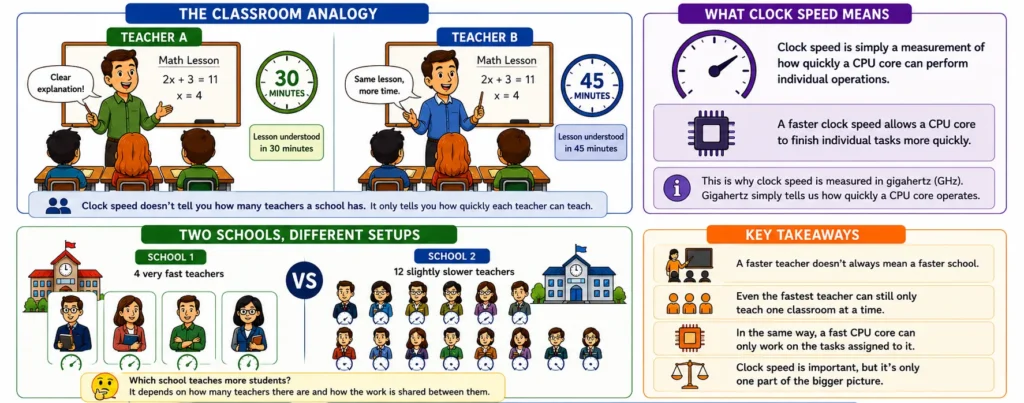
👉 That’s very similar to CPU clock speed.
Clock speed is simply a measurement of how quickly a CPU core can perform individual operations.
A faster clock speed allows a CPU core to finish individual tasks more quickly.
This is why clock speed is measured in gigahertz (GHz).
Gigahertz simply tells us how quickly a CPU core operates.
👉 Gigahertz (GHz) is simply a way of measuring how quickly a CPU core operates. You don’t need to remember what the abbreviation stands for.
Understanding what clock speed does is far more important than memorizing the terminology.
Now imagine two schools.
One has four very fast teachers.
The other has twelve slightly slower teachers.
Which school teaches more students during the day?
The answer isn’t necessarily the school with the faster teachers.
It depends on how many teachers there are and how the work is shared between them.
💥 A faster teacher doesn’t always mean a faster school.
There isn’t a simple answer because it depends on the work being done.
That’s exactly why clock speed alone doesn’t tell the whole story.
Even the fastest teacher can still only teach one classroom at a time.
In the same way, a fast CPU core can only work on the tasks assigned to it.
In the next section, we’ll discover how CPU threads allow a single CPU core to keep multiple tasks moving efficiently at the same time.
🧵 CPU Threads Explained
Now that you understand CPU cores, the next question is just as important:
How can one CPU core keep multiple tasks moving at the same time?
The answer is CPU threads.
💡 Simple Way to Understand It
If CPU cores are the teachers…
👉 Threads are the individual jobs those teachers keep moving.
🎒 Simple Example
Imagine a class working together to build a model car. 🚗
The project has several parts:
- Engine
- Wheels
- Body
👉 Every part needs to be completed before the model car is finished.
⚙️ Single Core, No Threading
👉 Imagine there’s one teacher helping the class.
The teacher helps the engine group first.
Only when they’re finished do they move to the wheels.
Then they move to the body.
👉 Only one part of the project moves forward at a time.
👉 Everything else has to wait.
⚙️ Single Core With Threads
👉 There’s still only one teacher.
But instead of finishing one group before moving to the next…
The teacher helps the engine group for a moment.
Then checks on the wheels.
Then helps the body team.
Before returning to the engine again.
👉 Every part of the project keeps making progress.
👉 Nothing is completely stuck waiting.
🔑 What This Means
👉 Threads allow one CPU core to:
- Keep multiple tasks moving.
- Switch between them efficiently.
- Reduce unnecessary waiting.
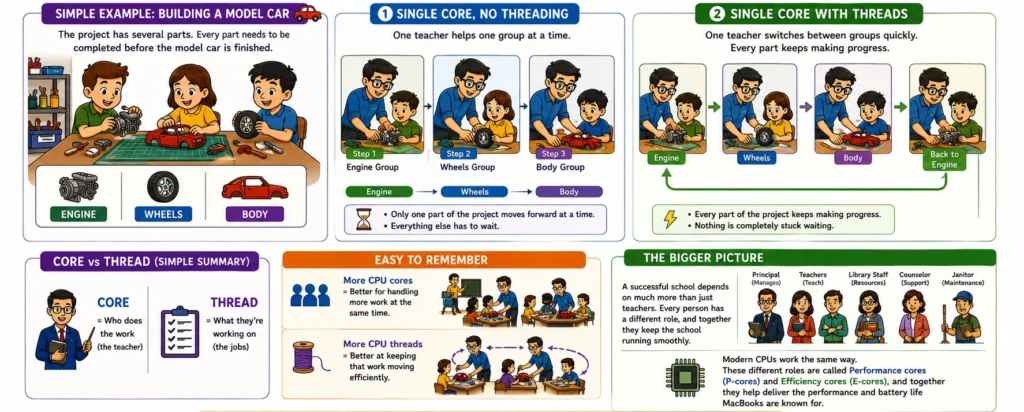
💥 Threads don’t create more teachers. They simply allow each teacher to keep more work moving efficiently.
⚡ Core vs Thread (Simple Summary)
🧠 Core = Who does the work (the teacher)
🧵 Thread = What they’re working on (the jobs)
Easy to Remember
👉 More CPU cores = Better for handling more work at the same time.
👉 More CPU threads = Better at keeping that work moving efficiently.
But there’s one more important thing to understand.
A successful school depends on much more than just teachers.
Every person has a different role, and together they keep the school running smoothly.
Modern CPUs work the same way.
These different roles are called Performance cores and Efficiency cores, and together they help deliver the performance and battery life MacBooks are known for.
Let’s see how they work together.
⚖️ Performance Cores vs Efficiency Cores Explained
Now that you understand CPU cores, clock speed, and threads, there’s one final piece of the puzzle.
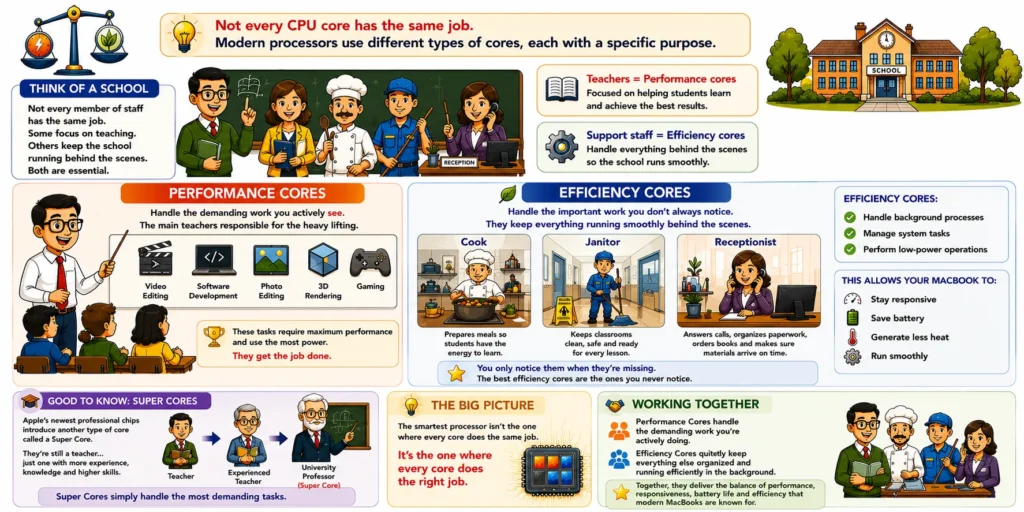
Not every CPU core has the same job.
Modern processors are designed with two different types of CPU cores, each with a specific purpose.
💡 Simple Way to Understand It
Think about a school.
Not every member of staff has the same job.
Some focus on teaching.
Others quietly keep the school running behind the scenes.
Both are essential.
They simply have different responsibilities.
Teachers are responsible for helping students learn and achieve the best possible results.
👉 This is the main purpose of being at school — learning, working, and getting results.
👉 We can think of these as Performance cores.
But that’s not the whole picture…
👉 There are also Efficiency cores.
🚀 Performance Cores
Performance cores handle the demanding work you actively see.
They’re designed for tasks that require maximum performance, such as:
- Video editing
- Software development
- Professional photo editing
- 3D rendering
- Gaming
Think of Performance cores as the main teachers in a school, each responsible for teaching the most demanding subjects.
👉 They’re responsible for the heavy lifting.
🔋 Efficiency Cores
Performance cores may do the heavy lifting…
But they aren’t the only people keeping the school running.
Think about everything that happens at a school outside the classroom.
👨🍳 The cook prepares meals so students have the energy to learn.
🧹 The janitor keeps the classrooms clean, safe, and ready for every lesson.
👩💼 The receptionist answers calls, welcomes visitors, organizes paperwork, orders new books, and makes sure teaching materials arrive before they’re needed.
👉 As a student, you probably don’t think much about these people while you’re sitting in class.
You simply expect the classrooms to be clean.
You expect lunch to be ready.
You expect your books and learning materials to already be waiting for you.
Everything just… works.
Efficiency cores work exactly the same way.
They quietly handle:
- Background processes
- System tasks
- Low-power operations
This allows your MacBook to:
- Stay responsive
- Save battery
- Generate less heat
- Keep everything running smoothly behind the scenes
Nobody walks into school and thinks:
“Wow… the floors are clean today.”
But…
If they weren’t…
Everyone would notice.
The best Efficiency cores are the ones you never notice.
You only notice them when they’re missing.
That’s the entire point of Efficiency cores.
💡 Good to Know
Apple’s newest professional chips introduce another type of CPU core called a Super Core.
Think about a teacher starting their career.
Over the years, they continue their studies, gain valuable experience and become highly skilled at what they do.
Eventually, they earn a position at a university, where they teach the same subjects—but at a much higher level.
👉 They’re still a teacher.
They’ve simply become a more capable one.
Apple’s newer chips work in much the same way.
👉 Super Cores simply handle the most demanding tasks.
💥 The smartest processor isn’t the one where every core does the same job.
It’s the one where every core does the right job.
🤝 Working Together
💥 The real advantage isn’t having one type of CPU core.
It’s having both.
Performance Cores handle the demanding work you’re actively doing.
Efficiency Cores quietly keep everything else organized and running efficiently in the background.
Together, they deliver the balance of performance, responsiveness, battery life and efficiency that modern MacBooks are known for.
🍏 Why Does the MacBook Neo Use an A18 Pro?
You may have noticed that the first chip in the table isn’t an M-series chip.
It’s called the A18 Pro.
At first, that might seem a little confusing.
After all…
Aren’t A-series chips used in iPhones?
The answer is yes.
But Apple didn’t build the MacBook Neo by starting from scratch.
Instead, it used the same Apple Silicon technology you’ve already learned about throughout this guide.
The CPU still coordinates the work inside your MacBook.
The GPU still creates the graphics.
The Neural Engine still accelerates AI tasks.
👉 The way the chip works hasn’t changed.
The difference is what it was designed to do.
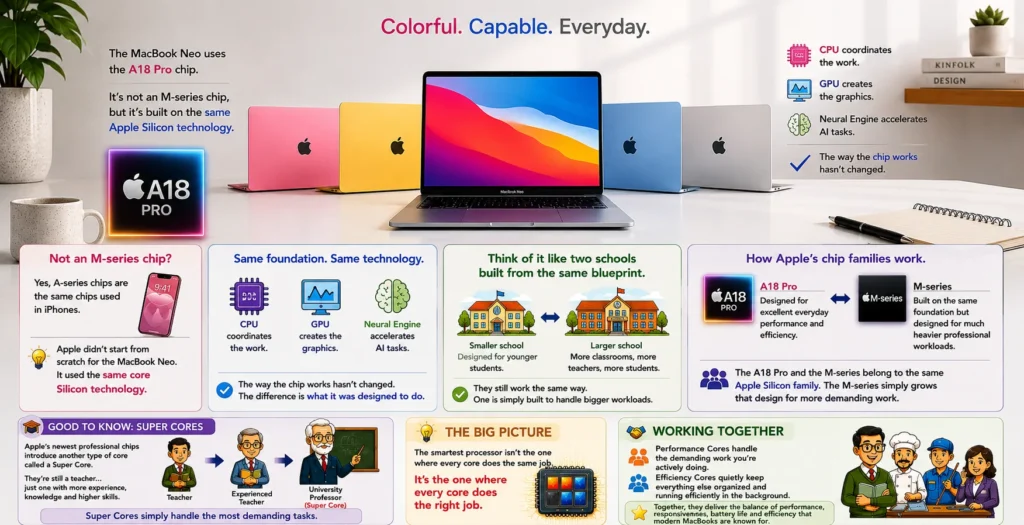
💥 Think of it like two schools built from the same blueprint.
One is designed for younger students.
The other is much larger, with more classrooms, more teachers and room for many more students.
They still work the same way.
One is simply built to handle bigger workloads.
That’s exactly how Apple’s chip families work.
The A18 Pro is designed for excellent everyday performance and efficiency.
The M-series chips build on the same foundation but are designed to handle much heavier professional workloads.
💥 The A18 Pro and the M-series belong to the same Apple Silicon family. The M-series simply grows that design for more demanding work.
💥 Whether your MacBook uses an A18 Pro or an M-series chip, the CPU still performs the same role.
💥 As Apple’s professional chips become more powerful, you’ll notice they no longer include separate Efficiency Cores. Instead, they use additional Performance Cores alongside the new Super Cores.
So, the janitor, cook, caretaker and receptionist don’t disappear.
👉 They simply get upgraded.
The table below shows how Apple’s latest chips compare.
| 🧠 Chip | ⚙️ CPU Cores | 🏗️ Core Layout | 🎯 Best For |
|---|---|---|---|
| 🍏 A18 Pro | 6 | 2 Performance 4 Efficiency | 🌐 Everyday computing 🎓 Students 💼 Office work |
| 🍃 M5 | 10 | 4 Super 6 Efficiency | ⚡ Productivity 🔄 Multitasking 🎨 Light creative work |
| 💼 M5 Pro | 15 (or 18) | 5 Super + 10 Performance or 6 Super + 12 Performance | 💻 Development 🎬 Editing 🧩 Professional software |
| 🚀 M5 Max | 18 | 6 Super 12 Performance | 🤖 AI 🎨 Creative work 🧩 3D rendering |
The CPU may coordinate the work…
But when your MacBook needs its best creative work, it calls on a specialist.
Let’s meet that specialist.
🎨 Understanding the GPU Inside Apple Silicon
Imagine the school is preparing for its annual art exhibition.
The principal calls a meeting with the Head of the Art Department.
The principal explains:
- What the exhibition is about
- What needs to be created
- When everything needs to be finished
The Head of the Art Department then decides:
- Which teachers will design the posters
- Who will create the artwork
- Who will produce the videos
- How the work will be divided across the department
👉 The principal coordinates the project.
👉 The Art Department creates it.
Could the principal paint a picture?
Of course.
But that’s not the principal’s specialty.
👉 When the school wants its best creative work, everyone turns to the Art Department.
The GPU works exactly the same way.
The CPU decides what needs to be created, then coordinates the work from start to finish.
The GPU specializes in creating it.
Inside the Art Department, every teacher has a different specialty.
🎨 Painting Teacher → Creating and editing images and graphics.
🎬 Film Teacher → Video playback, editing, and rendering.
🎮 Digital Media & Animation Teacher → Games, 3D graphics, and complex visual effects.
🎼 Music & Media Production → Some modern creative applications now use the GPU to accelerate AI-powered audio generation, music production, and audio-visual effects.
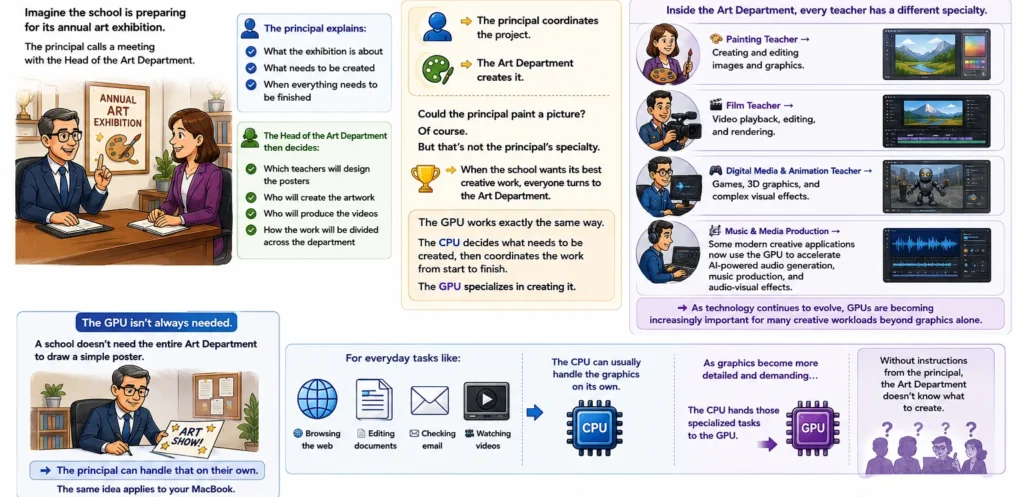
👉 As technology continues to evolve, GPUs are becoming increasingly important for many creative workloads beyond graphics alone.
💥 Anyone can draw a picture. Creating a masterpiece takes a specialist.
As graphics become more detailed and demanding, the GPU becomes increasingly important.
But here’s something many people don’t realize…
The GPU isn’t always needed.
A school doesn’t need the entire Art Department to draw a simple poster.
👉 The principal can handle that on their own.
The same idea applies to your MacBook.
For everyday tasks like:
- 🌐 Browsing the web
- 📄 Editing documents
- ✉️ Checking email
- 🎥 Watching videos
The CPU can usually handle the graphics on its own.
As graphics become more detailed and demanding…
The CPU hands those specialized tasks to the GPU.
Without instructions from the principal, the Art Department doesn’t know what to create.
👍 Easy to Remember
👉 CPU = Coordinates the work
👉 GPU = Creates the outcome
In the next section, we’ll step inside the Art Department and discover how GPU cores work together to create those graphics.
🎨 Understanding GPU Cores
The Head of the Art Department doesn’t create every project alone.
There are many teachers working together inside the department.
💡 Let’s keep it simple with one example.
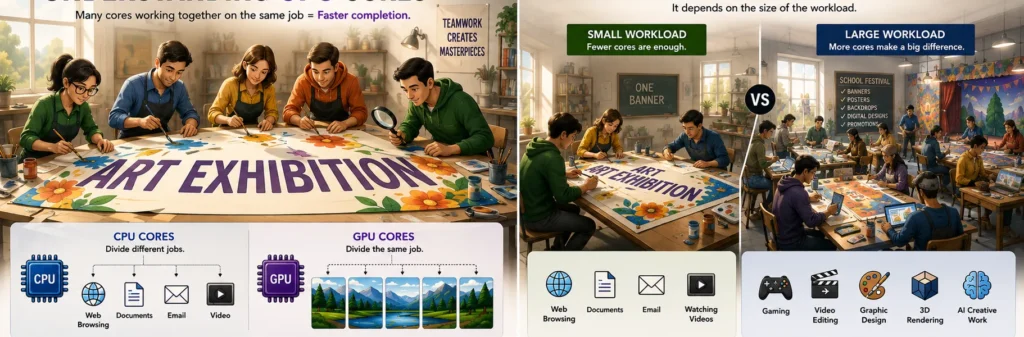
Imagine the school is creating one large banner for its annual art exhibition.
One teacher sketches the layout.
Another paints the background.
Another creates the illustrations.
Another adds the lettering.
Another checks the fine details before the banner is finished.
👉 Everyone is working on the same banner.
The more teachers working together…
The faster the banner can be completed.
The same idea applies to GPU cores.
Each GPU core works on a small part of the same graphics task.
Instead of one GPU core trying to create the entire image alone, many GPU cores work together to complete it much faster.
At first, CPU cores and GPU cores might sound like they do exactly the same thing.
The difference is subtle, but it comes down to one simple idea:
💥 CPU cores divide different jobs.
💥 GPU cores divide the same job.
That’s one of the biggest differences between a CPU and a GPU.
As graphics become more detailed and demanding, having more GPU cores allows your MacBook to complete complex visual work more quickly and efficiently.
👍 Easy to Remember
👉 CPU cores = Different jobs
👉 GPU cores = The same job, divided into smaller parts
In the next section, we’ll discover why more GPU cores don’t always mean you need a more expensive MacBook.
🤔 Do You Need More GPU Cores?
Now that you understand how GPU cores work, the next question is obvious.
Do you actually need more of them?
💡 Simple Way to Understand It
Imagine two schools preparing for the same annual art exhibition.
🟢 School A has 4 art teachers.
🔵 School B has 12 art teachers.
Both schools need to create one banner for the entrance.
Will the larger Art Department finish noticeably faster?
Probably not.
There simply isn’t enough work for twelve teachers.
Now imagine both schools are preparing for a huge school festival.
They need to create:
- Large banners
- Posters
- Stage backdrops
- Digital presentations
- Promotional artwork
Now the larger Art Department has a clear advantage.
With more teachers working together, each teacher has less work to do, allowing the entire project to be finished much faster.
The same idea applies to GPU cores.
For simple graphics tasks, a small number of GPU cores is often more than enough.
As graphics become larger, more detailed, and more demanding, additional GPU cores allow the work to be divided across more cores and completed more quickly.
💥 A powerful GPU doesn’t matter if your work never uses it.
At first, it might seem like more GPU cores always mean better performance.
The reality is much simpler.
💥 More GPU cores don’t make every task faster.
They help when there’s more work to divide.
If there isn’t much work to divide…
Extra GPU cores don’t have much to do.
That’s why everyday tasks such as:
- 🌐 Web browsing
- 📄 Editing documents
- ✉️ Checking email
- 🎥 Watching videos
rarely benefit from having a large number of GPU cores.
On the other hand, demanding workloads such as:
- 🎮 Gaming
- 🎬 Video editing
- 🎨 Graphic design
- 🧩 3D rendering
- 🤖 AI-assisted creative work
create much more work for the GPU to divide, allowing additional GPU cores to make a noticeable difference.
👍 Easy to Remember
👉 Small graphics workload = Fewer GPU cores are enough.
👉 Large graphics workload = More GPU cores become valuable.
In the next section, we’ll compare the GPU core differences between Apple’s M-series chips and see how those extra GPU cores translate into real-world performance.
📊 GPU Core Differences Between Apple M-Series Chips
Now that you understand how GPU cores work, let’s see how Apple uses them across different MacBooks.
Apple doesn’t dramatically increase graphics performance by making each GPU core much faster.
Instead, it primarily improves graphics performance by adding more GPU cores.
As you move from the base M-series chip to the Pro and Max versions, Apple increases the number of GPU cores available to share demanding graphics workloads.
👉 More GPU cores = More graphics work can be divided and completed at the same time.
Just like the Art Department, having more teachers doesn’t automatically improve every project.
It simply allows larger and more demanding projects to be completed more efficiently.
💥 More GPU cores allow bigger graphics workloads to be completed faster.
The table below shows how GPU core counts increase across Apple’s M-series chip lineup.
| 🧠 Chip | 🎨 GPU Cores | 🖥️ Ideal Workloads |
|---|---|---|
| 🍏 A18 Pro | 5 |
Everyday computing Students Streaming & light creative work |
| 🍃 M5 | 10 |
Everyday productivity Photo editing Light creative work |
| 💼 M5 Pro | 16–20 |
Professional photo editing Software development Video editing Moderate gaming |
| 🚀 M5 Max | 32–40 |
Professional video editing 3D rendering Advanced creative workflows AI workloads Demanding gaming |
Looking at the table, it’s easy to assume that the MacBook with the most GPU cores is automatically the best choice.
But now you know that’s not the full story.
If your workload doesn’t create much graphics work to divide…
Those extra GPU cores simply spend more time waiting.
As your graphics workload becomes larger and more demanding…
The additional GPU cores in the Pro and Max chips become increasingly valuable.
👍 Easy to Remember
👉 Base chip = Enough GPU power for most people.
👉 Pro chip = More GPU cores for heavier creative work.
👉 Max chip = Maximum GPU performance for the most demanding workloads.
The CPU coordinates the work.
The GPU creates the outcome.
But modern MacBooks have another specialist that’s becoming more important every year.
🤖 Understanding the Neural Engine (NPU)
Artificial intelligence is no longer something we only see in science fiction.
It’s already helping millions of people every single day.
You might already use AI to:
- 📝 Summarize information
- 🌐 Translate text
- 🖼️ Generate images
- 📚 Help with homework or research
- 💡 Organize ideas
- 🔍 Find answers more quickly
👉 AI isn’t something that’s coming in the future.
It’s already part of everyday life.
If AI has become part of everyday life…
How does your MacBook keep up with AI so efficiently?
💡 Think of it as the school’s AI assistant.
Not a teacher.
Not a student.
Not the principal.
👉 A new AI assistant the school recently introduced.
The principal can still organize the school.
Teachers can still teach their classes.
Students can still research assignments on their own.
The school functions perfectly without the AI assistant.
But certain tasks become much faster and more efficient when it helps.
For example:
- 🌐 Translating documents
- 📝 Summarizing lessons
- 🎤 Transcribing meetings
- 🔍 Helping students find information more quickly
The same idea applies to your MacBook.
The CPU and GPU can perform AI tasks.
The AI assistant simply helps them complete AI-related tasks more efficiently.
💡 Think of it like the turbocharger in a car.
The turbo doesn’t replace the engine.
It simply accelerates what the engine is already doing, making it more efficient.
The Neural Engine works in much the same way.
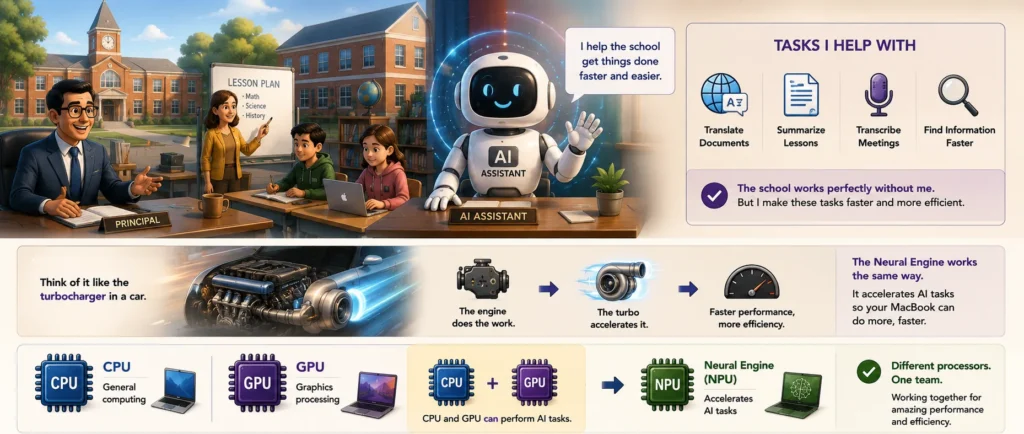
💥 The NPU doesn’t exist to replace the CPU or GPU.
It exists to assist them.
Apple calls this AI processor the Neural Engine.
More generally, it’s known as an NPU, which stands for Neural Processing Unit.
They are simply two names for the same component.
You’ll often see both names when comparing laptops.
👉 Understanding what it does is far more important than memorizing what it’s called.
👍 Easy to Remember
👉 CPU = General computing
👉 GPU = Graphics processing
👉 CPU and GPU can perform AI tasks.
👉 The Neural Engine (NPU) accelerates those tasks.
We’ve now met every major processor inside Apple Silicon.
They all work together to deliver the performance and efficiency MacBooks are known for.
But there’s one challenge they all share…
They generate heat.
That’s where keeping Apple Silicon cool becomes just as important.
❄️ Keeping Apple Silicon Cool
We’ve now met every major processor inside Apple Silicon.
The CPU coordinates the work.
The GPU creates graphics.
The Neural Engine helps accelerate AI tasks.
But they all have one thing in common…
👉 The harder they work, the more heat they produce.
💡 Simple Way to Understand It
Think about two people exercising.
🚶 A person walking
🏃 A person running a marathon
Who generates more heat?
The marathon runner.
The harder your body works…
The more heat it produces.
👉 Apple Silicon works in much the same way.
The harder your MacBook works…
The more heat it generates.
💥 Short tasks are easy.
Keeping that performance over time is the real challenge.
🌡️ Why Cooling Matters
Now imagine sitting in a classroom on a hot summer afternoon.
The room becomes warm and stuffy.
Everyone starts feeling tired.
You can still think…
But it’s much harder to concentrate.
🍃 MacBook Air (Passive Cooling)
The teacher takes the students outside into the shade, where a cool breeze provides natural airflow while the classroom cools down.
👉 Just like the MacBook Air, this relies on natural cooling.
There are no fans helping to remove the heat.
❄️ MacBook Pro (Active Cooling)
The teacher switches on the air conditioning.
The classroom cools much more quickly, allowing everyone to stay comfortable and maintain their concentration.
👉 Just like the MacBook Pro, active cooling removes heat more effectively, helping the system maintain performance during longer, more demanding workloads.
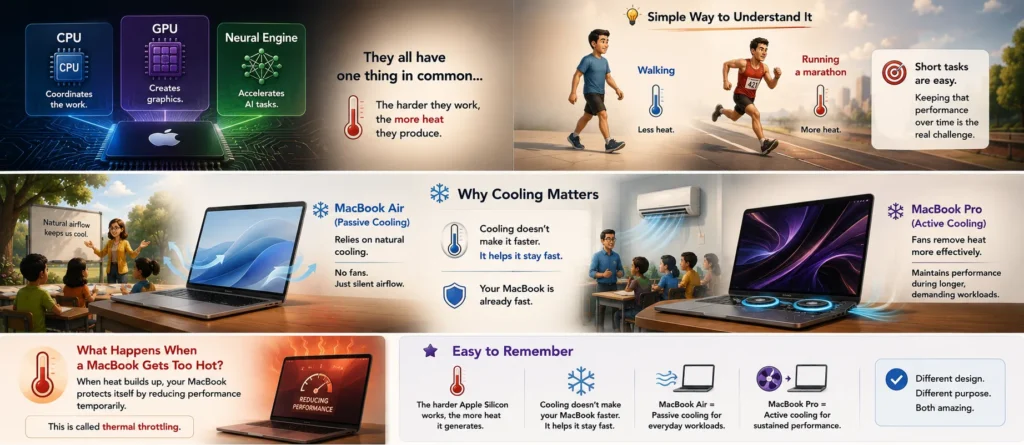
💥 Your MacBook is already fast.
Cooling doesn’t make it faster.
It simply helps it stay fast.
💥 The MacBook Air wasn’t designed for marathon workloads.
The MacBook Pro was.
🔥 What Happens When a MacBook Gets Too Hot?
If your MacBook continues generating more heat than it can remove, it protects itself by temporarily reducing performance.
This is called thermal throttling.
👉 Thermal throttling simply means your MacBook slows itself down to prevent overheating.
It’s a normal safety feature built into modern computers.
👍 Easy to Remember
👉 The harder Apple Silicon works, the more heat it generates.
👉 Cooling doesn’t make your MacBook faster. It helps it stay fast.
👉 MacBook Air = Passive cooling for everyday workloads.
👉 MacBook Pro = Active cooling for sustained performance.
That doesn’t make one MacBook better than the other.
They were simply designed for different types of work.
Once the CPU, GPU, and Neural Engine have done their part, you might want to revisit your work later. But for that, all of that work needs to be stored somewhere.
That’s where storage comes in.
💾 Understanding Storage Inside Your MacBook
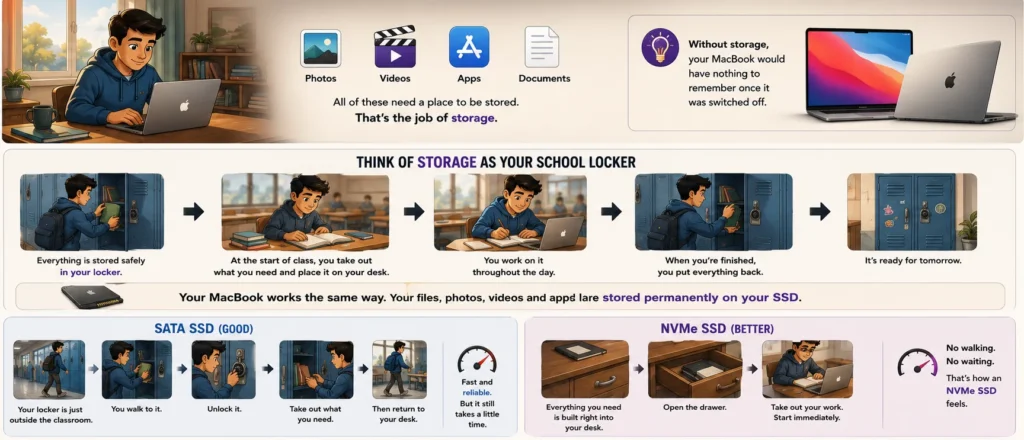
Every photo…
Every video…
Every app you install…
Every document you save…
has to be stored somewhere.
👉 That’s the job of storage.
Without it, your MacBook would have nothing to remember once it was switched off.
💡 Think of Storage as Your School Locker
Imagine arriving at school each morning.
Your books…
Projects…
Homework…
Stationery…
are all safely stored inside your locker.
That’s where everything is kept when you’re not using it.
At the start of the lesson, you take out the books you need and place them on your desk.
You work on them throughout the day.
When you’re finished…
You put everything back into your locker so it’s ready for tomorrow.
👉 Your MacBook works in much the same way.
Your files, photos, videos and applications are stored permanently on your SSD.
⚡ Why Some Storage Feels Faster Than Others
Not all storage is equally easy to access.
Think about these two situations.
🔵 SATA SSD
Imagine your locker is just outside the classroom.
When you need a book…
You walk to your locker…
Unlock it…
Take out what you need…
Then return to your desk.
It’s much quicker than walking across the school…
But it still takes a little time.
👉 That’s similar to how a SATA SSD works.
It’s fast, reliable, and much quicker than older storage technologies.
🟣 NVMe SSD
Now imagine something even better.
Instead of walking to your locker…
Everything you need is stored inside a drawer built directly into your desk.
Open the drawer.
Take out your work.
Start immediately.
No walking.
No waiting.
👉 That’s how an NVMe SSD feels.
The storage is able to communicate with the rest of the system much more efficiently, which is one of the reasons modern MacBooks feel so responsive.
💥 Fast storage doesn’t make your MacBook think faster.
💥 It simply helps your MacBook spend less time waiting.
That’s why modern MacBooks:
- 🚀 Start up in seconds
- ⚡ Open apps almost instantly
- 🎬 Handle large files much more smoothly
- 📂 Feel fast and responsive throughout the day
Modern MacBooks use high-speed NVMe SSD storage, which is one of the reasons they feel so quick in everyday use.
💾 How Much Storage Do You Need?
Storage determines how much you can keep on your MacBook.
Think of it like the size of your school locker.
A larger locker doesn’t help you learn faster…
It simply gives you more room to store your books, projects and equipment.
The same is true for your MacBook.
🟡 256GB
A good choice if you:
- ☁️ Store most of your files in the cloud
- 🌐 Mainly browse the web
- 📝 Do light everyday work
🔵 512GB
A better long-term choice if you:
- 📸 Store lots of photos or videos
- 💻 Install larger applications
- ✈️ Work offline regularly
- 📁 Want more room as your files grow over time
For most people…
👉 512GB is the more comfortable starting point.
💥 The best storage isn’t the largest drive. It’s the one that gives you enough space without paying for capacity you’ll never use.
👍 Easy to Remember
👉 Storage is your MacBook’s permanent filing cabinet.
👉 Modern MacBooks use high-speed NVMe SSD storage.
👉 Fast storage doesn’t make your MacBook think faster. It helps it spend less time waiting.
👉 More storage gives you more space—not more performance.
Your files are safely stored on your SSD…
That’s where they stay until you need them.
🪑 Understanding Unified Memory
Remember our school locker?
Every morning, you took out the books and projects you needed for class.
But where did you actually use them?
👉 On your desk.
That’s exactly how your MacBook works.
Your files are stored permanently on the SSD.
When you open them, they are brought into Unified Memory, where the work actually happens.
💥 Think of Unified Memory as the shared workspace where the CPU, GPU and Neural Engine all work together.
💡 Why Is It Called “Unified” Memory?
Apple didn’t choose the name by accident.
Imagine the school has one office.
Inside that office sit:
🧠 The Principal (CPU)
🎨 The Head of the Art Department (GPU)
🤖 The AI Assistant (Neural Engine)
Instead of each having their own office, they all sit together around the same table.
They share the same desk.
They use the same books.
They work on the same projects.
If the Principal needs help from the Art Department, he doesn’t need to make a phone call or walk across the school.
He simply turns to the person sitting next to him.
The same is true for the AI Assistant.
Everyone is working together in the same place, using the same materials.
👉 That’s exactly how Apple Silicon is designed.

The CPU, GPU and Neural Engine all share the same pool of Unified Memory instead of using separate memory areas.
💥 Apple didn’t just unify the memory.
It unified the entire workplace.
⚡ Why This Matters
Because everyone is already working together…
Information doesn’t need to be copied from one place to another.
The CPU can immediately access what the GPU is working on.
The GPU can immediately use information prepared by the CPU.
The Neural Engine can access the same data without waiting for someone else to pass it across.
The result is:
- ⚡ Faster communication between components
- 🔄 Less unnecessary copying of data
- 🔋 Better power efficiency
- 🚀 A smoother overall experience
Unlike many traditional computers that use separate graphics memory (VRAM), Apple Silicon allows the CPU, GPU and Neural Engine to share the same Unified Memory pool.
📏 How Much Unified Memory Do You Need?
Think back to the shared desk.
A small desk quickly becomes crowded.
Books start piling up.
There isn’t enough room for everyone to work comfortably.
A larger desk gives everyone more space to spread out.
The work becomes smoother…
Not because anyone became smarter…
But because everyone has enough room to work efficiently.
💥 A bigger desk doesn’t make your MacBook faster.
It lets your MacBook work on more things at the same time.
🟡 16GB Unified Memory
A great choice for most people.
Perfect for:
- 🌐 Browsing
- 📝 Productivity
- 📸 Photo editing
- 💻 Coding
- 🎬 Light video editing
- 🔄 Everyday multitasking
For most buyers…
👉 16GB is the new realistic starting point.
🔵 24GB–36GB+
Designed for heavier workloads such as:
- 🎬 Professional video editing
- 🧩 3D rendering
- 🎨 Large creative projects
- 🎵 Music production
- 🤖 AI workloads
- 🔄 Heavy multitasking
The extra memory gives the CPU, GPU and Neural Engine more room to work together without competing for space.
💥 The best amount of memory isn’t the most you can buy. It’s the amount that lets you work without limitations.
💥 Storage determines how much you can keep.
💥 Unified Memory determines how much you can comfortably do at once.
Storage can always be expanded later using an external 💾 SSD or ☁️ cloud storage.
Unified Memory cannot be upgraded after purchase, so it’s important to choose enough when you buy your MacBook.
💥 If your budget only allows one upgrade, prioritize more Unified Memory before buying more storage.
🔄 What Happens When Unified Memory Becomes Full?
Now imagine the shared desk is completely full.
You still need another book.
Where do you put it?
Fortunately…
Your desk has a built-in drawer.
Some of the books you’re not using right now are temporarily placed inside the drawer to make room on the desk.
Later…
If you need one of those books again…
You simply open the drawer, swap the books around, and continue working.
👉 Your MacBook behaves in much the same way.
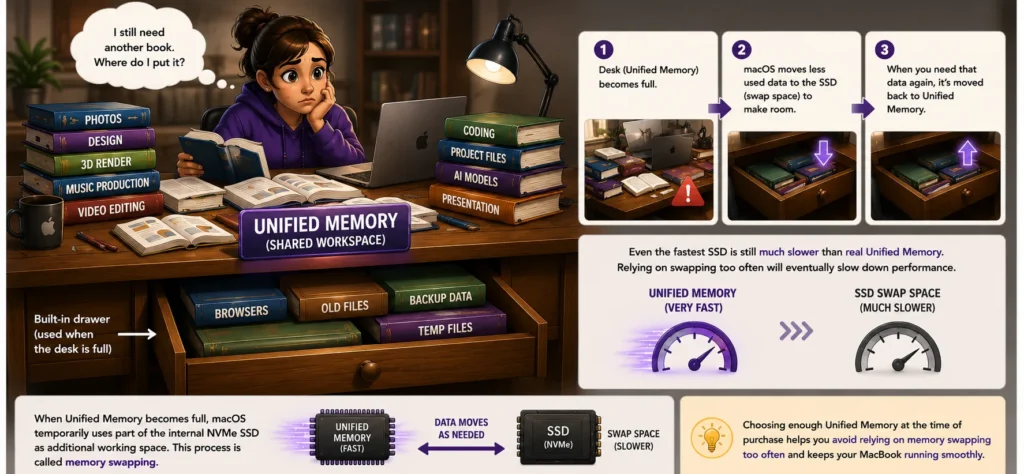
When Unified Memory becomes full, macOS temporarily uses part of the internal NVMe SSD as additional working space.
This process is called memory swapping.
Because modern MacBooks use extremely fast NVMe SSD storage, this often happens so smoothly that you never notice it during lighter workloads.
However…
💥 Even the fastest SSD is still much slower than real Unified Memory.
If your MacBook has to rely on memory swapping too often, performance will eventually begin to slow down.
That’s one of the reasons choosing enough Unified Memory at the time of purchase is so important.
👍 Easy to Remember
👉 Storage is where your files are permanently saved.
👉 Unified Memory is where your MacBook actively works on those files.
👉 The CPU, GPU and Neural Engine all share the same Unified Memory.
👉 A bigger desk doesn’t make your MacBook faster. It lets it work on more things at once.
👉 Apple didn’t just unify the memory. It unified the entire workplace.
🔋 Understanding MacBook Battery Life
Throughout this guide, we’ve explored how the CPU, GPU, Neural Engine, Cooling, Storage and Unified Memory all work together.
That isn’t an accident—it’s intentional design.
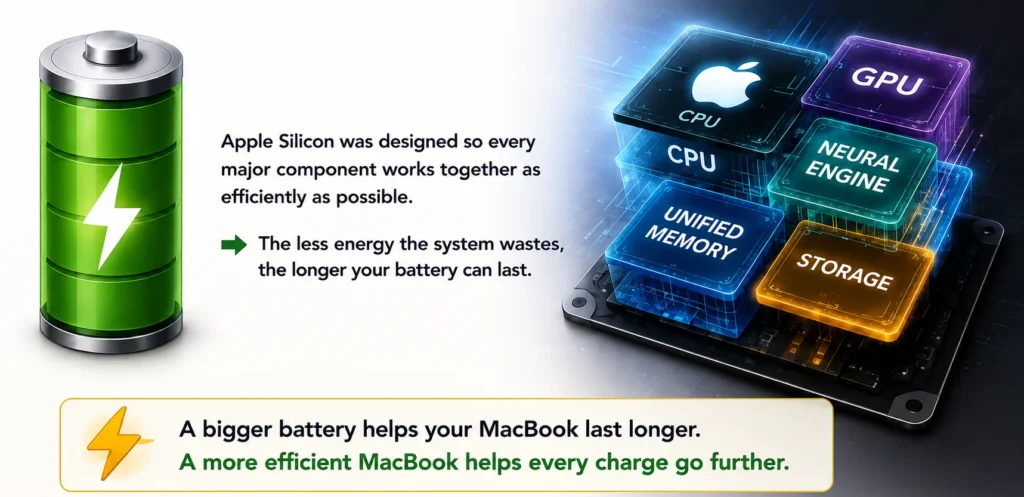
Apple Silicon was designed so every major component works together as efficiently as possible.
👉 The less energy the system wastes, the longer your battery can last.
That’s one of the biggest reasons MacBooks often deliver much longer battery life than many traditional laptops.
💥 A bigger battery helps your MacBook last longer.
A more efficient MacBook helps every charge go further.
🚗 Why Battery Life Isn’t Just About Battery Size
Imagine two cars.
🚗 One is built for fuel efficiency.
🏎️ The other is built for maximum performance.
Both have a full tank of fuel.
If you drive them the same way, the fuel-efficient car will usually travel further.
Not because it has a bigger fuel tank…
But because it uses less fuel.
💥 A bigger fuel tank helps a car travel further.
A more efficient engine helps every drop of fuel go further.
👉 Your MacBook works in much the same way.
Apple Silicon is designed to complete everyday tasks using as little power as possible.
The less energy it wastes…
The longer the battery lasts.
💡 Let’s Return to Our School
So far we’ve learned:
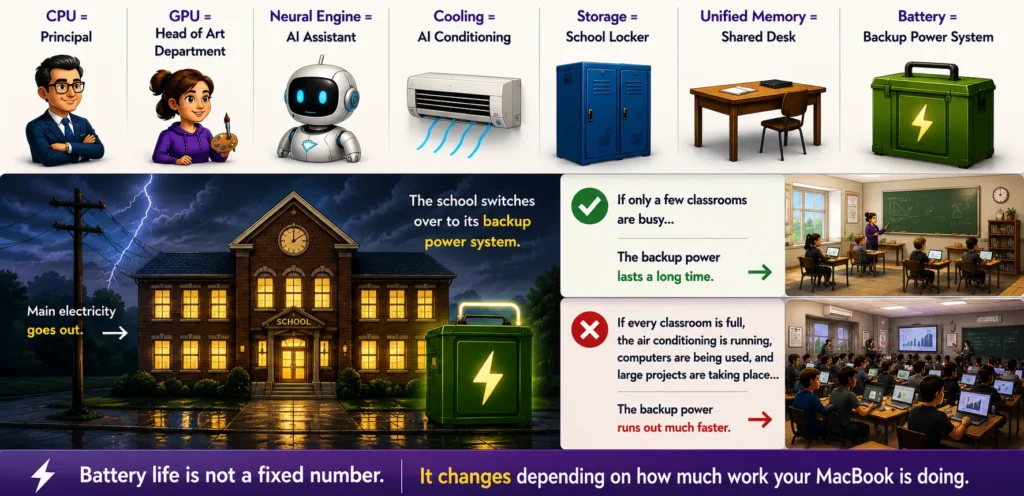
🧠 CPU = Principal
🎨 GPU = Head of the Art Department
🤖 Neural Engine = AI Assistant
🌡️ Cooling = Air Conditioning
💾 Storage = School Locker
🪑 Unified Memory = Shared Desk
🔋 Battery = The School’s Backup Power System
Imagine the school’s main electricity goes out.
The school doesn’t stop working.
It switches over to its backup power system.
How long that backup power lasts depends on how much energy the school is using.
If only a few classrooms are busy…
The backup power lasts a long time.
If every classroom is full, the air conditioning is running, computers are being used, and large school projects are taking place…
The backup power runs out much faster.
👉 Your MacBook works exactly the same way.
💥 Battery life is not a fixed number.
It changes depending on how much work your MacBook is doing.
⚙️ What Uses Battery Power?
Every component inside your MacBook uses energy.
Some use very little.
Others use much more when they’re working hard.
For example:
🧠 CPU
Uses very little power during light tasks but more during demanding workloads.
🎮 GPU
Uses more energy when creating complex graphics, editing videos or playing games.
🤖 Neural Engine
Accelerates AI tasks efficiently, reducing the workload on the CPU and GPU.
🌡️ Display
Higher brightness levels and more demanding display technologies require more power.
🌬️ Cooling
The MacBook Pro’s active cooling system also uses additional energy to maintain higher sustained performance.
💥 The harder your MacBook works…
The more energy it uses.
That’s just logical.
🍏 MacBook Neo
Prioritizes everyday efficiency and outstanding value.
🍃 MacBook Air
Balances portability, performance and exceptional battery life.
💼 MacBook Pro
Prioritizes sustained professional performance, which naturally requires more energy.
🍏🍃💼 Why Battery Life Differs Between MacBook Models
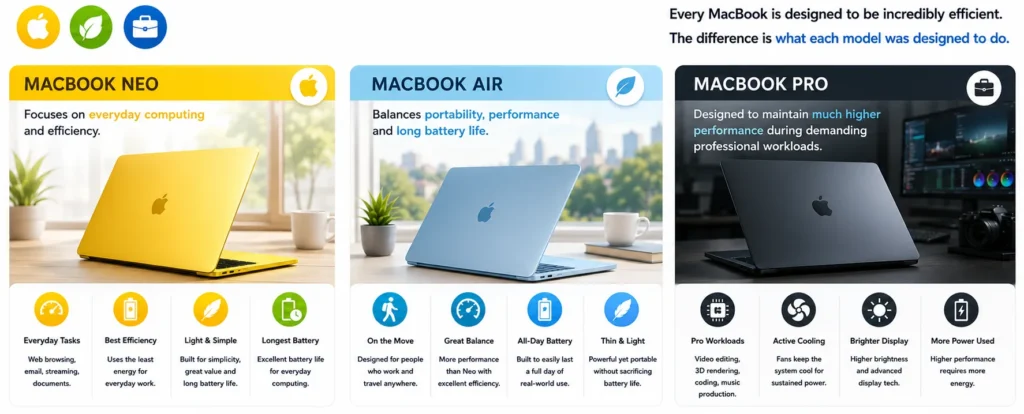
Every MacBook is designed to be incredibly efficient.
The difference is what each model was designed to do.
The MacBook Neo focuses on everyday computing and efficiency.
The MacBook Air balances portability, performance and long battery life.
The MacBook Pro is designed to maintain much higher performance during demanding professional workloads using more powerful chips, brighter displays and active cooling.
That extra performance also requires more energy.
MacBook Neo isn’t “cheap.”
MacBook Air isn’t “better.”
MacBook Pro isn’t “the only good choice.”
💥 They’re all incredibly efficient. They were simply designed for different types of work.
🔋 Apple’s Official Battery Estimates
Apple measures battery life under controlled testing conditions using activities such as video playback and wireless web browsing.
These figures are best used to compare MacBook models rather than predict exactly how long your battery will last.
| 💻 Model | 📏 Size | 📺 Video Playback | 🌐 Wireless Web | 🎯 Best For |
|---|---|---|---|---|
| 🍏 MacBook Neo | 13″ | Up to 16 hours | Up to 11 hours | 🌐 Everyday computing 🎓 Students 🏠 Everyday use |
| 🍃 MacBook Air | 13″ / 15″ | Up to 18 hours | Up to 15 hours | ✈️ Travel 💼 Business ⚡ Everyday productivity |
| 💼 MacBook Pro | 14″ / 16″ | Up to 24 hours | Up to 16 hours | 🎬 Professional work 🎨 Creators 🚀 Power users |
Your actual battery life will vary depending on:
- 🔆 Screen brightness
- 🌐 Network usage
- 🎬 The apps you’re using
- 🔄 Background tasks
- ⚙️ How hard the CPU, GPU and Neural Engine are working
💥 The best battery isn’t the one that lasts the longest. It’s the one that lasts as long as you need it to.
👍 Easy to Remember
👉 A bigger battery helps your MacBook last longer.
👉 A more efficient MacBook helps every charge go further.
👉 Battery life is not a fixed number. It changes with your workload.
👉 The harder your MacBook works, the more energy it uses.
👉 MacBook Neo is designed for everyday essentials and outstanding value.
👉 MacBook Air is designed for portability.
👉 MacBook Pro is designed for sustained performance.
💥 Now that you understand how your MacBook works on the inside…
Let’s see how it connects to the world around it.
🔌 Understanding MacBook Ports
After learning how your MacBook works on the inside, the next step is understanding how it connects to everything outside of it.
That’s where ports come in.
💥 Ports don’t change what’s inside your MacBook.
They determine how the outside world interacts with it.
🚪 Think of Ports as the School’s Gates
Let’s return to our school.
So far we’ve learned:
🧠 CPU = Principal
🎨 GPU = Head of the Art Department
🤖 Neural Engine = AI Assistant
🪑 Unified Memory = Shared Desk
💾 Storage = School Locker
🌡️ Cooling = Air Conditioning
🔋 Battery = Backup Power System
🔌 Ports = The School’s Gates
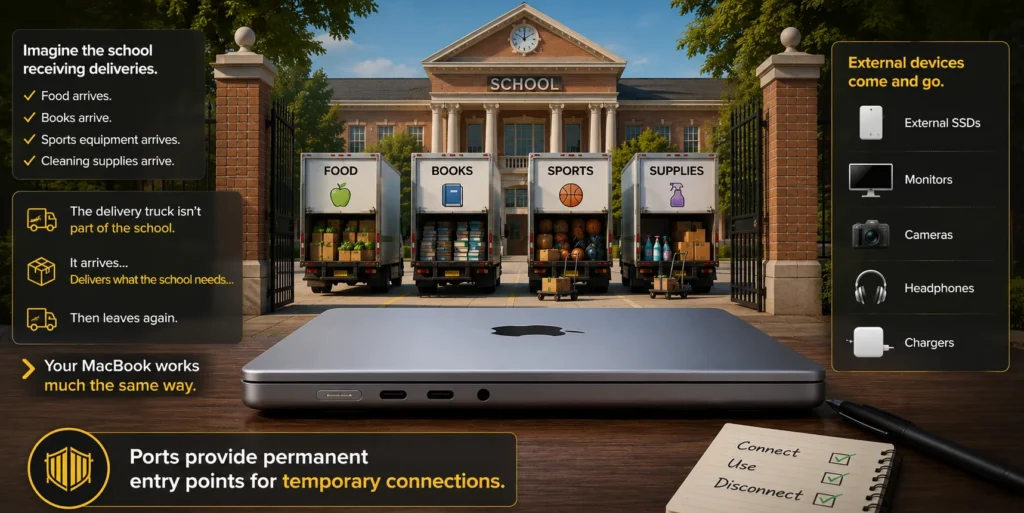
Imagine the school receiving deliveries.
Food arrives.
Books arrive.
Sports equipment arrives.
Cleaning supplies arrive.
The delivery truck isn’t part of the school.
It arrives…
Delivers what the school needs…
Then leaves again.
👉 Your MacBook works much the same way.
External SSDs…
Monitors…
Cameras…
Headphones…
Chargers…
They connect when you need them and disconnect when you’re finished.
💥 Ports provide permanent entry points for temporary connections.
⚙️ Why Do Ports Matter?
Ports don’t affect your MacBook’s performance directly.
But they do affect:
- 🔌 Convenience
- 🖥️ Your workspace
- ⚡ Daily usability
- 🔄 Your workflow
Two MacBooks can have similar performance…
Yet feel completely different to use because of the ports they include.
💥 The right ports are better than the most ports.
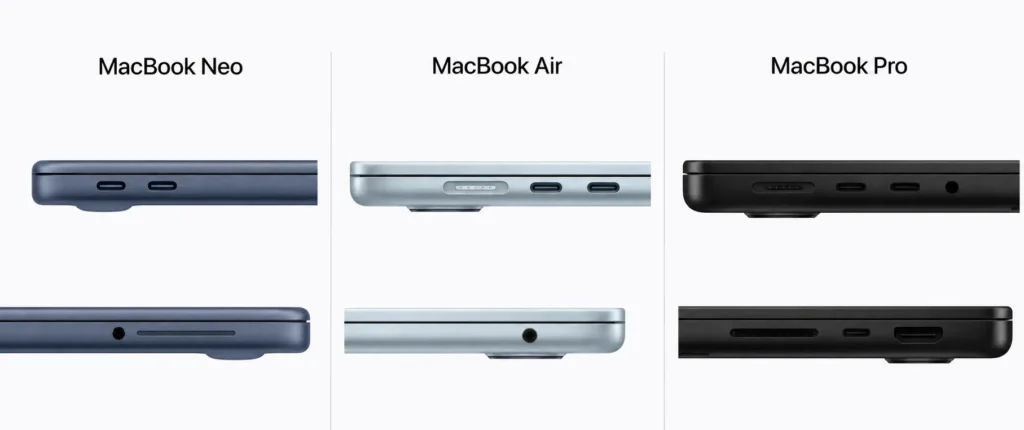
🔌 The Main Ports on a MacBook
⚡ Thunderbolt (USB-C)
Modern MacBooks primarily use Thunderbolt through USB-C ports.
Although it looks like a regular USB-C connector, Thunderbolt is much more capable.
It can:
- ⚡ Transfer data at extremely high speeds
- 🖥️ Connect external displays
- 🔋 Charge your MacBook
- 💾 Connect high-speed external storage
- 🧩 Connect docking stations using a single cable
💥 Thunderbolt isn’t just one connection.
It’s designed to do the work of several connections.
🔌 MagSafe
MagSafe is Apple’s dedicated magnetic charging connector.
Instead of plugging directly into a USB-C port, the magnetic connector snaps into place and safely disconnects if someone accidentally pulls on the cable.
This helps protect both the charging cable and your MacBook.
🖥️ HDMI
Available on MacBook Pro models.
HDMI lets you connect directly to:
- External monitors
- TVs
- Projectors
without needing an adapter.
📷 SDXC Card Slot
Also available on MacBook Pro models.
Perfect for photographers and content creators who regularly transfer photos and videos from cameras.
🎧 3.5 mm Headphone Jack
Available across the MacBook lineup.
Ideal for:
- Wired headphones
- Speakers
- Audio equipment
🍏🍃💼 Why Do Different MacBooks Have Different Ports?
Not everyone connects the same devices.
That’s why different MacBook models include different port selections.
🍏 MacBook Neo
Designed for simple everyday setups.
Ideal if you mostly use:
- 🔋 Charging
- 🎧 Headphones
- ⚡ Modern USB-C accessories
🍃 MacBook Air
Designed for portability.
Its streamlined selection of Thunderbolt ports keeps the design thin and lightweight while supporting most modern accessories.
Some users may occasionally need a USB-C hub or adapter for older devices.
💼 MacBook Pro
Designed for professional workflows.
Additional built-in ports reduce the need for adapters when connecting:
- 🖥️ Multiple displays
- 📷 Cameras
- 💾 External storage
- 🎥 Presentation equipment
💥 More ports don’t make a MacBook better.
Different users simply have different needs.
🧩 Do You Need a USB-C Hub or Adapter?
Not necessarily.
If your accessories already use USB-C or Thunderbolt, you may never need one.
However, if you regularly connect older USB devices, HDMI displays or other legacy accessories, a small USB-C hub or adapter can make life much easier.
Adapters aren’t a requirement.
They simply help bridge the gap between older and newer devices.
👍 Easy to Remember
👉 Ports don’t change what’s inside your MacBook.
👉 They determine how the outside world interacts with it.
👉 Ports provide permanent entry points for temporary connections.
👉 Thunderbolt is designed to do the work of several connections.
👉 The right ports are better than the most ports.
👉 More ports don’t make a MacBook better.
👉 Different users simply have different needs.
🧩 Understanding the Motherboard
Every delivery that enters the school passes through one of its gates.
Once inside…
It still has to reach the correct classroom.
💥 That’s the job of the motherboard.
🏫 Think of the Motherboard as the School Building
Throughout this guide we’ve learned about:
🧠 The Principal (CPU)
🎨 The Head of the Art Department (GPU)
🤖 The AI Assistant (Neural Engine)
🪑 The Shared Office (Unified Memory)
💾 The School Lockers (Storage)
🔋 The Backup Power System (Battery)
But where do they all exist?
👉 Inside the school building.
Your MacBook works in much the same way.
The motherboard is the main circuit board inside your MacBook.
Every major component is connected to it.
This is where Apple’s “everything works together” philosophy becomes a physical reality inside your MacBook.
Without the motherboard…
The school would still have classrooms…
But none of them could work together.
💥 The motherboard doesn’t do the work.
It gives every component one place to work together.
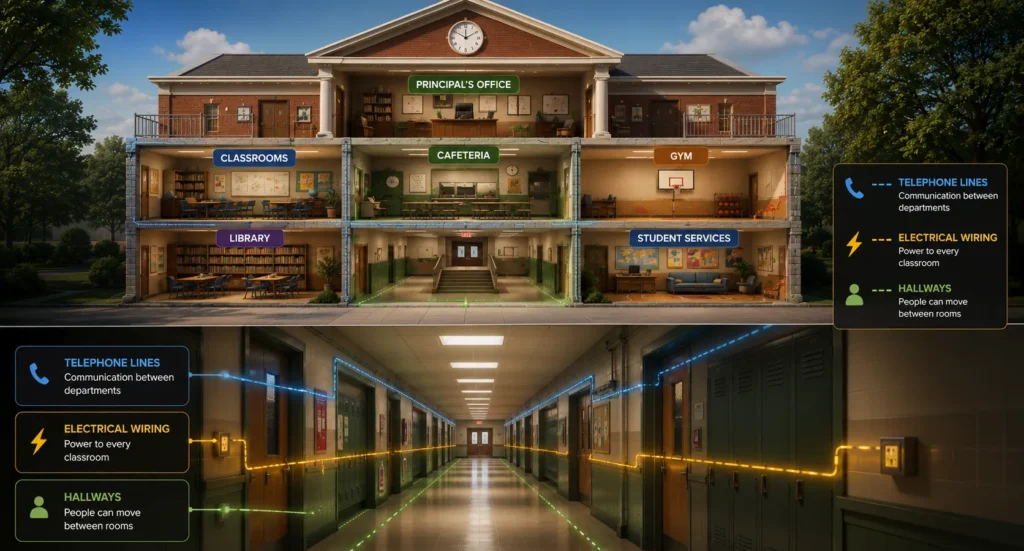
🚪 Hallways Connect Every Room
Imagine a school without hallways.
The principal couldn’t reach the teachers.
The teachers couldn’t reach the classrooms.
Students couldn’t move between lessons.
Everything would be isolated.
Inside the walls, hallways allow people to move around the school, telephone lines allow departments to communicate, and electrical wiring delivers power to every classroom.
👉 The motherboard works exactly the same way.
Just like telephone lines connect different departments within a school, the motherboard allows the CPU, GPU, Neural Engine, Storage and Unified Memory to communicate with one another.
It also distributes electricity to every component that needs power.
Without it…
Every component would simply be working on its own.
🍏 Why You Don’t Need to Worry About the Motherboard
Unlike desktop computers, you don’t choose a motherboard when buying a MacBook.
Apple has already chosen and engineered the motherboard to work perfectly with every other component inside your MacBook.
⚡ The Motherboard Does More Than Connect Components
The motherboard doesn’t just allow every component to communicate.
It also distributes electricity throughout your MacBook.
The motherboard receives electricity from the battery and delivers it to the CPU, GPU, Neural Engine, Storage, Unified Memory and every other component that needs power.
💥 The motherboard delivers the power.
The battery stores the power.
But that raises one final question…
Where does the battery get that power from?
⚡ Understanding How Your MacBook Gets Power
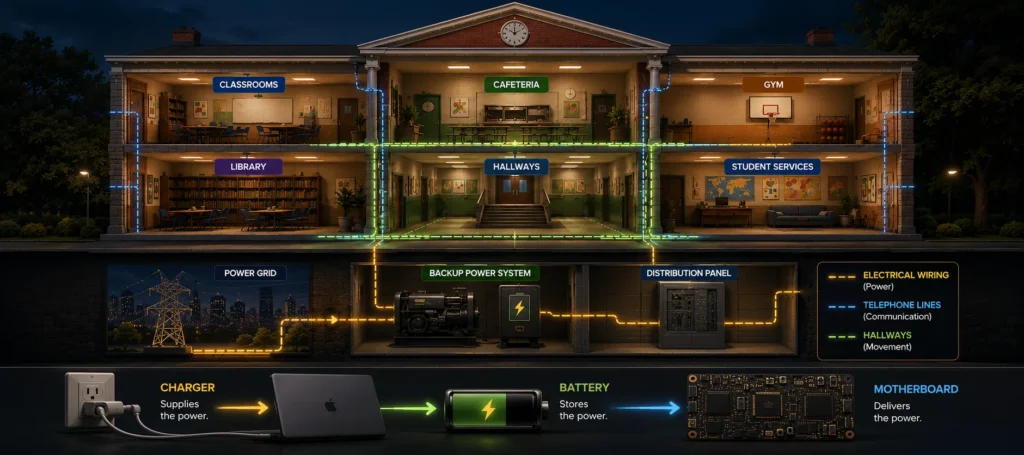
💥 The charger supplies the power.
The battery stores the power.
The motherboard delivers the power.
🏫 Think of Power as the School’s Electrical System
Let’s return to our school.
Normally…
Electricity comes from the city’s power grid.
Before electricity reaches the classrooms, it first passes through the school’s backup power system.
Why?
Because if the city’s electricity suddenly fails…
The backup power system is already part of the circuit.
The lights don’t flicker.
The computers don’t restart.
The lesson continues.
👉 Your MacBook works exactly the same way.
Remember when we learned that ports are your MacBook’s connection to the outside world?
Your charging port is simply another one of those ports.
💥 Instead of transferring data, its job is to bring electricity into your MacBook.
Just like an external SSD or monitor, your charger connects when you need it and disconnects when you don’t.
The difference is that instead of transferring data, it supplies electricity.
When your charger is plugged into the wall…
Electricity enters your MacBook through the charging port.
It first flows into the battery, where it is stored.
Just as the school’s electrical wiring delivers power to every classroom, the motherboard distributes that electricity through its electrical wiring to the CPU, GPU, Neural Engine, Unified Memory, Storage and every other component that needs power.
When you unplug the charger…
The battery doesn’t suddenly switch on.
It’s already part of the power system.
That’s why your work continues without interruption.
💡 Why Doesn’t My MacBook Turn Off When I Unplug It?
Because your MacBook isn’t switching from one power source to another.
The battery is already part of the power system.
The charger simply stops replacing the electricity being used.
💥 The charger doesn’t power your MacBook directly.
It keeps the battery charged so the battery can power your MacBook.
🍏 Why You Don’t Need to Worry About the Power System
Unlike traditional Windows desktop PCs, you don’t choose a separate power supply when buying a MacBook.
Just like the motherboard, cooling system and battery, Apple has already engineered the entire power system specifically for your MacBook.
Everything is designed to work together as one complete system.
💥 Power doesn’t make your MacBook more capable. It simply allows every other component to do its job.
💥 You now understand how every major component inside your MacBook works together—from the moment electricity enters your MacBook to the moment your work is saved.
Apple’s design philosophy is no longer just an idea—it’s something you now understand.
Now it’s time to look at the parts you’ll interact with every day.
🖥️ Display Differences Explained
By now you understand how every major component inside your MacBook works together to determine its performance.
Now let’s look at how you interact with it every day.
💥 The first thing you notice every time you open your MacBook… is the display.
Whether you’re replying to emails, writing assignments, editing photos, watching movies, or spending hours working on a project, your display is the part of your MacBook you’ll spend the most time looking at.
That’s why Apple doesn’t use the same display in every MacBook.
Different users have different needs.
Someone who mainly browses the web doesn’t need the same display as a professional photographer editing thousands of images. Likewise, a filmmaker working with HDR video has very different requirements from a student taking notes in class.
Apple designed each MacBook display for a different type of user.
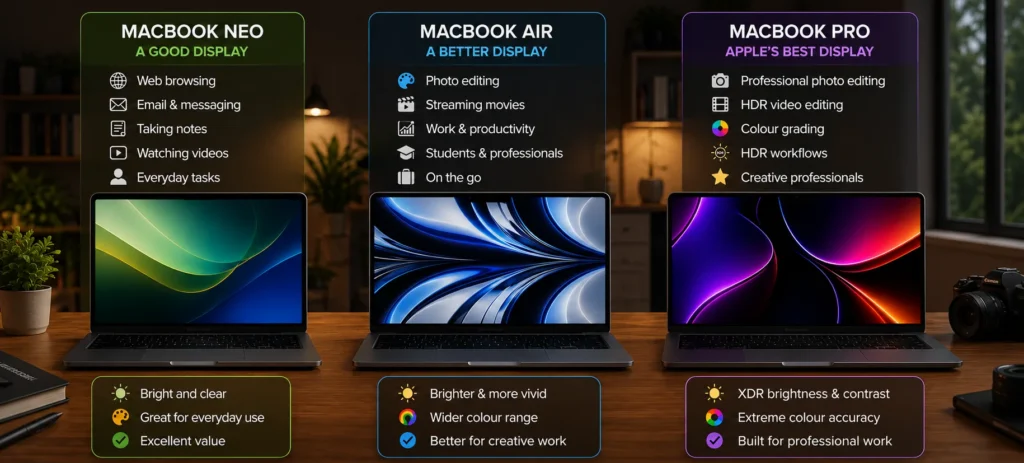
The MacBook Neo has a good display.
The MacBook Air gives you a better display.
The MacBook Pro gives you Apple’s best display.
💥 Whether you’ll benefit from those upgrades depends entirely on how you use your MacBook.
Before comparing them, let’s first translate Apple’s display terminology into plain English.
After all, names like Retina, Liquid Retina, Liquid Retina XDR, and ProMotion sound impressive—but what do they actually mean?
What Is a Retina Display?
One of the first display terms you’ll encounter when looking at a MacBook is Retina Display.
The retina is the light-sensitive layer at the back of your eye that allows you to see.
👉 Apple called it Retina because the display is so sharp that, at a normal viewing distance, your retina can’t distinguish the individual pixels.
Whether that’s true depends on how close you sit to the screen and your eyesight, but the idea behind the name is simple:
The pixels are packed so closely together that they effectively disappear during normal use.
💥 Retina isn’t a different display technology. It’s Apple’s trademark for a display that’s so sharp that individual pixels become difficult to see during normal use.
Think about looking at a newspaper.
If you hold it close enough, you can eventually see the tiny dots that make up each photograph.
Computer displays work in a similar way.
Every image, video, letter, and icon is made from millions of tiny coloured squares called pixels.
Older displays had fewer pixels packed into the same amount of space, making text appear less sharp and images look more jagged.
Apple introduced the Retina Display to solve that problem.
By packing far more pixels into the display, individual pixels effectively disappear during normal use. The result is crisp text, smoother graphics, and sharper photos that are much more comfortable to look at for long periods.

Today, many premium Windows laptops achieve a similar level of sharpness.
The difference is mostly the name.
Apple continues to use Retina as its branding, while Windows manufacturers usually describe the display by its resolution rather than giving it a marketing name.
💥 Retina isn’t about making the screen bigger. It’s about making everything on it look sharper.
✅ Key takeaway: Retina is Apple’s trademark for a display that’s sharp enough that individual pixels become difficult to see during normal use.
What Is Liquid Retina?
If Retina already means a sharp display, why do modern MacBooks use the name Liquid Retina instead?
The answer is actually quite simple.
👉 Liquid Retina is Apple’s branding for its modern high-quality LCD displays.
The displays are still Retina displays because they meet Apple’s sharpness standard.
The word Liquid doesn’t refer to liquid inside the screen.
Instead, Apple uses the name to describe its newer generation of premium LCD displays, which offer improvements such as slimmer bezels, excellent colour accuracy, high brightness, and rounded display corners that better match the MacBook’s modern design.
Today, both the MacBook Neo and MacBook Air use Liquid Retina displays.
Although they share the same branding, they’re designed for different users.
MacBook Neo: Built for Everyday Computing
The MacBook Neo’s Liquid Retina display is designed for the tasks most people perform every day.
Whether you’re browsing the web, streaming movies, attending online classes, writing documents, checking email, or managing spreadsheets, it delivers an excellent viewing experience.
It supports 1 billion colours, providing smooth colour gradients and vibrant images, while using the sRGB colour space, which is widely used for websites, office work, streaming services, and everyday digital content.
For most people, that’s more than enough.
MacBook Air: A Better Display for Productivity and Creativity
The MacBook Air builds on that same Liquid Retina foundation.
Like the Neo, it delivers exceptional sharpness and brightness.
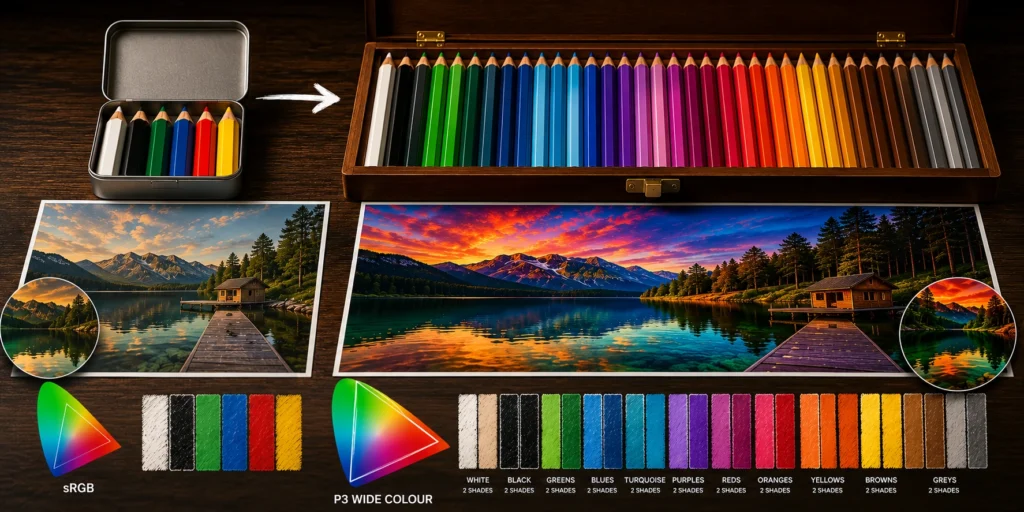
The biggest improvement is its support for P3 Wide Colour.
👉 P3 Wide Colour allows the display to reproduce a wider range of colours than the standard sRGB colour space.
That might sound technical, but the benefit is easy to understand.
Imagine comparing a small box of coloured pencils with a much larger one.
Both can draw the same picture.
One simply has more shades available.
That’s essentially what P3 does.
Photos look richer.
Videos appear more vibrant.
Design work becomes more colour accurate.
If you mainly browse the web or watch Netflix, you probably won’t notice a dramatic difference.
If you edit photos, create graphics, or produce videos, however, you’ll appreciate the extra colour accuracy.
💥 The difference isn’t how sharp the displays are. It’s what they’re designed to help you do.
✅ Key takeaway: Both the Neo and Air have excellent Liquid Retina displays, but the Air’s wider colour support makes it better suited to creative work.
What Is Liquid Retina XDR?
If the MacBook Neo and MacBook Air already have excellent Liquid Retina displays, what makes the MacBook Pro different?
The answer is Liquid Retina XDR.
👉 Liquid Retina XDR is Apple’s most advanced MacBook display, combining several technologies to deliver higher brightness, deeper contrast, and more realistic HDR content for professional creative work.
The letters XDR stand for Extreme Dynamic Range.
Think of it as Apple’s way of saying this display can show a much greater difference between the brightest and darkest parts of an image.
Instead of simply making the screen brighter, Apple redesigned how the display produces light.
That’s where mini-LED comes in.
What Is mini-LED?
Apple isn’t the only company using mini-LED displays.
👉 mini-LED is a display technology used by several manufacturers, including Apple, to improve brightness, contrast and HDR performance in premium displays.
Apple uses mini-LED in the MacBook Pro’s Liquid Retina XDR display.
Many high-end Windows laptops and professional monitors also use mini-LED technology, although they usually describe it simply as mini-LED rather than giving it a marketing name.
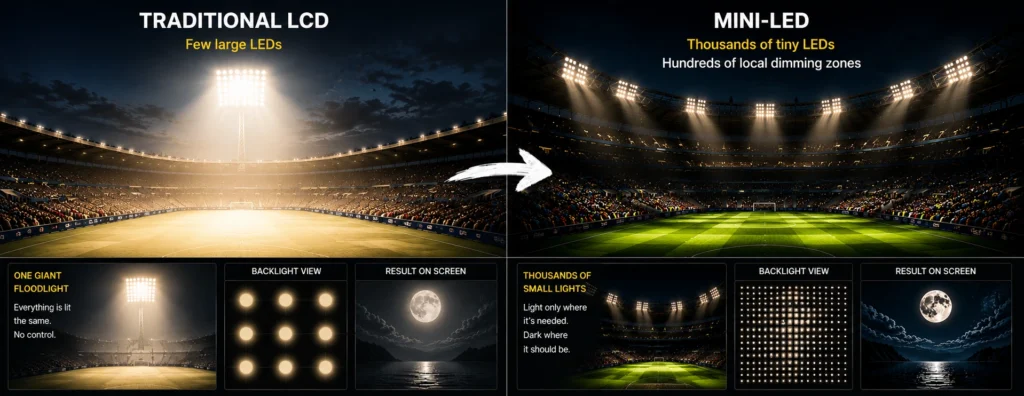
Traditional LCD displays use a relatively small number of large LEDs behind the screen to provide backlighting.
Mini-LED takes a different approach.
👉 Instead of using a few large LEDs, mini-LED uses thousands of much smaller LEDs behind the display.
Those tiny LEDs are grouped into hundreds of independently controlled dimming zones.
Imagine standing in a stadium at night.
If the entire stadium only had one giant floodlight, every seat would be illuminated equally.
Now imagine thousands of smaller lights that can brighten or dim independently.
Suddenly, only the areas that need light receive it, while everything else remains much darker.
That’s essentially how mini-LED works.
Bright areas of the image can become incredibly bright while dark areas stay much darker at the same time.
The result is:
- Deeper blacks
- Better contrast
- Brighter highlights
- More realistic images
- Improved HDR performance
For everyday tasks like web browsing, email and documents, you may never fully appreciate this technology.
For photographers, filmmakers and professional content creators, however, the improvement can be significant.
💥 The MacBook Pro isn’t designed to make everyday tasks look different. It’s designed to make professional work look more accurate.
✅ Key takeaway: mini-LED gives the MacBook Pro greater control over brightness and contrast, producing a more realistic image than traditional LCD displays.
What Is HDR?
Another term you’ll frequently see is HDR.
👉 HDR stands for High Dynamic Range, and it isn’t exclusive to Apple.
HDR is an industry-wide display technology used by Apple, Windows laptops, televisions, smartphones and gaming monitors.
Apple supports HDR through its Liquid Retina XDR display, while Windows manufacturers typically advertise HDR support using standards such as DisplayHDR or simply HDR.
Regardless of the name…
The goal is the same.
To display brighter highlights, darker shadows and more realistic images.
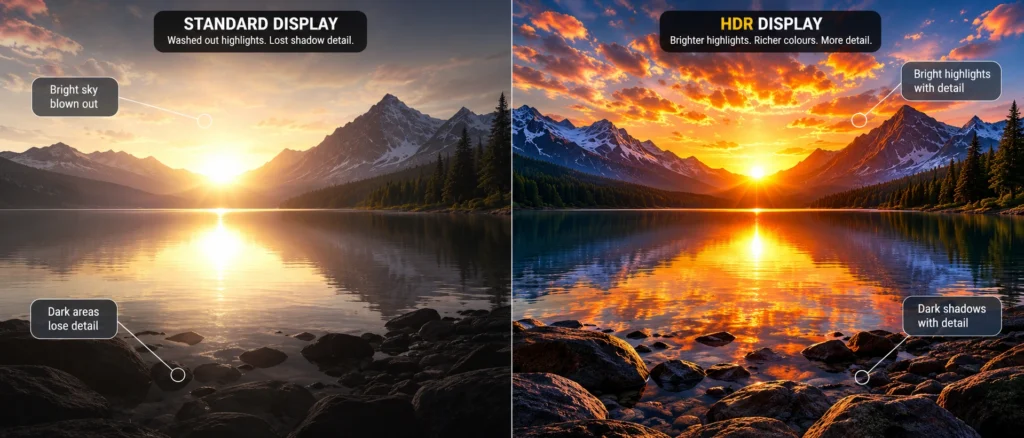
👉 HDR allows a display to show brighter highlights and darker shadows at the same time without losing important detail.
Imagine watching a sunrise.
On a standard display, the bright sky may become washed out, or the darker landscape may lose detail.
An HDR-capable display can preserve much more detail in both areas simultaneously.
The result feels much closer to what your eyes naturally see.
HDR isn’t something you’ll notice in every application.
But when viewing HDR movies or editing HDR video, it creates a much more immersive and realistic image.
💡 Think of HDR like photography.
A good camera captures detail in both bright sunlight and deep shadows.
HDR displays aim to reproduce that same level of detail on your screen.
💥 HDR doesn’t create better content. It lets you see more of what’s already there.
What Is ProMotion?
One of Apple’s most recognised display features is ProMotion.
The name sounds unique, but the underlying technology is actually familiar.
👉 If you’ve shopped for Windows laptops, you’ve probably seen displays advertised as 120Hz or 144Hz refresh rates. Apple calls its adaptive high-refresh-rate technology ProMotion.
It’s the same concept.
Different terminology.
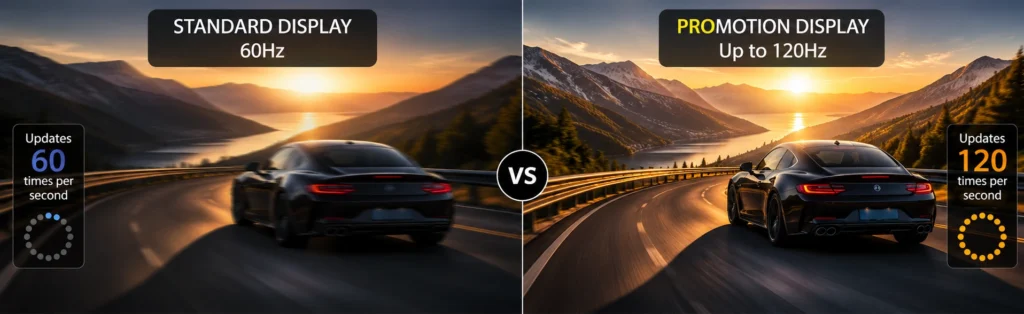
A display’s refresh rate describes how many times the image updates every second.
A standard display refreshes 60 times per second (60Hz).
The MacBook Pro can refresh up to 120 times per second (120Hz).
The result is smoother scrolling, more fluid animations and a display that feels noticeably more responsive.
The clever part is that ProMotion is adaptive.
Rather than staying at 120Hz all the time, the refresh rate automatically changes depending on what you’re doing.
Reading a document?
The refresh rate can drop to save battery.
Scrolling through a webpage?
It increases for a smoother experience.
Editing video?
It adjusts again to match the content.
⚠️ Good to know: ProMotion makes the display feel smoother, but it doesn’t make your MacBook’s processor any faster.
They’re completely different technologies.
💥 The smoother display doesn’t help your MacBook think faster. It simply makes everything you do feel smoother.
✅ Key takeaway: ProMotion is Apple’s name for an adaptive high-refresh-rate display that improves the overall user experience while helping preserve battery life.
Glossy vs. Matte Displays
Every current MacBook uses a glossy display.
Some Windows laptops offer matte displays, so why doesn’t Apple?
👉 Glossy displays generally produce richer colours, deeper contrast and a more vibrant image than matte displays.
The trade-off is reflections.
Apple reduces those reflections by applying a high-quality anti-reflective coating to the display.
This doesn’t eliminate glare completely, but it significantly reduces distracting reflections while preserving excellent image quality.
Windows manufacturers often give buyers a choice between glossy and matte finishes.
Apple has chosen to prioritise image quality instead.
Neither approach is universally better.
💥 It’s simply another example of different design choices for different users.
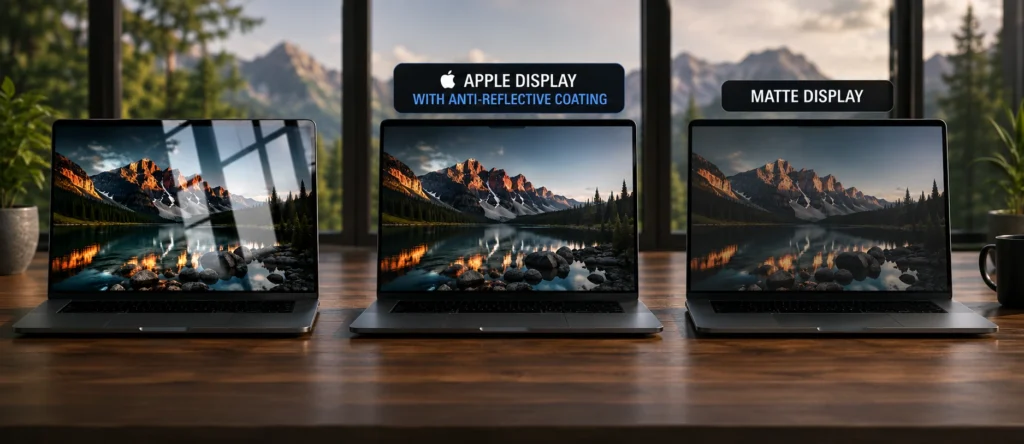
Display Comparison
By now, Apple’s display lineup should make much more sense.
The MacBook Neo provides an excellent Liquid Retina display that’s ideal for browsing, streaming, schoolwork, office tasks and everyday computing.
The MacBook Air builds on that experience with wider colour support, making it a better choice for productivity, travel, business and light creative work where colour accuracy matters more.
The MacBook Pro introduces Liquid Retina XDR, mini-LED, HDR and ProMotion for photographers, filmmakers, designers and other professionals whose work depends on exceptional display quality.
💥 The MacBook Neo has a good display.
The MacBook Air gives you a better display.
The MacBook Pro gives you Apple’s best display.
Whether you’ll benefit from those upgrades depends entirely on how you use your MacBook.
Display Comparison Table
| 🖥️ Feature | 🍏 MacBook Neo | 🍃 MacBook Air | 💼 MacBook Pro |
|---|---|---|---|
| Display | Liquid Retina | Liquid Retina | Liquid Retina XDR |
| Display Technology | LCD | LCD | mini-LED |
| Colour Space | sRGB | P3 Wide Colour | P3 Wide Colour |
| HDR | ❌ No | ⚠️ Limited support | ✅ Full HDR |
| Refresh Rate | 60Hz | 60Hz | Up to 120Hz (ProMotion) |
| Ideal Display Use | 🌐 Everyday computing | 💼 Productivity & Light creative work | 🎨 Professional creative work |
Final Thoughts
Apple didn’t create three different displays because one is “right.”
It created three displays because people use their MacBooks in different ways.
If your daily routine revolves around documents, emails, web browsing and streaming, the MacBook Neo already provides an excellent viewing experience.
If your work involves productivity, travel or occasional creative projects, the MacBook Air offers meaningful improvements without moving into professional territory.
If you’re a photographer, filmmaker, designer or creative professional who relies on colour accuracy, HDR and smoother motion every day, the MacBook Pro’s display is in a class of its own.
💥 A better display doesn’t make your MacBook faster. It makes every minute you spend using your MacBook more enjoyable.
And perhaps that’s the most important lesson of all.
The simplest truth is not:
The Pro has XDR.
The Air has P3.
But…
💥 The best display isn’t the one with the most features. It’s the one that helps you do your best work.
✅ Different users simply have different needs.
Of course, the display built into your MacBook isn’t always the only screen you’ll use.
Many people connect an external monitor at home, in the office, or at a temporary workspace to enjoy a larger screen, organise multiple windows, or simply create a more comfortable place to work.
👉 That’s where external display support becomes important.
External Display Support Explained
Before comparing the three MacBooks, let’s answer an important question.
What Is an External Display?
👉 An external display is simply another screen that you connect to your MacBook.
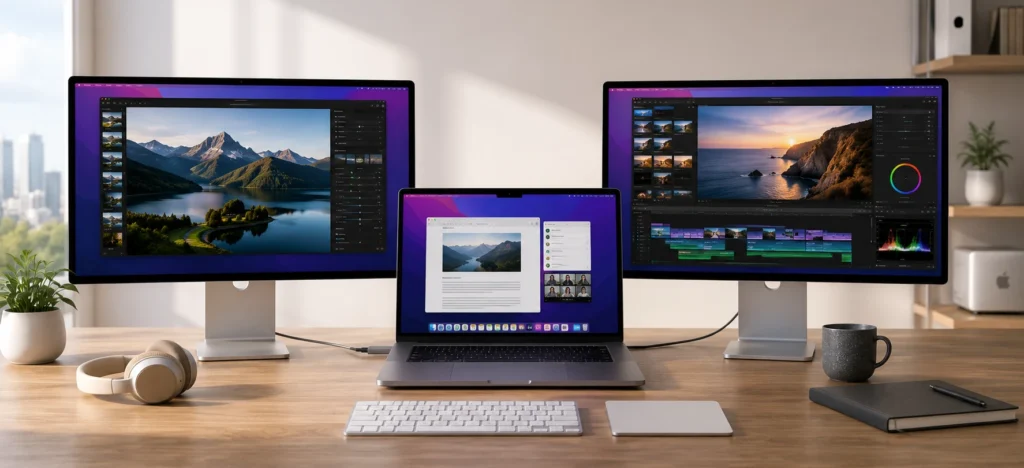
Instead of working only on your MacBook’s built-in display, you can connect one or more monitors to expand your workspace.
Imagine writing a report.
You could have your document open on one screen while keeping your research, email or video call on another.
You aren’t making your MacBook faster.
You’re simply giving yourself more room to work.
💥 An external display doesn’t increase your MacBook’s performance. It increases your workspace.
Why Would You Use an External Display?
Different people use external displays for different reasons.
Some want a larger screen that’s easier on the eyes.
Others prefer working with multiple windows open at the same time.
Creative professionals often use external displays for photo editing, video production or design work where extra screen space improves their workflow.
Even if you travel frequently, an external monitor can transform a temporary apartment or co-working space into a much more comfortable workstation.
✅ More screen space often means less switching between windows and a more efficient workflow.
Why Don’t All MacBooks Support the Same Number of Displays?
This is where many buyers become confused.
Surely every MacBook should be able to connect to as many monitors as you like?
Not quite.
👉 Supporting external displays requires your MacBook to process and output millions of additional pixels every second.
The more displays you connect—and the higher their resolution—the more work your MacBook has to do.
That’s one reason Apple gives its more powerful MacBooks greater external display support.
It’s another example of a theme we’ve seen throughout this guide.
💥 Different users simply have different needs.
Someone answering emails probably doesn’t need three external monitors.
A video editor or software developer might use them every day.
External Display Support Comparison
| 💻 MacBook | 🖥️ Native External Display Support | 🎯 Best For |
|---|---|---|
| 🍏 MacBook Neo | 1 external display | Everyday users who occasionally connect to a monitor for a larger workspace. |
| 🍃 MacBook Air | Up to 2 external displays | Productivity, business users and light creative work who benefit from extra screen space. |
| 💼 MacBook Pro | 2 to 4 external displays (depending on the chip) |
Professional workflows involving multiple monitors, advanced multitasking and creative production. |
⚠️ Good to know: The exact number of supported external displays depends on the MacBook model and Apple chip (for example, standard, Pro or Max chips). If using multiple monitors is essential to your workflow, it’s always worth checking Apple’s latest technical specifications before making your purchase.
Want the Full Apple Display Experience?
Your MacBook can connect to monitors from many different manufacturers.
However, if you’d like an external display that continues Apple’s Retina philosophy with exceptional sharpness, excellent colour accuracy and seamless integration with macOS, the Apple Studio Display is worth considering.
👉 We’ll take a closer look at what makes the Apple Studio Display unique—including its display technology, stand options and who it’s really for—in our dedicated review.
Closing
💥 The display built into your MacBook is where your work begins. An external display simply gives you more room to do it.
The right choice isn’t determined by how many monitors your MacBook can support.
It’s determined by how you work.
Because, as we’ve seen throughout this guide…
💥 Different users simply have different needs.
💥 A great display lets you see your work.
The keyboard and trackpad are how you bring that work to life.
Now let’s look at how you interact with your MacBook every day.
⌨️ Keyboard, Trackpad & Touch ID Explained
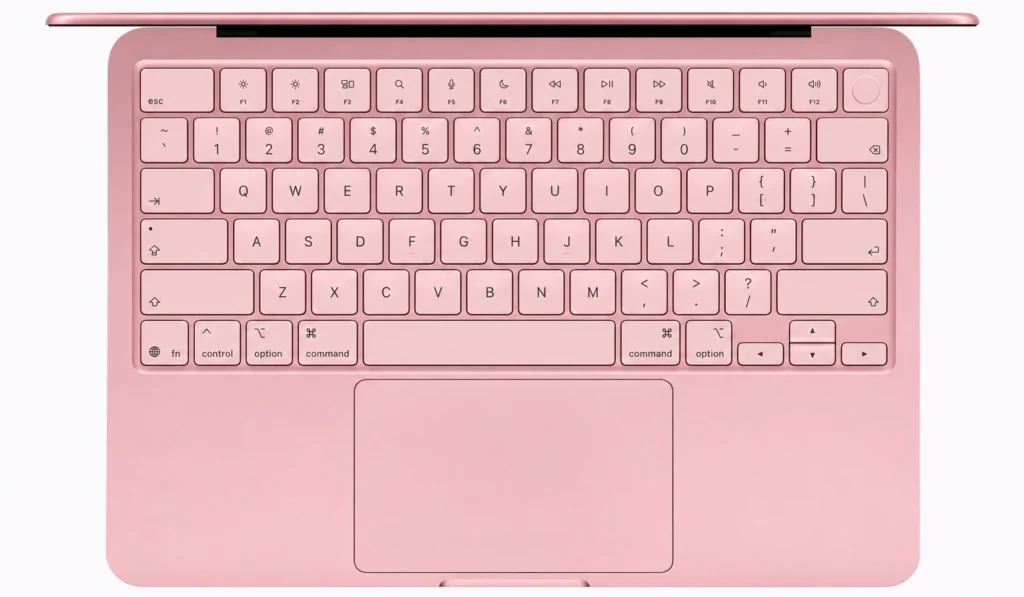
By now, you understand what gives your MacBook its performance.
You’ve learned how the processor handles your work, how memory keeps everything running smoothly, and how the display brings it all to life.
But none of that matters if your MacBook doesn’t feel good to use.
After all, every email you write, every webpage you scroll through and every project you complete starts with one simple interaction.
Your hands.
You won’t choose a MacBook because its trackpad is slightly larger or because its keyboard has a particular amount of key travel.
You’ll choose it because these are the parts of your MacBook you interact with every single day, and how they feel has a bigger impact on your experience than most specifications ever will.
💥 Every task begins with your keyboard or trackpad. The better they feel, the better your MacBook feels.
Let’s take a closer look at why so many people praise the MacBook’s keyboard and trackpad experience.
⌨️ What Makes the Magic Keyboard Different?
Apple calls the keyboard in every current MacBook the Magic Keyboard.
Despite the name, there isn’t any magic happening beneath the keys.
👉 The Magic Keyboard is simply Apple’s name for its modern keyboard design, built to provide a comfortable, stable and consistent typing experience.
If you’ve ever used an older laptop with soft, wobbly or noisy keys, you’ll immediately appreciate the difference.
Every key is designed to feel stable from edge to edge, requiring less effort to press while still providing satisfying feedback.
Another term you’ll often hear is key travel.
👉 Key travel describes how far a key moves when you press it.
Imagine pressing the button on a remote control.
Some buttons barely move.
Others sink much deeper before they activate.
Laptop keyboards work exactly the same way.
Too little movement can make the keyboard feel hard and unresponsive.
Too much movement can make typing feel slower and less precise.
Apple has carefully balanced that movement to create a typing experience that feels comfortable during both quick emails and hours of writing.
The keyboard is also backlit, making it much easier to work in dimly lit rooms, on aeroplanes or during late-night work sessions.
💥 A great keyboard doesn’t try to impress you. It quietly disappears beneath your fingers so you can focus on your work.
✅ Key takeaway: The Magic Keyboard isn’t about flashy features. It’s designed to make typing comfortable, accurate and consistent every day.
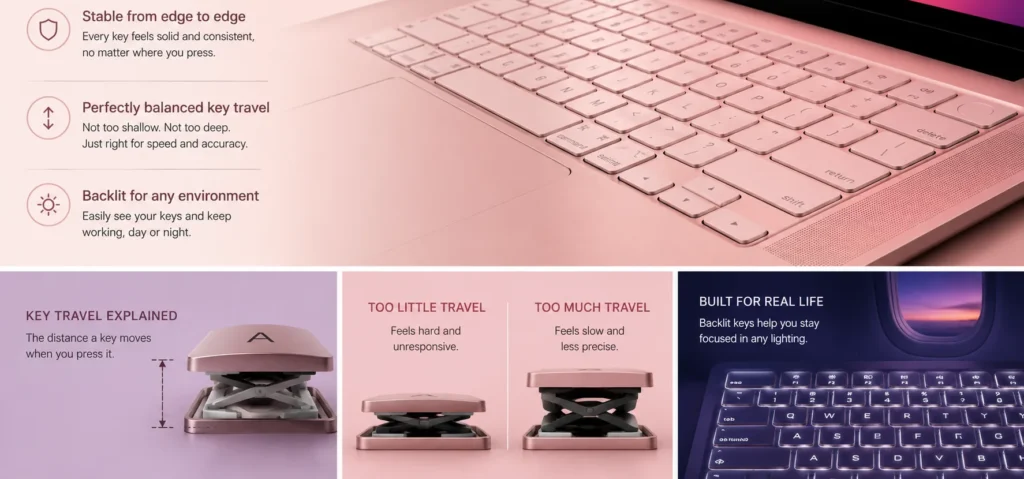
🖱️ What Is a Force Touch Trackpad?
Typing is only one way you interact with your MacBook.
The other is the trackpad.
If you’ve looked at Apple’s specifications, you’ve probably seen the term Force Touch Trackpad.
Like many Apple names, it sounds more complicated than it really is.
👉 The Force Touch Trackpad is Apple’s large glass trackpad that uses pressure sensors and haptic feedback to create a more natural clicking experience.
That brings us to another unfamiliar term.
What is haptic feedback?
👉 Haptic feedback is a small vibration or physical sensation created by tiny motors to make your fingers feel like you’ve pressed a real button.
Think about your smartphone.
When you type on the on-screen keyboard, you might feel a tiny tap even though the screen doesn’t physically move.
That’s haptic feedback.
The MacBook uses the same idea.
Instead of relying on a traditional mechanical click, the Force Touch Trackpad uses carefully controlled vibrations to convince your finger that it has clicked.
Your brain interprets that sensation as a real click, making the experience feel surprisingly natural.
Because there are no traditional clicking mechanisms underneath, the click feels consistent across the entire surface of the trackpad instead of becoming softer near the edges.
Apple also supports a wide range of Multi-Touch gestures, allowing you to scroll, zoom, switch between apps and navigate macOS using simple finger movements.
Windows laptops also support touchpad gestures, and many modern premium laptops offer excellent implementations.
Apple’s reputation comes from how consistently and smoothly those gestures work across the entire MacBook lineup.
💥 The click isn’t created by movement. It’s created by the feeling of movement.
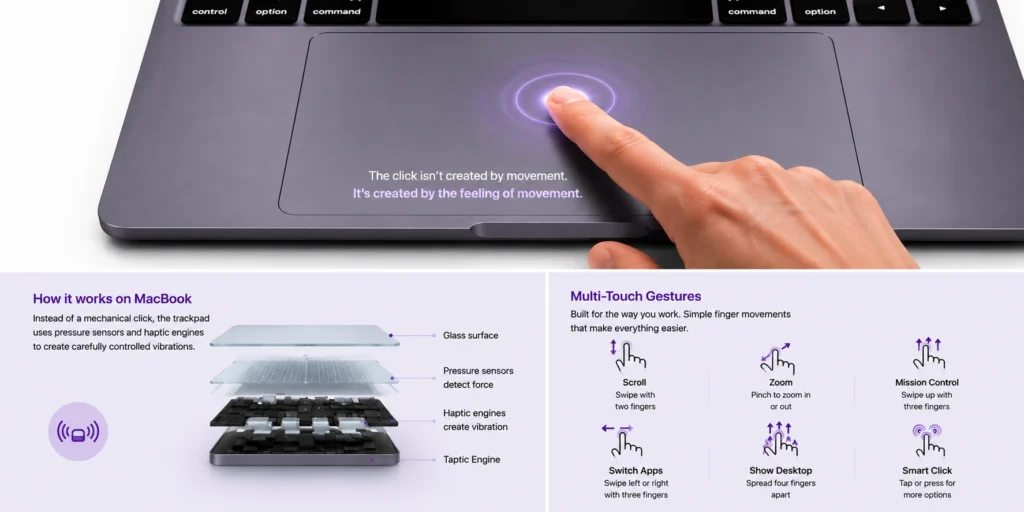
✅ Key takeaway: The Force Touch Trackpad isn’t trying to replace a mouse. It’s designed to make everyday navigation feel smooth, accurate and effortless.
🔐 What Is Touch ID?
Another feature you’ll use almost every day is Touch ID.
👉 Touch ID is Apple’s built-in fingerprint reader that lets you securely unlock your MacBook and confirm purchases without typing your password every time.
Instead of remembering long passwords throughout the day, you simply place your finger on the Touch ID sensor.
Within a moment, your MacBook recognises your fingerprint and unlocks.
You can also use Touch ID to approve App Store purchases, authenticate Apple Pay transactions and confirm other secure actions.
Some people wonder why Apple doesn’t simply add Face ID, like it does on the iPhone.
The answer is straightforward.
Apple currently includes Touch ID on MacBooks rather than Face ID.
While Face ID isn’t available on today’s MacBook lineup, Touch ID already provides a fast, secure and convenient way to protect your laptop.
💥 Touch ID doesn’t replace good security. It makes strong security easier to use every day.
✅ Key takeaway: The easier security is to use, the more likely people are to use it consistently.
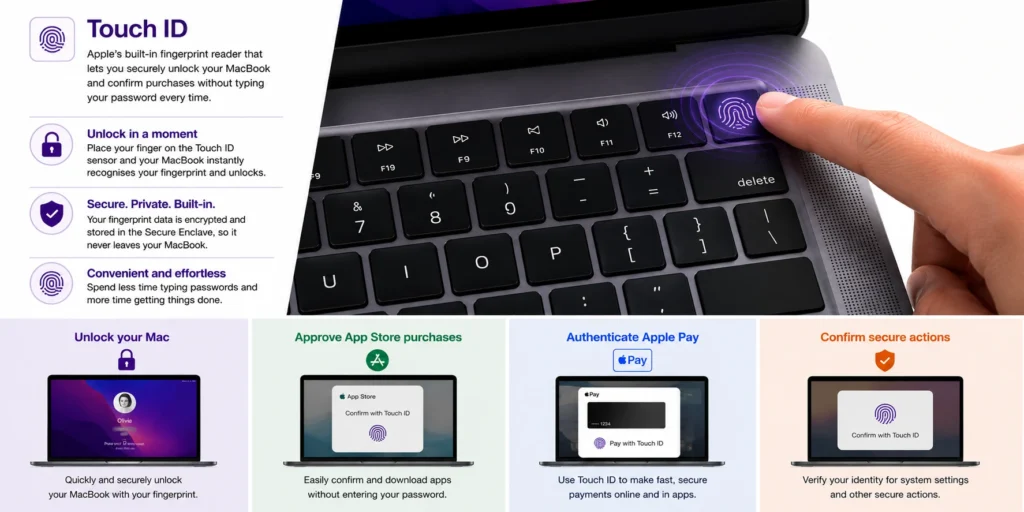
🖱️ Prefer Using a Mouse?
Not everyone enjoys using a trackpad—and that’s perfectly normal.
Many people who have been using computers for years developed the habit of working with an external mouse long before laptop trackpads became as accurate and responsive as they are today.
👉 If using a mouse feels faster or more comfortable for the way you work, there’s no reason to force yourself to use the trackpad instead.
Every current MacBook works perfectly with external mice from Apple and other manufacturers.
If you’d like to stay within Apple’s ecosystem, the Magic Mouse is designed to work seamlessly with macOS while supporting many of the gestures you’ll find on the Force Touch Trackpad.
💡 We take a closer look at the Magic Mouse, how it compares to traditional mice, and who it’s best suited for in this dedicated review.
💥 The best way to use your MacBook is the one that helps you work comfortably and efficiently.
⌨️ Keyboard, Trackpad & Touch ID Comparison
One of the nice things about Apple’s MacBook lineup is that you don’t need to spend more money to enjoy a great typing and navigation experience.
Unlike performance, displays or external monitor support, the keyboard and trackpad experience remains consistently excellent across the entire range.
| Feature | 🍏 MacBook Neo | 🍃 MacBook Air | 💼 MacBook Pro |
|---|---|---|---|
| Magic Keyboard | ✅ | ✅ | ✅ |
| Force Touch Trackpad | ✅ | ✅ | ✅ |
| Multi-Touch Gestures | ✅ | ✅ | ✅ |
| Touch ID | ✅ | ✅ | ✅ |
| Typical Users | Everyday users | Productivity & travel | Professional workflows |
👉 No matter which MacBook you choose, you’ll enjoy the same familiar typing, navigation and security experience.
Final Thoughts
One of the nice things about Apple’s MacBook lineup is that you don’t need to buy the most expensive model to enjoy an excellent keyboard, trackpad and Touch ID experience.
By now, you’ve seen that Apple designs different MacBooks for different users.
One thing that remains remarkably consistent across the lineup is how you interact with them every day.
Whether you choose the MacBook Neo, MacBook Air or MacBook Pro, you’ll enjoy the same familiar keyboard, responsive trackpad and convenient Touch ID experience.
The biggest differences between the models come from performance, displays and professional features—not from the way you interact with the laptop itself.
💥 Your MacBook’s performance determines what it can do. Its display, keyboard and trackpad determine how enjoyable it is to use every day.
And eventually, there’s one more part of the MacBook experience every owner shares.
💥 No matter which MacBook you choose, you’ll eventually have to carry it with you.
Let’s look at how the MacBook Neo, MacBook Air and MacBook Pro compare when it comes to size, weight and portability.
🎒 Size, Weight & Portability Explained
💥 No matter which MacBook you choose, you’ll eventually have to carry it with you.
For some people, that’s from the kitchen table to the living room.
For others, it’s across airports, coffee shops, hotels and even different countries.
👉 A laptop isn’t something you use once. It’s something you carry almost every day.
That’s why size and weight matter far more than many people realise.

When most people compare laptops, they immediately look at the specifications.
How heavy is it?
How big is the screen?
How thick is it?
Those numbers are useful, but they don’t tell the whole story.
💥 You’re not buying a laptop. You’re buying a travelling companion.
The right MacBook isn’t simply the one with the lowest weight or the biggest display.
It’s the one you’ll enjoy carrying, opening and working on wherever life takes you.
🎒 What Does Portability Really Mean?
When people hear the word portable, they often think about weight.
While weight is certainly important, portability is about much more than that.
It includes the size of your laptop, how comfortably it fits into your backpack, how easy it is to carry throughout the day and whether it suits the way you work.
💥 Every MacBook is portable. The real question is how portable your lifestyle needs it to be.
For example, someone who travels internationally every month will probably value portability very differently from someone who mostly works from home and only carries their laptop between rooms.
Neither person is right or wrong.
👉 Different users simply have different needs.
💻 Why Screen Size Matters
A larger display gives you more room for documents, spreadsheets, timelines and creative projects.
A smaller display makes your laptop easier to carry, easier to fit on smaller desks and more comfortable to use while travelling.
Think about where you actually use your laptop.
Do you regularly work from airport lounges?
Coffee shops?
University lecture halls?
Airplane tray tables?
Or do you spend most of your time working from a dedicated desk at home?
The answers matter far more than simply choosing the biggest display available.
💥 The best screen size isn’t the biggest one. It’s the one that fits the way you work and travel.
For many digital nomads, a 13-inch or 14-inch MacBook offers an excellent balance between portability and productivity.
Others happily carry a larger MacBook because the additional screen space helps them work more efficiently every day.
Neither choice is better.
It simply depends on how you use your MacBook.
⚖️ Why Weight Matters
At first glance, the difference between two laptops might only be a few hundred grams.
That doesn’t sound like much.
Until you carry it.
Every day.
Imagine placing a bottle of water in your backpack.
You probably wouldn’t think twice about it.
Now imagine carrying that extra weight through airports, train stations, city streets or university campuses week after week.
Small differences quickly become noticeable over time.
💥 You don’t notice the weight once. You notice it every time you carry it.
That doesn’t mean everyone should automatically choose the lightest MacBook.
Sometimes carrying a little extra weight is worth it if it gives you a larger display or the additional performance your work requires.
Again, it comes back to understanding your own priorities.
🎒 Don’t Forget Your Backpack
Your MacBook isn’t the only thing travelling with you.
It shares space with your charger, cables, headphones, notebook, water bottle, passport, camera, portable SSD, travel adapter and everything else you carry throughout the day.
That’s why choosing the right laptop isn’t only about the laptop itself.
It’s also about how well it fits into your overall travel setup.

💥 The laptop is only part of what you carry. Your entire setup determines how portable it really is.
A slightly larger laptop may also require a larger backpack.
A larger charger takes up more space.
Extra accessories all add weight.
When everything comes together, those small differences become much more noticeable than they do on a specification sheet.
💡 It’s easy to think of a laptop as just another piece of technology. For many digital nomads, however, it becomes the center of their work, travel and daily life. Choosing the right laptop isn’t simply another buying decision—it’s one of the most important decisions you’ll make as a digital nomad. We explain why in Why a Laptop Is the Most Important Tool for Digital Nomads.
✈️ Freedom vs Workspace
One of the biggest trade-offs when choosing a laptop is deciding between portability and workspace.
Smaller laptops are easier to carry.
Larger laptops give you more room to work.
Neither option is objectively better.
They’re simply designed for different people.
💥 A larger laptop gives you more room to work. A smaller laptop gives you more freedom to work anywhere.
If you spend most of your day editing photos, working with large spreadsheets or managing multiple windows, a larger display may improve your workflow enough to justify carrying a slightly heavier laptop.
If you’re constantly moving between meetings, flights, cafés and co-working spaces, you may appreciate a smaller laptop that disappears into your backpack.
👉 You’re not adapting your life to your MacBook. You’re choosing the MacBook that fits the life you already have.
👉 These aren’t strict rules—they’re starting points. The right choice always depends on how you work, travel and use your MacBook.
Final Thoughts
By now, you’ve probably noticed a pattern throughout this guide.
Every MacBook is portable.
Every MacBook is capable.
The real differences come down to how well each one fits your lifestyle.
💥 The most portable MacBook isn’t necessarily the lightest one. It’s the one you’ll happily take with you wherever life takes you.
The goal isn’t to find the smallest MacBook.
Or the biggest.
Or the most powerful.
It’s to find the one you’ll genuinely enjoy living with every day.
Because at the end of the day…
💥 You’re not buying a laptop. You’re buying a travelling companion.
And now that you understand how each MacBook performs and what it’s like to live with one…
The only thing left to understand… is you.
What type of MacBook user are you?
👤 What Type of MacBook User Are You?
By now, you understand how every current MacBook differs in performance, battery life, displays, portability and everyday use.
But before choosing a MacBook, there’s one important question left to answer.
Who are you as a laptop user?
Many people start by comparing specifications.
Apple takes a different approach.
Instead of asking you to build the perfect laptop from individual components, Apple asks you to choose one of three complete MacBooks designed to fit the way you live, work and travel.
👉 The best MacBook isn’t the one with the most features. It’s the one that fits the way you live, work and travel.
This chapter isn’t about recommending a MacBook just yet.
It’s about helping you understand what kind of user you are, because once you know that, choosing the right MacBook becomes much easier.

🎓 The Student
Not every student needs the same laptop.
A university student studying English literature has very different requirements from someone studying architecture, engineering or film production.
That’s why choosing a laptop based only on the word “student” can be misleading.
Instead, think about how you’ll actually use your laptop.
Will you mainly be writing assignments, researching online, attending virtual classes and streaming content?
Or will you be running demanding software for design, programming, simulations or video editing?
👉 Your course doesn’t choose your laptop. The way you use your laptop does.
Students often value portability, battery life and reliability because their laptop travels between lectures, libraries, cafés and home almost every day.
✈️ The Frequent Traveller
Some people spend a large part of their lives travelling.
Business trips.
Conferences.
Hotels.
Airports.
Coffee shops between meetings.
But there’s one important difference.
They always have a place to return to.
Home is still home.
Their laptop simply travels with them.
These users usually value portability, long battery life and a laptop that’s easy to carry throughout the day without sacrificing the performance they need while travelling.
💥 A laptop should make travelling easier—not become another piece of heavy luggage.
🌍 The Digital Nomad
At first glance, digital nomads may seem similar to frequent travellers.
In reality, they’re very different.
A frequent traveller takes their laptop away from home.
💥 A digital nomad takes their home wherever their laptop goes.
For digital nomads, a laptop isn’t simply a travel companion.
It’s their office.
Their workspace.
Their business.
Sometimes it’s also their entertainment system, communication hub and creative studio.
Because they spend so much time working away from a permanent desk, they often value a balance between portability, battery life and enough performance to handle everything they need from one device.
👉 When your office fits inside your backpack, every gram and every hour of battery life matters.
💼 The Business Professional
Business professionals often need a laptop they can depend on every day.
Video meetings.
Presentations.
Emails.
Documents.
Spreadsheets.
Travel between clients or offices.
Reliability, battery life and portability are often just as important as performance.
For many professionals, a laptop isn’t simply another device.
It’s one of the most important tools they use to run their business.
💥 The best business laptop isn’t the fastest one. It’s the one you can depend on every working day.
📸 The Creative Professional
Creative professionals often work with larger files and more demanding applications.
Photographers.
Graphic designers.
Illustrators.
Music producers.
Video editors.
Each workflow is different.
Some people mainly organise and review their work while travelling before completing more demanding tasks back at a desk.
Others need enough power to complete their entire workflow from almost anywhere.
👉 The more demanding your creative work becomes, the more important performance, displays and storage become.
💻 The Software Developer
Software developers often spend hours writing code, compiling projects and running multiple applications at the same time.
Some work on lightweight web applications.
Others develop large software projects using virtual machines, containers or AI tools.
Because development workloads vary so much, it’s important to think about the software you use rather than simply calling yourself a developer.
💥 Your profession doesn’t determine your laptop requirements. Your workload does.
🏡 The Everyday User
Not everyone needs a laptop for demanding work.
Many people simply want a reliable computer for browsing the web, managing emails, online banking, watching movies, organising photos and staying connected with family and friends.
There’s nothing wrong with that.
In fact, it’s exactly how many people use their laptops every day.
👉 Buying more performance than you’ll ever use doesn’t necessarily give you a better experience.
The right laptop is the one that comfortably handles everything you actually do.
🤔 You Don’t Have to Fit Into Just One Category

Most people won’t see themselves in only one of these user types.
You might be:
- A business professional who travels every week.
- A university student studying computer science.
- A photographer who works remotely.
- A software developer living as a digital nomad.
- A parent who uses a laptop for both work and family life.
That’s perfectly normal.
💥 Different people often share the same laptop. Different lifestyles rarely do.
Instead of trying to fit yourself into one category, think about which description best matches the way you live, work and travel.
That’s usually the best place to start.
Final Thoughts
By now, you should have a much clearer picture of the kind of laptop user you are.
That’s important because choosing the right MacBook isn’t really about choosing between the MacBook Neo, MacBook Air and MacBook Pro.
It’s about choosing the one that best supports the way you already live, work and travel.
👉 You’re not adapting your life to your MacBook. You’re choosing the MacBook that fits the life you already have.
Now that you’ve identified the type of user you are, it’s time to answer the question you’ve been working towards throughout this guide.
💥 Which MacBook is right for you?
🛒 Which MacBook Is Right for You?
By now, you understand how every current MacBook differs in performance, battery life, displays, portability and everyday use.
More importantly, you understand why those differences exist.
This isn’t another comparison of specifications.
It’s about bringing everything together and helping you choose the MacBook that best fits the way you live, work and travel.
💥 Choosing the right MacBook isn’t about buying the most expensive one. It’s about buying the one you’ll still be happy with years from now.
Let’s bring everything together.
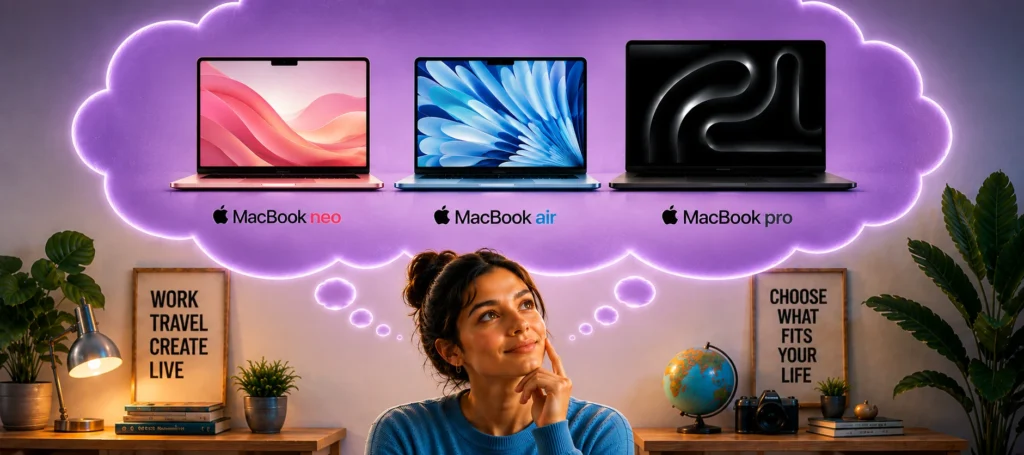
🍏 MacBook Neo – Best for Everyday Simplicity and Value
If your daily routine mainly includes browsing the web, emails, streaming, office work, online learning and other everyday tasks, the MacBook Neo is likely all the MacBook you’ll ever need.
Throughout this guide, you’ve seen that Apple doesn’t remove the everyday experience from its entry-level MacBook.
You still get an excellent keyboard, Force Touch trackpad, Touch ID and a beautiful Liquid Retina display.
What you give up compared to the MacBook Air and MacBook Pro isn’t the quality of the experience—it’s the additional performance and professional features that many everyday users simply don’t need.
👉 If you recognized yourself as the student or everyday user in the previous chapter, the MacBook Neo is probably the best fit for your needs.
🍃 MacBook Air – The Best Choice for Most People
If there’s one MacBook that suits the widest range of users, it’s the MacBook Air.
It offers an excellent balance between portability, battery life and performance, making it ideal for students, business professionals, frequent travellers, remote workers and many digital nomads.
Earlier in this guide, we explained that the MacBook Air gives you more performance than the Neo while remaining incredibly light and easy to carry.
For many people, it represents the sweet spot in Apple’s lineup.
💥 The MacBook Air isn’t the most powerful MacBook. It’s the one that offers the best balance for the widest range of users.
👉 If you identified most with the frequent traveller, digital nomad or business professional, the MacBook Air is likely the sweet spot.
💼 MacBook Pro – Built for Professional Workloads
The MacBook Pro isn’t designed simply to be faster.
It’s designed for people whose work genuinely benefits from additional performance.
Throughout this guide, you’ve seen where those differences matter.
Long video exports.
Complex software development.
Large creative projects.
Professional photography.
3D rendering.
Advanced AI workloads.
You’ll also benefit from the more advanced Liquid Retina XDR display, active cooling for sustained performance and greater external display capabilities.
For these users, the MacBook Pro isn’t a luxury.
It’s a professional tool.
👉 If you recognised yourself as a creative professional or software developer working with demanding workloads, the MacBook Pro is designed for exactly those kinds of tasks.
MacBook Neo
Designed for everyday essentials, portability and outstanding value.
MacBook Air
Designed for portability, excellent battery life and all-day productivity.
MacBook Pro
Designed for sustained performance and demanding professional workloads.
Different users simply have different needs.
The guide below summarizes which MacBook is designed for each type of user.
🍏 Perfect For
- 🌐 Web browsing
- 📝 School work
- 💼 Office tasks
- 🎬 Streaming
- 📧 Everyday computing
🍃 Perfect For
- ✈️ Travel
- 🎒 Students
- 💼 Business users
- 📝 Remote work
- 🎨 Light creative work
💼 Perfect For
- 🎬 Professional video editing
- 🧩 3D rendering
- 💻 Software development
- 🎵 Music production
- 🤖 AI workloads
🖥️ Many Professionals Use Both a Laptop and a Desktop

Choosing a MacBook doesn’t necessarily mean it’s the only computer you’ll ever own.
👉 Many professionals use both a laptop and a desktop because each serves a different purpose.
A MacBook gives you the freedom to work from almost anywhere, whether you’re travelling, working remotely or moving between meetings.
A desktop computer offers more performance, easier upgrades and better value for demanding workloads because it isn’t limited by portability.
💥 Desktops are built around performance. Laptops are built around portability.
For example, a photographer might organise, back up and review photos while travelling on a MacBook, then return home to edit thousands of RAW images on a powerful desktop connected to larger monitors.
The same idea applies to many video editors, software developers and other creative professionals.
Digital nomads are often the exception.
Because their laptop isn’t simply a companion to a desktop.
It’s their primary computer wherever they happen to be.
💡 We’ll explore the differences between laptops and desktops in much more detail in a dedicated comparison guide.
🤔 Still Not Sure?
If you’re still deciding whether a MacBook is the right fit for your needs, or you’d like to understand how Apple compares with other types of laptops, we’ve created a couple of guides that can help.
👉 Our guide to the 5 different laptop categories explains the strengths of travel laptops, business laptops, gaming laptops, desktop replacements and more, helping you understand which type best matches the way you work.
👉 Our Laptop Buying Checklist walks you through the final decisions many buyers overlook, including memory, storage, ports, display size and other important considerations before making a purchase.
Sometimes choosing the right laptop isn’t about learning more specifications.
It’s about asking the right questions.
Final Thoughts
You’ve now learned how every current MacBook works.
You understand how they differ in performance, displays, battery life, portability and everyday experience.
More importantly, you understand why Apple built different MacBooks in the first place.
Apple didn’t create three MacBooks because one is better than another.
It created three MacBooks because different users have different needs.
For most people, those three MacBooks cover everything they’ll ever need from a laptop. That’s one of the reasons Apple doesn’t make dozens of different models.
The main area where this simplicity doesn’t apply is gaming. Apple doesn’t manufacture a dedicated gaming laptop, which is where Windows laptops have a clear advantage.
While the MacBook Pro can run games and handle lighter or older titles, it isn’t designed for modern AAA gaming because that was never its purpose. Gaming laptops are built with different priorities, including high-end GPUs, advanced cooling systems and compatibility with a wider range of games.
💥 The best MacBook isn’t the one with the most features. It’s the one that fits the way you live, work and travel.
You now understand far more than just the differences between MacBooks. You understand why those differences exist.
If you’ve reached this point, you should now have the knowledge and confidence to choose the MacBook that’s right for you.
And if you still have a few questions before making your decision…
Let’s answer the most common ones.
FAQ SECTION

❓ Can I use a MacBook without an iPhone?
Many people assume you need an iPhone to use a MacBook.
You don’t. A MacBook is a complete computer in its own right.
Think about smartphones.
You don’t need a particular laptop to use an Android phone, and you don’t need a particular phone to use a Windows laptop.
The same is true for a MacBook.
While it works exceptionally well with an iPhone and other Apple devices, it doesn’t depend on them.
You can use a MacBook with Android phones, Windows PCs, cloud storage and many third-party services just like any other modern laptop.
💥 A MacBook is a complete computer—not an accessory for an iPhone.
❓Can I use Microsoft Office on a MacBook?
Yes.
Microsoft Word, Excel, PowerPoint, Outlook and other Microsoft 365 apps are all available for macOS.
If you already use Microsoft Office on a Windows PC, you’ll find the experience very familiar on a MacBook.
You can also open, edit and save the same files, making it easy to work with colleagues, classmates and clients who use Windows computers.
💥 Choosing a MacBook doesn’t mean leaving Microsoft Office behind.
❓Can a MacBook replace a Windows laptop?
For many people, yes.
If your work mainly involves web browsing, office work, studying, programming, creative applications or remote work, a MacBook can comfortably replace a Windows laptop.
The biggest adjustment isn’t the hardware.
It’s learning macOS instead of Windows.
If you rely on Windows-only software or specific business applications, it’s worth checking compatibility before making the switch.
💥 Switching to a MacBook usually means learning a different operating system—not learning a different computer.
❓Can I connect my MacBook to a TV or external monitor?
Yes.
Every current MacBook supports connecting to an external display, although the number of displays depends on the model and Apple chip you choose.
You can connect your MacBook to a monitor or TV using USB-C, Thunderbolt or HDMI (on supported models), making it easy to enjoy a larger workspace, watch movies or give presentations.
If you regularly work with multiple monitors, it’s worth checking Apple’s latest specifications to see how many external displays your MacBook supports.
💥 An external display doesn’t make your MacBook more powerful. It simply gives you more room to work.
❓ Can I upgrade the RAM or SSD later?
Unfortunately, no.
Unlike many traditional laptops, the Unified Memory and SSD inside a MacBook cannot be upgraded after purchase.
That’s why it’s important to choose enough memory and storage before buying your MacBook.
💥 You can always add more storage later. You can’t add more Unified Memory.
❓How long does a MacBook typically last?
One of the biggest reasons people choose a MacBook is longevity.
With proper care, many MacBooks remain reliable for 7–10 years or even longer, depending on how they’re used.
How long yours lasts depends on several factors, including the specifications you choose, the type of work you do and how well you look after it.
Choosing enough Unified Memory and storage when you buy your MacBook can also help extend its useful life as software becomes more demanding over time.
💥 The longest-lasting MacBook isn’t always the newest one. It’s the one that still meets your needs years from now.
❓Is a MacBook good for gaming?
It depends on the type of games you play.
Modern MacBooks are powerful enough to run many games, and Apple’s gaming support continues to improve.
However, if gaming is your main priority—especially modern AAA titles—a Windows gaming laptop is still the better choice because it offers access to a much larger game library and dedicated gaming hardware.
MacBooks are designed first and foremost for productivity, creativity and portability.
💥 A MacBook can play games. It just isn’t designed to be a gaming laptop.