
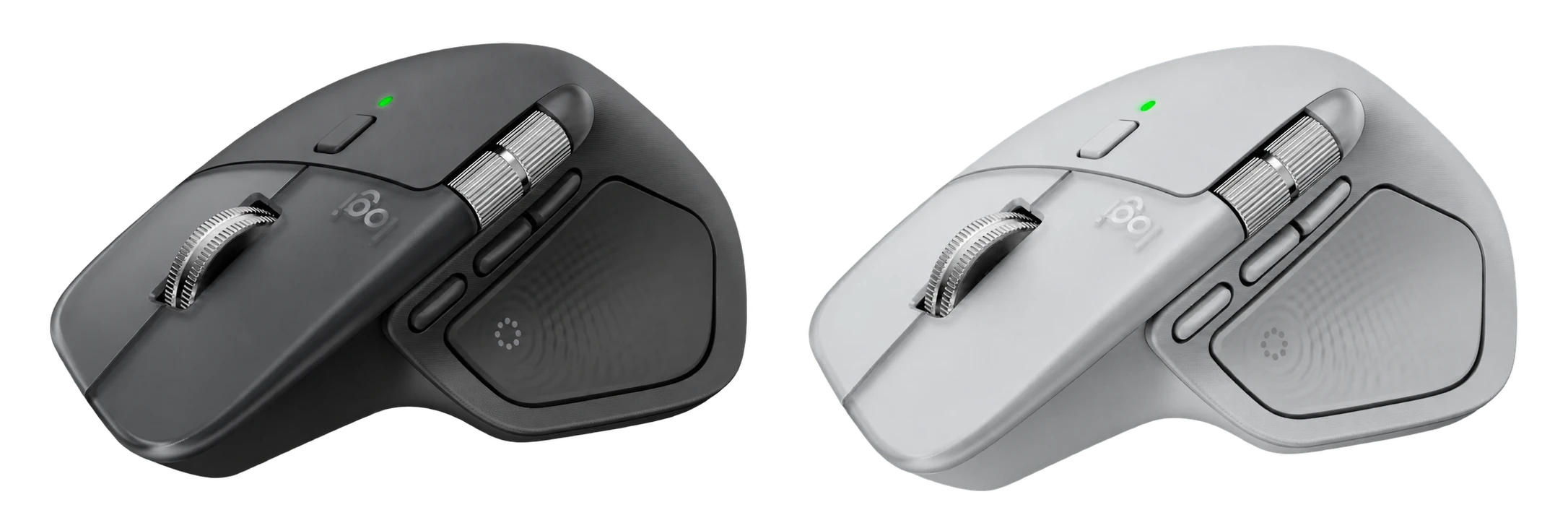
Is the MX Master 4 Worth Carrying?
A mouse is easy to overlook when you’re packing for a trip.
Your laptop is essential. Your charger is essential. Your mouse? That depends on what you expect it to do.
The Logitech MX Master 4 weighs 150 grams, which is a lot more than the kind of lightweight mouse you might otherwise throw into a laptop bag without thinking about it.
That extra weight isn’t an accident.
Logitech has built the MX Master 4 around a very different idea of what a mouse should be. Instead of minimizing the mouse, it gives you a large sculpted shape, multiple physical controls, a horizontal thumb wheel, haptic feedback and software that lets you customize how those controls work.
That creates an important trade-off for a digital nomad.
You are carrying more mouse, but you’re also carrying more control.
And that raises the question I think matters more than whether the MX Master 4 is simply a “good” mouse:
Is everything it gives you worth the space and weight it takes in your bag?
Because the MX Master 4 isn’t trying to disappear into your travel setup.
It’s trying to make the hours you spend working from that setup better.
👉 Check the Logitech MX Master 4 on Amazon
Why Is the MX Master 4 So Big?
This in-depth Logitech MX Master 4 review looks beyond the specifications, covering its size, ergonomics, controls, haptic feedback, connectivity, multi-computer features, and the trade-offs that come with them.
The first thing you’ll notice about the MX Master 4 is that it isn’t small.
At 150 grams, it is substantially heavier than a basic travel mouse. It also has a large, sculpted shape designed to support your hand rather than simply minimize the amount of mouse you have to carry.
That distinction matters.
A lightweight mouse is easy to pack because there isn’t much of it. The MX Master 4 takes the opposite approach: it uses more physical space to give your hand somewhere to rest and gives you more controls without having to reach for a keyboard shortcut.
That makes its weight less of a specification and more of a design decision. You are giving up some portability in exchange for a mouse designed around longer periods of use.
And this is where the MX Master 4 becomes interesting for a digital nomad. If your mouse spends most of its life being used for a few minutes at a time, carrying a 150-gram mouse may not make much sense. But if you spend hours researching, writing, editing spreadsheets, managing projects or working in creative applications, the calculation changes.
The question isn’t whether a lighter mouse would be easier to carry.
It would.
The question is whether the extra size and weight give you enough in return to justify carrying them.
The Shape Matters More Than the Weight
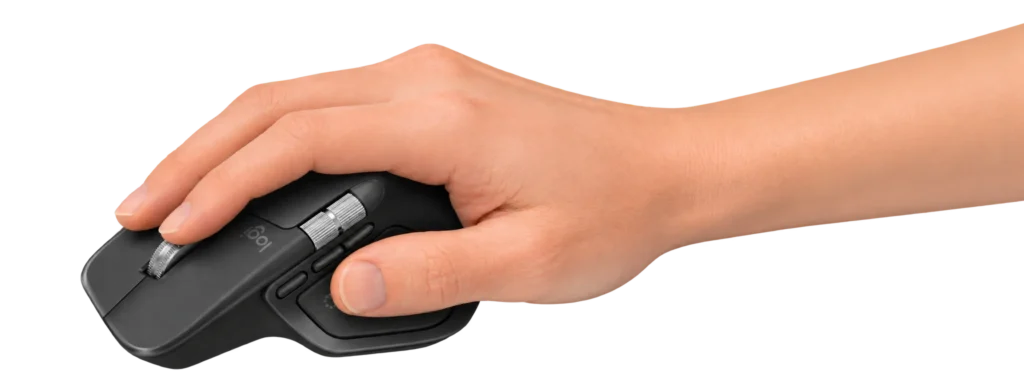
The MX Master 4 is designed for right-handed use, with a pronounced palm area and thumb rest that give your hand a much more substantial surface to work from.
That can make the mouse feel considerably more natural than a small, flat travel mouse, particularly when you’re using it for extended periods.
But the size can also work against it.
Some users with smaller hands have found the MX Master 4 simply too large to use comfortably. The same shape that gives a larger hand more support can make it harder for a smaller hand to reach the controls naturally.
Hand size, grip style and personal preference all matter here. The MX Master 4’s large shape is part of its appeal, but it is also one of the reasons you should think about your own hand size before choosing it.
Left-handed users face a different limitation.
You can swap the primary left and right click functions through Logitech’s software, but that doesn’t change the physical design of the mouse. The thumb rest, thumb wheel and side controls are still positioned for a right-handed grip.
So while a left-handed user can technically operate the MX Master 4, it isn’t designed around a left-handed grip.
These are two of the first trade-offs we need to keep in mind throughout this review.
💥 The MX Master 4 isn’t trying to be the smallest mouse you can travel with. It’s trying to make the mouse you carry worth carrying.
And once you look at it that way, its size starts to make more sense.
A Few Design Details You Might Not Notice
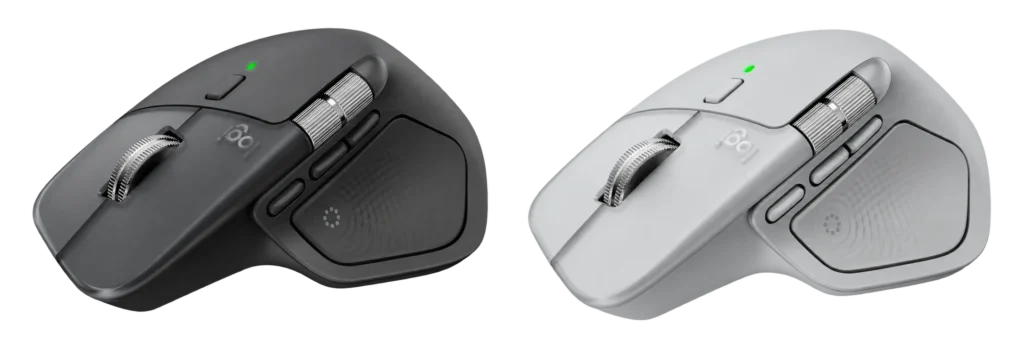
- Available in Graphite and Pale Gray
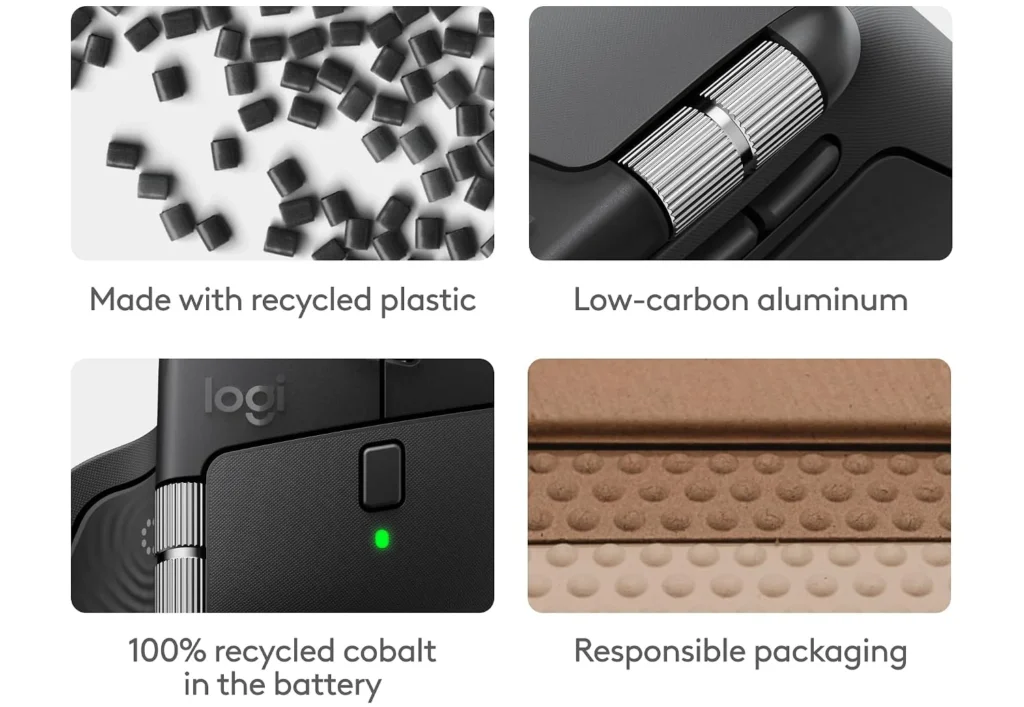
- Plastic parts use certified post-consumer recycled plastic, with 54% in Graphite and 48% in Pale Gray
- The thumb wheel uses low-carbon aluminum
- The battery uses 100% recycled cobalt
- The design also uses unpainted plastic and is designed to be easier to disassemble for recycling
What Actually Changed From the MX Master 3S?
If you’re buying the MX Master 4 as your first MX Master, the differences from the 3S aren’t particularly important. You’re getting the same basic idea: a large, right-handed mouse built around comfort, multiple controls and productivity rather than minimal size.
For 3S owners, however, the question is different.
What has actually changed?
The answer isn’t a completely redesigned mouse. Logitech has refined an established design rather than starting over.
One of the more meaningful changes is the surface material. The MX Master 4 moves away from the soft-touch finish used on the 3S. That’s relevant because some long-term 3S owners have reported wear and deterioration of that surface over time.
The shape has also been refined, although the fundamental ergonomic design remains familiar. The MX Master 4 is still a substantial mouse designed to give your hand a defined place to rest.
Then there are the controls.
Logitech has also added another physical button and a new system that can give you a small physical sensation through the mouse when you press certain controls or perform certain actions. Logitech calls this haptic feedback. Think of it like the small vibration you feel when your phone confirms that you’ve pressed something; the idea is similar.
These are not cosmetic changes. They give the MX Master 4 more ways to interact with your computer, but we’ll look at exactly how they work later.
The side scroll wheel has also been refined, while the main MagSpeed scroll wheel remains familiar to anyone who has used the previous generation.
That is important because the MX Master 4 isn’t a reinvention of the 3S.
It is a refinement of the same philosophy.
And that means the upgrade question depends less on whether the MX Master 4 is newer and more on whether the changes address something you actually wanted from your 3S.
For a new buyer, that distinction matters less. You’re choosing the current generation.
For an existing 3S owner, it matters a lot more.
💥 The MX Master 4 isn’t interesting simply because Logitech added more features. It’s interesting because every new feature creates another trade-off for someone who actually has to live with the mouse.
Where the MX Master 4 Earns Its Size
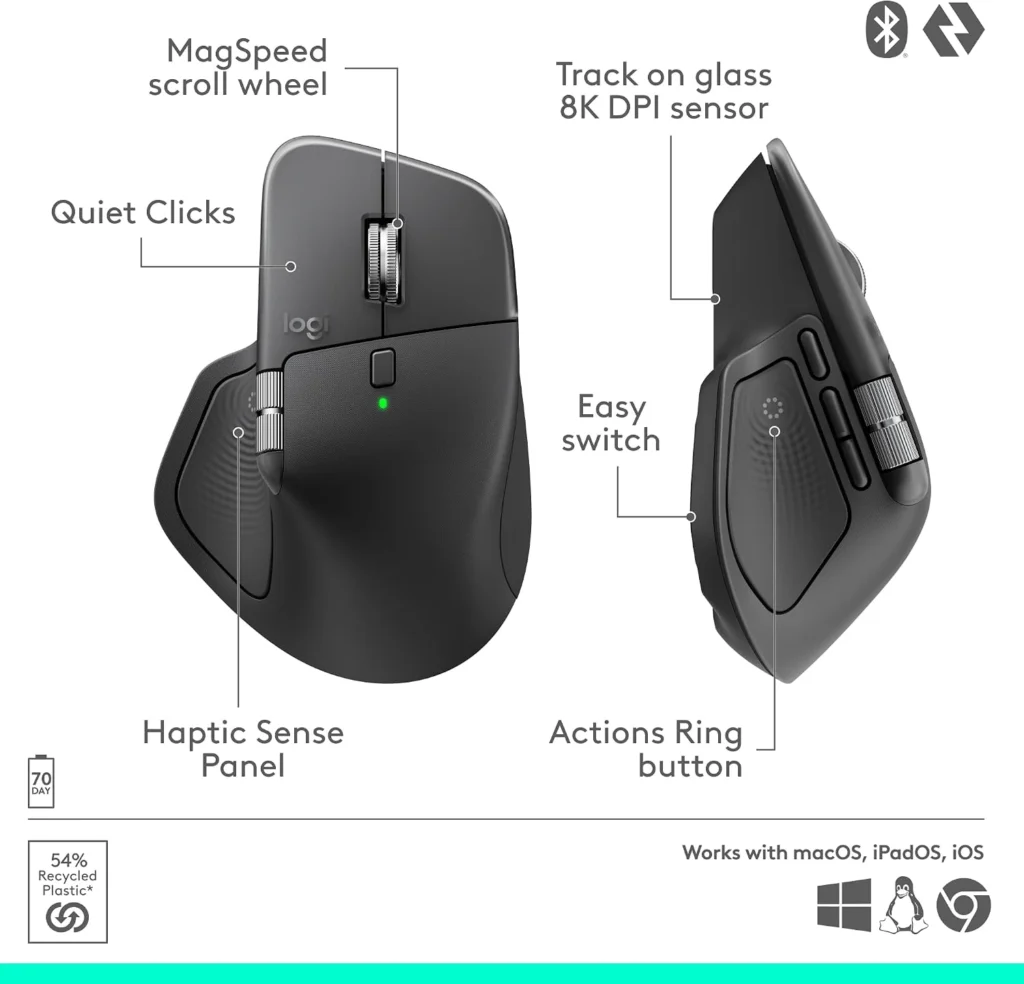
The MX Master 4’s size would be difficult to justify if all it gave you was a larger place to rest your hand.
Its real advantage is what Logitech manages to fit around that hand.
You get a main scroll wheel, a thumb wheel for horizontal scrolling, several buttons within easy reach of your thumb and an additional physical button that gives you another way to trigger an action without reaching for the keyboard.
This is where the MX Master 4 starts to feel less like a simple pointing device and more like a productivity mouse — a collection of shortcuts that you control with your hand.
The main MagSpeed scroll wheel remains familiar to anyone who has used an MX Master before. It can move between precise scrolling and fast movement through long documents or web pages, which is particularly useful when you’re working with large amounts of content.
The MX Master 4 uses an 8,000 DPI sensor. DPI, or dots per inch, is a measure of mouse sensitivity: the higher the setting, the farther the pointer can move across the screen from the same physical movement of the mouse. That doesn’t make a mouse automatically more accurate, but it gives you a wide range of sensitivity to work with.
The sensor also gives the MX Master 4 an unusual advantage for travel: it can track on virtually any surface, including glass at least 4 mm thick. That doesn’t mean you’ll suddenly want to use a glass table as your mouse pad, but it gives you more flexibility when your workspace isn’t ideal.
The thumb wheel handles horizontal scrolling, something that can be surprisingly useful when working with wide spreadsheets, timelines or other content that extends beyond the width of your screen.
Then there are the buttons.
The MX Master 4 gives you more physical controls than a conventional mouse, but having more buttons isn’t automatically an advantage. Their value depends on whether the actions you assign to them are things you actually perform often enough to benefit from having them directly under your fingers.
That is an important distinction.
A button you use every few minutes can save you a surprising amount of repetition. A button you use once a week is simply another control you have to remember.
The clicks are also designed to be quiet, which matters when you’re working in places where the sound of a mouse can become surprisingly noticeable.
But Logitech’s approach isn’t about adding controls simply for the sake of adding them.
💥 The point is to reduce the distance between the action you want to perform and the control you use to perform it.
And that is where the MX Master 4’s physical design starts to make sense.
You’re carrying a larger mouse, but you’re also carrying a mouse that puts more of your everyday actions directly under your hand.
Haptic Feedback — What Does It Actually Add?
Earlier, we introduced haptic feedback as the small physical sensation you can feel through the mouse when you press certain controls or perform certain actions.
Now we can look at why Logitech added it.
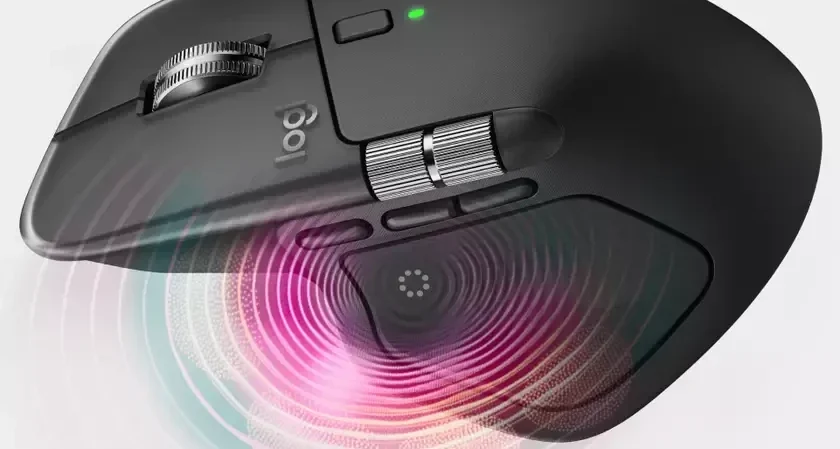
The idea is simple: instead of every action being confirmed only by something happening on your screen, the mouse can give you a small physical response as well.
That can make certain controls feel more deliberate.
For example, when a supported action is triggered, the MX Master 4 can give you a subtle sensation through the mouse. You don’t have to look at the screen to know that something happened.
It sounds like a small detail, and it is.
But small details can become useful when you repeat the same action hundreds of times.
When Haptic Feedback Becomes Useful
The usefulness depends heavily on what you actually do with your computer.
If you spend most of your time browsing the web, writing documents or moving between simple applications, haptic feedback may not change much about the way you work.
But in applications where you use the mouse for precise, repetitive actions, that physical confirmation can become more meaningful.
A good example is snapping an object into position in a creative application. When the mouse gives you a small physical response as the action happens, you can sometimes feel that you’ve hit the intended point without relying entirely on what you see on screen.
That’s where the feature stops feeling like a gimmick and starts becoming a useful part of the interaction.
But there is another side to it.
Some people may simply prefer a completely quiet, uninterrupted mouse experience. If you don’t find the physical feedback useful, even a subtle sensation can become something you notice rather than something that helps you.
So haptic feedback isn’t automatically an upgrade.
It’s another tool Logitech has added to the mouse, and whether that tool improves your experience depends on how you work.
And this is an important theme with the MX Master 4.
💥 More ways to interact with your computer don’t automatically mean a better experience. They mean more ways to shape the experience around the work you actually do.
The Actions Ring — More Controls Under Your Thumb
The MX Master 4 introduces something you don’t normally expect from a mouse: it can physically respond to you.
Now that you understand what haptic feedback actually adds, let’s look at how Logitech uses that idea in the MX Master 4.
Logitech didn’t add that sensation just to make the mouse feel more interesting.
The new control can bring up a circular menu of shortcuts on your screen. Logitech calls this the Actions Ring.
The result gives you quick access to additional controls without having to reach for the keyboard.
Instead of remembering a collection of keyboard shortcuts, you can use the ring to put frequently used actions within reach of your mouse. What appears in the ring can also change depending on the application you’re using, so the controls available in a creative application can be different from those you use in a spreadsheet or document.
This is where the MX Master 4’s extra controls start to become more than a collection of buttons.
Imagine you’re editing a photo and repeatedly using the same tools. Instead of moving your hand between the mouse and keyboard for each shortcut, you can bring those actions closer to your hand.
The same idea can apply to other applications, but that doesn’t mean everyone will benefit from it equally.
If you already know your keyboard shortcuts and use them constantly, reaching for a menu on the mouse may actually feel slower. If you work with applications that support the Actions Ring well, however, having those commands directly under your hand can reduce repetitive movements.
The system is controlled through Logitech’s Logi Options+ software. This is where you can customize the mouse, configure the Actions Ring and adjust how these features behave for different applications.
And that brings us to an important distinction.
💥 The MX Master 4 isn’t trying to replace your keyboard. It’s giving you another way to reach the actions you use most often.
Whether that makes you faster depends on the way you work.
For some people, the haptic feedback becomes a useful confirmation that an action has been registered. For others, the extra sensation is simply something they would rather turn off.
That’s the pattern you’ll see throughout the MX Master 4.
💥 A feature doesn’t have to be universally useful to be genuinely useful. It just has to solve a real problem for the person using it.
Bluetooth vs Logi Bolt — Which Connection Should You Actually Use?
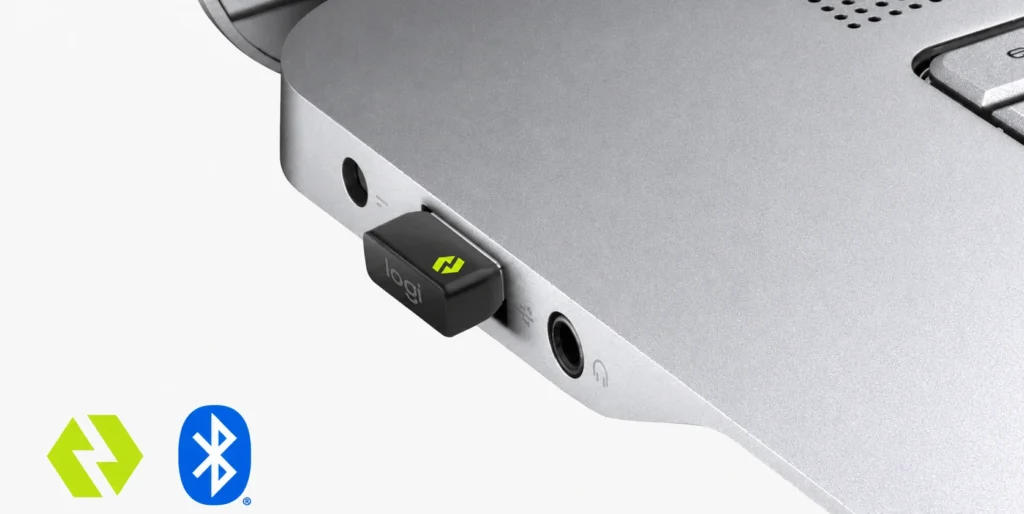
The MX Master 4 gives you two different ways to connect it to your computer: Bluetooth and Logi Bolt.
At first glance, they seem like two ways to do the same thing.
They’re not.
The important difference isn’t which one is “better.” It’s which problem each one solves.
Bluetooth Is the Simpler Choice
For most digital nomads, Bluetooth is probably the connection you’ll use most often.
It connects directly to your laptop without needing a receiver, which means you don’t lose one of your USB-C ports and you don’t have another accessory to carry around.
If your laptop already has Bluetooth — and almost every modern laptop does — pairing the MX Master 4 is straightforward.
This is also the cleanest setup for travel.
💥 No receiver. No occupied port. One less thing to pack.
Logi Bolt Solves a Different Problem
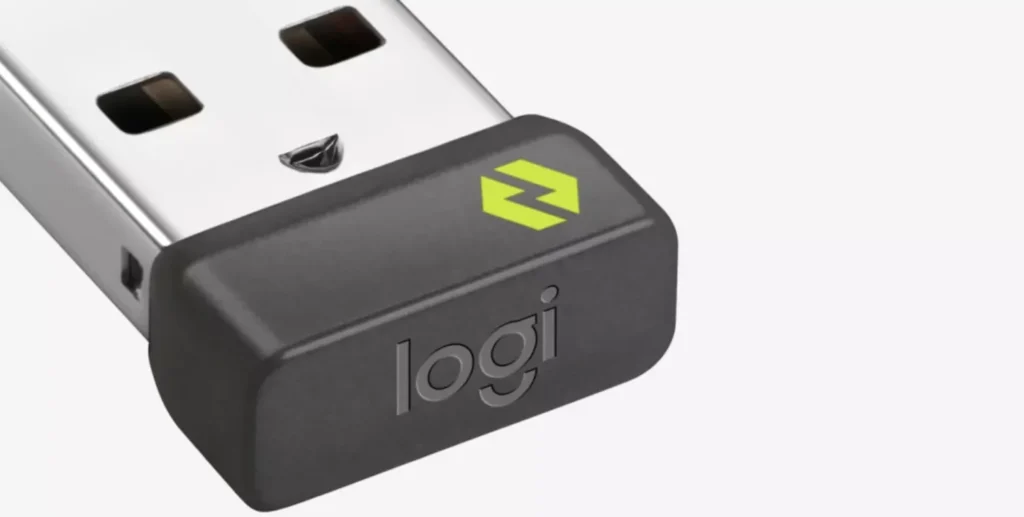
Logi Bolt is Logitech’s dedicated wireless receiver, and the MX Master 4 uses a USB-C version instead of the older USB-A receiver found on previous MX Master models.
So why would anyone use the receiver if Bluetooth already works?
Because Logi Bolt isn’t designed to replace Bluetooth. It’s designed for situations where a dedicated wireless connection is the better tool.
According to Logitech, Logi Bolt reconnects in about 300 milliseconds, while Bluetooth can take more than two seconds under Logitech’s stated test conditions.
That difference may not matter when you’re sitting at home.
It can matter when you’re moving between computers or waking a laptop from sleep throughout the day.
When Logi Bolt Makes Sense
Logi Bolt becomes particularly useful in environments with lots of wireless activity, such as:
- Busy airport lounges
- Crowded cafés
- Coworking spaces
- Hotels with many nearby wireless networks
- Offices filled with wireless peripherals
- Conferences and shared workspaces
Logitech designed the receiver to provide a more robust connection in congested wireless environments, rather than relying solely on the computer’s Bluetooth connection.
That doesn’t mean Bluetooth is unreliable.
It means Logitech built Logi Bolt for situations where connection stability becomes more important than keeping a USB-C port free.
What If Your Computer Doesn’t Have Bluetooth?
This is easy to overlook because most laptops include Bluetooth today.
But not every computer does.
Many desktop PCs either don’t have Bluetooth built in or use a separate Bluetooth adapter that may not be installed, may be disabled or may have stopped working.
Logi Bolt gives the MX Master 4 another way to connect without depending on Bluetooth at all.
That’s a small detail, but it can be surprisingly useful if you move between different computers.
A Small Detail That Makes Travel Easier
If you decide to use Logi Bolt, Logitech says the receiver can simply stay plugged into your laptop.
That means you don’t have to plug it in and remove it every time you move between workspaces.
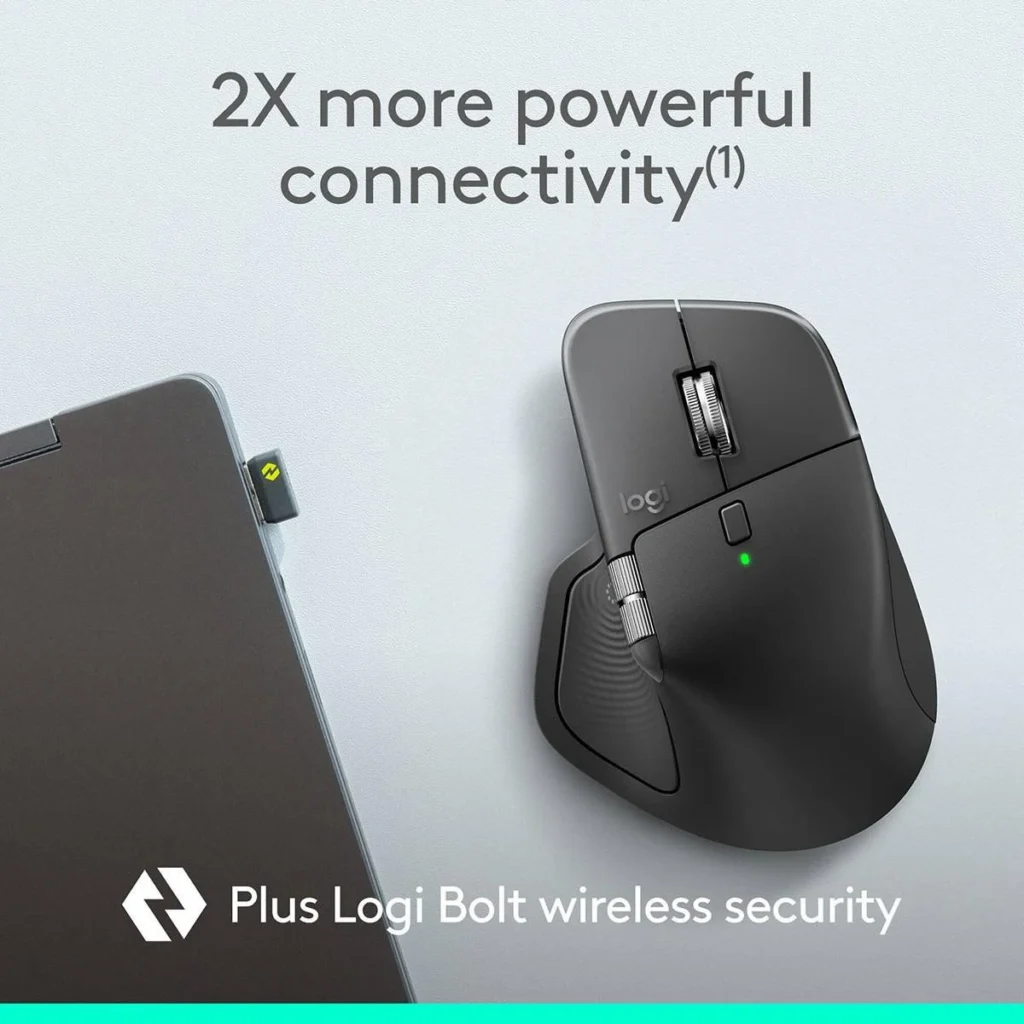
And that matters because the receiver is tiny enough that it’s easy to misplace if you’re constantly removing it.
So Which Connection Should You Use?
| 🔵 Choose Bluetooth if… | 🔗 Choose Logi Bolt if… |
|---|---|
| You want the simplest travel setup. | You want Logitech’s dedicated wireless connection. |
| Your laptop has limited USB-C ports. | You regularly work in busy wireless environments. |
| You don’t want another accessory to carry. | You use a computer without Bluetooth. |
| You mainly use the mouse with your personal laptop. | You want faster reconnection when waking or switching between computers. |
The important takeaway is this:
💥 The receiver isn’t a better version of Bluetooth. It’s a different solution to a different problem.
And that makes the MX Master 4 unusually flexible because you get to choose the connection that fits the way you work.
The Small Travel Details That Matter
A mouse designed for travel should ideally make it easy to keep track of everything that comes with it.
The MX Master 4 doesn’t quite do that.
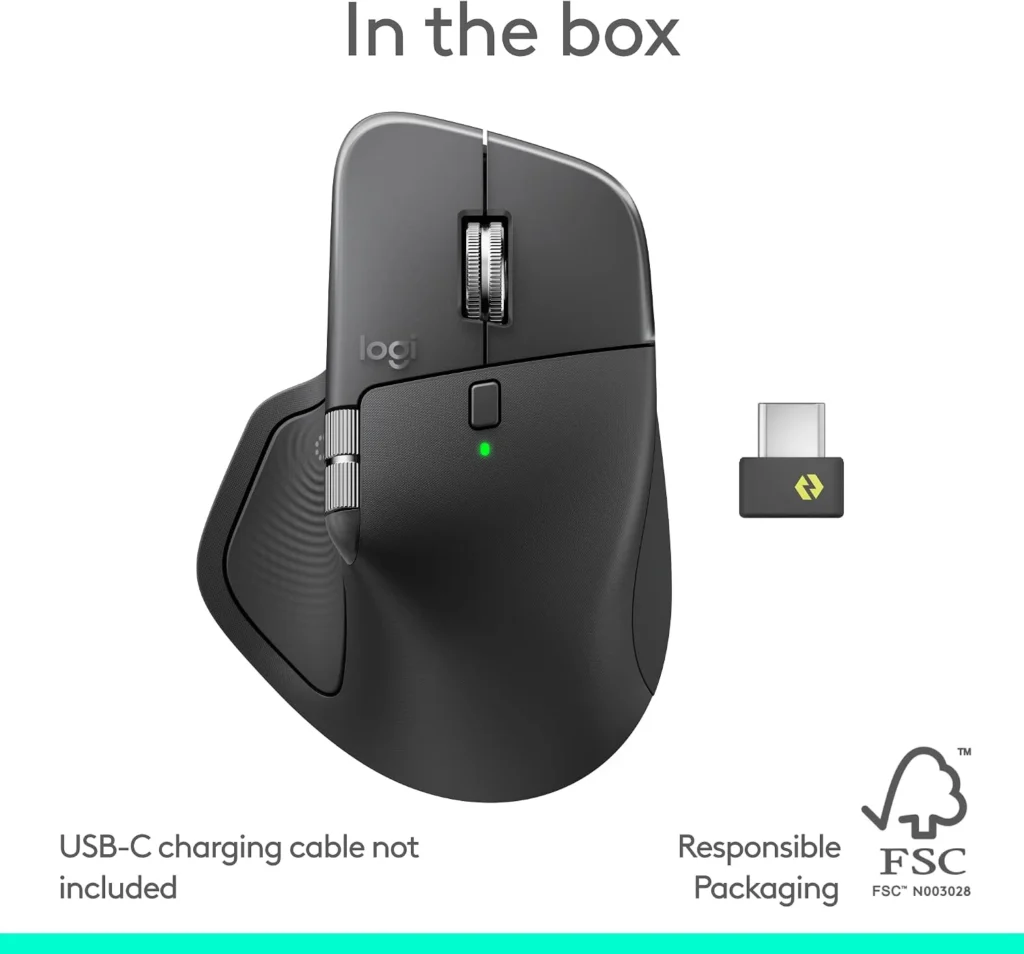
There is no dedicated storage compartment for the Logi Bolt receiver inside the mouse. That’s worth knowing because the receiver is tiny, and if you remove it every time you pack your laptop away, it becomes one more small piece of hardware that can disappear into the bottom of your bag.
If you prefer to keep the receiver with the mouse, some users have found a clever workaround: the USB-C receiver can be placed inside the mouse’s USB-C charging port for storage. It isn’t a dedicated storage compartment, and Logitech doesn’t present it as one. But it gives you somewhere to keep the receiver when you’re traveling rather than leaving it loose in your bag.
For a digital nomad, small details like this matter more than they might seem.
💥 The receiver is tiny. Losing it can turn a connection option you specifically chose the mouse for into something you can no longer use.
There’s Another Small Catch
The MX Master 4 also doesn’t include a charging cable in the box.
That’s easy to overlook because USB-C cables are common, and you may already have several in your bag. But it is still worth knowing before you buy one.
If you’re already carrying a USB-C cable for your laptop, phone or other devices, this probably isn’t a problem.
If you’re expecting everything you need to charge the mouse to be included, it may come as a surprise.
Neither of these details changes what the MX Master 4 is designed to do.
But they are reminders of something worth remembering when you’re choosing technology for travel:
💥 The little things you have to carry, store and remember become part of the product too.
Battery and Charging — 70 Days Is Only Half the Story
Battery life is one of those specifications that sounds impressive until you think about how you actually use a mouse.
The MX Master 4 is rated for up to 70 days on a full charge, which means you could potentially go for months without needing to think about the battery.
But for a digital nomad, the more useful part of the story is what happens when you do forget to charge it.
The MX Master 4 supports fast charging, so you don’t need to leave it connected to power for hours just to get a useful amount of battery back.
Logitech says one minute of charging can provide up to three hours of use, while three minutes can provide enough power for a full day.
That changes the way you think about battery life.
You don’t necessarily need to remember to charge the mouse every few weeks. If you notice the battery is getting low before heading out, even a few minutes connected to a USB-C charger can give you enough power to keep working.
And if you do run completely flat, the MX Master 4 has another useful advantage:
💥 You can continue using the mouse while it is charging.
That’s particularly valuable when you’re traveling because you don’t have to stop working simply because the battery needs attention.
There is, however, an important distinction.
Plugging the mouse into USB-C does not turn it into a wired mouse. The cable charges the battery, but the mouse continues communicating wirelessly through Bluetooth or Logi Bolt.
So you can work while charging, but you cannot use the cable as a wired data connection.
Logitech doesn’t publish a precise full-charge time, so we won’t invent one.
What it does give you is enough information to understand the practical advantage: the MX Master 4 is designed so that running low on battery doesn’t have to become a major interruption.
For travel, that’s arguably more useful than simply having a large battery number on the specifications sheet.
💥 You don’t need to carry a charger specifically for the mouse. You just need access to USB-C power when you need it.
Customizing the MX Master 4
The MX Master 4 doesn’t need Logitech’s software to work as a basic mouse.
You can connect it, move the pointer, click, scroll and get to work without installing anything.
But if you want to make the mouse work the way you want it to, Logitech’s Logi Options+ software becomes much more important.
This is where you can customize buttons, configure the Actions Ring, adjust haptic feedback and create different controls for different applications.
That flexibility is one of the reasons the MX Master 4 can feel very different from a conventional mouse.
But there is a catch.
The Software Catch — The Mouse Doesn’t Remember You
The MX Master 4 doesn’t have onboard memory for your custom settings.
In other words, the mouse itself doesn’t store your personalized configuration so that you can simply plug it into another computer and have everything appear exactly as you left it.
That matters more than it might sound.
If you work on your own laptop, you may never notice. But if you regularly move between computers, or use a work computer where you can’t install Logitech’s software, the distinction becomes important.
Your customized buttons and other settings depend on the software environment rather than being permanently stored inside the mouse.
But Your Settings Don’t Have to Disappear
This is where Logitech provides a useful safety net.
Logi Options+ can back up your device settings to the cloud, allowing you to recover your configuration on another computer.
That means if you replace your laptop because you’ve upgraded, damaged it or had it stolen, you don’t necessarily have to remember how you configured everything and rebuild it from scratch.
Your mouse doesn’t remember your settings.
But Logitech can remember them for you.
That’s a surprisingly valuable feature for anyone who has spent time tailoring the MX Master 4 to the way they work.
There is still an important limitation, though.
You need access to Logi Options+ to take advantage of this customization and backup system. If you’re using a computer managed by an employer and aren’t allowed to install the software, much of the MX Master 4’s flexibility simply isn’t available.
This is one of the most important trade-offs in the entire mouse.
💥 The MX Master 4 is exceptionally flexible when the computers belong to you. It becomes considerably less flexible when they don’t.
Easy-Switch and Flow — One Mouse Across Multiple Computers
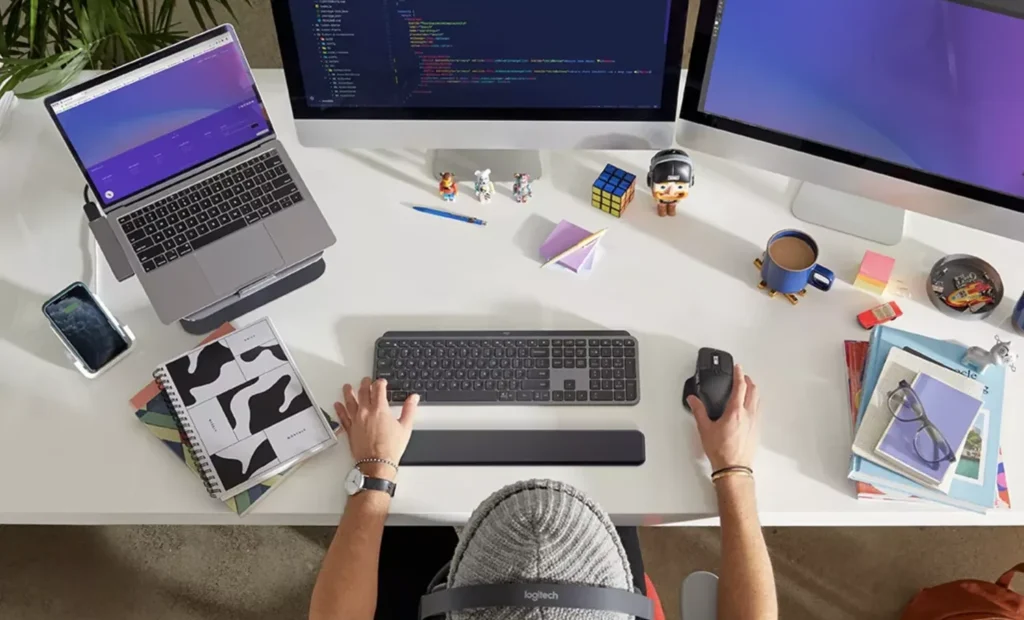
The MX Master 4 can connect to up to three computers, which is useful if your work involves more than one machine.
But Logitech gives you two different ways to make that useful, and they shouldn’t be confused.
Easy-Switch: One Mouse, Three Computers
Easy-Switch lets you pair the MX Master 4 with up to three computers and switch between them.
For example, you might have your main laptop, a desktop computer and a second laptop. Instead of keeping a separate mouse for each one, you can pair the MX Master 4 with all three and switch between them when needed.
The connection to each computer can use Bluetooth or Logi Bolt.
This is particularly useful if you regularly move between your own devices.
But Easy-Switch only changes which computer the mouse is controlling.
It doesn’t move your files, text or other information between those computers.
That’s where Flow comes in.
Flow: Moving Between Computers
Logitech Flow takes the idea much further.
With Flow set up, you can move the mouse pointer from one computer to another simply by moving it to the edge of the screen.
You can also transfer text, images and files between the computers.
That can be surprisingly useful when you’re working across two machines.
You might research something on one laptop and continue working on another without having to email yourself the information, use cloud storage or reach for a USB drive.
But there is an important detail that is easy to miss.
Flow doesn’t use the mouse’s Bluetooth connection to transfer your files.
The mouse still connects to each computer through Bluetooth or Logi Bolt. Flow itself uses the network connection between the computers, so the machines need to be connected to the same Wi-Fi or Ethernet network.
Flow also requires Logitech’s Logi Options+ software to be installed on the computers, and it officially supports Windows and macOS.
That software requirement matters beyond Flow.
If you’re using a company-managed computer, you may not be allowed to install Logitech’s software at all. The MX Master 4 will still work as a normal mouse, but you won’t have access to the full range of customization that makes it different from a conventional mouse.
This is especially important if you’ve customized the mouse on your personal laptop and then take it to work. Because the MX Master 4 doesn’t store those settings onboard, the mouse can’t simply carry your customized setup with it. The computer needs to have Logitech’s software available for those features to work.
For someone who controls all of their own computers, this may never be an issue.
For someone who regularly moves between a personal laptop and a locked-down work machine, it is an important limitation to understand.
The MX Master 4 is exceptionally flexible when you control the computer. When someone else controls the computer, the software can become the limiting factor.
What About Your Phone or Android Tablet?
This is where Flow’s limitations become important for a digital nomad.
The MX Master 4 can be used as a normal Bluetooth mouse with compatible devices, including Android devices.
But Logitech Flow is not an Android feature.
So you can’t research something on your Android phone or tablet and then use Flow to move that information directly to your laptop.
Flow is designed to connect computers within the Windows and macOS ecosystem.
That distinction matters because the MX Master 4 is extremely flexible when you’re working across your own computers, but it isn’t a universal system for moving information between every device you happen to carry.
💥 Easy-Switch moves the mouse between computers. Flow helps you move work between computers.
And once you understand that difference, Logitech’s multi-computer approach makes a lot more sense.
Is the MX Master 4 Worth Upgrading From the 3S?
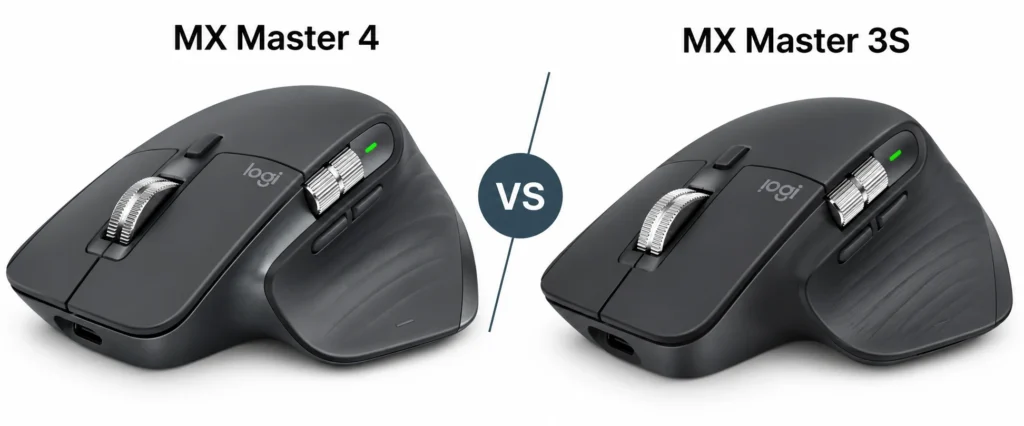
If you already own an MX Master 3S, the question is different from someone choosing their first MX Master.
You already have the basic ergonomic design, the physical controls, the thumb wheel and the productivity-focused approach.
So the MX Master 4 isn’t about discovering an entirely new kind of mouse.
It’s about whether the changes Logitech made address something you actually want to improve.
An Upgrade Makes More Sense If…
You want the newer materials and prefer the feel of the MX Master 4.
You would make regular use of the additional physical button.
You work in applications where haptic feedback and the Actions Ring could become useful parts of your workflow.
You want the refinements Logitech made to the physical controls, particularly the thumb wheel.
Or you have a reason to move to the newer Logi Bolt receiver and its connection characteristics.
In other words, the upgrade makes the most sense when one of those changes solves a problem or adds something you will actually use.
Staying With the 3S Still Makes Sense If…
Your MX Master 3S is comfortable, working properly and already does everything you need.
You don’t have much interest in haptic feedback or the Actions Ring.
You rarely use customizable shortcuts or additional physical controls.
You don’t need the newer receiver.
Or the changes simply aren’t significant enough to justify replacing a mouse you already like.
There is nothing inherently wrong with keeping the 3S simply because a newer model exists.
The important question is whether the changes improve your workflow.
👉 Want the newer MX Master 4? Check it on Amazon
👉 Prefer the MX Master 3S? Check it on Amazon
Moving Your Settings to the MX Master 4
If you do decide to upgrade, Logitech gives you a useful way to reduce some of the friction involved in starting again.
Through Logi Options+, you can migrate your device settings from a previous MX Master generation to the MX Master 4.
That means you don’t necessarily have to rebuild your customized setup button by button.
And this is worth remembering alongside the earlier discussion about onboard memory.
The MX Master 4 still doesn’t store your customized settings inside the mouse itself.
The advantage is that Logitech’s software can help preserve and transfer those settings when you’re moving to a new computer or a new MX Master.
💥 The upgrade isn’t about getting a completely different mouse. It’s about deciding whether the changes are meaningful enough to change the way you work.
MX Master 4 vs Apple Magic Mouse — Two Very Different Ideas of a Mouse

The MX Master 4 and Apple Magic Mouse take very different approaches to what a mouse should be.
The MX Master 4 is built around palm support, physical controls and customization. The Magic Mouse takes a much more minimal approach, using its low-profile design and touch-sensitive surface to keep the physical mouse itself as simple as possible.
Neither approach is inherently better.
They simply prioritize different things.
Logitech Prioritizes Physical Control
The MX Master 4 gives you a substantial shape designed to support your hand, along with multiple physical controls that can be customized around the way you work.
The idea is straightforward: instead of remembering more keyboard shortcuts or reaching across the screen for controls, you can put frequently used actions directly under your hand.
That approach makes particular sense if you spend long periods working at a computer or regularly repeat the same actions throughout the day.
But it also means carrying a larger and heavier mouse.
Apple Prioritizes Minimalism and Gestures
The Magic Mouse takes the opposite approach.
Instead of adding more physical controls, Apple keeps the mouse itself remarkably simple and uses its touch-sensitive surface for gestures.
That makes it smaller and lighter to carry, while giving you a different way to interact with your Mac.
The trade-off is that the experience depends much more heavily on gestures and the Apple ecosystem.
But the MX Master 4 can also use gestures on a Mac. Logitech allows you to assign actions such as Mission Control, App Exposé and switching between desktops to the mouse’s Gesture button.
The difference is how you perform them.
The Magic Mouse uses its touch-sensitive surface, while the MX Master 4 uses a physical button combined with mouse movement.
So moving from a Magic Mouse to an MX Master 4 doesn’t mean giving up gestures. It means using them in a different way.
So while the two mice can perform the same basic job, they aren’t really approaching that job from the same direction.
The Practical Differences
There are a few differences that become particularly noticeable when you actually travel with them.
The MX Master 4 weighs around 150 grams, while the Magic Mouse weighs around 99 grams.
That makes the Magic Mouse easier to justify if minimizing the weight of your travel setup is the priority.
The MX Master 4’s additional weight, however, comes from a much larger physical design with palm support, a thumb rest and additional controls.
Charging is another important difference.
The MX Master 4 can continue working while it charges.
The Magic Mouse cannot be used while charging.
There is also a small difference in what comes in the box.
The MX Master 4 does not include a charging cable, while the Magic Mouse does.
None of these differences makes one design universally right.
They are simply the consequences of the choices each company made.
The MX Master 4 asks you to carry more mouse in exchange for more physical control.
The Magic Mouse asks you to carry less mouse in exchange for a more minimal, gesture-driven experience.
💥 Neither philosophy is inherently correct. They solve different problems.
And that brings us back to the question we’ve been asking throughout this review:
What kind of mouse fits the way you actually work?
Who Should Carry the MX Master 4?
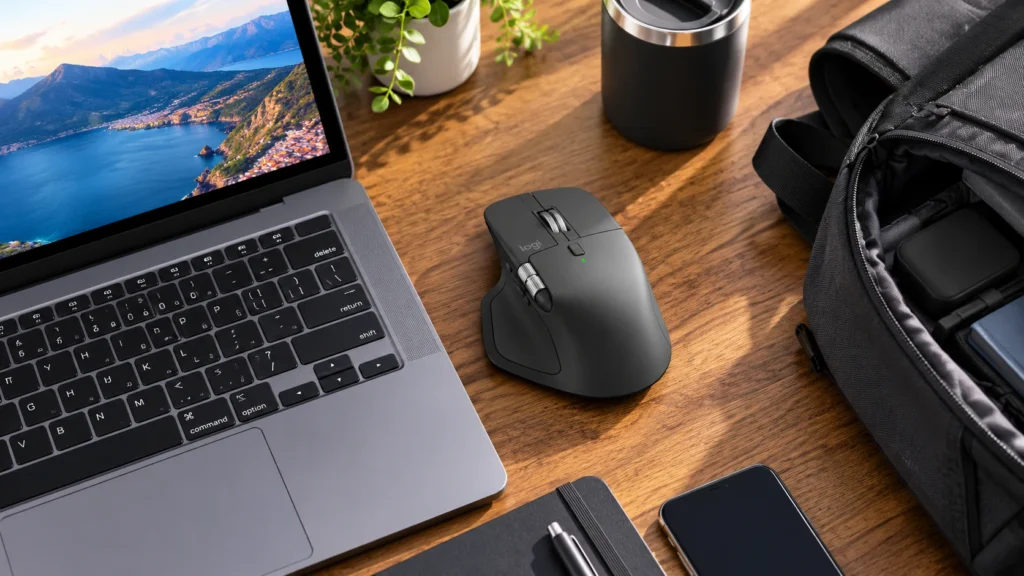
By this point, the trade-offs are fairly clear.
The MX Master 4 is a large, feature-rich mouse that makes more sense for some people than others.
The question isn’t whether you need every feature Logitech has included.
It’s whether the features you would actually use are worth carrying a 150-gram mouse in your bag.
Carry It If You…
Work for long periods from a laptop and want a mouse designed around extended use rather than minimum size.
Value palm support and a larger shape more than saving every possible gram in your bag.
Regularly use creative or productivity applications where physical controls, shortcuts or customization can save repetitive movements.
Work across multiple computers and would benefit from Easy-Switch or Flow.
Like the idea of customizing the mouse around the applications you use.
And you’re comfortable giving more space and weight to your mouse because you expect to use it for hours at a time.
Think Twice If You…
Prioritize the lightest possible travel setup.
Have smaller hands and find larger mice difficult to use comfortably.
Are left-handed and want a mouse designed around your natural grip.
Prefer gestures and a minimal design over multiple physical controls.
Don’t want your mouse to depend on Logitech software for its advanced features.
Regularly use locked-down computers where you may not be allowed to install Logitech Options+.
Don’t need customizable controls or multi-computer features.
Or already own an MX Master 3S that you’re completely happy with.
A mouse is already a relatively small piece of equipment. The difference between carrying an Apple Magic Mouse and an MX Master 4 is meaningful in weight and shape, but it isn’t remotely the same kind of portability trade-off as choosing between a desktop computer and a laptop.
The MX Master 4 isn’t a mouse you carry because it is small or simple.
You carry it because you believe the additional size, weight and complexity will give you something useful in return.
💥 The right question isn’t whether you can justify carrying a 150-gram mouse. It’s whether you’ll use enough of what it gives you to make those 150 grams worthwhile.
👉 Check the Logitech MX Master 4 on Amazon
Final Verdict — Is the MX Master 4 Right for You?
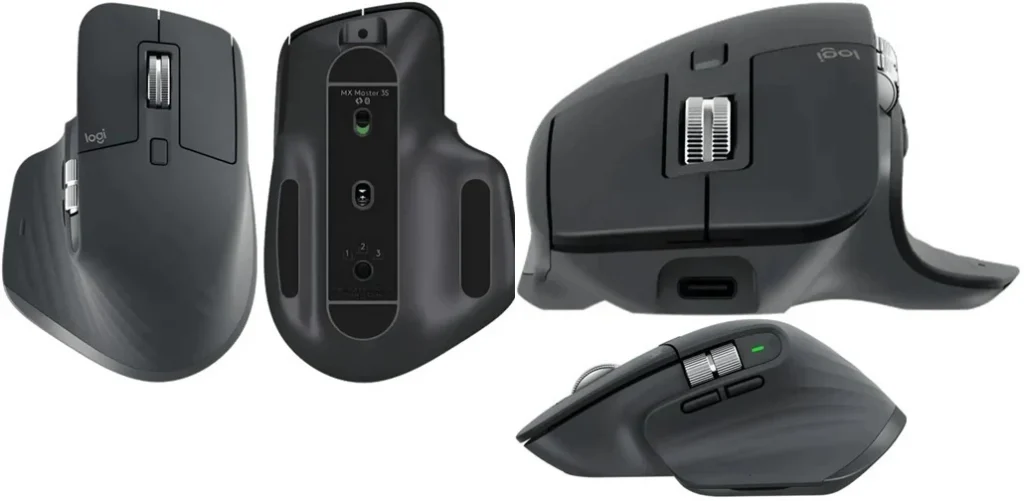
The MX Master 4 makes a lot more sense once you stop looking at it as simply a mouse and start looking at what Logitech is trying to build around it.
It isn’t designed to be the smallest mouse you can travel with.
It isn’t designed to be the simplest.
And it isn’t designed to give every user a reason to use every feature.
Instead, Logitech has built a mouse around the idea that your mouse can become part of your workflow.
The large shape gives your hand more support.
The physical controls put more actions within reach.
The thumb wheel adds another way to navigate.
Haptic feedback adds physical confirmation to certain actions.
The Actions Ring gives supported workflows another layer of shortcuts.
Easy-Switch and Flow make working across multiple computers easier.
And Logi Options+ lets you shape many of those features around the applications you actually use.
But every one of those advantages comes with a trade-off.
You carry more weight.
The mouse depends heavily on software for its advanced features.
There is no onboard memory.
The receiver has no dedicated storage compartment.
The charging cable isn’t included.
And some of the features that make the MX Master 4 interesting may simply not matter to you.
That is why I don’t think the MX Master 4 should be judged by how many features Logitech managed to put into it.
The better question is whether those features solve problems you actually have.
If you spend hours working from a laptop, use productivity or creative applications, value physical controls and customization, or regularly move between multiple computers, the MX Master 4 gives you a lot to work with.
If your priority is a lightweight travel setup, a simple mouse that works without software, or a minimal design built around gestures, much of what makes the MX Master 4 different may simply add complexity without giving you enough in return.
And that is ultimately what makes the MX Master 4 interesting.
💥 The right mouse isn’t the one with the most features. It’s the one where the features you actually use are worth the trade-offs they create.
For the right user, the MX Master 4 can become much more than something that moves a pointer around the screen.
For everyone else, a simpler mouse may make more sense.